
Desktop Installation
This page explains how to install and use Hagicode Desktop. It is the official desktop client and puts the default local installation flow and day-to-day management in one place.
Recommended Method
For personal local use on macOS, Linux, and Windows without the Store, Desktop is recommended:
- The first-launch guide strings the download and startup flow together
- Starting, stopping, and versioning Hagicode Server are managed by the app in one place
- The graphical interface makes it easier to check status and operate
- Built-in version management makes it easy to switch between versions
- Data stays local by default, so you stay in control
Windows users should consider Microsoft Store Installation first.
What is Hagicode Desktop?
Hagicode Desktop is Hagicode’s official desktop application and supports Windows, macOS, and Linux. It downloads, starts, and manages Hagicode Server on your machine, and provides version management and day-to-day operation entry points.
Main Advantages
- Built-in .NET Runtime: the
.NETneeded to run Hagicode Server ships with Desktop, so you do not need to install it separately - Service Management: built-in Hagicode Server management makes it easy to start and stop the service
- Version Switching: supports multi-version management, so you can freely switch between versions
- Local Operation: all data is stored locally, protecting your privacy
- Version Detection: automatically detects newly available versions
Applicable Scenarios
Desktop is a good first choice in these scenarios:
- Individual developers who want to use Hagicode locally
- Users who want their data and projects to stay on their own machine
- Users who prefer a graphical interface and do not want to write deployment configuration by hand
- Developers who need to switch between versions frequently
Before You Install
Desktop does not bundle Node.js and no longer provides an internal Node runtime. It uses the node and npm on your system PATH, and installs managed packages such as Agent CLIs into your local npm global directory. Prepare the following before you start:
| Dependency | Requirement | Notes |
|---|---|---|
| Node.js | 24 or higher | Also provides npm; see Installing Node.js |
| Git | Any current stable version | Checked at startup; the “Demo Project” in the “New Project” dialog needs it to clone the sample repository; see Install Git |
| Agent CLI | At least one, already signed in | The wizard only lists CLIs detected locally; see AI Agent CLI Installation |
First confirm the versions in a terminal:
node --version # requires v24.0.0 or highernpm --versiongit --versionInstall First, Then Launch, or Restart Desktop
Desktop reads the system PATH at startup. If you install Node.js or Git while Desktop is already open, fully quit and restart Desktop, then refresh the dependency page.
Download Desktop
Quick Download
On Windows, installing from the Microsoft Store is recommended first. Use the manual download entries below only when you need an installer package, a specific version file, or the Store is unavailable.
Select the version suitable for your operating system and download the installer directly:
If the Download List Fails to Load
If the Desktop installer list cannot be loaded here for the moment, the install entry will not show an invalid download link. Instead, it guides you to the official version history page: index.hagicode.com/desktop/history. There you can pick a version and download the installer; you can also use the GitHub Releases below directly.
Other Download Methods
You can also get the Hagicode Desktop installer from the following channels:
- Recommended default for Windows: visit Microsoft Store Installation to use the official Store distribution channel
- Official Release Page: visit Hagicode GitHub Releases to download manual installer packages
- Official Website: visit the Hagicode Website to get download links and installation instructions
Choose the Correct Version
Select the corresponding installer for your operating system:
- Windows: use the Microsoft Store first; if you need manual installer files, download the
.exeinstaller or the.msixpackage - macOS: download the
.dmginstaller - Linux: download the
.AppImageor.tar.gzinstaller package
System Requirements
- Windows: Windows 10 or higher (64-bit)
- macOS: macOS 10.15 or higher
- Linux: Mainstream Linux distributions (Ubuntu 20.04+, Fedora 33+, etc.)
Dependencies You Need to Prepare Yourself
Desktop already bundles the .NET runtime needed to run Hagicode Server and completes default initialization along the currently supported local SQLite path, so you do not need to install .NET separately. However, you need to install Node.js 24+ and Git yourself; see Before You Install above.
Installation and Launch Notes
macOS Gatekeeper Notice
If you already installed the app to the default path /Applications/Hagicode.app but macOS shows “app is damaged”, “can’t be opened”, or a similar Gatekeeper warning on first launch, the usual cause is the com.apple.quarantine attribute that macOS adds to apps downloaded from the internet, not a failure in the Hagicode Desktop installer itself.
Run the following command in Terminal. It requires administrator privileges and recursively removes the quarantine attribute from the app in the default installation path:
sudo xattr -dr com.apple.quarantine /Applications/Hagicode.appAfter the command finishes, relaunch Hagicode Desktop.
Run Desktop
After downloading, open the installer or application package to finish the installation, then launch Hagicode Desktop.
Network Requirements
Make sure your network connection is working. Desktop needs to fetch version information and the Hagicode Server package from the internet; if a download fails, check your network, proxy, or firewall settings and retry.
First-Launch Guide
The first time you open Desktop, it starts with Desktop’s own “First-Time Setup”. It only handles installing and starting Hagicode Server, and includes these steps in order:
- Choose Your Language: choose the language Desktop uses. When the embedded backend starts for the first time, it also adopts the matching default language.
- Welcome: learn what preparation this guide will complete.
- Confirm Legal Documents: confirm the current EULA and Privacy Policy revisions; the official documents open in your browser for reading.
- Download Hagicode Server: download the latest Server package and verify its digest.
After the download finishes, return to the Desktop home page and click “Start Hagicode Service” to start Hagicode Server, then follow the prompts on the home page to open the Web interface.
Steps May Be Incomplete
In some distribution channels (for example, builds whose installer already ships the Server), or when you only need to re-confirm the legal documents after a version update, the guide shows only some of these steps.
First Use of the Web Interface
The first time you enter the Web interface, the Initialization Wizard appears (this is a different thing from the Desktop First-Time Setup above). It guides you through choosing the interface language and theme, setting up the default Hagicoder, and creating your first project. For detailed steps, read:
Version Management
Hagicode Desktop supports multi-version management, allowing you to freely switch between different versions.
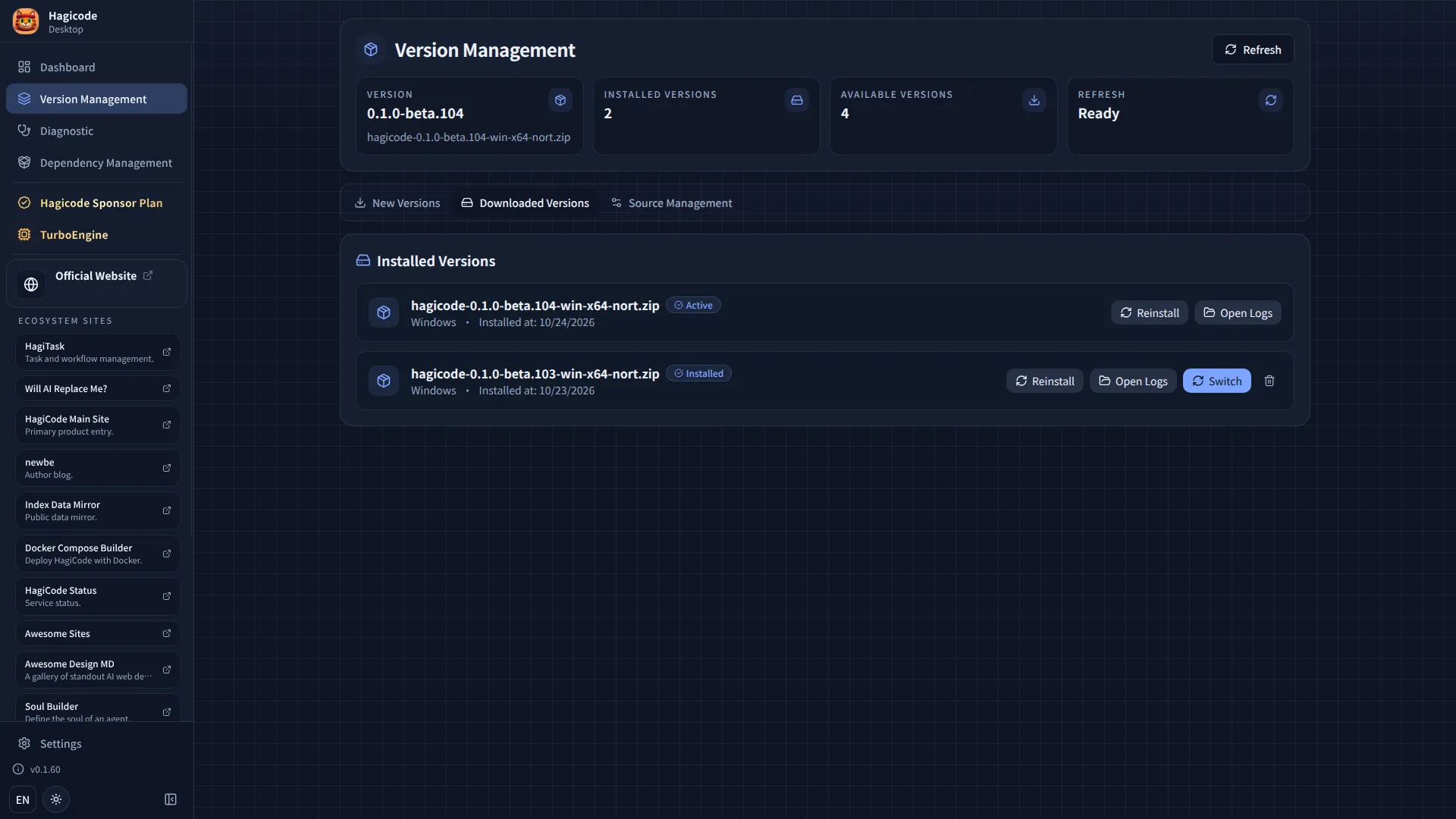
Switch Version
- Open Hagicode Desktop
- Go to “Version Management” page
- Open the “Downloaded Versions” tab
- Find the installed version you want to use
- Click the “Switch” button on that version
- Wait for the switch to complete
Version Switching Notes
- Switching versions will automatically restart Hagicode Server
- Ensure you save all work before switching
- Project configurations may differ between versions
Start and Stop Service
Hagicode Desktop provides a simple way to manage Hagicode Server service.
Start Service
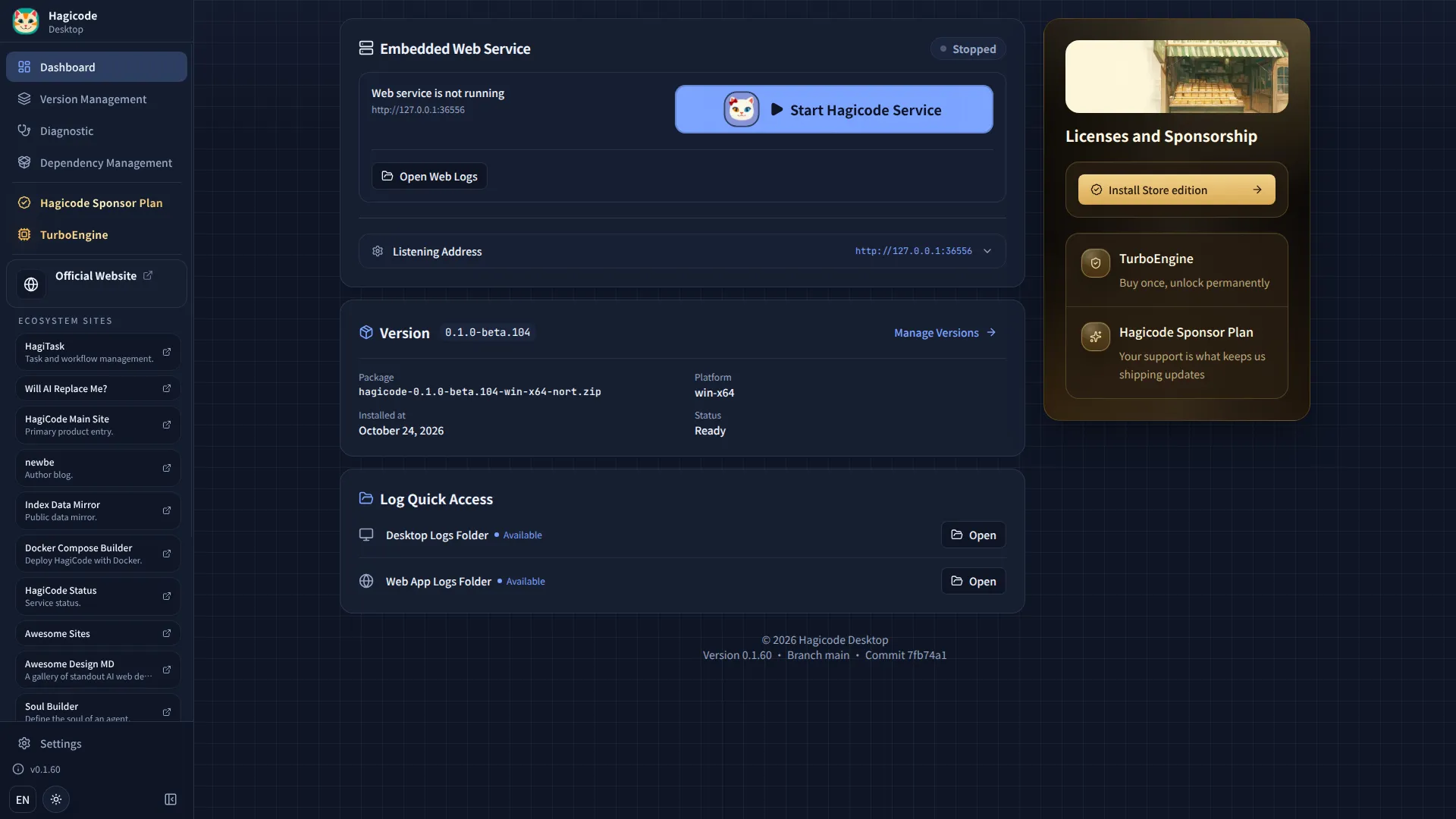
On the home page of the Desktop application, click the “Start Hagicode Service” button to start Hagicode Server.
Stop Service
To stop Hagicode Server, click the “Stop Service” button on the home page.
Service Status
The Desktop application displays Hagicode Server’s running status in real-time, including:
- Service status (running/stopped)
- Service port number
- Current version information
Next Steps
After installation is complete, you can continue with the following steps:
Troubleshooting
Installation Failure
If you encounter issues during installation:
- Check Network Connection: Ensure you can access the internet
- Check Disk Space: Ensure you have sufficient disk space
- Run as Administrator: On Windows, right-click the installer and select “Run as administrator”
- Read the Installer Messages: Note any error message the installer shows and include it when you submit an issue
Node.js, npm, or Git Not Found
If Desktop reports that node, npm, or git is missing, or that the Node.js version is too old:
- Confirm they are installed: run
node --version,npm --version, andgit --versionin a terminal. Node.js must be version 24 or higher; for installation, see Installing Node.js and Install Git. - Restart Desktop: Desktop reads the system
PATHat startup. After installing, fully quit and restart Desktop, then refresh the dependency page. - Check PATH: if the commands work in a terminal but Desktop cannot find them, the usual cause is that
PATHis only set in a particular shell configuration (for example, nvm or fnm configured in.bashrc/.zshrc). Switch to a system-wide installation, or make sure you launch Desktop from an environment that can read thatPATH. - Install CLI packages manually: when Desktop says a CLI package must be installed manually, run the command it gives in a terminal outside Desktop, then return to Desktop and refresh. For how the external Node / npm environment and
PATHare handled, see How Desktop Uses Your Node Environment.
Service Startup Failure
If Hagicode Server fails to start:
- Check Port Occupancy: Desktop uses port 36556 by default (the home page shows the actual port in use). Make sure it is not occupied by other programs
- Check Firewall Settings: Ensure firewall allows Hagicode Server network access
- Restart Application: Try restarting Hagicode Desktop
- View Logs: View detailed error logs in the Desktop application
Need More Help?
If you encounter issues not covered here:
- Check Desktop GitHub Issues for similar problems
- Visit our Community Forum for help
- Submit a new Issue, describing your problem in detail and attaching your system version,
node --versionoutput, and Desktop logs
HagiCode
HagiCode is an agentic coding workspace. Rich, convenient UI interactions make planning, agent execution, and project work approachable and easy to navigate, creating an engaging development experience.
Explore an engaging development experience through rich, convenient UI interactions.

- SmartOpenSpec workflows turn intent into an executable path, from proposal to design, tasks, and a shipped change.
- EfficientMulti-agent execution keeps research, implementation, and review moving in parallel, across several repositories and the Agent CLIs you already use.
- InterestingRich, convenient UI interactions make planning, agent execution, and project work approachable and easy to navigate.
Download for Windows
Share HagiCode

Turn ideas into shipped software.
HagiCode is an agentic coding workspace. OpenSpec workflows plan the change, multi-agent execution carries it out, and Hero Scenario makes the long run visible, so ideas become shipped software.
- Smart
- OpenSpec workflows turn intent into a path from proposal to shipped change.
- Efficient
- Multi-agent execution runs research, build, and review in parallel.
- Fun
- Rich UI interactions make planning, agent work, and projects easier to follow.
© 2026 HagiCode | Powered By hagilight-starlight@0.21.0 | Branch: main | Commit: 951128b | Built: