
Super Commit Guide
Overview
Super Commit reads the current code changes and generates commit messages in Conventional Commits format. The point is simple: spend less time writing commits while keeping history clearer.
What is Super Commit?
Super Commit analyzes your changes and writes standardized commit messages for them. It trades manual commit writing for a more consistent history.
Use it when:
- Large code changes requiring multiple commits
- Multi-repository projects with coordinated changes
- Teams requiring standardized commit formats
- Developers who want to improve commit quality
Main Advantages
| Feature | Traditional Manual Commits | Super Commit |
|---|---|---|
| Commit Quality | Depends on individual experience | Based on best practices, consistent quality |
| Commit Speed | Requires thought and organization | One-click, instant generation |
| Consistency | May vary between commits | Automatically follows standards |
| Multi-repo Support | Manual coordination required | Automatic repo recognition and grouping |
| Time Savings | Can take significant time | Saves 10-60+ seconds per commit |
Quick Start
Enable Feature
In the HagiCode desktop application, navigate to the project where you want to use Super Commit and enable this feature.
Important: Ensure your project has been added to HagiCode first.
Trigger Feature
Locate the “Super Commit” button in the Git operations section.
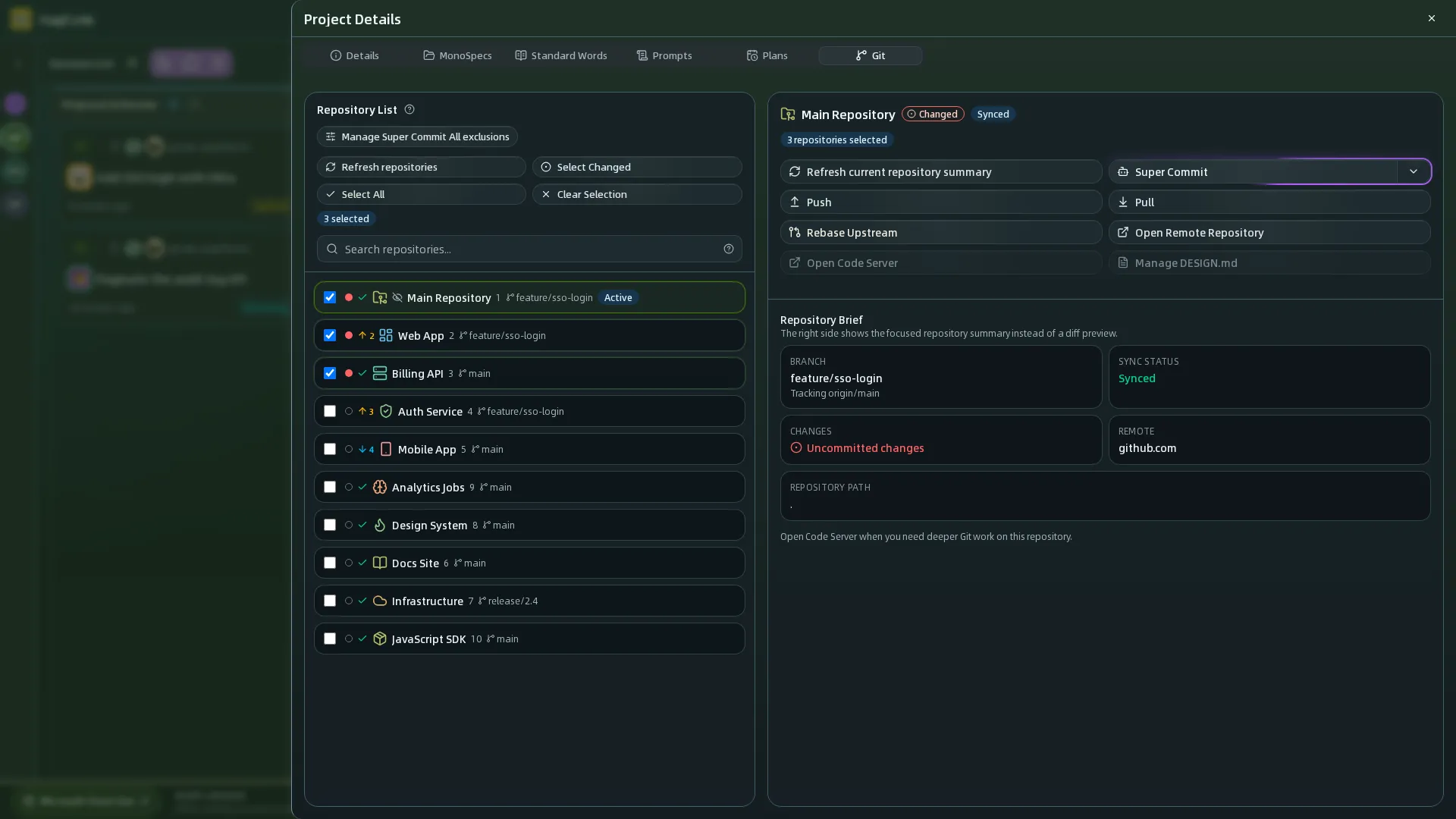
This button is typically located prominently in the Git operations section, near other version control actions.
Important Note: Clicking this button will trigger automatic commit message generation. If you need to roll back or modify commits, use standard Git commands.
Confirm Before Running
Clicking the button does not start anything immediately. It first opens the Super Commit confirmation drawer, which summarizes how many repositories have changes and lets you review the options for this run.
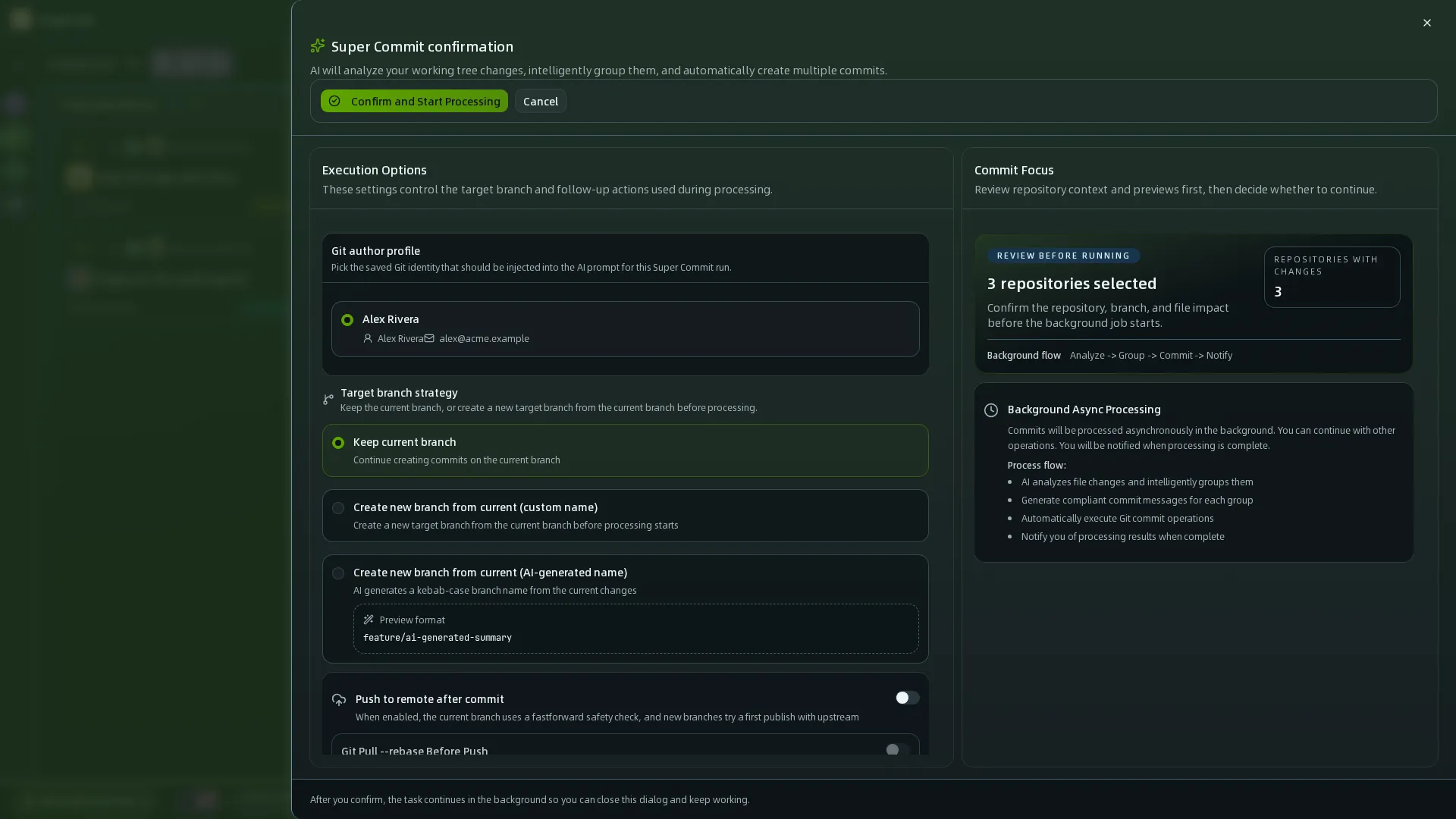
The drawer contains these options:
- Git author profile: pick a saved Git identity; if none exists yet, create one in Git settings first
- Target branch strategy: keep the current branch, or create a new branch from it (custom name or AI-generated name)
- Push to remote after commit: optional; you can run pull —rebase before the push
- Co-Authored-By: choose how this run is credited
- Agent: choose which Agent performs this commit
- Confirm and Start Processing / Cancel: after you confirm, the job continues in the background and you can close the drawer and keep working
On first use, check the repository scope and branch strategy before you start.
View Results
After AI completes processing, you will see a success notification.
Commit messages have been generated and are ready. You can review them before finalizing if needed.
Feature Details
AI Analysis Logic
Super Commit analyzes your code changes through the following process:
1. Read Workspace Changes
The system collects all modified, newly added, and deleted files in the current workspace.
2. Analyze File Content
AI deeply analyzes the content of changed files to understand:
- Functional changes implemented
- Bug fixes applied
- Refactoring patterns used
- Dependencies added or removed
3. Identify Change Associations
AI intelligently identifies which changes should be grouped together:
- Frontend and backend changes for the same feature
- Related configuration file modifications
- Test updates alongside implementation changes
4. Generate Commit Structure
AI generates structured commit information following Conventional Commits specification:
<type>(<scope>): <subject> <body> <footer>5. Write Commit Message
Each change is transformed into a clear, descriptive commit message.
Commit Format Specification
AI-generated commit messages follow the Conventional Commits format:
<type>(<scope>): <subject> <body> <footer>type: Commit type (required)
feat: New featurefix: Bug fixdocs: Documentation changesstyle: Code style changes (formatting, no code change)refactor: Code refactoringtest: Adding or updating testschore: Build process or auxiliary tool changesperf: Performance improvements
scope: Scope of the change (optional)
- Indicates which part of the project is affected
- Format:
module/nameorcategory/name
subject: Short description of the change (required)
- Imperative mood
- Max 50 characters
- Use present tense: “Add” not “Added”
body: Detailed description (optional)
- What was changed and why
- Can use multiple paragraphs
- Max 100 characters for first line, 72 for subsequent lines
footer: References to related issues (optional)
Closes #123BREAKING CHANGE: ...Co-Authored-By: @anthropic.com>
Example Output
feat(auth): add user login functionalityImplemented OAuth2 authentication with Google and GitHub providers.
The login component now supports:- Google OAuth integration- GitHub OAuth integration- Session management with JWT tokens
Co-Authored-By: Claude Opus 4.6 <noreply@anthropic.com>
Comparison with Traditional Manual Commits
Manual Commits
Traditional Git commits rely on:
- Developer’s experience and mood
- Individual writing habits
- Time constraints affecting quality
- Inconsistent formatting across team
Super Commit
Super Commit provides:
- Standardized format: Always follows Conventional Commits specification
- Intelligent analysis: Understands code context and relationships
- Quality consistency: Maintains professional tone and accuracy
- Time efficiency: Reduces commit writing time from 5-30 minutes to seconds
When to Use Each
Use Super Commit When:
- Large batch changes (multiple files, complex features)
- Coordinated changes across multiple repositories
- Need for high-quality, consistent commit messages
- Team projects with multiple contributors
Use Manual Commits When:
- Small, focused changes (single file, simple bug fix)
- Personal projects with full control over commit quality
- When you have time to craft thoughtful, personalized messages
Multi-Repository Support
monospecs Integration
When managing monospecs-based multi-repository projects, Super Commit provides enhanced capabilities:
Read monospecs.yaml
AI automatically reads the monospecs.yaml configuration to:
- Identify all configured sub-repositories
- Match file paths to corresponding repositories
- Access display names and icons for UI rendering
Match File Changes
AI intelligently matches each changed file to the correct sub-repository:
- Analyzes file path in project structure
- Matches against monospecs repository configurations
- Groups related changes together for logical commits
Separate Commits
Each sub-repository receives independent commits:
- Frontend changes committed to
repos/frontend - Backend changes committed to
repos/backend - Maintains independent git history and version control
Co-Authored-By Footer
Super Commit appends the currently effective Co-Authored-By trailer to every generated commit. Interactive Git commits and the OpenSpec v1 archive prompt reuse the same resolution rules, so teams only need to maintain one convention.
The precedence order is fixed:
- Project-level config: local Git config in the current repository (
git config --local) - Global config: user-level Git config (
git config --global) - Built-in default:
Hagicode <noreply@hagicode.com>
If a layer is missing name, missing email, or contains an invalid email address, HagiCode skips that layer and falls back to the next one instead of emitting a malformed trailer.
Default output:
Co-Authored-By: HagiCode <noreply@hagicode.com>Repository override example:
git config --local coAuthoredBy.name "Platform Bot"git config --local coAuthoredBy.email "platform-bot@example.com"Global fallback example:
git config --global coAuthoredBy.name "Hagicode"git config --global coAuthoredBy.email "noreply@hagicode.com"With the local override above, the trailer becomes:
Co-Authored-By: Platform Bot <platform-bot@example.com>Operational details:
- If the commit message already contains the same resolved trailer, HagiCode does not append a duplicate.
- If the message already contains a different
Co-Authored-Byline, HagiCode keeps that line and still appends the resolved AI trailer. - Teams should treat repository-level config as the canonical rule and keep global config as a personal fallback.
Advantages for Multi-Repo Projects
Traceability: Clear history of which repository received which changes Coordination: Changes across multiple repos can be committed simultaneously or sequentially Consistency: Uniform commit format across all repositories Efficiency: Reduced coordination overhead for changes spanning multiple repositories
Usage Guidelines
Best Practices
For optimal Super Commit results:
1. Keep Changes Focused
- Each commit should address a single feature or fix
- Avoid bundling unrelated changes in one commit
- Make incremental progress with meaningful commit messages
2. Clear Code Comments
- Add comments in complex code to help AI understand intent
- Use descriptive comments for non-obvious implementation details
- Keep comments updated as code evolves
3. Reasonable File Naming
- Use clear, descriptive file names
- Follow project naming conventions
- Avoid overly generic names that don’t convey purpose
4. Timely Committing
- Commit frequently as meaningful changes are completed
- Don’t accumulate large batches of uncommitted work
- Each commit should represent a logical unit of progress
5. Leverage Multi-Repo Intelligence
- Let AI group related changes across repositories
- Use descriptive scopes to indicate affected modules
- Review AI’s suggested groupings before committing
Usage Restrictions
Limitations
Super Commit has the following usage limitations:
1. Network Dependency
- Requires active connection to AI service
- Processing time depends on network conditions
- Large codebases may take longer to analyze
2. File Size Limits
- Very large files (>10MB) may exceed processing limits
- Binary files are not analyzed (only text-based content)
- Split large changes into smaller commits if needed
3. Codebase Complexity
- Extremely complex code may be difficult to analyze fully
- Deeply nested or obfuscated code may have reduced accuracy
- Results are best-effort based on visible code
4. First Use Considerations
When using Super Commit for the first time:
- Start with smaller, safer changes to understand AI behavior
- Verify generated commits before finalizing
- Provide clear code comments to improve AI understanding
- Check that project is properly connected in HagiCode
Troubleshooting
Feature Not Available
If you don’t see the Super Commit button:
- Ensure the project is added to HagiCode
- Refresh the interface
- Check if this feature is enabled in your version
- Verify your network connection to AI service
No Response After Clicking
If nothing happens after clicking the button:
- Check for notification dialogs (may be hidden behind other windows)
- Check browser console for error messages
- Verify network connectivity
- Try restarting the application
Incorrect Generated Messages
If AI generates incorrect commit messages:
- Manually modify using
git commit --amend - Add more descriptive comments to help AI understand
- Check code changes are accurately represented
- Re-trigger the feature after making adjustments
Processing Takes Too Long
If processing seems to be taking an unusually long time:
- Check if there are very large files being analyzed
- Verify network stability
- Try splitting changes into smaller batches
- Check if AI service is experiencing high load
Co-Authored-By Footer Missing
If commits don’t include the expected footer:
- This may indicate AI service is unavailable
- Check your API token configuration in HagiCode settings
- Verify network connectivity
- Check whether the local
coAuthoredBy.name/coAuthoredBy.emailconfig is incomplete and therefore falling back to another layer - Consider generating commits manually if issue persists
For more information, refer to the HagiCode documentation or check the monospecs repository for configuration examples.
HagiCode
HagiCode is an agentic coding workspace. Rich, convenient UI interactions make planning, agent execution, and project work approachable and easy to navigate, creating an engaging development experience.
Explore an engaging development experience through rich, convenient UI interactions.

- SmartOpenSpec workflows turn intent into an executable path, from proposal to design, tasks, and a shipped change.
- EfficientMulti-agent execution keeps research, implementation, and review moving in parallel, across several repositories and the Agent CLIs you already use.
- InterestingRich, convenient UI interactions make planning, agent execution, and project work approachable and easy to navigate.
Download for Windows
Share HagiCode

Turn ideas into shipped software.
HagiCode is an agentic coding workspace. OpenSpec workflows plan the change, multi-agent execution carries it out, and Hero Scenario makes the long run visible, so ideas become shipped software.
- Smart
- OpenSpec workflows turn intent into a path from proposal to shipped change.
- Efficient
- Multi-agent execution runs research, build, and review in parallel.
- Fun
- Rich UI interactions make planning, agent work, and projects easier to follow.
© 2026 HagiCode | Powered By hagilight-starlight@0.21.0 | Branch: main | Commit: 951128b | Built: