
Wizard Setup
Whether you installed through Microsoft Store or Desktop, the Initialization Wizard pops up automatically the first time you open HagiCode’s Web interface. When you finish it, you will have a usable default Hagicoder and at least one project, and can start your first session right away.
How It Differs from Desktop’s First-Time Setup
Desktop’s “First-Time Setup” on first launch (choose a language, confirm the legal documents, download Hagicode Server) happens before the Web interface appears; see Desktop Installation. This page covers the Initialization Wizard that appears afterwards in the Web interface.
Before You Begin
Please confirm the following first:
- At least one Agent CLI is installed and signed in. The wizard only lists CLIs detected on the machine that runs Hagicode Server; if none is detected, you cannot create a Hagicoder. For supported CLIs and installation methods, see AI Agent CLI Installation.
- Desktop / Store users: you have installed Node.js 24+ and Git as described in the Installation Guide.
- Have a local repository or working directory ready to connect: Step 3 will have you register it, and the path must really exist.
Wizard Overview
The wizard has 4 steps, the left navigation shows the current progress, and the badge at the top shows “N of 3 steps ready”. The first 3 steps are required, and step 4, “Community”, is marked Optional:
| Step | Goal | Completion marker |
|---|---|---|
| 1. Language & theme | Choose the interface language and pick a seasonal color theme | Click “Continue” to confirm the language |
| 2. Hagicoder | Choose a CLI and a model, and create the default Hagicoder | The Agent shows “The Agent is in the Fallback Crew” |
| 3. Project | Register at least one local project | The project step shows “Project step complete” |
| 4. Community (optional) | Start your first conversation, or look at the community links | Click “Done” |
“Remind me later” at the bottom left collapses the wizard and reminds you again afterwards; “Do not show again” turns off the automatic pop-up. With either option, you can reopen the wizard at any time from the “Wizard” entry at the top of the page, and unfinished steps stay pending.
Step 1: Language & theme
Goal: Decide the interface language and the color theme.
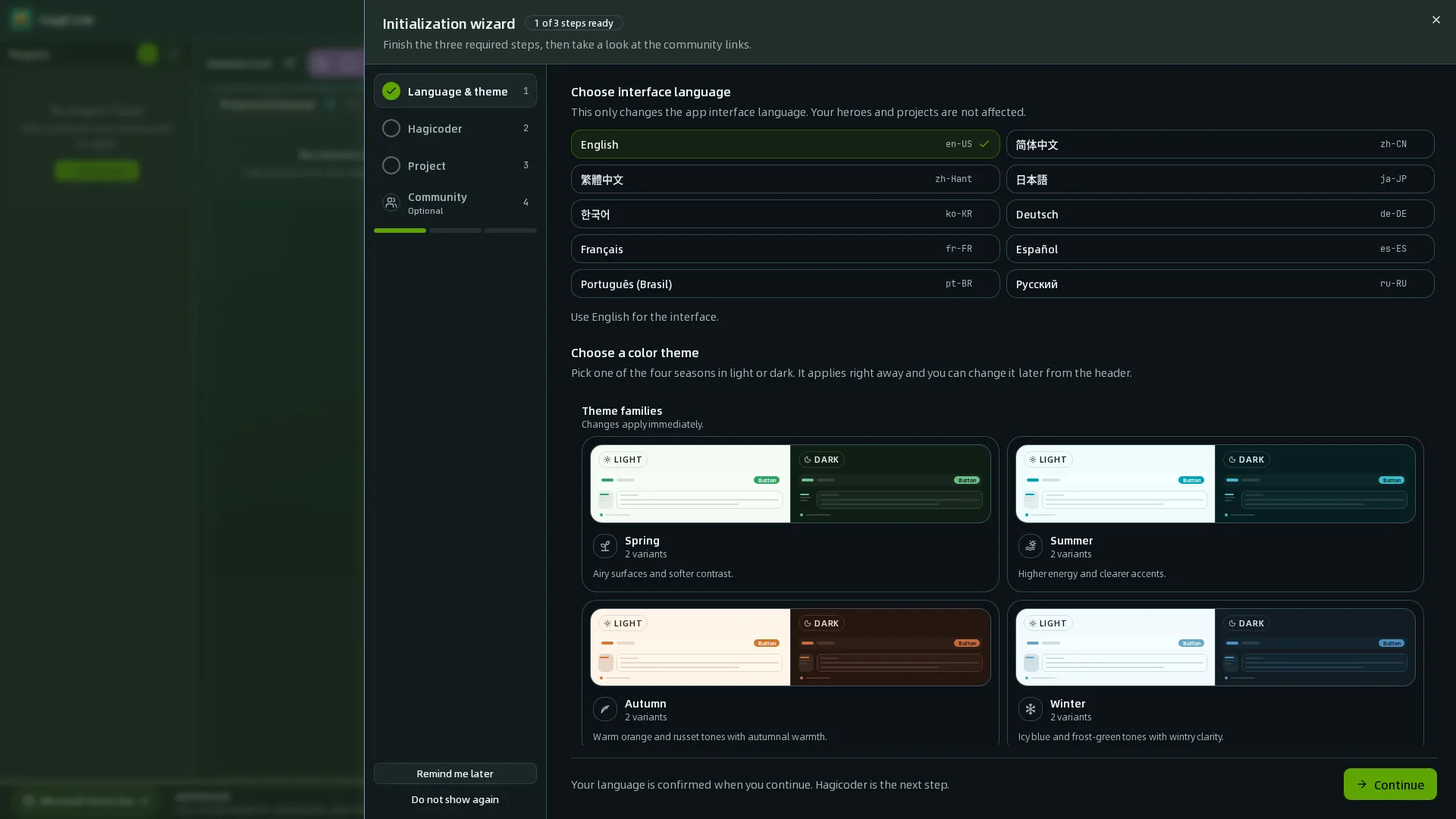
- Under “Choose interface language”, pick a language (10 are supported). This only changes the app interface language; your heroes and projects are not affected.
- Under “Choose a color theme”, pick the “Light” or “Dark” variant of any of the four seasons: spring, summer, autumn, or winter. It applies right away, and you can change it later from the theme entry at the top of the page.
- Click “Continue”. Once the language is confirmed, you move on to the next step, Hagicoder.
Step 2: Set up Hagicoder
Goal: Create the default Agent, whose name is fixed as Hagicoder, and add it to the Fallback Crew.
If the system already has an Agent, this step shows “Agents found” or directly shows “The Agent is in the Fallback Crew”:
- If an Agent exists but is not in the Fallback Crew, you can click “Add to the Fallback Crew”, or choose “Create a new Agent instead”. The wizard never adds it for you automatically.
- If it is already in the Fallback Crew, just click “Next: Create a project”.
Otherwise, create one as follows:
-
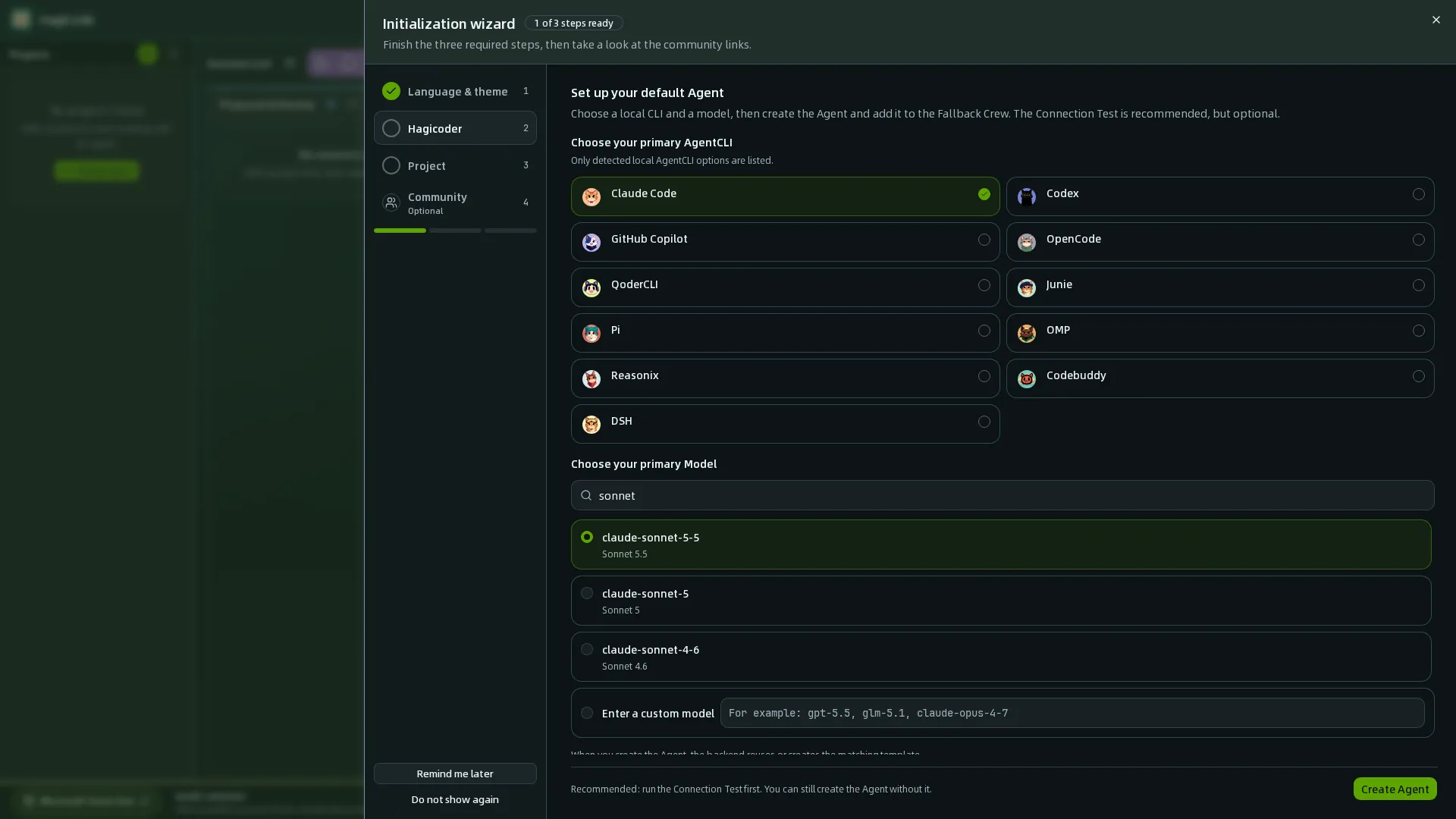
Choose your primary AgentCLI: only CLIs detected on this machine are shown, and the selected card gets a check mark on its right.
-
Choose your primary Model:
- Pick an existing model from the list; you can filter it by name or model ID with the search box above it.
- Or type a model name manually under “Enter a custom model”, for example
gpt-5.5,glm-5.1, orclaude-opus-4-7; the backend reuses or creates the matching template on creation.
-
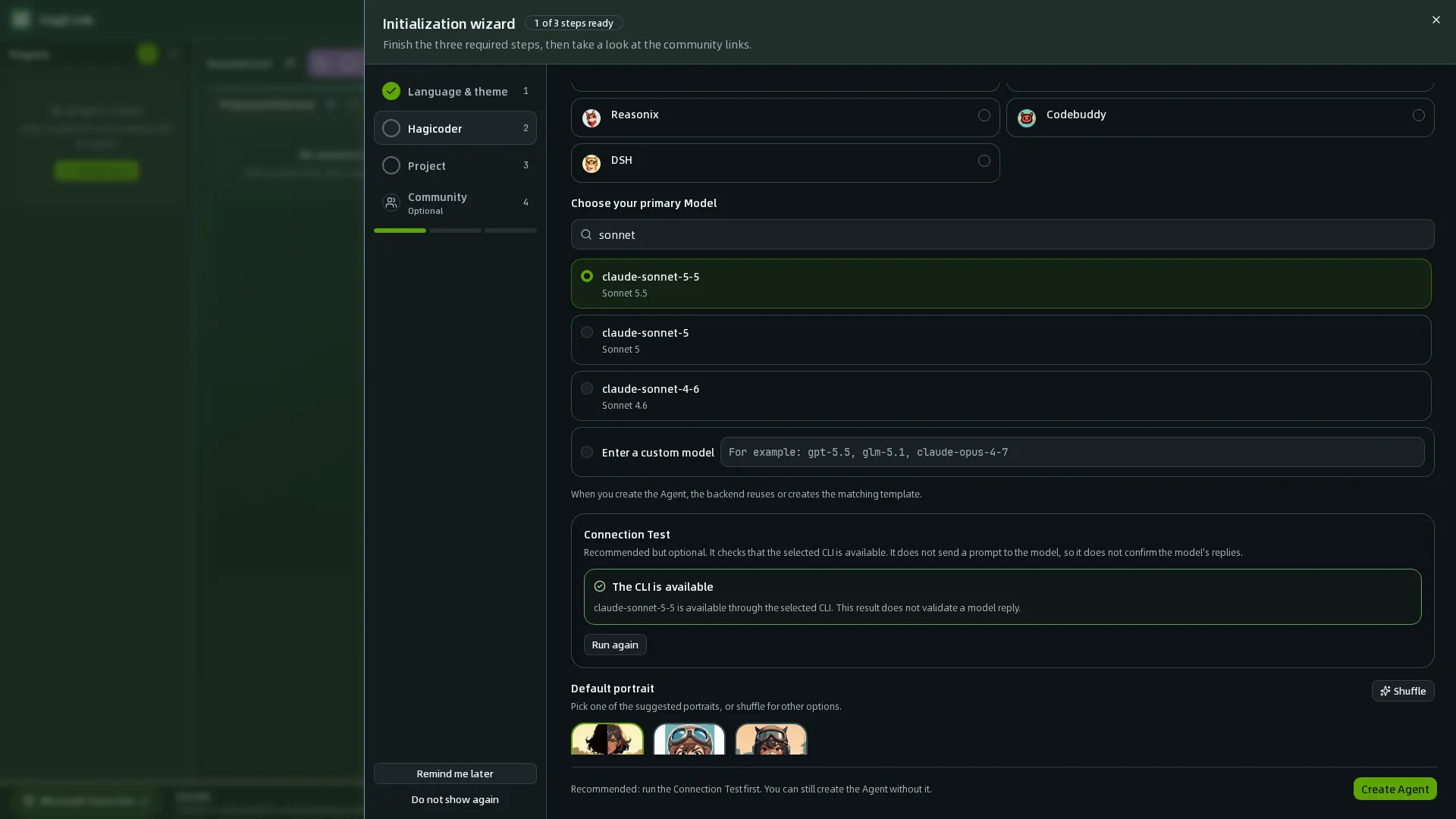
(Recommended) Click “Run Connection Test”: it checks whether the selected CLI is available. It does not send a prompt to the model, so it can only confirm that the CLI can be invoked, not that the model replies. The result “The CLI is available” means it passed; a failed or timed-out test does not block creation, but the Agent may not work until the CLI is fixed.
-
(Optional) Choose a default portrait: pick one of the suggested portraits, or click “Shuffle” to see other options.
-
Click “Create Agent”. After creation succeeds, the page shows “The Agent is in the Fallback Crew”, and the selected CLI and model are written to Hagicoder’s default configuration.
-
Click “Next: Create a project”.
Which CLIs Are Supported
The CLIs you can pick in the wizard depend on the Agent CLIs installed and detected on this machine, and are not limited to one. The full supported range and installation methods are as listed in AI Agent CLI Installation; Hermes, Gemini, and DeepAgents need manual installation or authentication first.
Common Issues
- It says “No local CLI is available”: first install and sign in to a CLI on this computer by following AI Agent CLI Installation, then click “Re-detect”. You can also click “Skip for now”; this step stays pending, and the wizard reminds you again later.
- My CLI is not in the list: confirm it is installed and available in the environment where Hagicode Server runs; Desktop users should restart Desktop to refresh
PATH. - The Connection Test fails: the page shows the reason for the failure. Common causes include the CLI not being signed in yet or an invalid token. First run a minimal conversation with that CLI in a terminal to confirm it works on its own, then click “Run again”.
- The Agent was created, but joining the Fallback Crew failed: the page offers “Retry adding to the Fallback Crew”. Retrying only adds the same Agent and does not create a duplicate.
Step 3: Create a project
Goal: Register at least one project, so later sessions have a readable working directory. The wizard first checks whether a project already exists: if none does, it shows the registration form; if one does, it shows the current project summary.
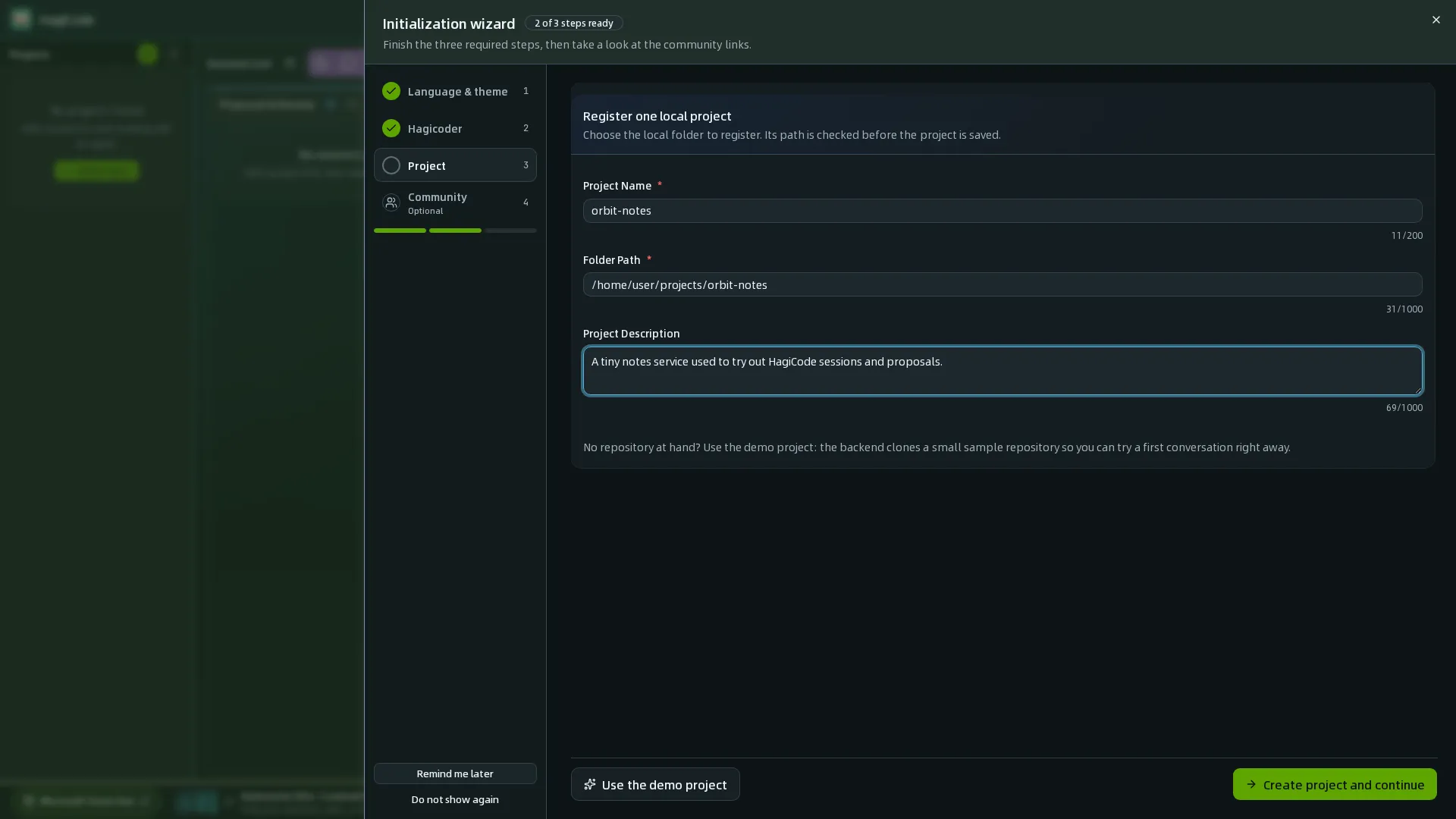
- Under “Register one local project”, enter the Project Name (required), the Folder Path (required), and an optional Project Description. The fields and path validation are exactly the same as in the “New Project” dialog of the main interface.
- Click “Create project and continue”. The path is validated when the project is saved; once it passes, the project is created and the wizard moves on to the next step automatically.
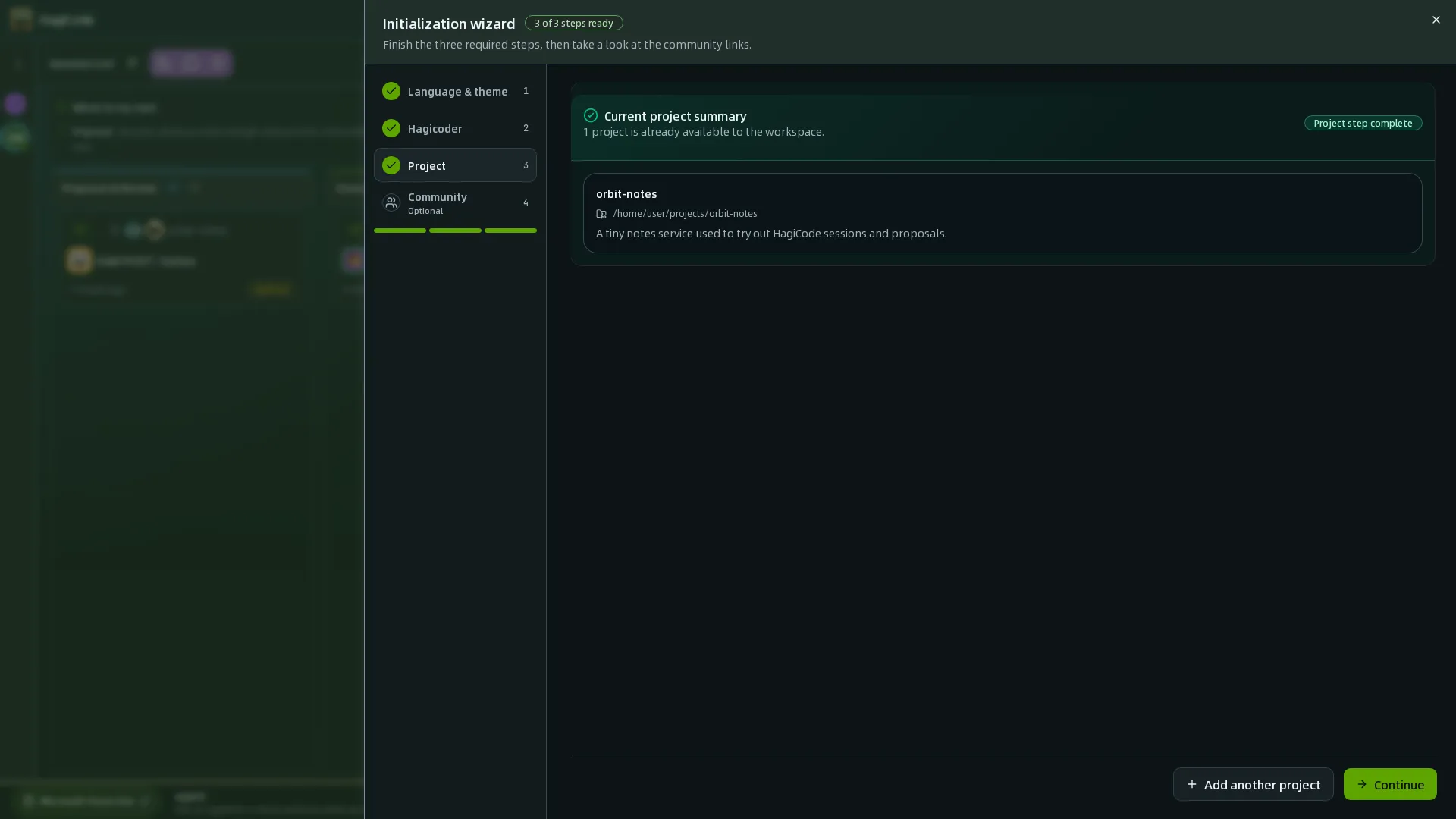
- If you come back to this step after a project exists, you will see the “Current project summary” and the “Project step complete” marker. You can then click “Continue” to go to the community step, or click “Add another project” to register more projects (save with “Add project”, or return to the summary with “Cancel”).
Want to Try a Sample Project First?
The wizard only offers registering a local project. The demo project lives on the “Demo Project” tab of the “New Project” dialog in the main interface: it automatically clones and registers the official MonoSpecs Demo repository. The default path is data/repos/monospecs-demo, and the actual directory follows the runtime data directory (DataDir) configuration. This method needs Git and access to GitHub.
Common Issues
- It says “Project creation failed”: confirm the folder path is correct and really exists.
Step 4: Community
Goal: Confirm you are ready, and choose what to do next. This step is optional.
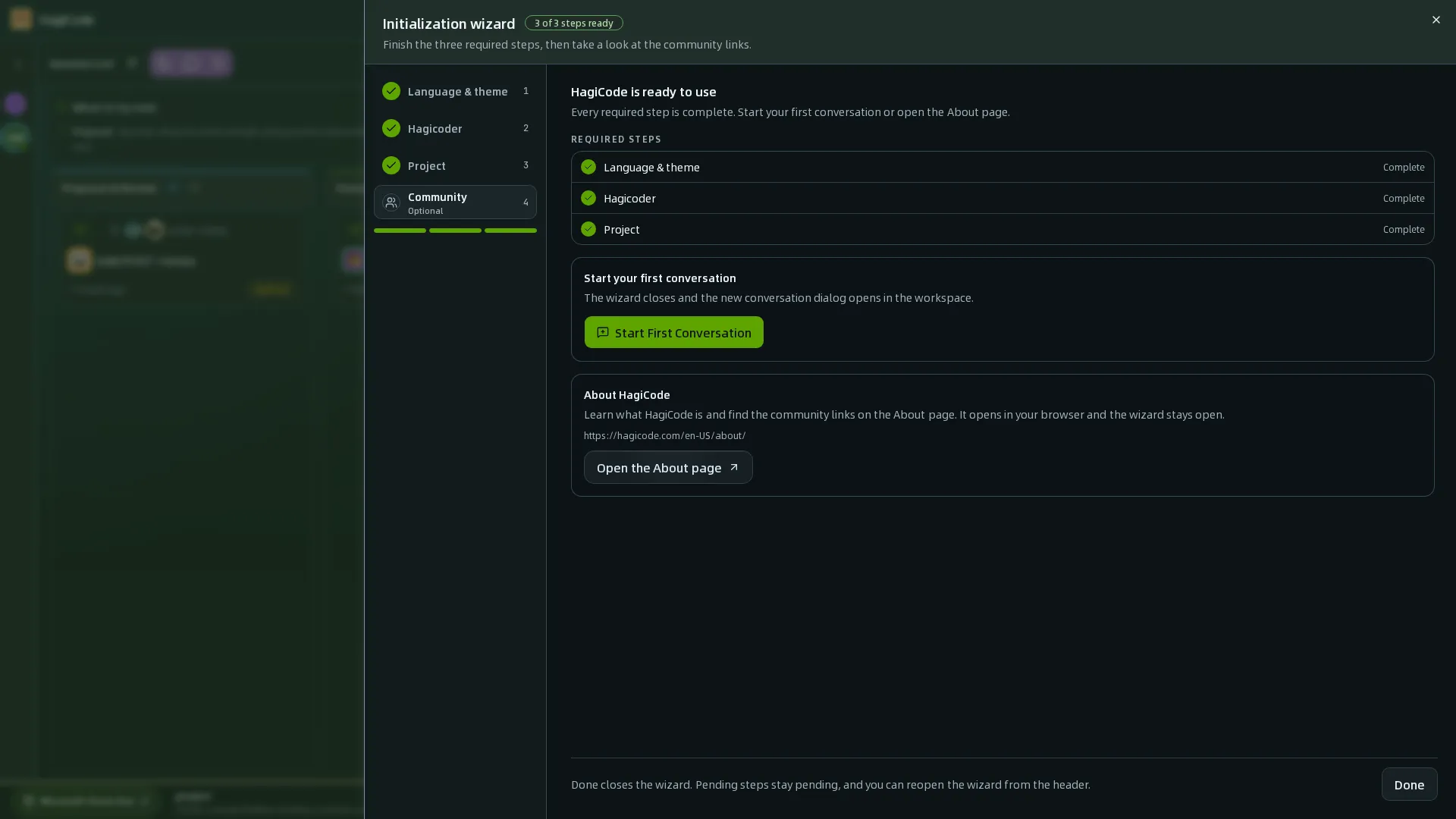
After all three required steps are complete, the page shows “HagiCode is ready to use” together with the completion status of the three required steps:
- Start First Conversation: after you click it, the wizard closes and the new conversation dialog opens in the workspace. A conversation needs a project; if you have none yet, the page says “Create a project first” and offers a “Go to the project step” button.
- About HagiCode: clicking “Open the About page” opens the official website’s “About” page in your browser, which collects all the community entry points; the wizard stays open.
- Done: clicking “Done” at the bottom right closes the wizard. If any required steps are still unfinished, they stay pending, and you can reopen the wizard from the “Wizard” entry at the top of the page.
Next Steps
HagiCode
HagiCode is an agentic coding workspace. Rich, convenient UI interactions make planning, agent execution, and project work approachable and easy to navigate, creating an engaging development experience.
Explore an engaging development experience through rich, convenient UI interactions.

- SmartOpenSpec workflows turn intent into an executable path, from proposal to design, tasks, and a shipped change.
- EfficientMulti-agent execution keeps research, implementation, and review moving in parallel, across several repositories and the Agent CLIs you already use.
- InterestingRich, convenient UI interactions make planning, agent execution, and project work approachable and easy to navigate.
Download for Windows
Share HagiCode

Turn ideas into shipped software.
HagiCode is an agentic coding workspace. OpenSpec workflows plan the change, multi-agent execution carries it out, and Hero Scenario makes the long run visible, so ideas become shipped software.
- Smart
- OpenSpec workflows turn intent into a path from proposal to shipped change.
- Efficient
- Multi-agent execution runs research, build, and review in parallel.
- Fun
- Rich UI interactions make planning, agent work, and projects easier to follow.
© 2026 HagiCode | Powered By hagilight-starlight@0.21.0 | Branch: main | Commit: 951128b | Built: