
Projects
A project is a folder that HagiCode works in. Sessions, Git state, standard words, and MonoSpecs settings all belong to a project, so the project rail on the left edge of the workbench is where most work starts.
The project rail
By default the rail is collapsed to one round icon per project. Click the small arrow at the top of the rail to expand it.
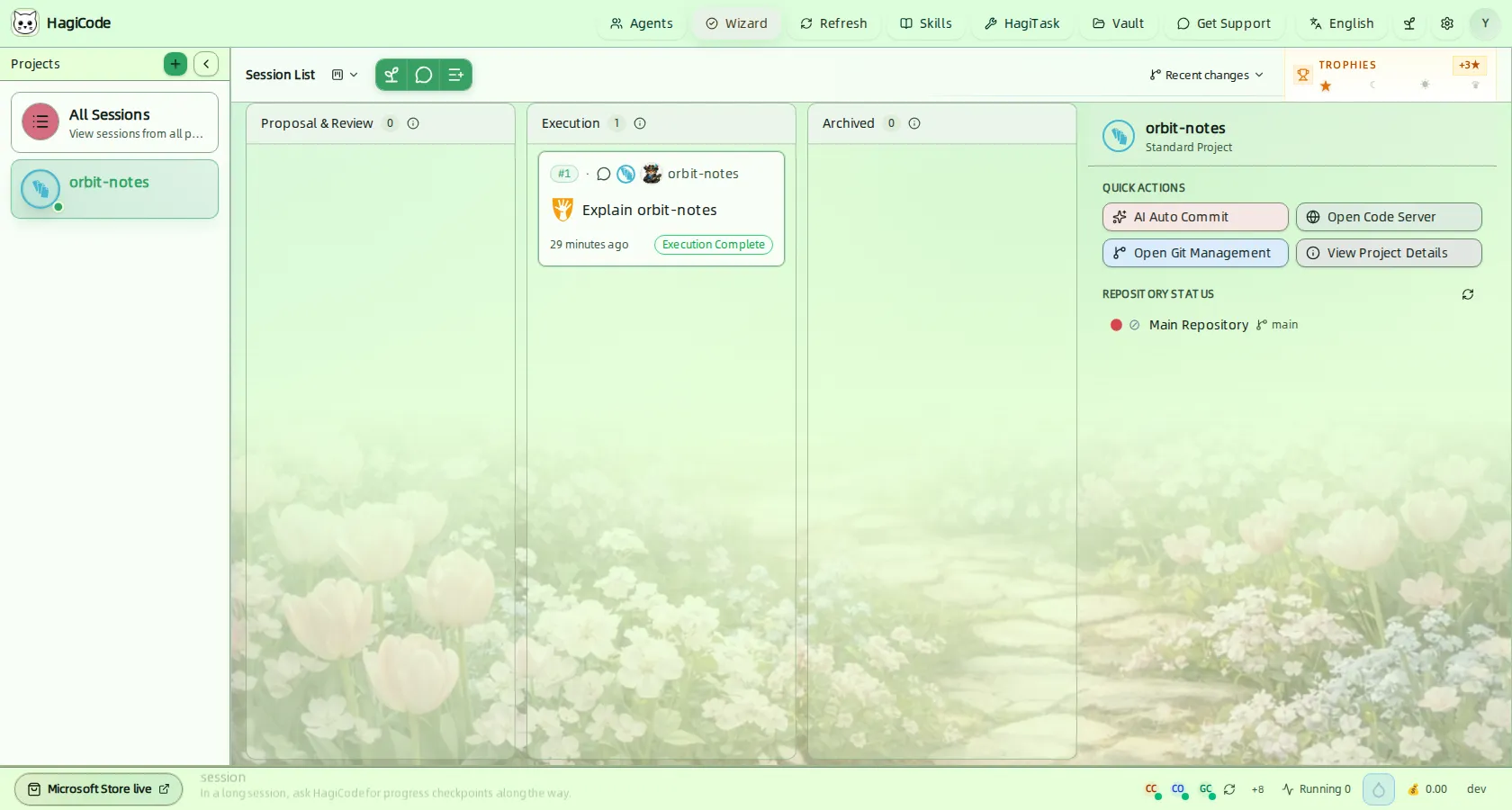
- All Sessions shows sessions from every project on one board.
- Click a project to filter the board to that project and show it in the project panel.
- The green + button creates a project. The arrow next to it collapses the rail again.
Which projects feed the “All Sessions” board?
In Settings → Process & Interaction → Session List you can switch the scope from All Projects to a Custom Selection of projects. See Settings.
Create a project
Click + in the project rail. The New Project dialog offers three ways to add projects.
Single Project
Use this when you already have a folder on disk.
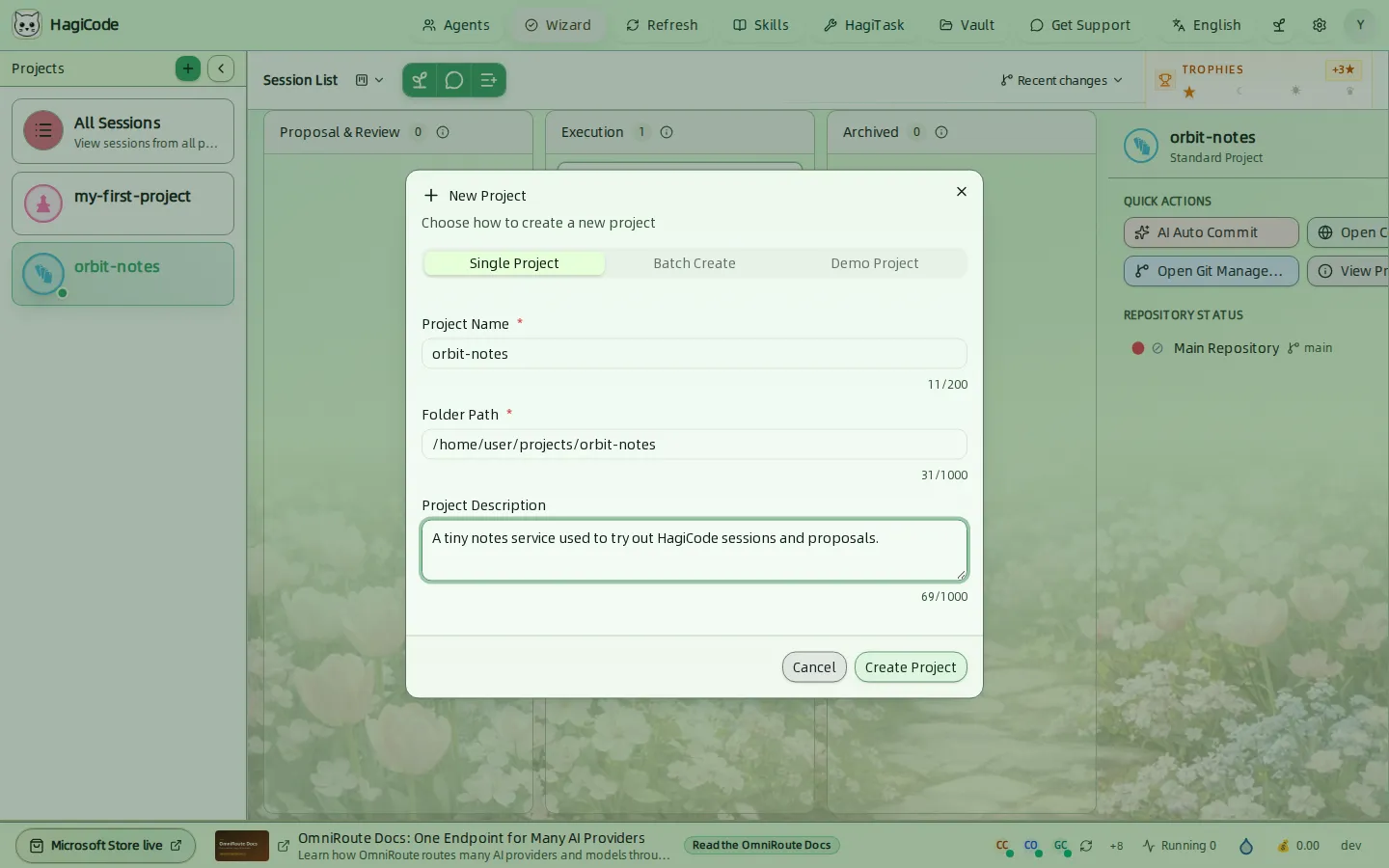
| Field | Notes |
|---|---|
| Project Name | Required, up to 200 characters. |
| Folder Path | Required, up to 1000 characters. Enter the absolute path of the folder, for example /home/user/projects/orbit-notes. |
| Project Description | Optional, up to 1000 characters. |
When the path contains .hagicode/monospecs.yaml, the dialog detects it and shows MonoSpecs guidance for that project. See MonoSpecs.
Batch Create
Use this when you keep many repositories under one parent folder.
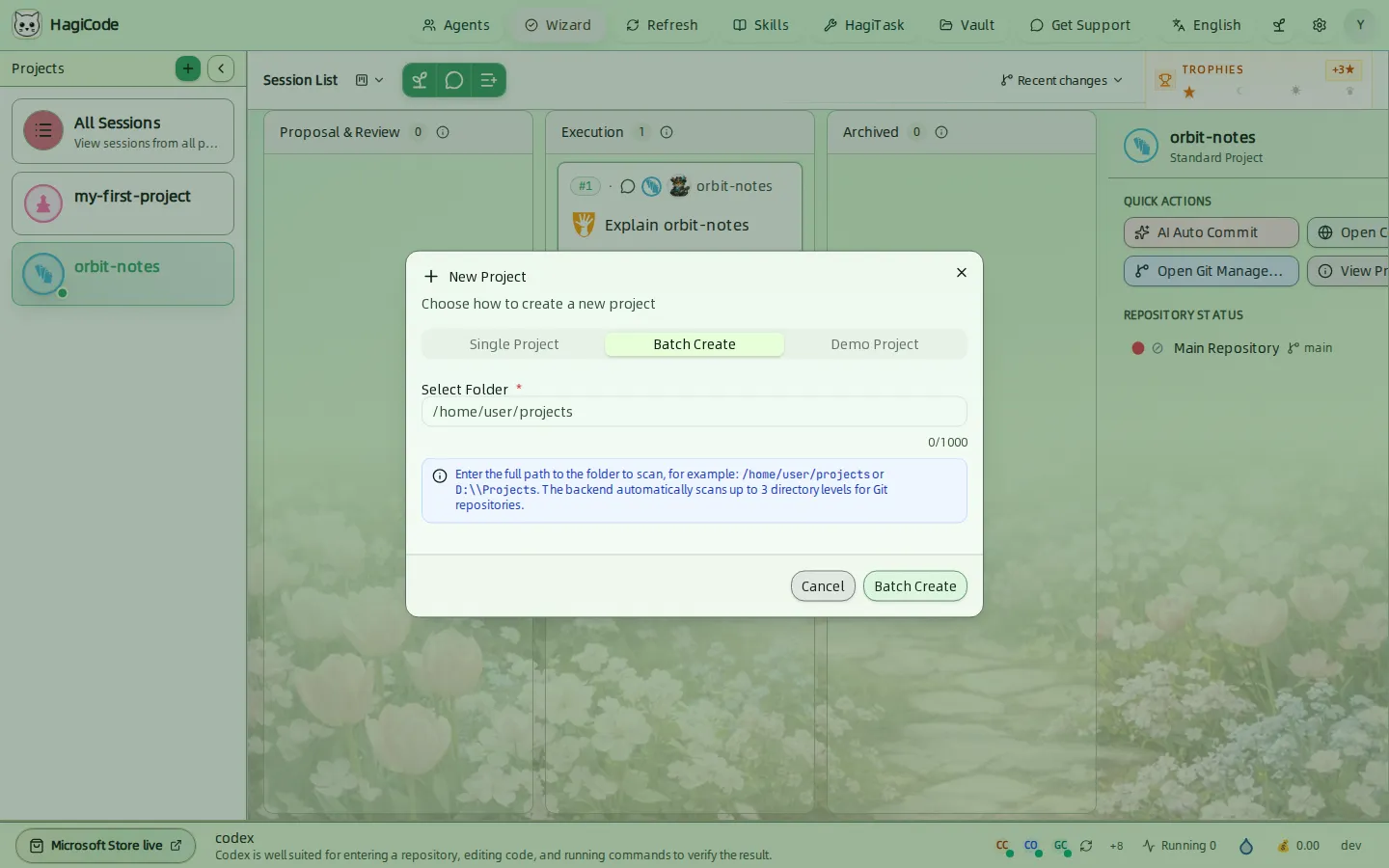
Enter the full path of the parent folder. HagiCode scans up to three directory levels for Git repositories and registers each one it finds as a project.
Demo Project
Use this to explore HagiCode before you connect your own code.
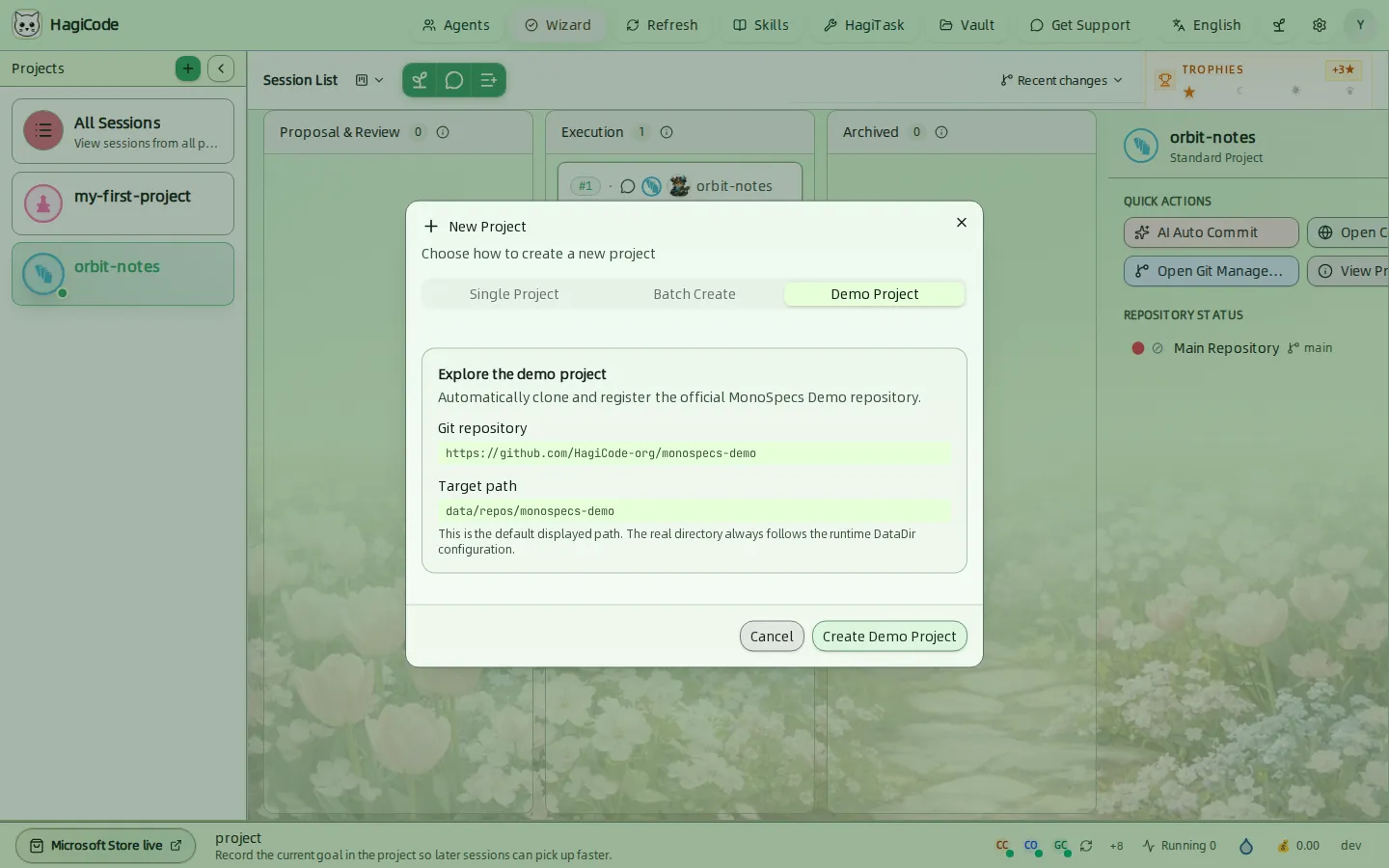
HagiCode clones the official MonoSpecs Demo repository (https://github.com/HagiCode-org/monospecs-demo) and registers it. This needs Git on your machine. The path shown is the default; the real folder follows your runtime data directory.
The project panel
Select a project and the right side of the board shows its project panel.
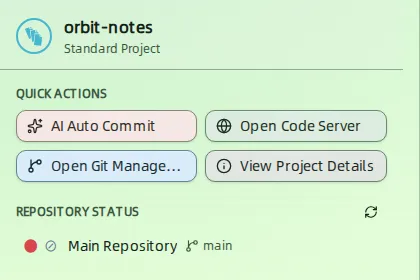
Quick actions
| Button | What it does |
|---|---|
| Auto Super Commit | Starts an AI-assisted commit for the project. See Super Commit. |
| Open Code Server | Opens the project in the browser-based code editor. |
| Open Git Management | Opens the Git tab of the project details drawer. |
| View Project Details | Opens the project details drawer. |
Repository status lists each repository of the project with its current branch. The colored dot shows the working tree state; in the screenshot the dot is red because src/server.js has an uncommitted change. Use the refresh button to re-read the state.
The Recent changes menu in the board toolbar lists recently changed repositories. It shows “No recent changes yet” until a repository changes.
Project Details
Click View Project Details to open the drawer. It has four tabs.
Details
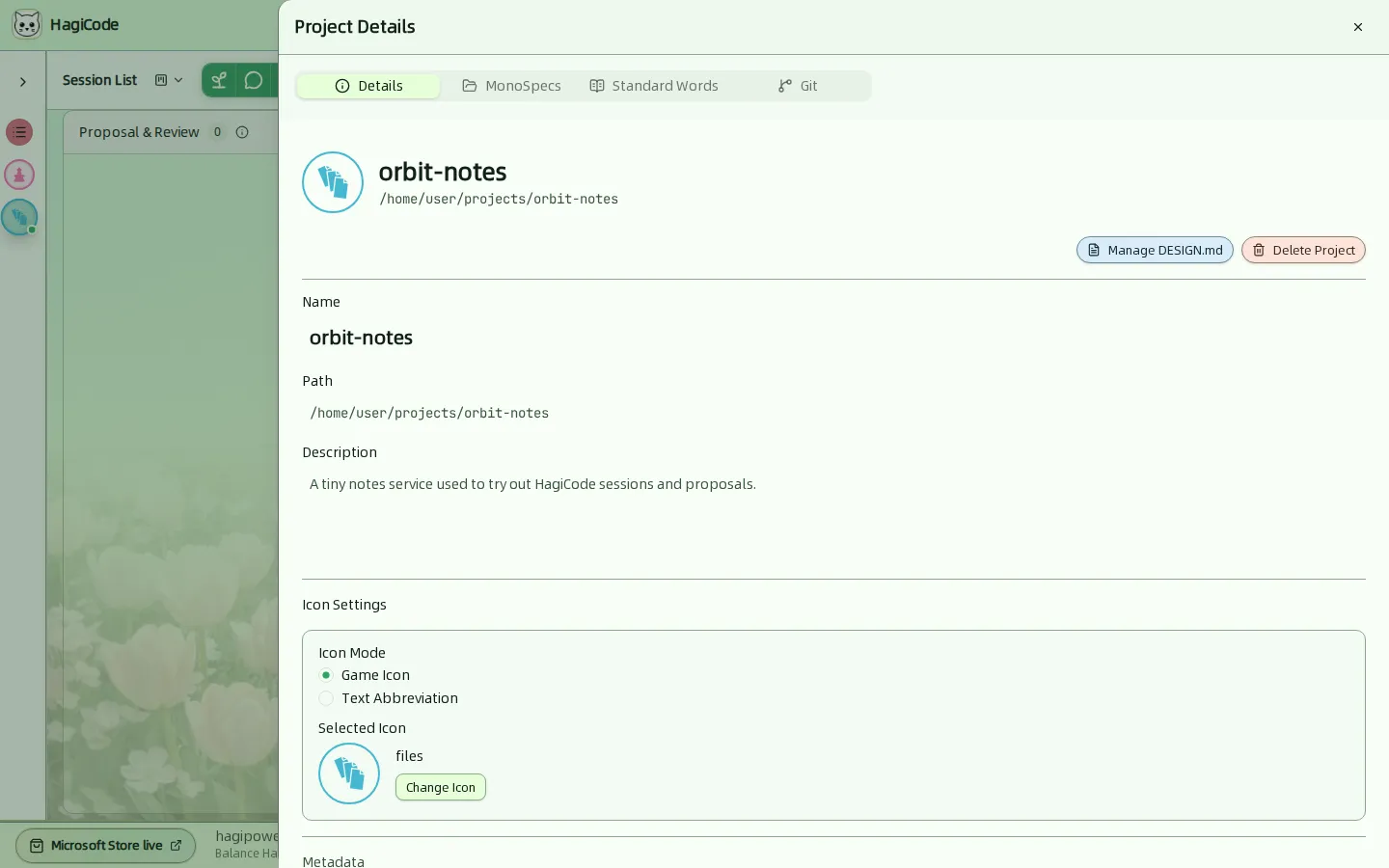
- Name, Path, and Description of the project.
- Icon Settings choose between a Game Icon and a Text Abbreviation for the project avatar. Change Icon opens the icon picker.
- Manage DESIGN.md manages the project’s
DESIGN.mdfile. - Delete Project removes the project after you type its name to confirm. The confirmation dialog lists what is permanently deleted: all sessions in the project and all messages in those sessions. This cannot be undone.
MonoSpecs
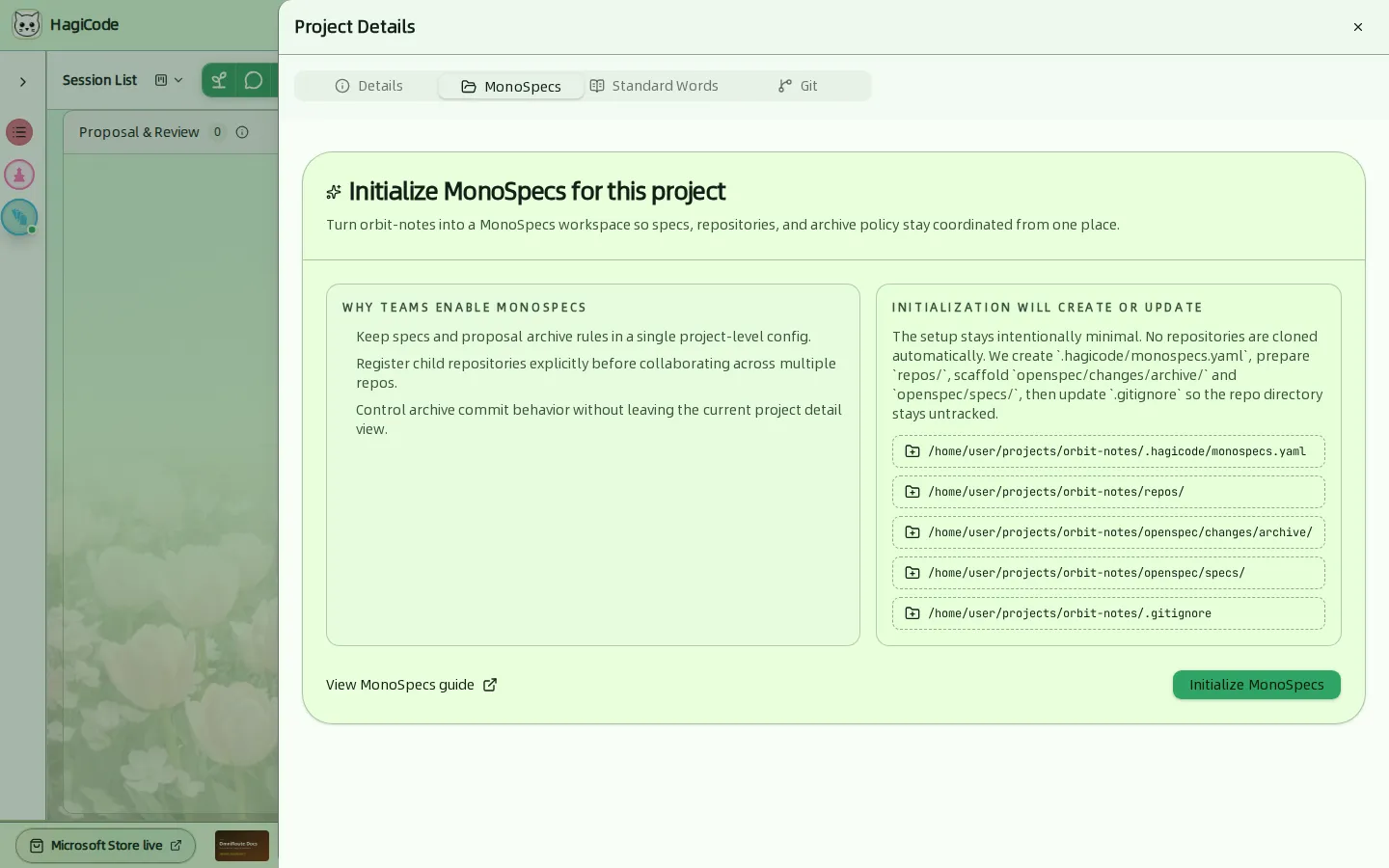
MonoSpecs turns a project into a workspace that coordinates specs and several repositories. On a project that is not yet a MonoSpecs workspace, Initialize MonoSpecs creates only what is needed. No repositories are cloned automatically:
.hagicode/monospecs.yaml- a
repos/folder for child repositories openspec/changes/archive/andopenspec/specs/- a
.gitignoreupdate so therepos/folder stays untracked
Read the MonoSpecs guide before you initialize.
Standard Words
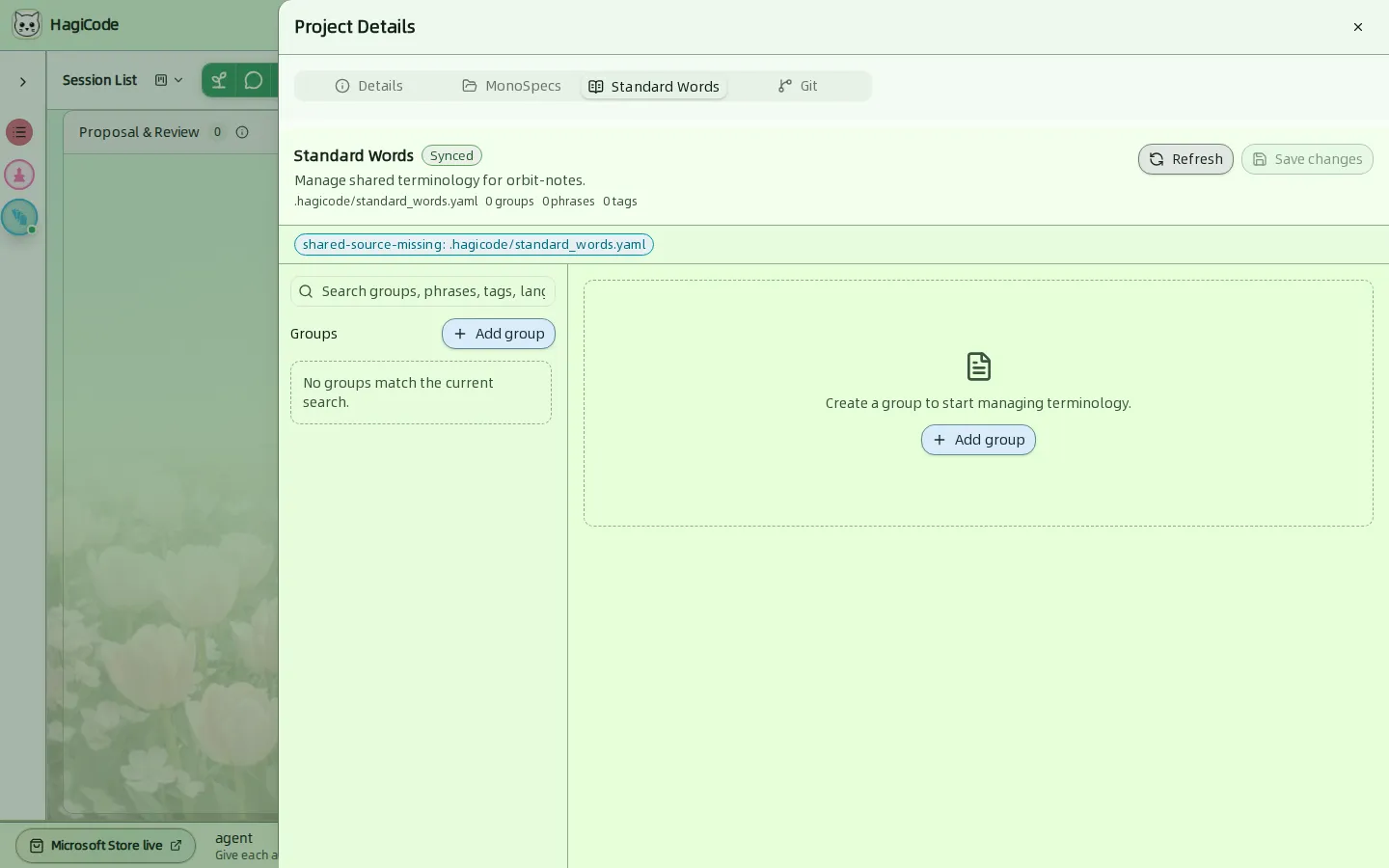
Standard words are shared terminology for the project, stored in .hagicode/standard_words.yaml. The tab shows group, phrase, and tag counts, lets you search, Add group, Refresh from disk, and Save changes.
Git
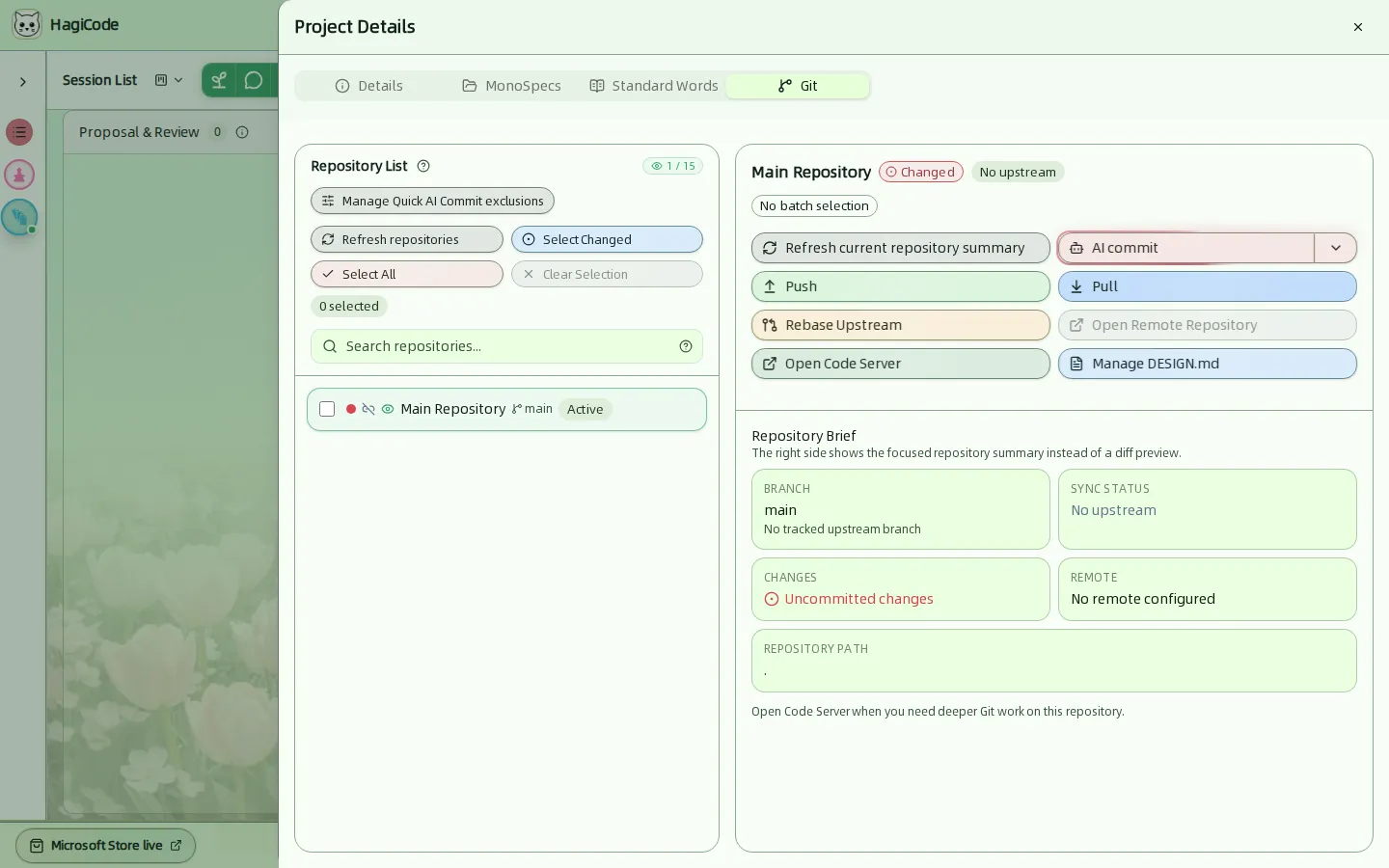
The Git tab is the project’s Git cockpit.
- Repository list (left) shows the monitored repositories; the counter (for example
1 / 15) compares them with the monitoring limit from Settings → Integration → Git. Use Select Changed, Select All, and Clear Selection for batch work, or search by name. Manage Super Commit All exclusions controls which files the quick commit skips. - Repository brief (right) shows the branch, sync status, whether there are uncommitted changes, the remote, and the repository path.
- Actions for the focused repository: Super Commit, Push, Pull, Rebase Upstream, Open Remote Repository, Open Code Server, and Manage DESIGN.md.
The brief replaces a diff preview on purpose. For deeper Git work, use Open Code Server.
Git behavior such as profiles, status monitoring, and the default Super Commit action is configured in Settings → Integration → Git.
HagiCode
HagiCode is an agentic coding workspace. OpenSpec workflows plan the change, multi-agent execution carries it out, and Hero Dungeon makes the long run visible, so ideas become shipped software.
Turn ideas into polished, usable software with a smarter, faster, and more enjoyable agentic coding workflow.
- SmartOpenSpec workflows turn intent into an executable path, from proposal to design, tasks, and a shipped change.
- EfficientMulti-agent execution keeps research, implementation, and review moving in parallel, across several repositories and the Agent CLIs you already use.
- FunHero Dungeon turns long coding sessions into a visible, collaborative adventure with heroes, progress, and achievements.
HagiCode at a glance
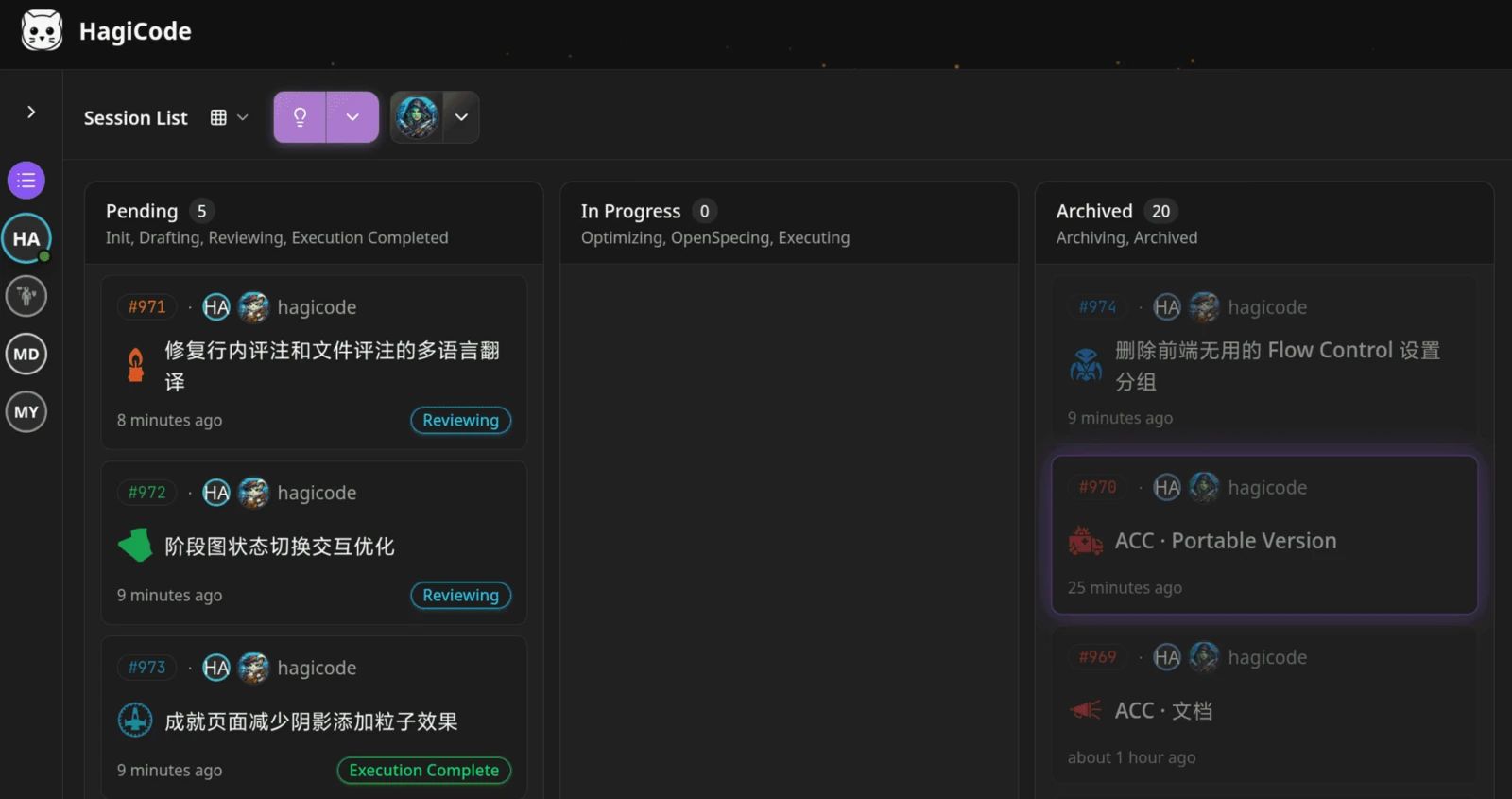
The workbench: every session on one kanban board. 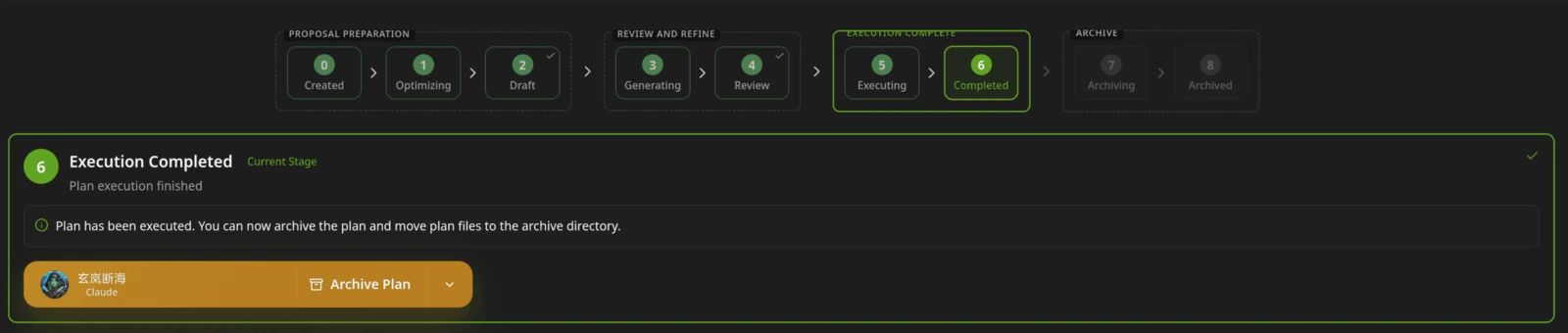
A proposal moves from created to drafted, reviewed, executed, and archived. 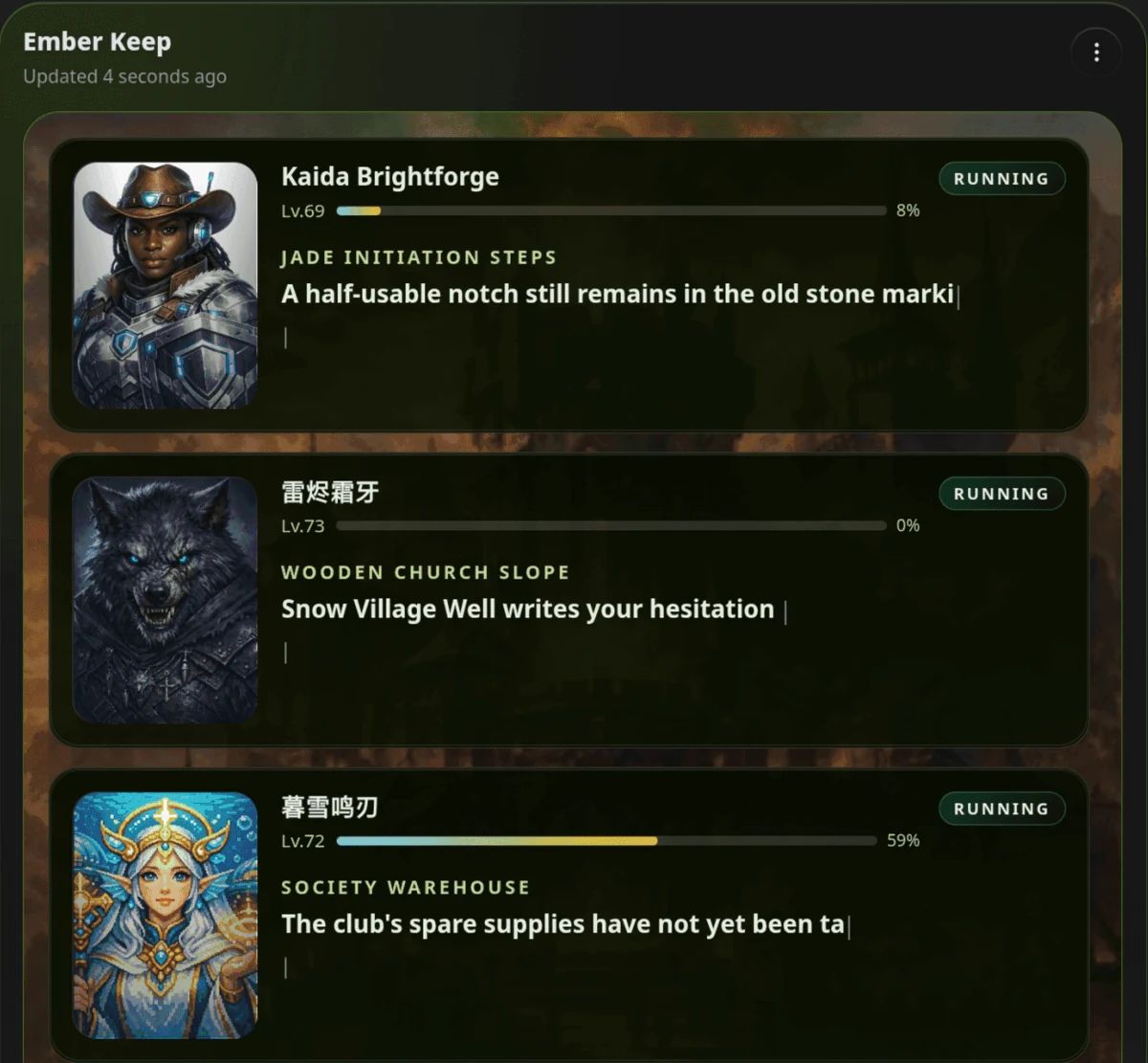
Hero Dungeon: heroes run the work while you follow progress, levels, and story.
Download for Windows
Share HagiCode
Turn ideas into shipped software.
HagiCode is an agentic coding workspace. OpenSpec workflows plan the change, multi-agent execution carries it out, and Hero Dungeon makes the long run visible, so ideas become shipped software.
- Smart
- OpenSpec workflows turn intent into a path from proposal to shipped change.
- Efficient
- Multi-agent execution runs research, build, and review in parallel.
- Fun
- Hero Dungeon makes long sessions visible, with heroes, progress, and achievements.
Ecosystem Sites
Quick Links
Community
© 2026 HagiCode | Powered By hagilight-starlight@0.11.0 | Branch: main | Commit: 934740d | Built: