
Turn Ideas into Code with Proposal Sessions
Proposal sessions are the right entry point when a request is too important to handle as a single free-form prompt. Instead of editing immediately, HagiCode first turns the request into goals, scope, tasks, and validation criteria, lets you review them, and only then moves into execution.
Prerequisites
Before you start a proposal session, make sure you have:
- completed any installation method (Microsoft Store or Desktop) by following the Installation Guide
- completed Wizard Setup, which creates your first Agent and at least one project
- enough project context to describe the change; if not, start with Create a Conversation Session
- to understand the OpenSpec workflow behind proposal sessions, read the Introduction to OpenSpec first
What proposal sessions are for
Proposal sessions work best when:
- the change needs a clear scope before editing starts
- multiple repositories, modules, or deliverables are involved
- the work should be broken into reviewable steps
- you want the reasoning and execution trail to remain visible later
If you only need repository understanding or lightweight discussion, a conversation session is faster. If you need structure and traceability, continue here.
Workflow overview
| Stage | What you do | What happens |
|---|---|---|
| Create the idea | Click New Idea and describe the request | A proposal session is created and queued for automatic optimization |
| Review the draft | Open the session card | HagiCode refines the title and description and drafts context, problem, solution, and impact |
| Generate the plan | Click Generate Plan | The Agent writes the OpenSpec plan files |
| Review the plan | Read the plan in the Review tab | You confirm or refine the plan before any code changes |
| Execute and archive | Run the plan, then archive it | The Agent executes the tasks, and the finished plan is archived |
Step 1: Describe the change in the New Idea drawer
Select your project and click New Idea (the sprout icon) in the toolbar above the session board. The Create Proposal drawer opens.
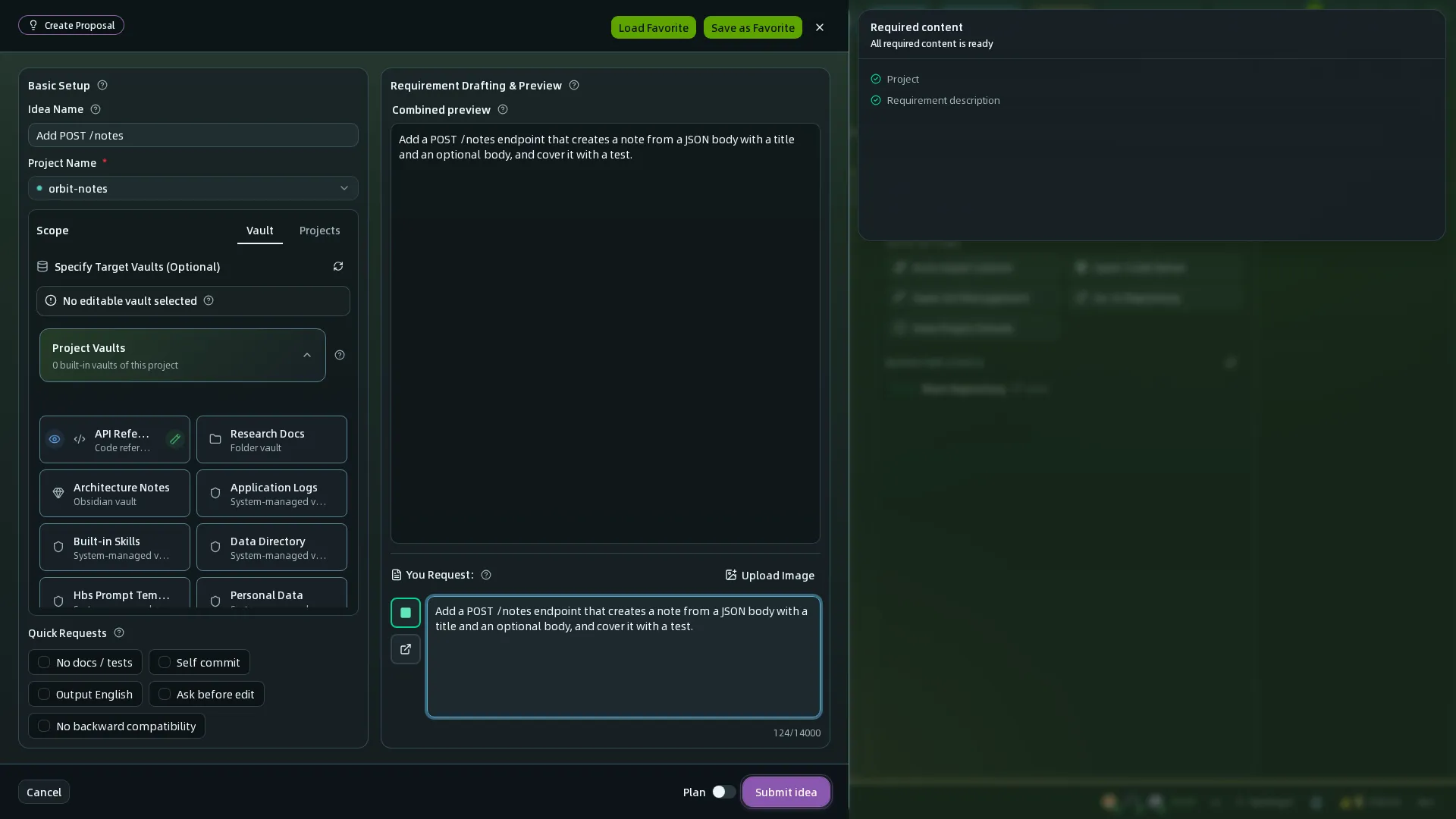
Work through the drawer:
- Idea Name and Project Name (required) – confirm which project owns the request.
- Scope – on the Vault tab, mark the vaults the AI may edit; system-managed vaults are always reference-only. On the Projects tab, add other projects as context.
- Quick Requests – one-click additions such as No docs / tests, Self commit, Output English, Ask before edit, and No backward compatibility.
- You Request – describe the actual change in natural language, up to 14,000 characters. The Combined preview above it shows exactly what will be sent to the AI.
Click Submit idea. If the work touches several repositories at once, define that boundary here instead of adding it during execution.
Step 2: Review the proposal in the detail view
After you submit, the idea appears as a card in the Proposal & Review lane with a status badge. Click it to open the proposal detail view.
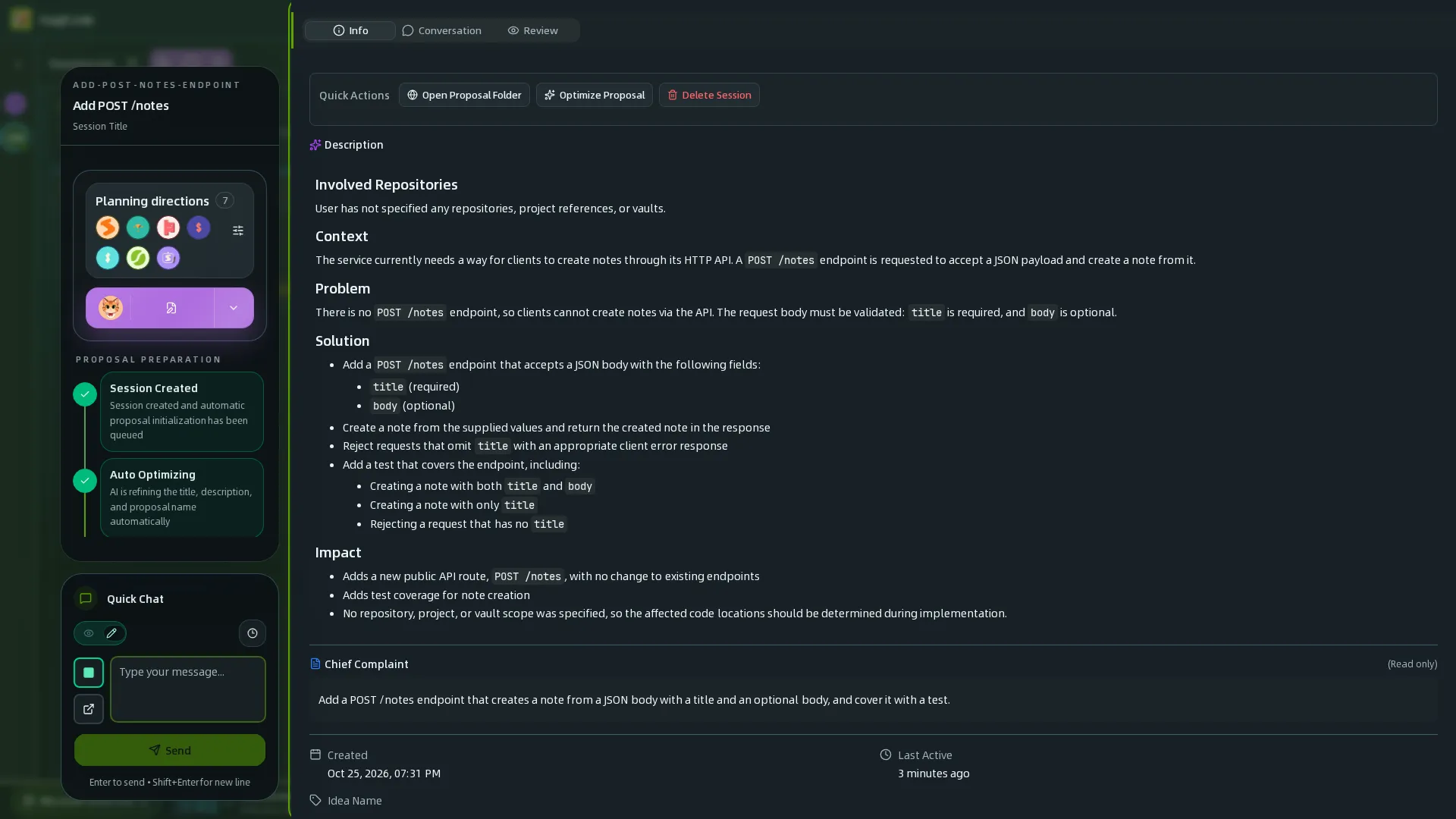
The view keeps the plan, the progress, and the conversation together:
- Workflow steps (left) show where the proposal is. They are grouped into Proposal preparation (Session Created, Auto Optimizing, Drafting Ready), Review and refine (Generating Plan Files, Review Plan), Execution complete (Executing Plan, Execution Completed), and Archive (Archiving, Archived).
- Planning directions show which directions the plan should explore, such as change map, interaction flow, or architecture. Adjust the defaults in Settings → Proposals and planning → Planning Direction.
- Info tab (right) shows the drafted description (Context, Problem, Solution, Impact) and your original request under Chief Complaint. Quick actions let you Open Proposal Folder, Optimize Proposal, Open in New Window, or Delete Session.
- Conversation and Review tabs hold the discussion with the Agent and the review of the generated plan.
- Quick Chat (bottom left) lets you send a message to the Agent without leaving the view.
If the goal, scope, or task breakdown looks wrong here, fix the proposal before moving on. That is the point of this workflow.
Step 3: Generate, review, execute, and archive
When the draft is right, click Generate Plan. The Agent writes the OpenSpec plan files, and the session moves to Review Plan so you can check the result before any code changes. After the review, the session continues to Executing Plan, and finally to Archiving and Archived.
HagiCode asks for confirmation before the steps that are hard to undo, such as generating a proposal, executing immediately, or archiving. You can fine-tune these prompts in Settings → General → Confirm Prompts.
After execution, use Super Commit to turn the final changes into clean commit messages.
Step 4: Track proposals on the session board
When a project has several proposals or a mix of proposals and conversations, the session board is the clearest overview.
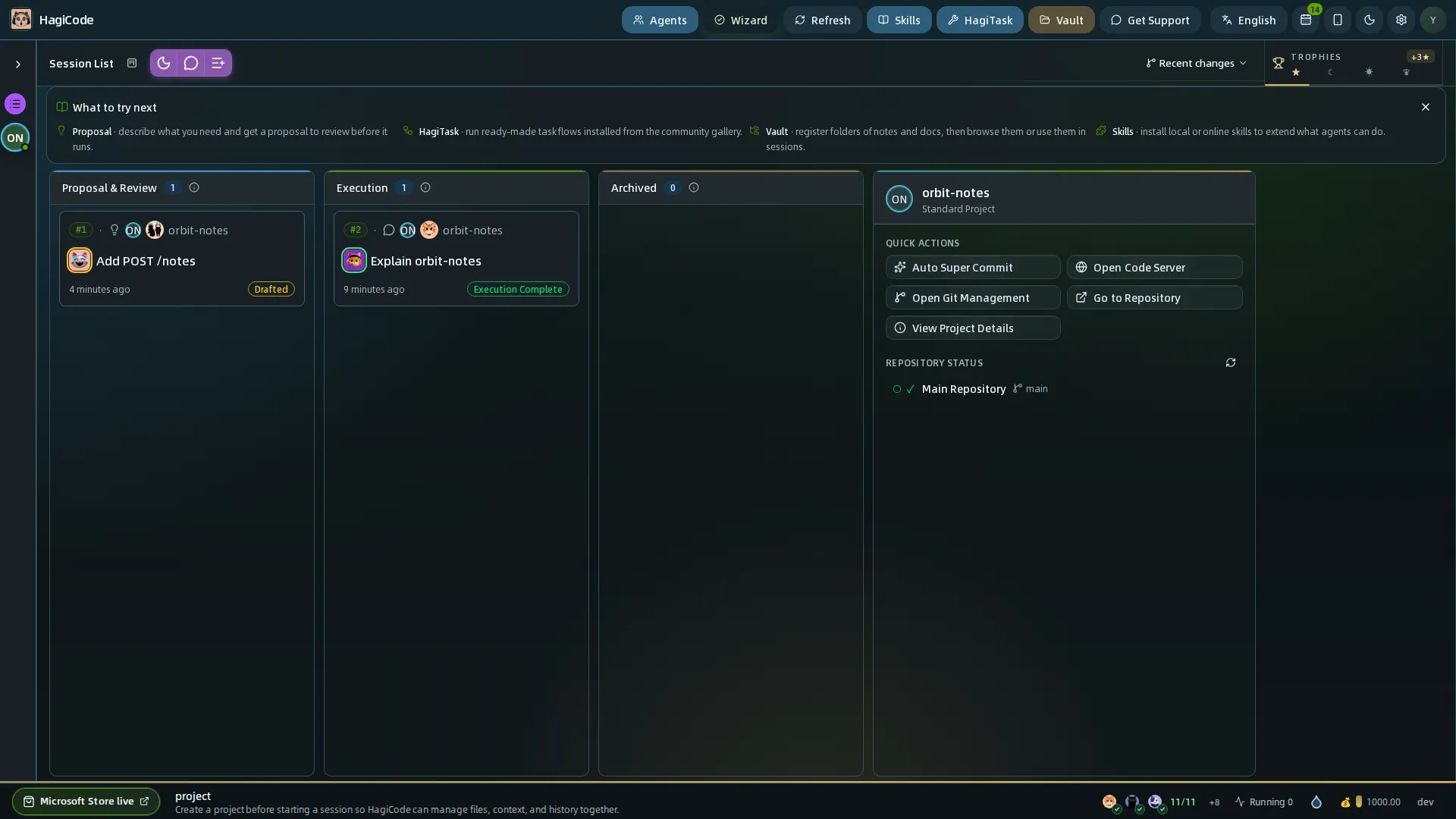
- Proposal & Review holds ideas that are being drafted, generated, and reviewed.
- Execution holds sessions that are running or finished.
- Archived keeps completed work out of the way but available for review.
Each card shows its status, such as Optimizing, Drafted, Reviewing, Executing, or Execution Complete. You can switch the board layout with the layout switcher; see Sessions.
When to prefer a proposal session
Choose a proposal session first when:
- the change is complex and you do not want the AI to improvise too early
- the work will be reviewed or shared with others later
- multiple repositories, modules, or roles are involved
- you want the execution history and rationale to stay reusable
If the task is still small and exploratory, a conversation session is usually the lighter path.
Next steps
HagiCode
HagiCode is an agentic coding workspace. Rich, convenient UI interactions make planning, agent execution, and project work approachable and easy to navigate, creating an engaging development experience.
Explore an engaging development experience through rich, convenient UI interactions.

- SmartOpenSpec workflows turn intent into an executable path, from proposal to design, tasks, and a shipped change.
- EfficientMulti-agent execution keeps research, implementation, and review moving in parallel, across several repositories and the Agent CLIs you already use.
- InterestingRich, convenient UI interactions make planning, agent execution, and project work approachable and easy to navigate.
Download for Windows
Share HagiCode

Turn ideas into shipped software.
HagiCode is an agentic coding workspace. OpenSpec workflows plan the change, multi-agent execution carries it out, and Hero Scenario makes the long run visible, so ideas become shipped software.
- Smart
- OpenSpec workflows turn intent into a path from proposal to shipped change.
- Efficient
- Multi-agent execution runs research, build, and review in parallel.
- Fun
- Rich UI interactions make planning, agent work, and projects easier to follow.
© 2026 HagiCode | Powered By hagilight-starlight@0.21.0 | Branch: main | Commit: 951128b | Built: