
Scheduled Plans
A plan (also called a scheduled plan or scheduled task) makes HagiCode start a session automatically at a time you set, without you being there to click Submit. Typical uses: run a code review at 2:00 every weekday, check for dependency updates every morning, or draft release notes tomorrow at 10:00.
A plan stores two things: everything needed to create the session (exactly what you would normally fill in on a creation dialog) and a schedule. When the time comes, HagiCode creates the session through the same flow a manual submit uses, so a session started by a plan is no different from one you created yourself.
Concepts
| Concept | Meaning |
|---|---|
| Type | There are two kinds of plan: Proposal (creates a proposal session when it runs) and HagiTask (creates a session from a HagiTask when it runs). The type is decided by which creation dialog you save the plan from. |
| Run once / Recurring | A one-time plan runs at a single moment. A recurring plan repeats daily or weekly between a start date and an end date. |
| Occurrence | One specific time of a plan on the calendar. A one-time plan has one; a recurring plan has one for every time it comes due, and each can be changed or deleted on its own without touching the others. |
| Next run | The next time the plan will start on its own, shown in the plan’s own time zone. |
| Scheduled / Completed | The state of the plan. A one-time plan becomes Completed after it runs; a recurring plan becomes Completed once its end date has passed. |
| Enabled / Disabled | Every plan has an enable switch. A disabled plan stays in the list and on the calendar but never runs automatically. |
Open the plan manager
The Plans button in the header opens the plan manager. In a narrow window the button shows only the calendar icon; hover over it to see the Scheduled plans tooltip.

The manager is a drawer that slides in from the right, with two views at the top:
- Calendar: shows by month, week, or agenda when plans will run. Every time you open it, it starts on today.
- All plans: lists every plan, where you can enable, disable, run now, edit, and delete it.
The manager is for viewing and managing existing plans only; you cannot create one here. Plans are always saved from the dialog that creates a proposal or a HagiTask. With no plans yet, All plans shows No scheduled plans yet and a hint on how to create one.
See your plans on the calendar
Calendar opens on the current month. Every time a plan will run is one entry on the calendar.
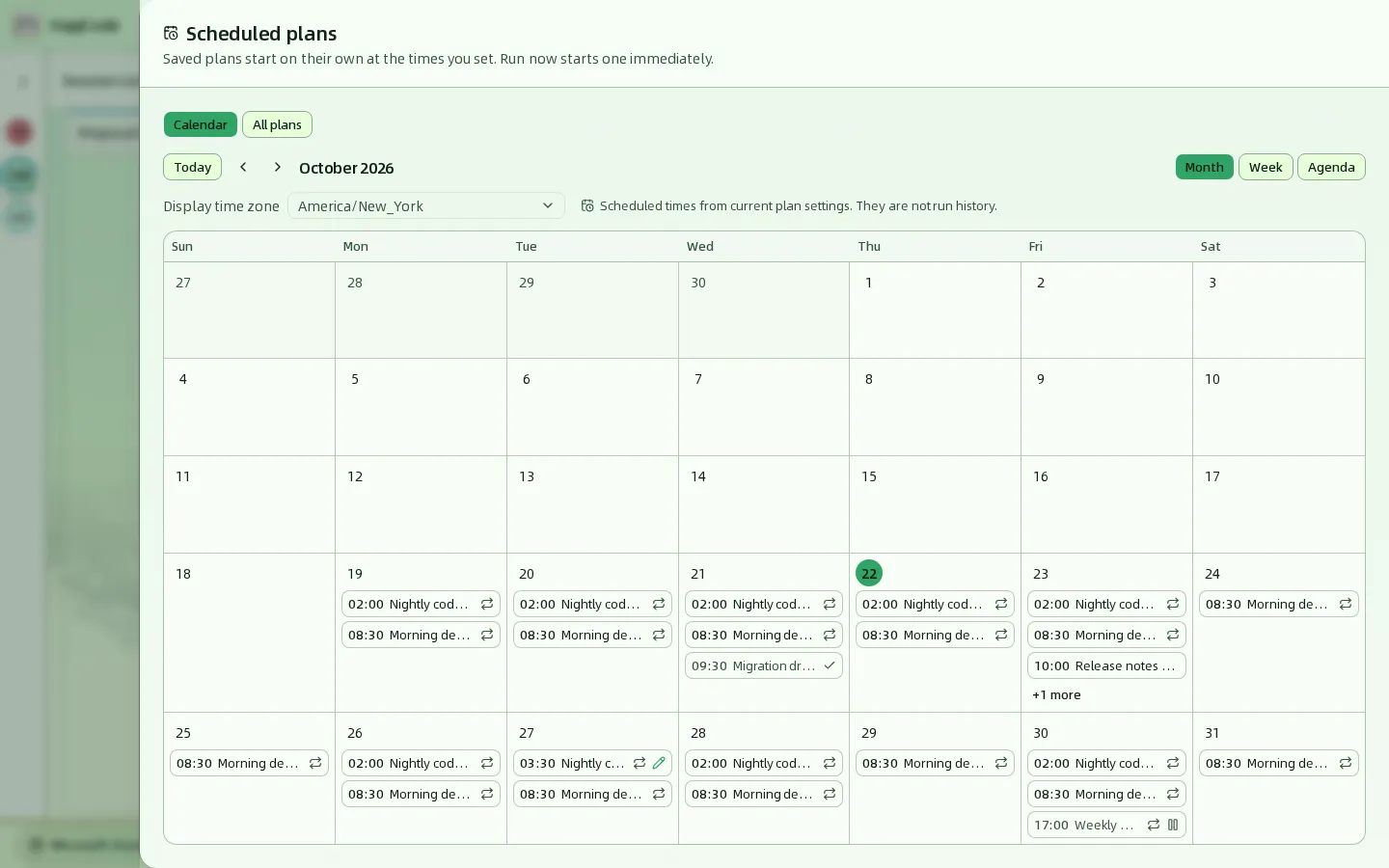
The controls at the top:
| Control | What it does |
|---|---|
| Today | Jumps back to the month, week, or agenda that contains today. |
| ‹ / › | Moves to the previous or next period: by month in Month view, by week in Week and Agenda views. |
| Month / Week / Agenda | Switches the view. In a window narrower than 768 pixels the manager opens on Agenda each time, because a single column reads better. |
| Display time zone | The time zone the calendar uses to arrange and show times. It defaults to the browser’s current time zone. It changes only how times are displayed, never the plan’s own time zone or when it actually runs. |
The three views show the same data:
- Month: each day cell shows up to 3 entries; beyond that +N more appears, and clicking it opens a dialog with every run time of that day.
- Week: seven columns side by side, with room for the full plan name on each entry.
- Agenda: a list grouped by date, listing only days that have run times, with the state written out at the right of each entry.
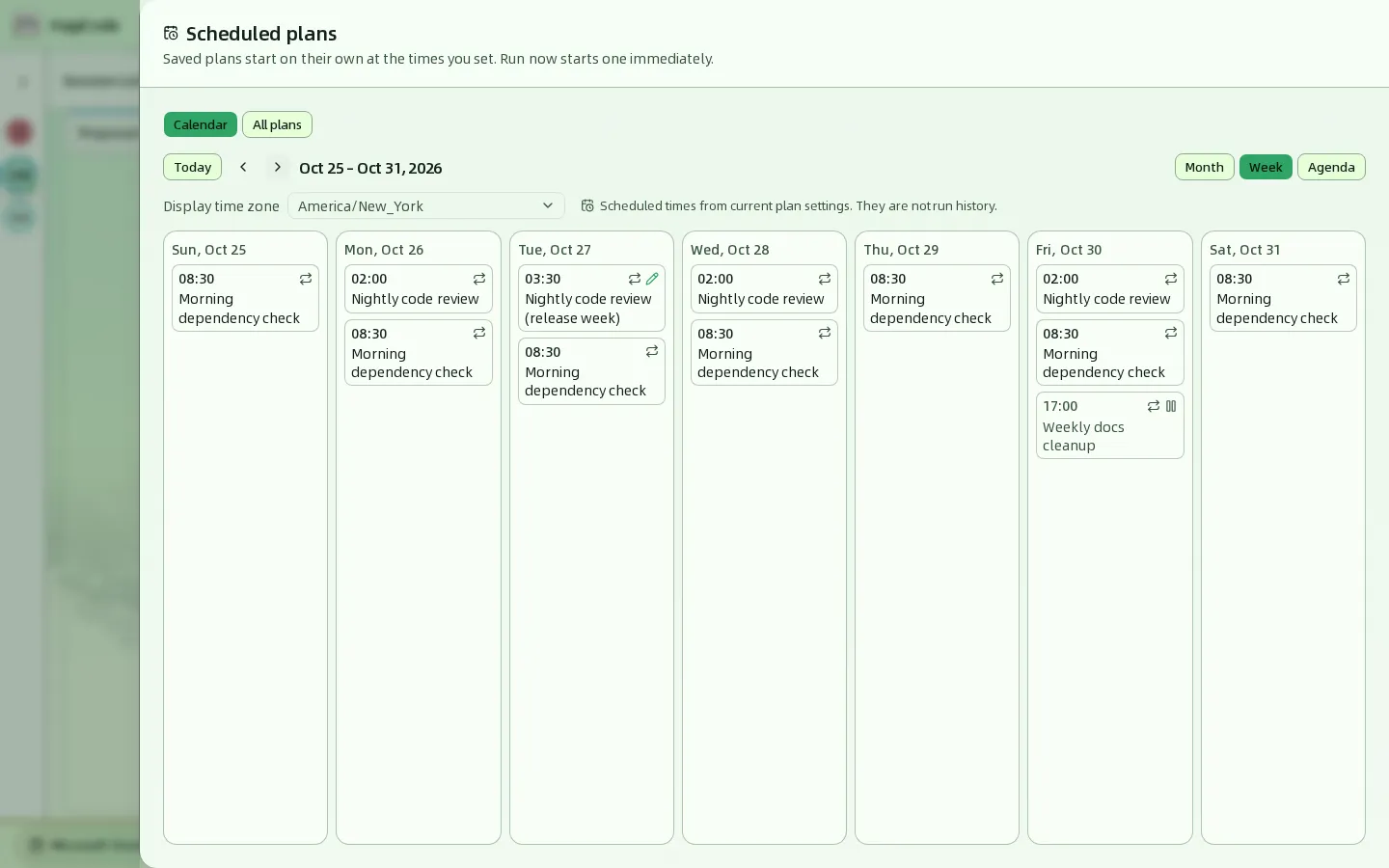
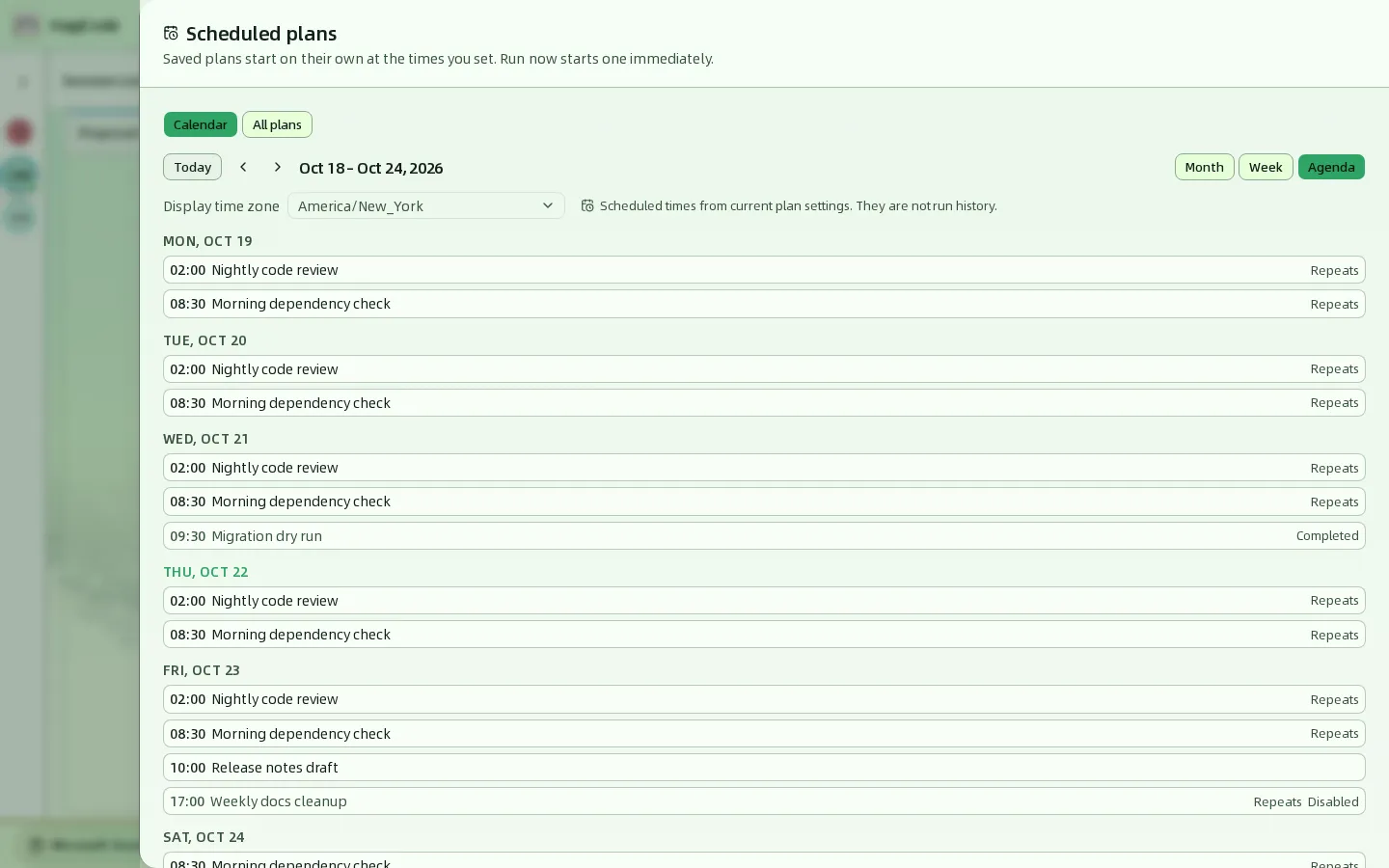
Each entry shows the time and the plan name. Month and Week views mark the state with icons (hover for the text); Agenda writes it out:
| Marker | Meaning |
|---|---|
| Repeat icon / Repeats | This is one time of a recurring plan. |
| Check icon / Completed | The plan is completed (for example, a one-time plan that has already run). |
| Pause icon / Disabled | The plan is disabled, so this time will not run automatically. |
| Pencil icon / Changed | This single time was changed and differs from the recurring plan in time or content. |
The calendar shows times worked out from the plan’s current settings, not a run history. That is what Scheduled times from current plan settings. They are not run history. on the page means: after a plan is edited, disabled, or completed, the calendar still lays it out from its current settings and does not record what ran before. To see sessions that already started, use the session board.
See the details of one time
Click any entry to slide in a details drawer for that time. You do not need to open the editor to look.
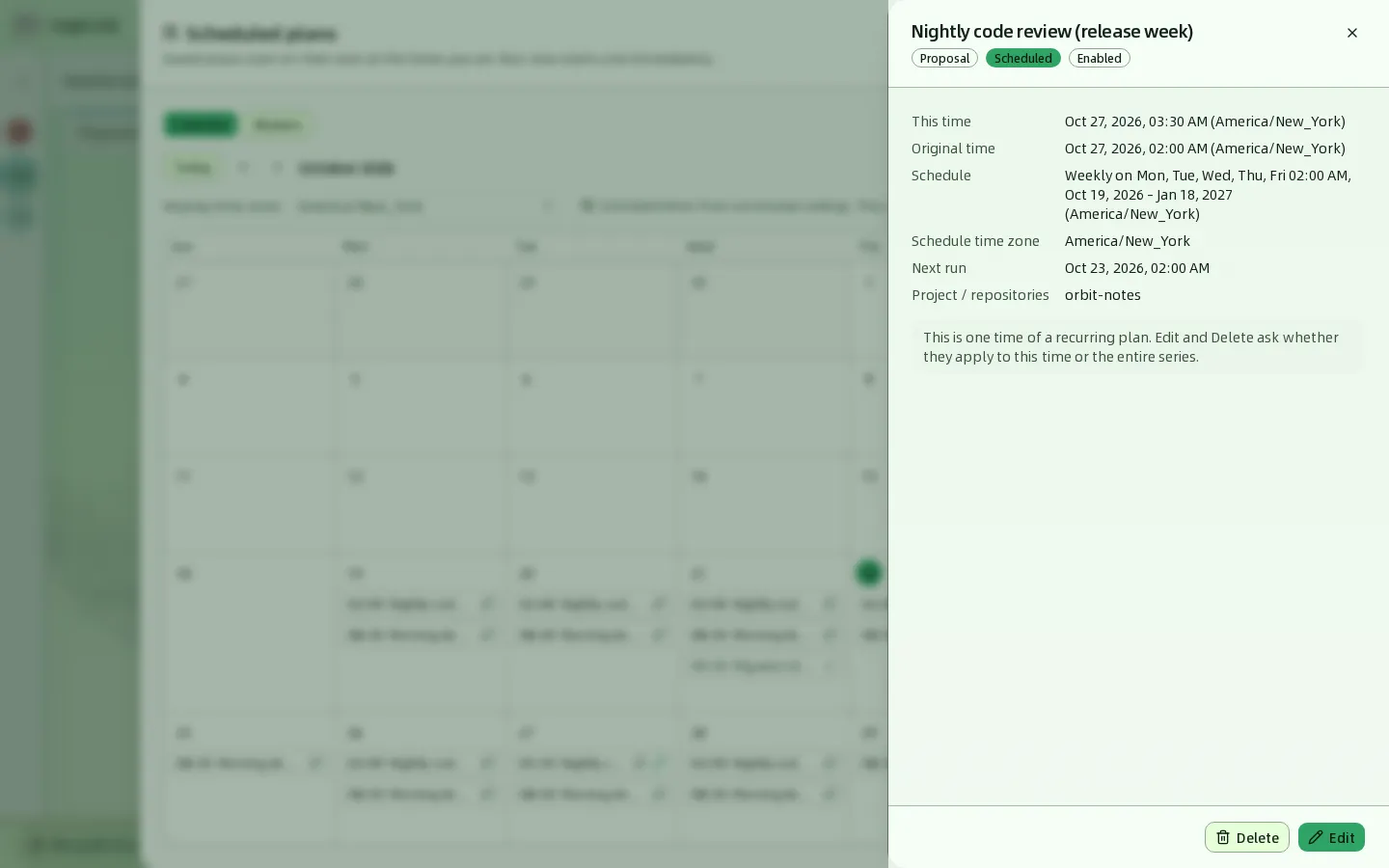
| Field | Description |
|---|---|
| Title and badges | The plan name, its type (Proposal or HagiTask), its state (Scheduled or Completed), and Enabled or Disabled. |
| This time | The run time of this entry, arranged in the display time zone. |
| Original time | Appears only when this time was moved, and shows the time the recurring plan originally scheduled. |
| Schedule | The plan’s full schedule. |
| Schedule time zone | The time zone the plan itself uses. |
| Next run | The real next run of the whole plan; a completed plan shows –. It is not necessarily the same as “this time”. |
| Project / repositories | The target projects and repositories saved with the plan. |
| Agent | Appears only when the plan has an Agent, and shows Random agent from the plan pool. |
Edit and Delete at the bottom of the drawer change or delete the plan. For a recurring plan they first ask which time the action applies to; see Edit a plan and Delete a plan.
Create a plan
Both the proposal and HagiTask creation dialogs can switch from “start now” to “start on a schedule”. Create Normal Session has no plan switch.
-
Open a creation dialog as usual, for example New Idea, and fill in the idea name, project, and request. For the fields, see Sessions.
-
Look at the bottom right of the dialog. Next to the submit button there is a Plan switch, off by default.

-
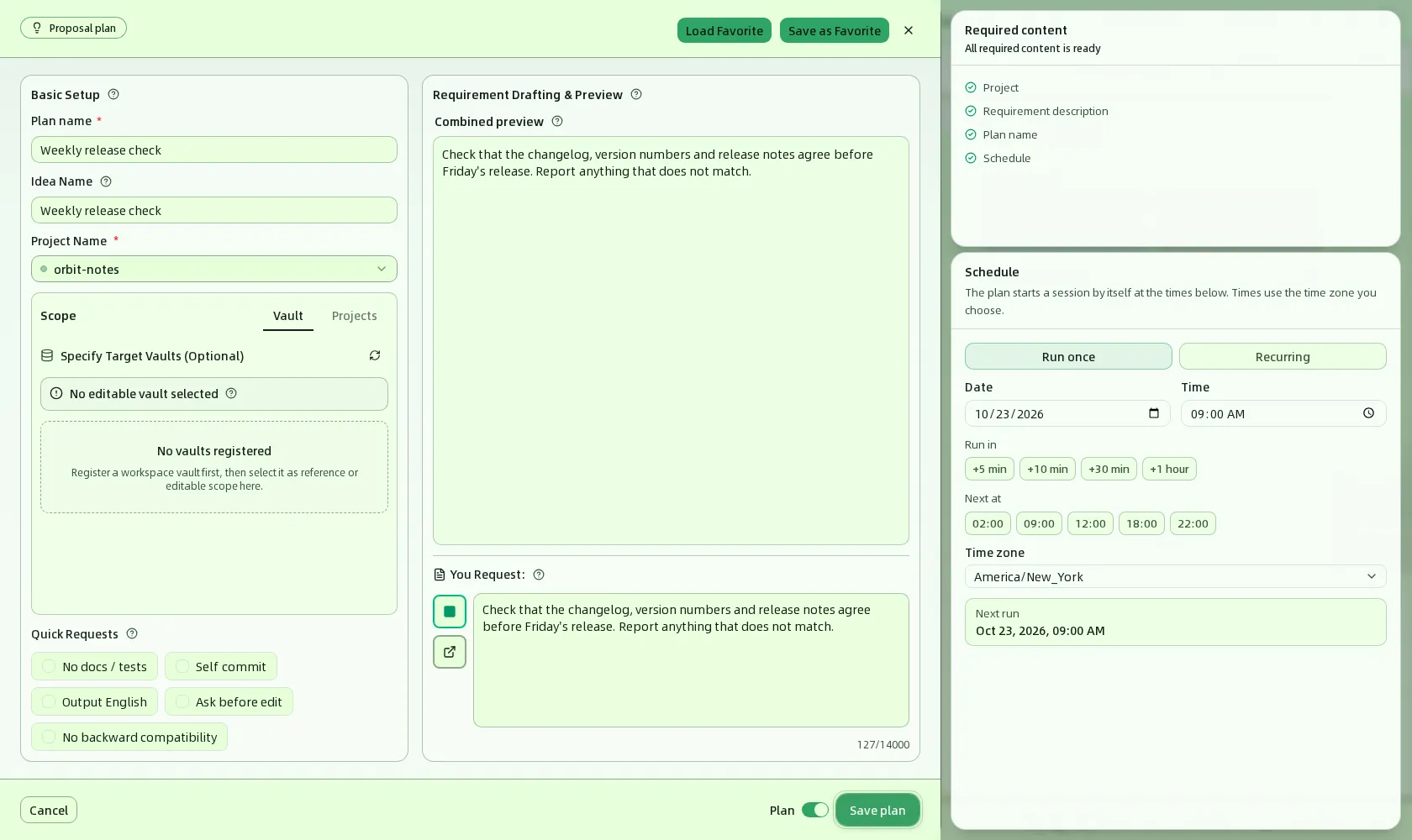
Turn the Plan switch on. The dialog switches to plan mode:
- The label at the top left changes from Create Proposal to Proposal plan.
- A required Plan name field appears at the top of Basic Setup, for example “Weekly release check”, up to 200 characters.
- A Schedule section appears.
- The submit button becomes Save plan.
-
Set when the plan runs in Schedule; see Set the schedule. A HagiTask plan also needs an Agent; see Choose an Agent for a HagiTask plan.
-
Click Save plan. HagiCode shows a Plan saved notice; click View plans to open the plan manager right away.

The Required content checklist tells you live what is still missing. A proposal plan checks Project, Requirement description, Plan name, and Schedule; a HagiTask plan checks Project, the HagiTask’s own required inputs, Plan name, Schedule, and Agent. When everything is done it shows All required content is ready.
Window width and layout
When the window is wide enough (about 1464 pixels or more), Required content and Schedule appear as two cards to the right of the drawer. In a narrower window, Schedule moves to the bottom of the drawer above the submit button, and Required content collapses into a bar you can expand. The content and rules are identical in both layouts.
Plans cannot include images. If images are already attached to the form, the Plan switch is disabled and tells you to remove them before saving the task as a plan.
Set the schedule
The two buttons at the top of Schedule choose how the plan runs: Run once or Recurring. In both modes, Next run at the bottom of the section updates live to the next run time the current settings produce. If it shows Not scheduled, no run time is possible with the current settings, so adjust the dates or the time.
Run once
Runs a single time.
| Field | Description |
|---|---|
| Date and Time | The day and time of the run. Defaults to tomorrow at 09:00. It must be later than now. |
| Run in | Quick buttons: +5 min, +10 min, +30 min, +1 hour, counted from now. |
| Next at | Quick buttons: 02:00, 09:00, 12:00, 18:00, 22:00. They pick the next occurrence of that time, today if it is still ahead, otherwise tomorrow. |
| Time zone | The time zone the date and time are read in. Defaults to the browser’s current time zone. |
Recurring
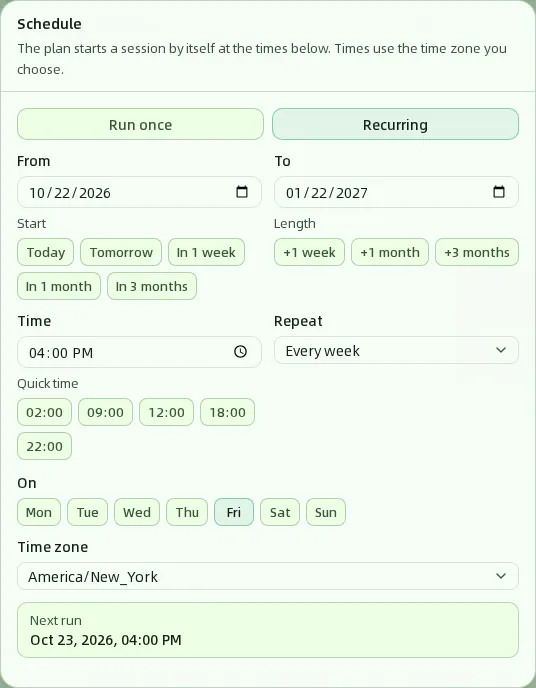
Repeats daily or weekly between a start date and an end date.
| Field | Description |
|---|---|
| From and To | The first and last date of the period, both inclusive. Defaults to starting today and lasting one month. Under Start, Today, Tomorrow, In 1 week, In 1 month, and In 3 months set the start date quickly; under Length, +1 week, +1 month, and +3 months set the duration. |
| Time | The time of day of each run, in HH:mm. Quick time offers 02:00, 09:00, 12:00, 18:00, and 22:00. |
| Repeat | Every day or Every week. |
| On | Appears when you choose Every week. Pick the weekdays, Mon to Sun, on which the plan runs; choose at least one. |
| Time zone | The time zone the time is read in. Every run follows local time in this zone, so a plan at 02:00 every day stays at 02:00 across daylight saving changes. |
To make a plan “long-lived”, set To far out, for example by clicking +3 months. After the end date the plan becomes Completed and stops running.
Choose an Agent for a HagiTask plan
A proposal plan needs no Agent. A HagiTask plan must have one Agent selected, because nobody is there to pick one when it starts on its own:
- In plan mode the dialog shows an Agent selection section explaining that this is the Agent the plan runs with, and that the plan keeps this choice when it starts. Click an Agent to select it.
- The bottom bar shows
Agent: name. Until you choose, it showsNo agent selected yet.and the plan cannot be saved. - Currently a plan can have only one Agent. To create Agents, see Agents.
Edit a plan
There are two ways in: click Edit in the details drawer of a time on the Calendar, or click Edit on the plan’s row in All plans. Either way, HagiCode first reads the plan’s latest saved content, then opens the same dialog used to create it, in plan mode. A saved plan always stays a plan: the Plan switch is locked and cannot turn it back into a normal task.
A one-time plan
The editor opens directly. Change the name, content, Agent, or time and click Save plan.
A recurring plan: this time or the whole series
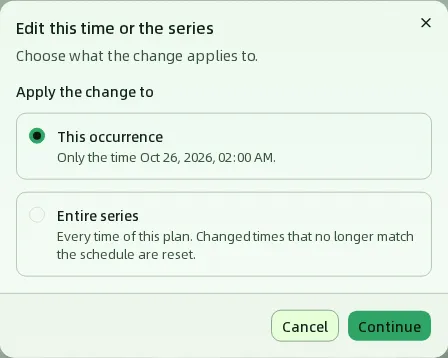
When you edit a recurring plan from the calendar’s details drawer, a scope dialog appears first:
| Option | What it changes |
|---|---|
| This occurrence | Only the time you opened. The plan’s other times stay as they are. |
| Entire series | Every time of the recurring plan. Times that were changed individually and no longer match the new schedule are reset. |
Edit from All plans always edits the entire series.
When you edit the entire series, the top of the drawer says This is a recurring plan. Saving changes the entire series, not a single time., to remind you that saving affects every time.
When you edit this time, the top of the drawer says “Saving changes only this time, …”, and the schedule area shrinks to this time’s date, time, and time zone; it can no longer be changed to recurring. You can change this time’s run time, name, request, and Agent; any field you leave alone keeps following the entire series.
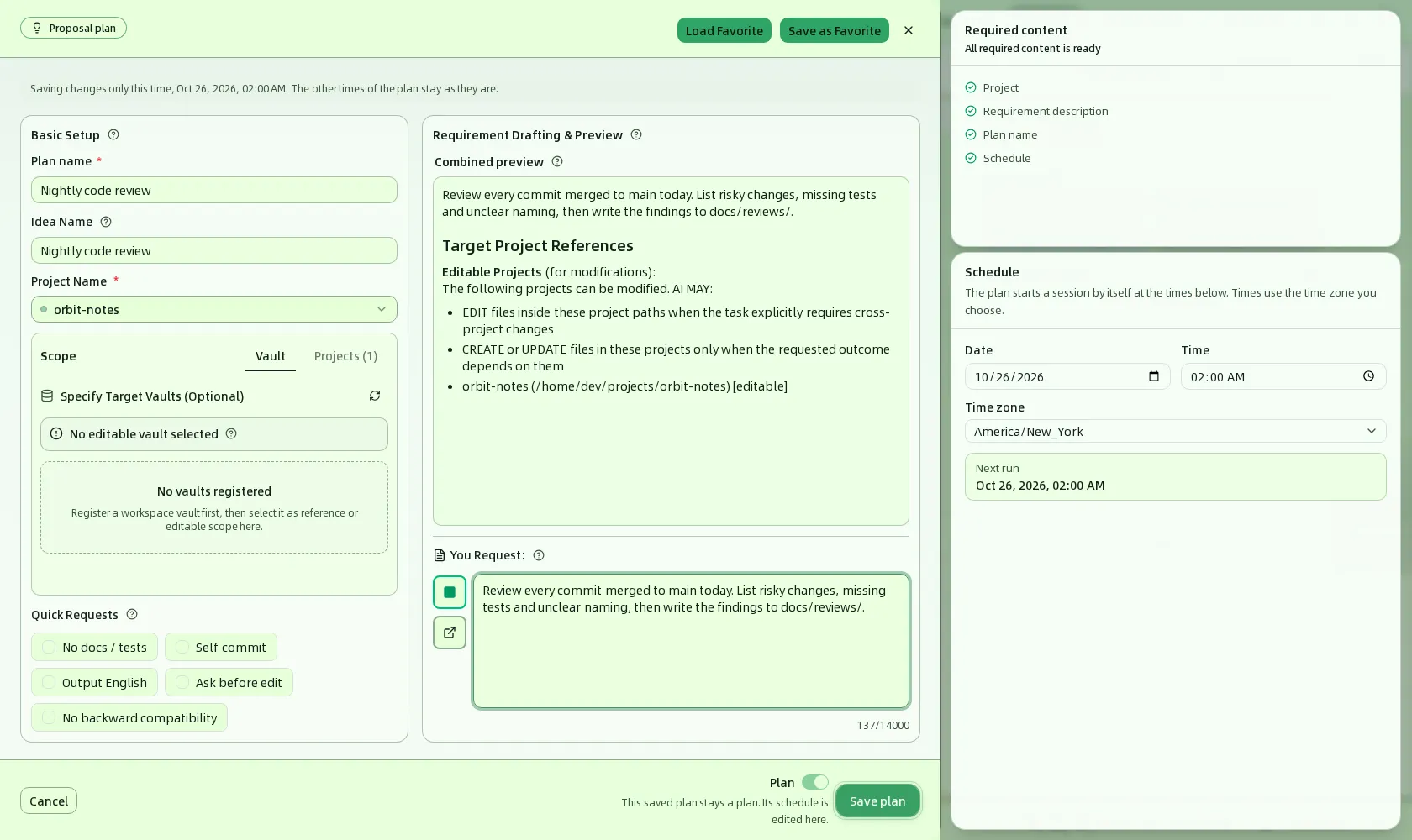
After saving you are back on the calendar. The changed time now carries the pencil icon (Changed), and the top of the calendar shows Saved.
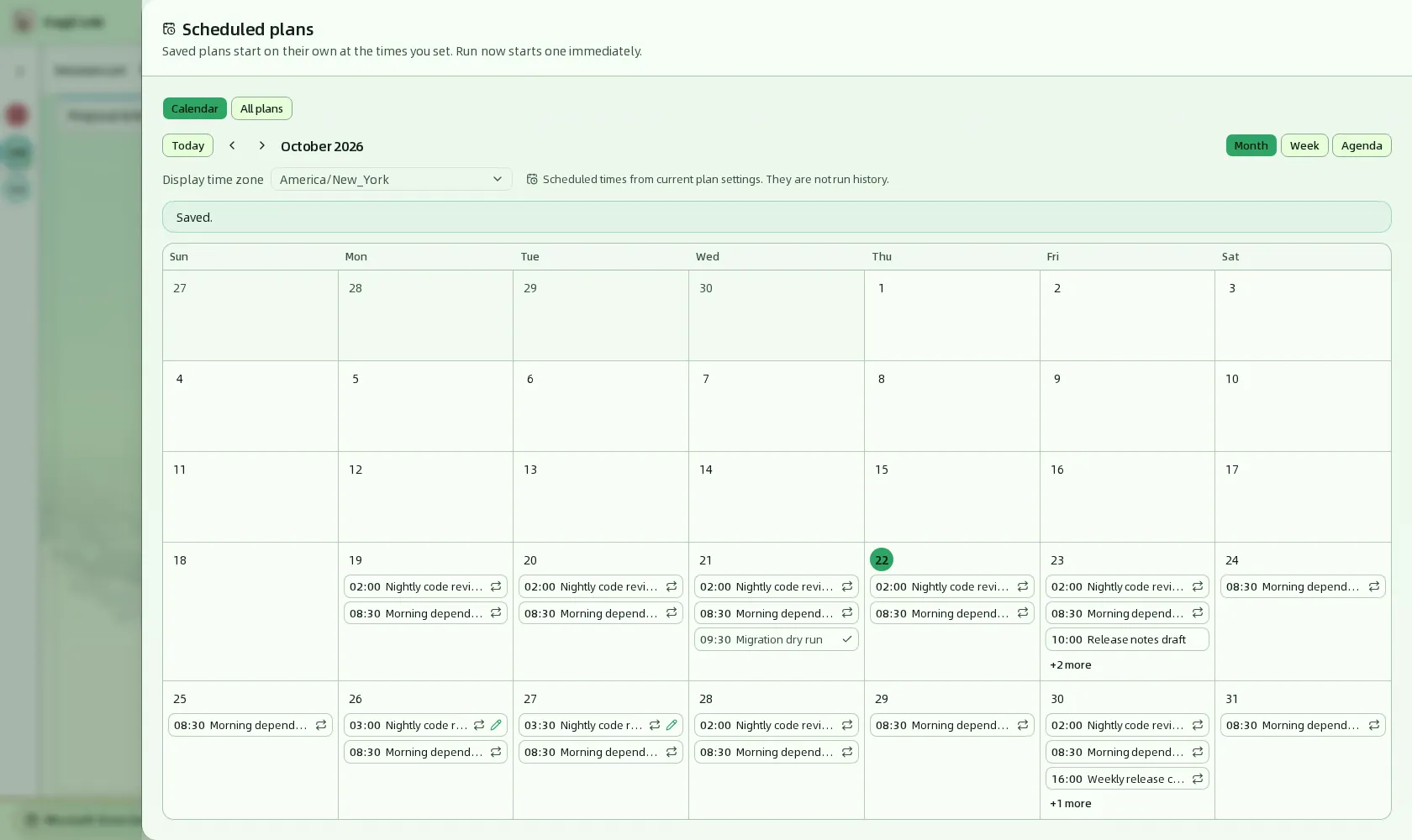
If the saved plan has no run time in the month, week, or agenda currently shown, the calendar says "…" has no scheduled time in this period and offers an All plans button, where the plan’s details stay available.
Delete a plan
There are two ways to delete as well, and both ask for confirmation first.
-
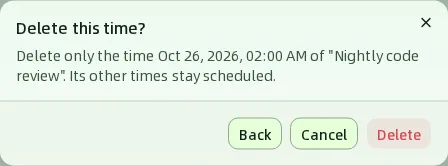
From the calendar: click Delete in the details drawer of a time. A recurring plan first asks for the scope: choose This occurrence and click Continue to reach the Delete this time? confirmation, or choose Entire series to confirm deleting the whole plan. A one-time plan has only one scope, so it goes straight to the delete confirmation.
-
From All plans: click Delete on the plan’s row and confirm to delete the whole plan.
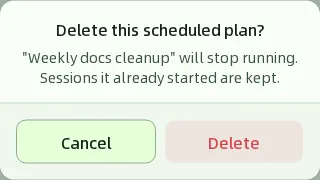
Deleting one time only stops that single time from running; deleting the whole plan stops the plan. Either way, sessions that already started are kept.
Manage plans in All plans
Switch to All plans to see every plan. Each row is one plan.
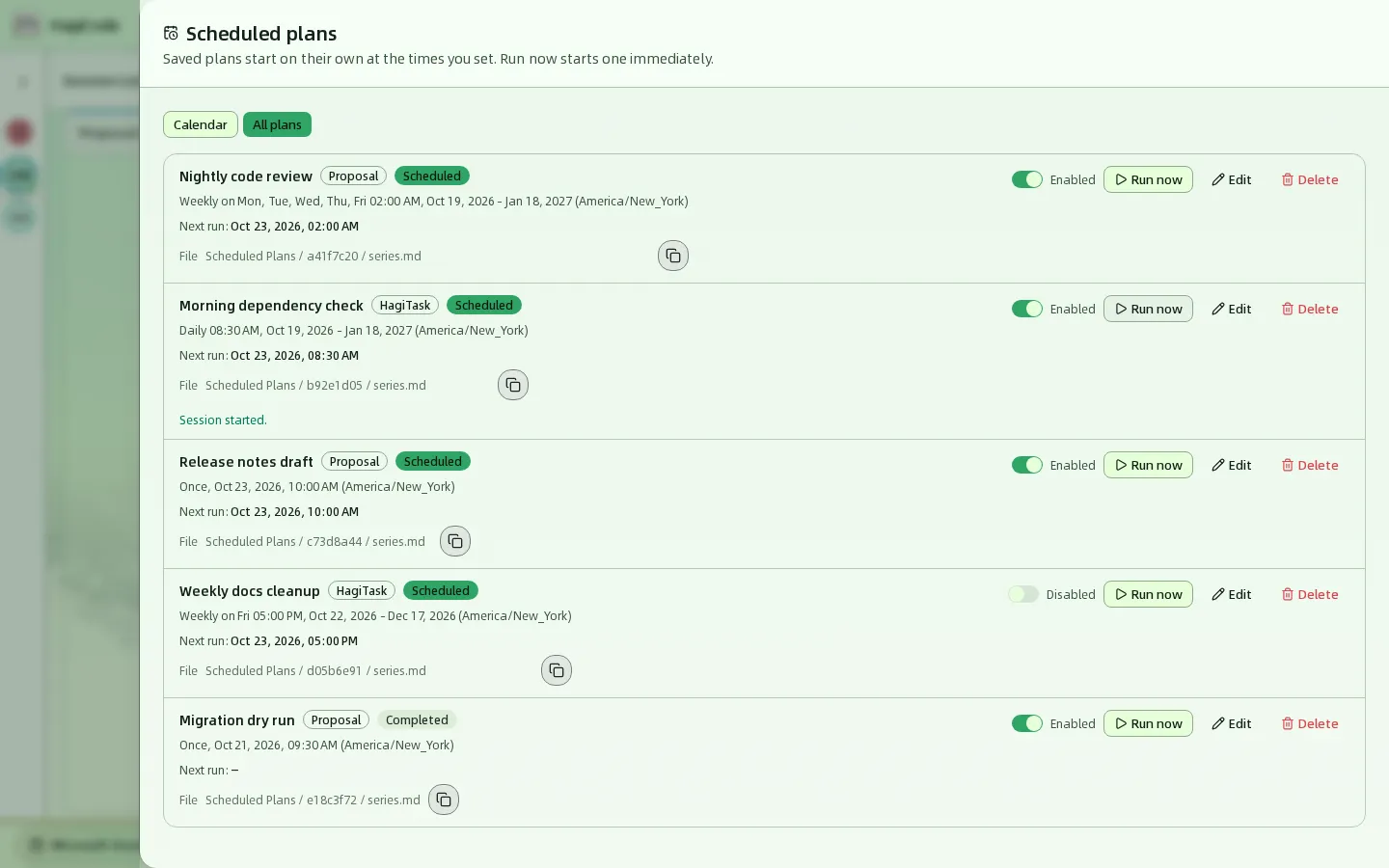
Each row contains:
- The name, a Proposal or HagiTask type badge, and a Scheduled or Completed state badge.
- A schedule summary, for example
Weekly on Mon, Tue, Wed, Thu, Fri 02:00 AM, Oct 19, 2026 - Jan 18, 2027 (America/New_York). - Next run. A completed plan shows
–. - File: the location of the plan’s file, in the form
Scheduled Plans / plan id / series.md. The button beside it copies the file’s full path. See Plan files.
The controls at the right of each row:
| Control | What it does |
|---|---|
| Enabled / Disabled switch | Enables or disables the plan. A disabled plan does not run automatically but stays in the list and on the calendar. When you enable it again, HagiCode recalculates the next run from the current time; times missed while it was disabled are not made up. |
| Run now | Creates a session right now from the saved inputs; on success the row shows Session started. It does not change the plan’s schedule or Next run, and a disabled or completed plan can be run manually too. |
| Edit | Edits the entire plan; see Edit a plan. |
| Delete | Deletes the entire plan; see Delete a plan. |
Plan files
When you save a plan, HagiCode syncs its contents to Markdown files in the Scheduled Plans vault, which HagiCode manages for you; you do not need to create it. Each plan gets a folder named by its id:
series.md: the plan’s configuration and request text.occurrence-<time>.md: one for each changed time that carries its own content.
These files are copies generated from the plan, handy for reading, searching, or referring to elsewhere. HagiCode rewrites them from the plan’s latest content and cleans them up when the plan is deleted. To change a plan, edit it in the plan manager: changing a file does not change the plan, and the change is overwritten. In All plans, click the copy button on the File line to get the file’s full path. For vaults in general, see Vault.
When plans run
- Plans run only while HagiCode is running. HagiCode checks for due plans every 30 seconds, so a run can start up to about 30 seconds after its scheduled time.
- Missed times are made up once. If HagiCode was not running when a plan came due (for example, the computer was off), the plan runs once as soon as HagiCode starts, and then the next run is scheduled normally. However many times were missed, it runs only once, not in a batch.
- Failed runs are not retried. If a run cannot create its session (for example, the project was removed or the chosen Agent is unavailable), that run is skipped and the plan waits for its next scheduled time. To recover, fix the problem and click Run now. If a manual run fails, the row shows Run now failed: and the reason.
- A one-time plan becomes Completed after it runs. To use it again, click Edit and set a new time in the future. Turning on the switch of an expired one-time plan is rejected because its run time is already in the past.
- Every run creates a new session. A proposal plan creates a proposal session and a HagiTask plan creates a HagiTask session. They appear on the session board like sessions you create by hand.
FAQ
Saving a plan says the run time must be later than the current time, or to choose at least one weekday. This is form validation, and the reason appears under the field. A one-time plan must be later than now. For a recurring plan, the end date cannot be before the start date, a weekly plan needs at least one weekday, and the range must contain at least one possible run.
The Plan switch is greyed out. Images are attached to the form, and plans do not support images. Remove them and the switch works again.
The plan I just saved is not on the calendar. The calendar shows only the times inside the month, week, or agenda range on screen. Switch to a month that contains those dates, or look at the plan in All plans.
The times on the calendar differ from what I set. The calendar arranges times in the Display time zone, which defaults to the browser’s time zone. The plan’s own time zone is shown as Schedule time zone in the details, and a plan always runs by its own time zone.
A plan did not run when it was due. Check in order: the plan is Enabled; Next run is the time you expect (especially the time zone); HagiCode was running at that moment; the project and Agent used by the plan still exist; that single time was not deleted. The calendar shows plan settings, not a run record, so it cannot confirm whether something ran.
Where are plans stored?
All plans are stored in scheduled-plans.json in HagiCode’s system-managed configuration directory. They do not depend on the browser, so opening the same HagiCode from another browser shows the same plans.
HagiCode
HagiCode is an agentic coding workspace. Rich, convenient UI interactions make planning, agent execution, and project work approachable and easy to navigate, creating an engaging development experience.
Explore an engaging development experience through rich, convenient UI interactions.
- SmartOpenSpec workflows turn intent into an executable path, from proposal to design, tasks, and a shipped change.
- EfficientMulti-agent execution keeps research, implementation, and review moving in parallel, across several repositories and the Agent CLIs you already use.
- InterestingRich, convenient UI interactions make planning, agent execution, and project work approachable and easy to navigate.
HagiCode at a glance
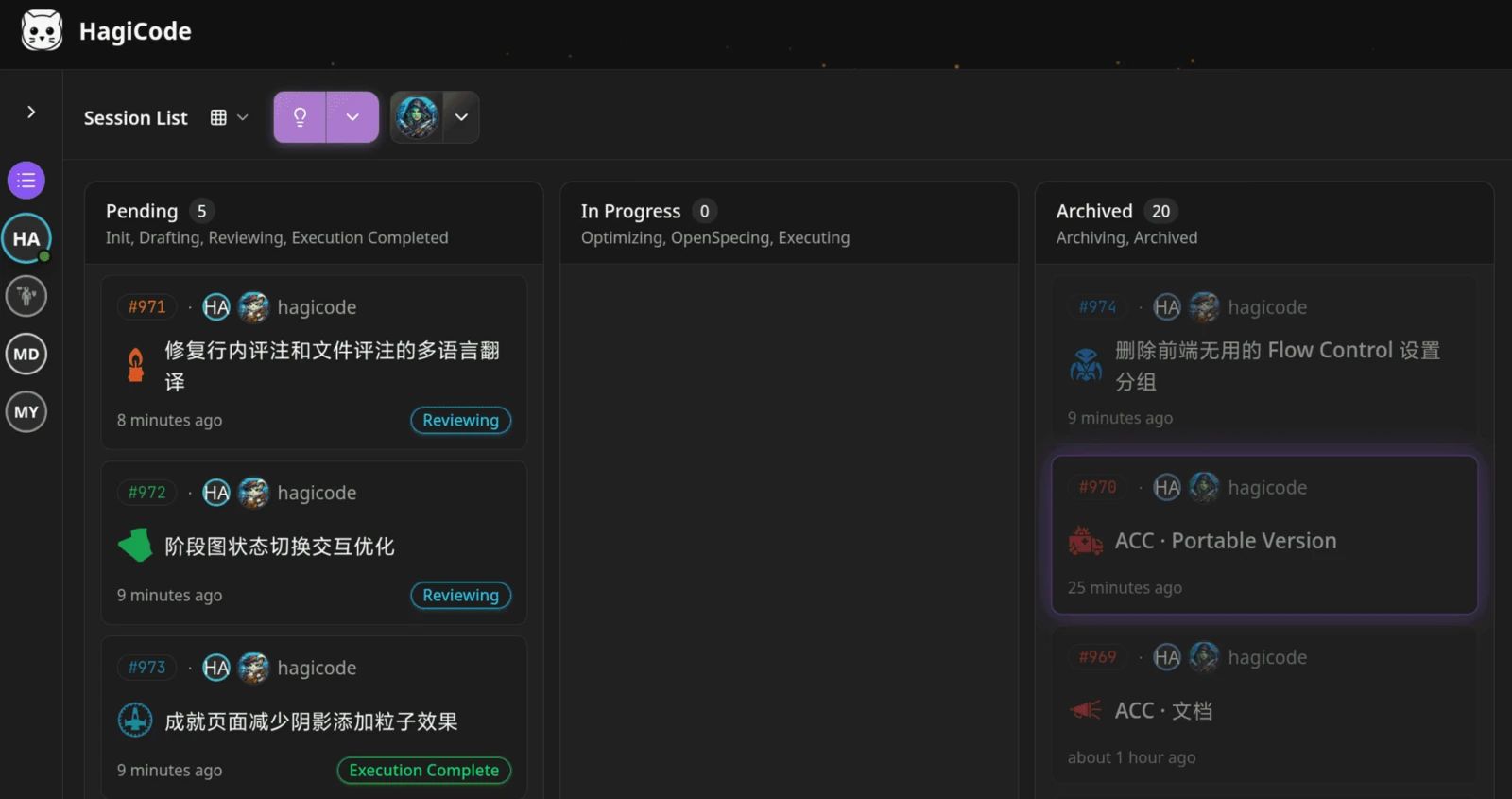
The workbench: every session on one kanban board. 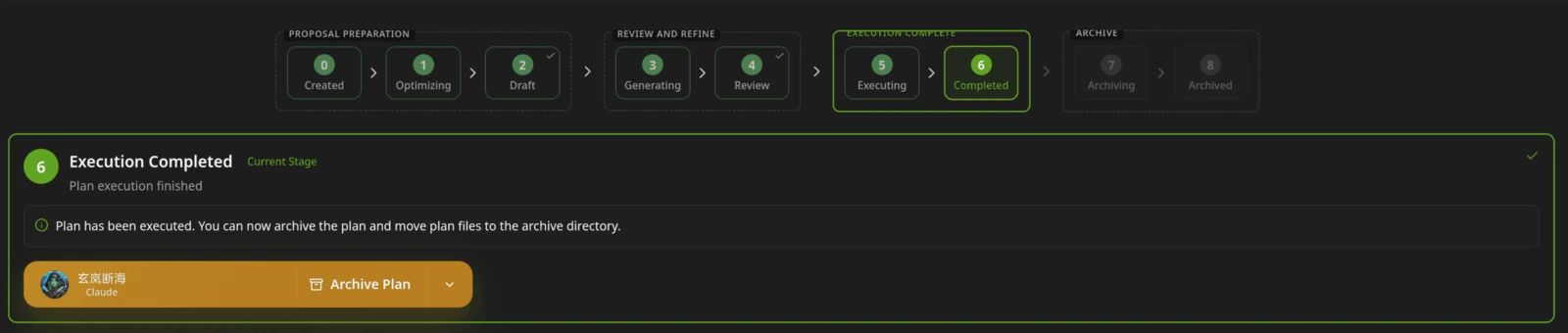
A proposal moves from created to drafted, reviewed, executed, and archived. 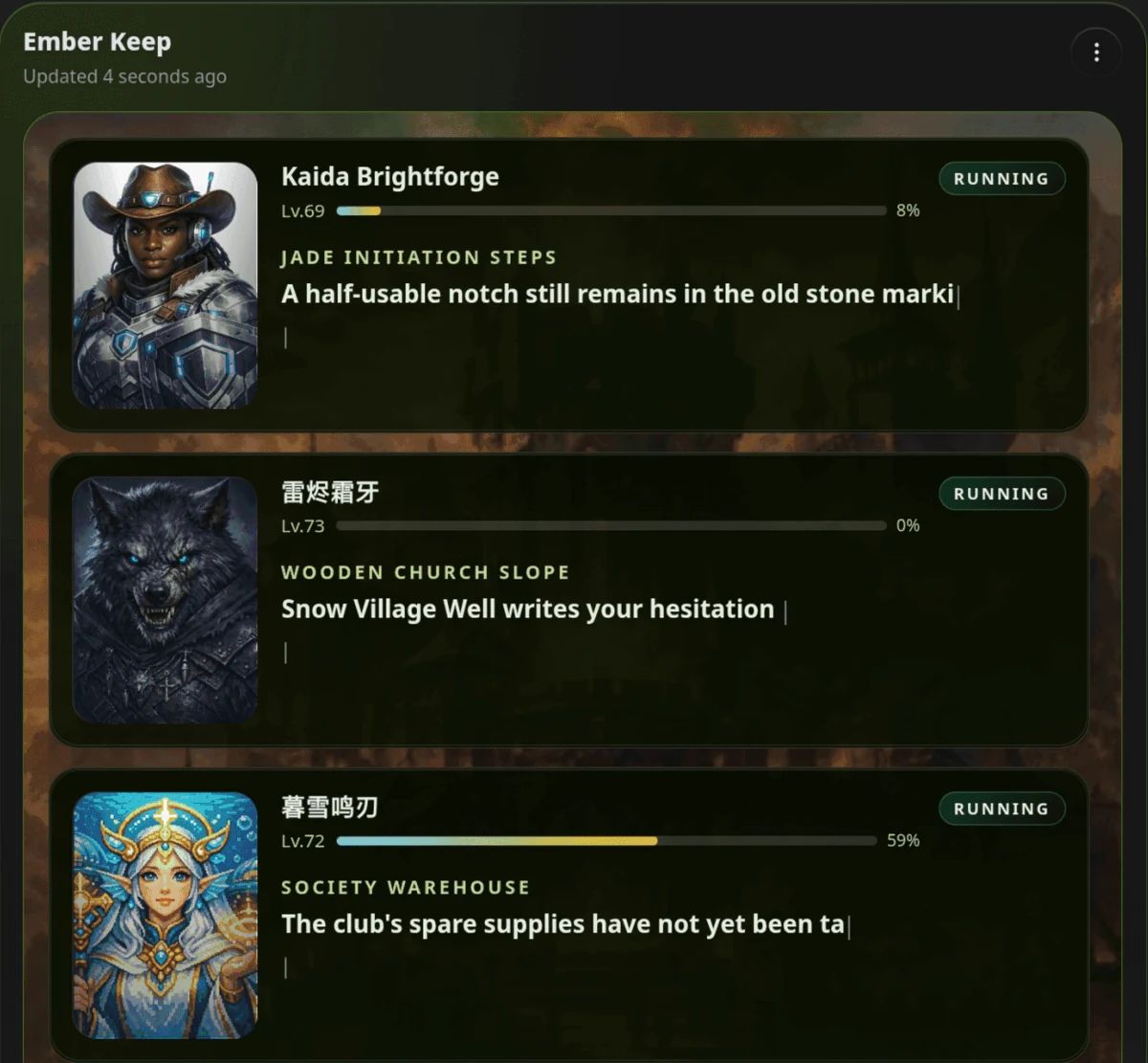
Hero Scenario: heroes run the work while you follow progress, levels, and story. 
Illustration: a cat-head portrait from the HagiCode illustration set, one of many that change between visits.
Download for Windows
Share HagiCode

Turn ideas into shipped software.
HagiCode is an agentic coding workspace. OpenSpec workflows plan the change, multi-agent execution carries it out, and Hero Scenario makes the long run visible, so ideas become shipped software.
- Smart
- OpenSpec workflows turn intent into a path from proposal to shipped change.
- Efficient
- Multi-agent execution runs research, build, and review in parallel.
- Fun
- Rich UI interactions make planning, agent work, and projects easier to follow.
Ecosystem Sites
Quick Links
Community
© 2026 HagiCode | Powered By hagilight-starlight@0.15.1 | Branch: main | Commit: 86228e2 | Built: