
Skills Guide
This guide covers the Skills panel in HagiCode.
Open Skills when you want to:
- see which skills are already installed on this machine
- search the wider skill library
- confirm the source, trust state, and actual install command before installing
- manage which sources are labeled as trusted
What Skills is for
Skills is HagiCode’s built-in skill browsing and installation panel. It gives you one place to review locally available skills, search the gallery, and inspect installation details before you install anything.
Use it when:
- you are new to HagiCode and want to see what is already available
- you know the kind of work you are doing and want better matching helper skills
- you want to install a new skill but need to verify the source first
- you want to avoid reinstalling something that is already available locally
Recommended reading order
On a first pass, start with Local Skills, then move to Gallery, and only then review the details panel before installing.
1. Open Skills
In the top navigation bar of the HagiCode workspace, click the Skills button to open the panel.

The red arrow in the screenshot highlights the entry point.
After opening the panel, you will see three main tabs:
Local SkillsGalleryTrusted Providers
When to open Skills
You do not need to leave your current project, session, or onboarding flow. Skills opens from the top bar inside the same workspace.
2. Review locally installed skills
Local Skills answers two common questions: What is already installed? and Which of these skills can be updated right now?
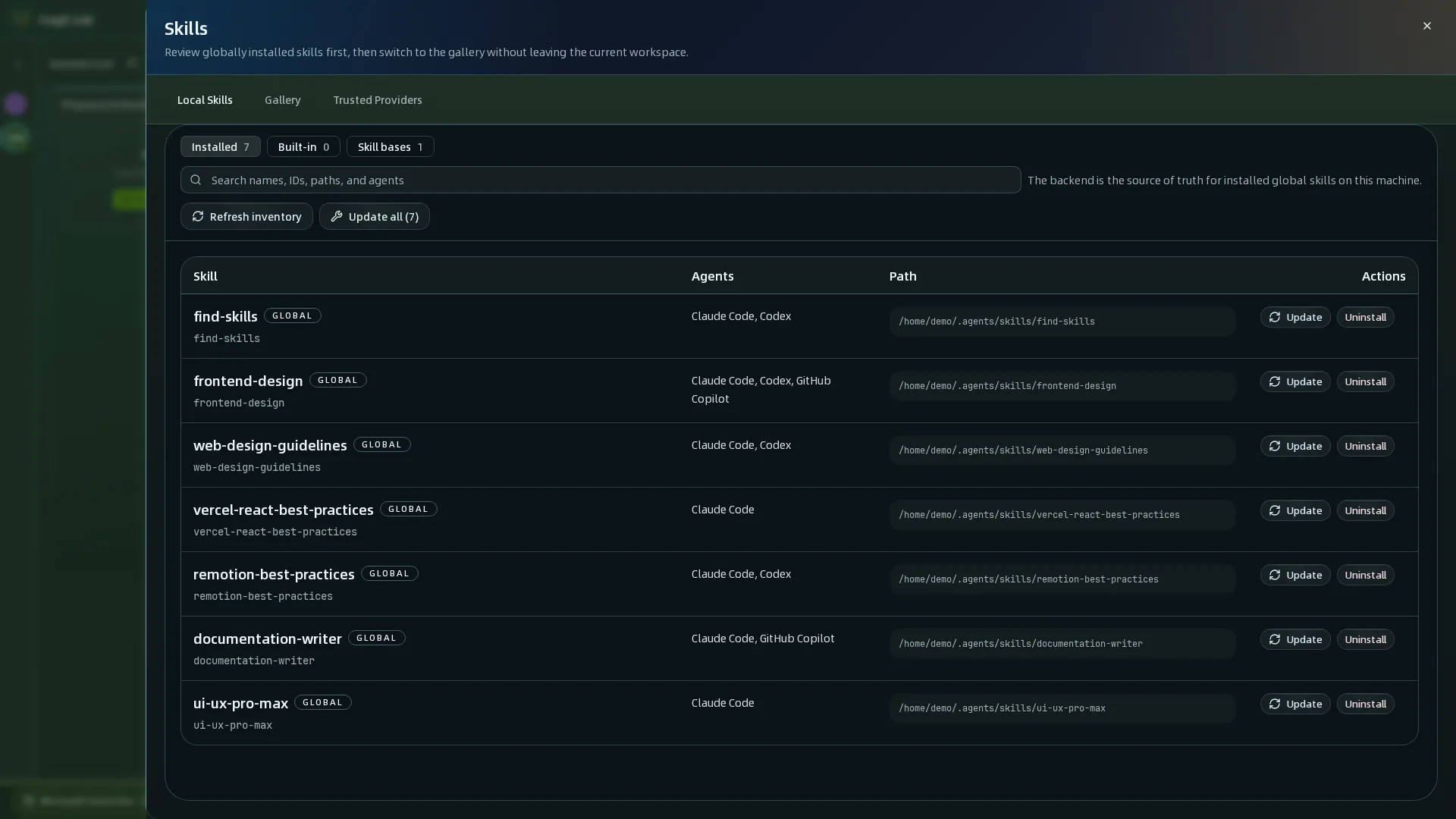
The most important areas on this page are:
- Search box: filter local skills by name, ID, path, or agent
Refresh inventory: rescan what is currently installed on this machineUpdate all: run batch updates for skills that support managed updatesBatch update summary: review the latest batch result and status log
Each row usually shows:
- the skill name
- compatible agents
- the local install path
- available actions
If a row warns that backend-managed install metadata is missing, that skill cannot use one-click updates and should be reviewed manually.
Batch update still needs human review
Update all only means the update flow is executed in bulk. It does not mean the listed skills have already been safety-reviewed for your use case.
3. Search and compare in the gallery
If you already know what you are looking for, or you want to compare similar skills from different sources, use Gallery.
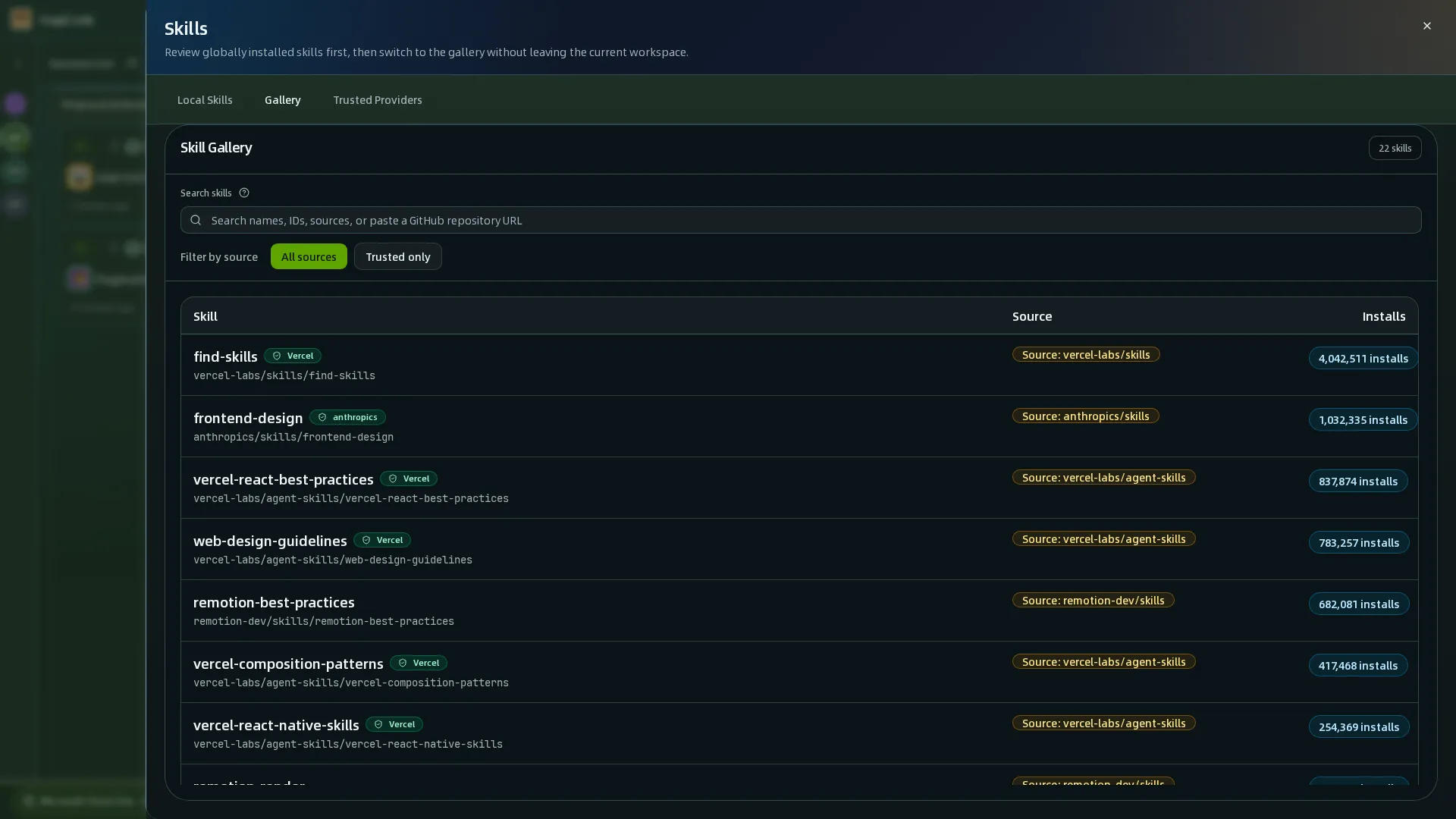
Gallery is the best place to:
- search by keyword
- filter to trusted sources first
- compare similar skills from different sources
- check install counts and local install state
Start with three fields:
Source: who provides the skillInstalls: the install count, which can act as a supporting signalInstalled locally: whether the skill is already available on your machine
Check the source before the install count
Popularity can help, but it should not replace source review. Start with Source, then use Installs as extra context.
4. Review skill details before installing
When you open a skill, HagiCode shows the details panel. This is the most important screen to review before installation.
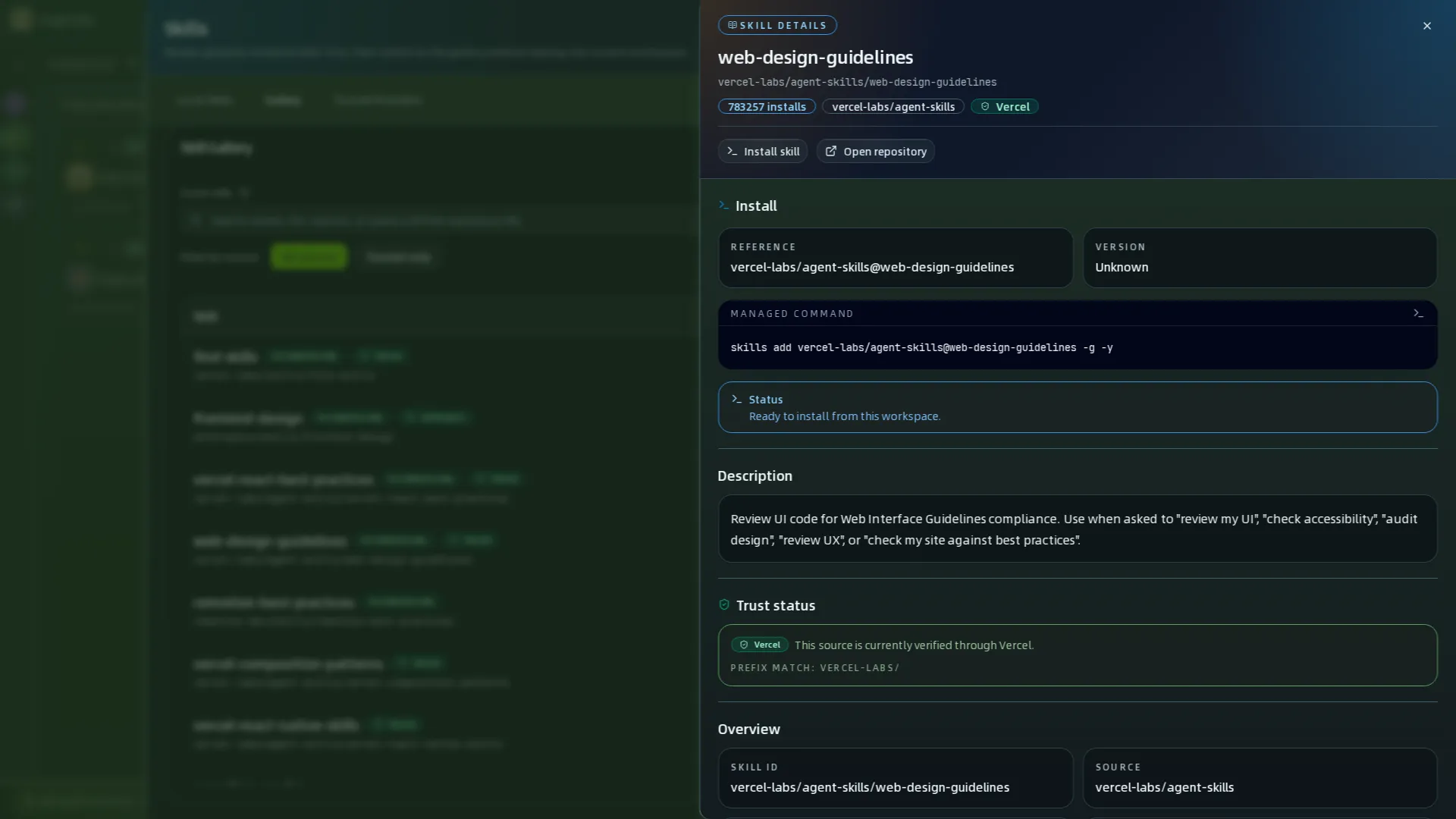
Pay special attention to:
- name, source, and install count: make sure you opened the intended item
Trust status: why this source is considered trustedManaged command: the actual command HagiCode is prepared to runStatus: whether the current workspace can install this skillOverview: supporting identifiers such as skill ID, slug, source, and install count
Managed command matters because it is the real installation command, not decorative text.
trusted does not mean “skip the review”
Even when a source is marked trusted, you should still read both Trust status and Managed command before installing.
5. Manage trusted providers
Trusted Providers controls which sources receive the trusted label. Open it when you want to know why a source is trusted, or when you need to adjust your trust rules.
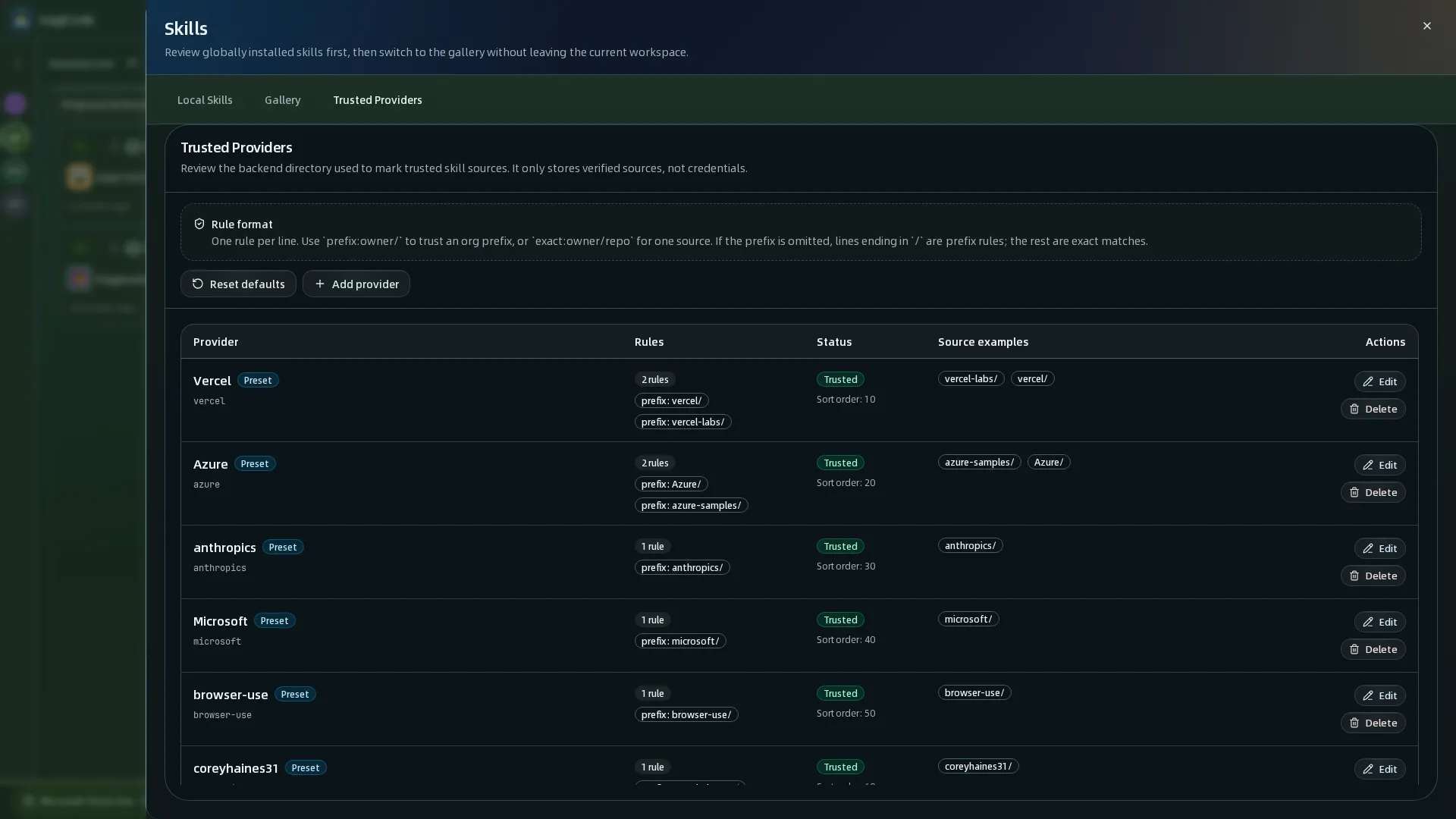
On this page:
Rule formatexplains how rules are writtenAdd providerlets you add a provider rule setReset defaultsrestores the default presets- the
Rules,Status, andSource examplescolumns show the matching rules, current state, and example matches
Common rule styles include:
prefix:owner/for prefix-based trustexact:owner/repofor a single exact source
Trusted Providers is not a credentials page
This page only decides which sources are labeled as trusted. It does not store tokens, passwords, or other secrets.
Check these 4 things before installing
Before you install a skill, review at least these four signals:
| Check | Where to look | What it tells you |
|---|---|---|
| Whether the source is trusted | Trusted Providers, plus Trust status in the details panel | Why this source is labeled as trusted |
| Whether it is already installed | status labels in Gallery | If it says installed locally, you usually do not need to reinstall it |
| Batch update result | Batch update summary in Local Skills | Whether the last bulk update succeeded and whether anything needs manual review |
| Actual install command | Managed command in the details panel | What HagiCode is actually going to run |
A common user path
A common first-time flow is:
- Open
Local Skillsand review what is already available - Use
Galleryto search and compare sources - Open the details panel to verify trust state and install command
- If needed, review or adjust trust rules in
Trusted Providers
Related reading
HagiCode
HagiCode is an agentic coding workspace. Rich, convenient UI interactions make planning, agent execution, and project work approachable and easy to navigate, creating an engaging development experience.
Explore an engaging development experience through rich, convenient UI interactions.

- SmartOpenSpec workflows turn intent into an executable path, from proposal to design, tasks, and a shipped change.
- EfficientMulti-agent execution keeps research, implementation, and review moving in parallel, across several repositories and the Agent CLIs you already use.
- InterestingRich, convenient UI interactions make planning, agent execution, and project work approachable and easy to navigate.
Download for Windows
Share HagiCode

Turn ideas into shipped software.
HagiCode is an agentic coding workspace. OpenSpec workflows plan the change, multi-agent execution carries it out, and Hero Scenario makes the long run visible, so ideas become shipped software.
- Smart
- OpenSpec workflows turn intent into a path from proposal to shipped change.
- Efficient
- Multi-agent execution runs research, build, and review in parallel.
- Fun
- Rich UI interactions make planning, agent work, and projects easier to follow.
© 2026 HagiCode | Powered By hagilight-starlight@0.21.0 | Branch: main | Commit: 951128b | Built: