
Settings
Click the gear icon in the header to open Settings. The left side lists the groups and their tabs; the right side shows the selected tab. Some tabs save changes as you make them; others have their own Save button.
Groups can be collapsed. HagiCode remembers which ones you left open.
| Group | Tabs |
|---|---|
| Common | General Settings |
| Project | Project Icon |
| Process & Interaction | Comments, Notifications, Quick Actions, Kanban Right Panel, Proposal Creation, Planning Direction, Proposal Stage Diagram, Mermaid Appearance, Session List, Confirm Prompts, Common Requirements, Error Retry, AgentCLI Interactive Control, Chat View, Standard Phrases, Haginput |
| Integration | Break Reminder, Salary Tracker, GitHub, Git, OmniRoute, TokenMonitor, Code Server, Status Bar Scroll |
| Game | Achievements |
| System | Data Management, Danger Zone, About |
| Debug | Debug |
Some controls are only active with the TurboEngine DLC and show as locked without it.
Common
General Settings
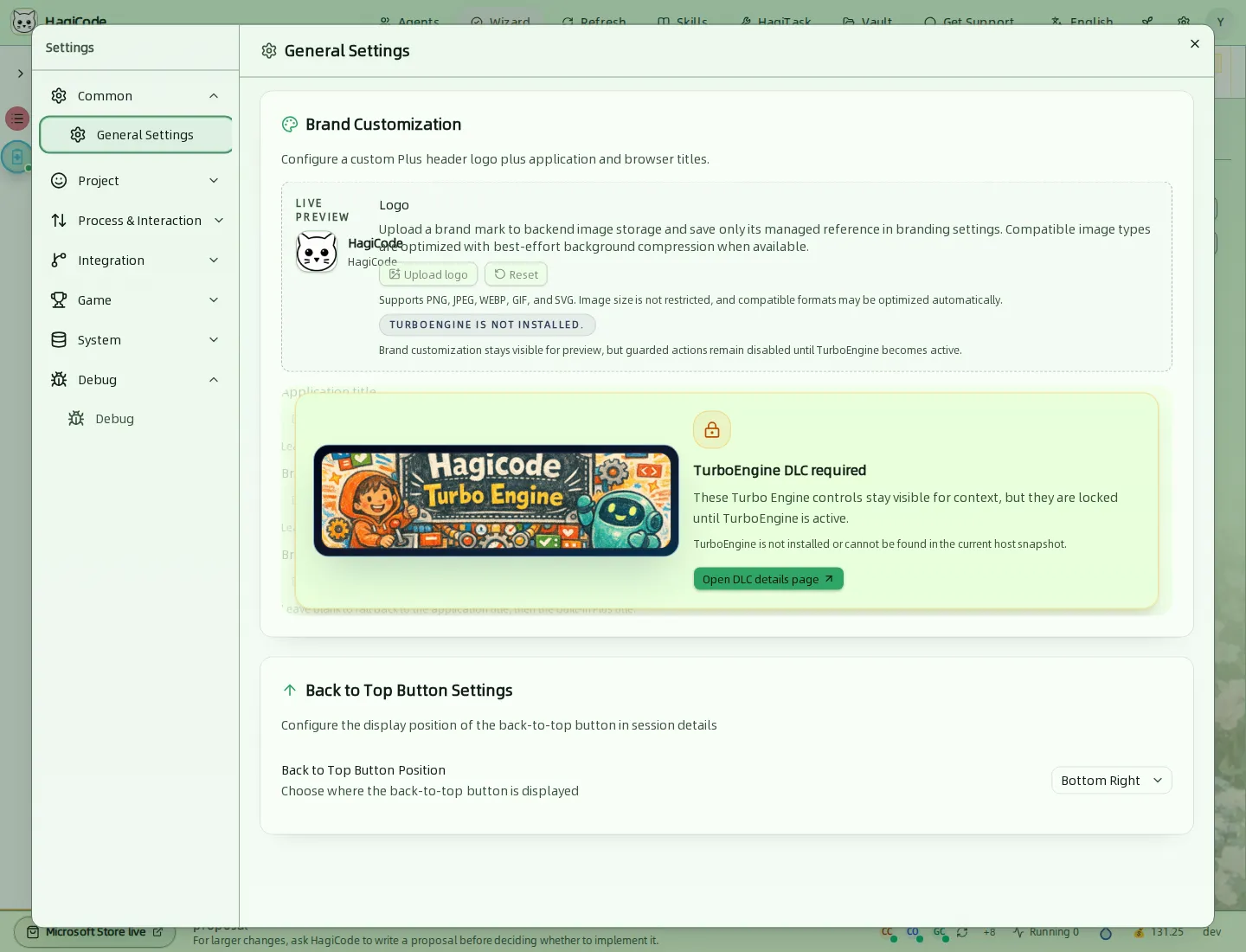
- Brand Customization sets a custom header logo, application title, brand link, and browser title. A live preview shows the result. These controls are visible for preview but locked until the TurboEngine DLC is active.
- Back to Top Button Settings chooses where the back-to-top button appears in a session, for example Bottom Right.
Project
Project Icon
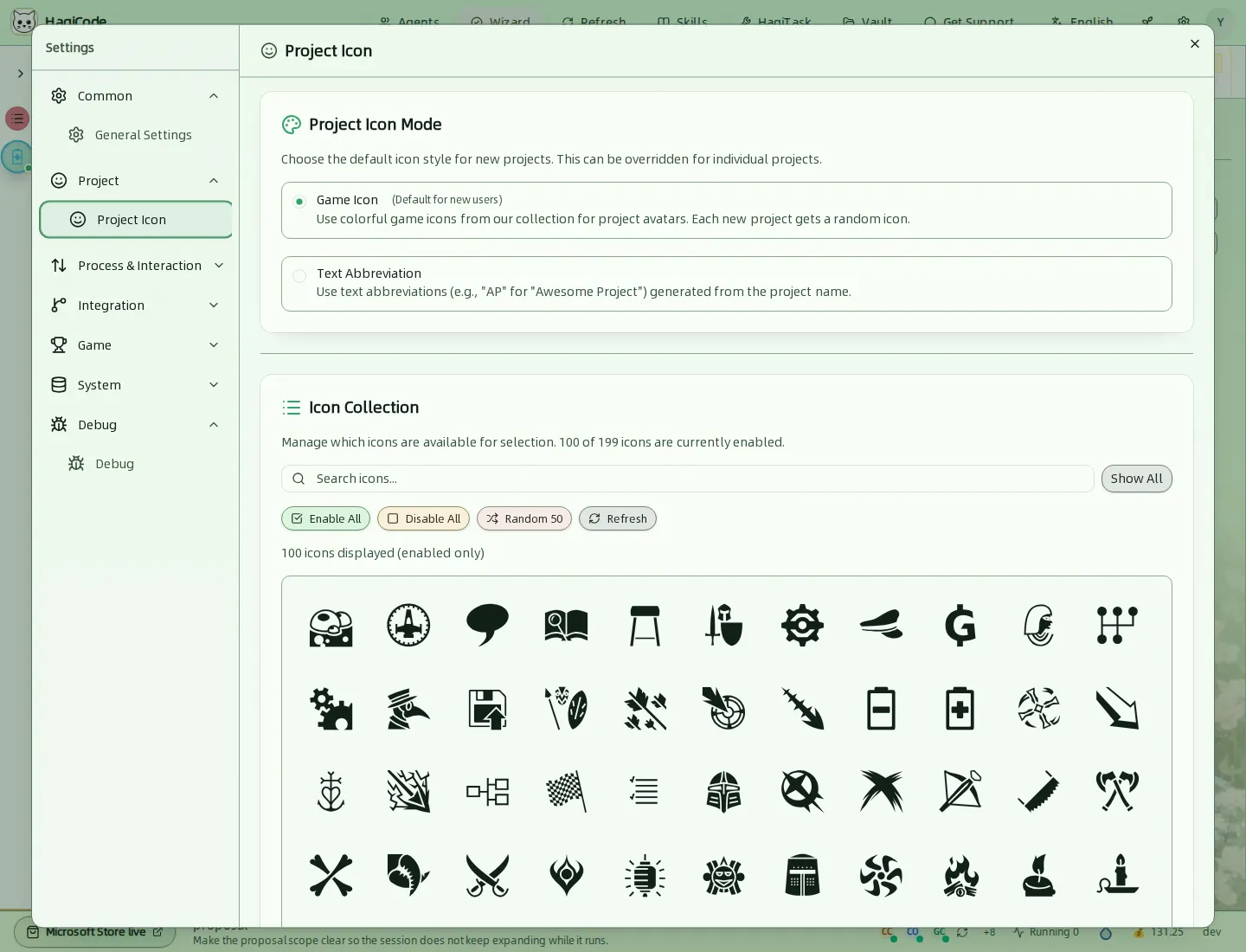
- Project Icon Mode sets the default style for new projects: Game Icon (a random colorful icon, the default) or Text Abbreviation (initials from the project name). A single project can override it in its project details.
- Icon Collection controls which icons can be picked. Use Show All, Enable All, Disable All, Random 50, and Refresh, or click an icon to toggle it.
Process & Interaction
This group controls how sessions, proposals, and the board behave.
Comments
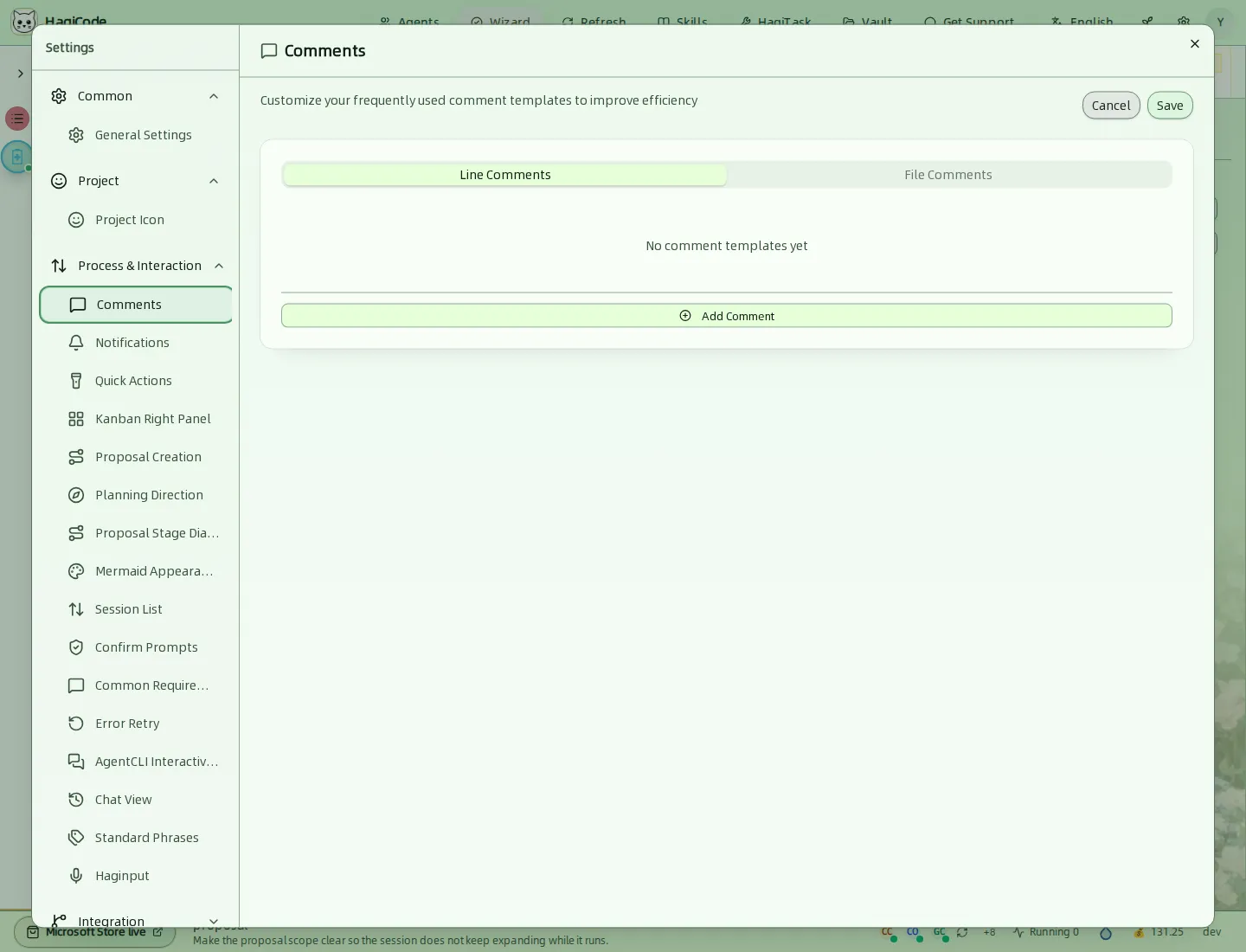
Save the comment templates you use often, in two lists: Line Comments and File Comments. Use Add Comment to create one and Save to keep your changes.
Notifications
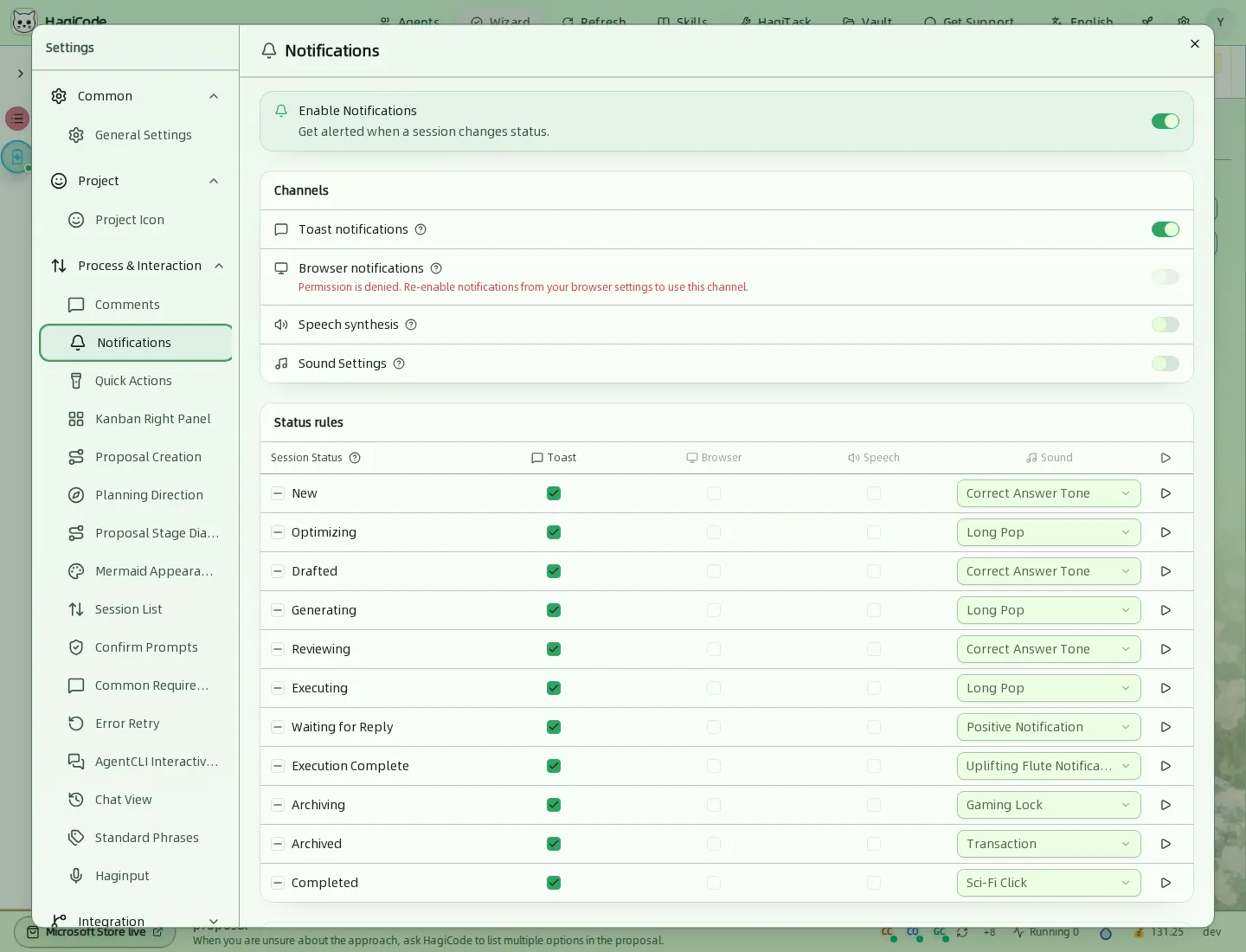
Turn notifications on, then choose the channels: Toast notifications, Browser notifications (the browser must allow them), Speech synthesis, and Sound Settings. The Status rules table lets you pick, for each session status such as New, Drafted, Executing, Waiting for Reply, Execution Complete, or Archived, which channels fire and which sound plays. The play button tests a sound.
Quick Actions
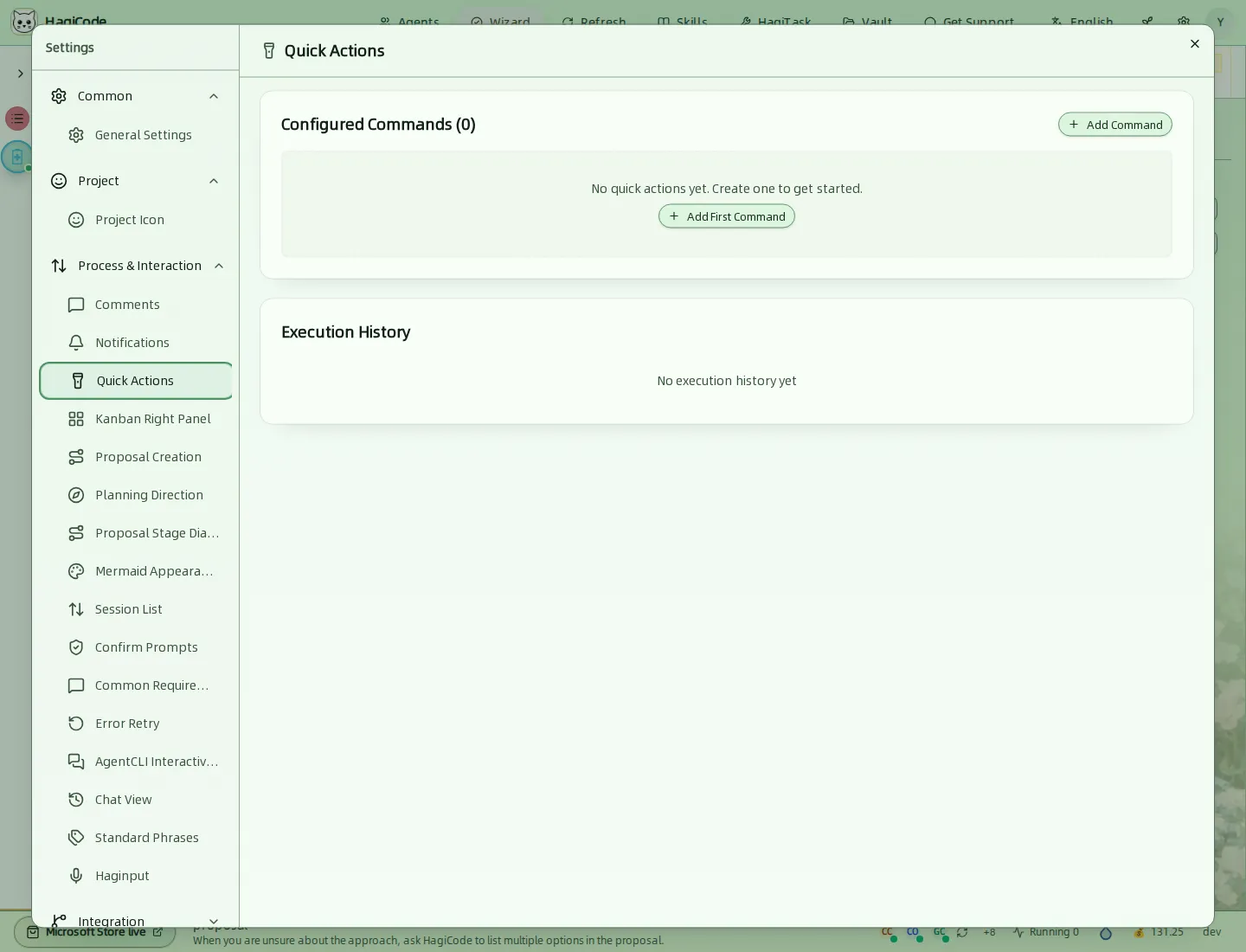
Configured Commands lists the custom commands you add with Add Command. Execution History records when they ran.
Kanban Right Panel
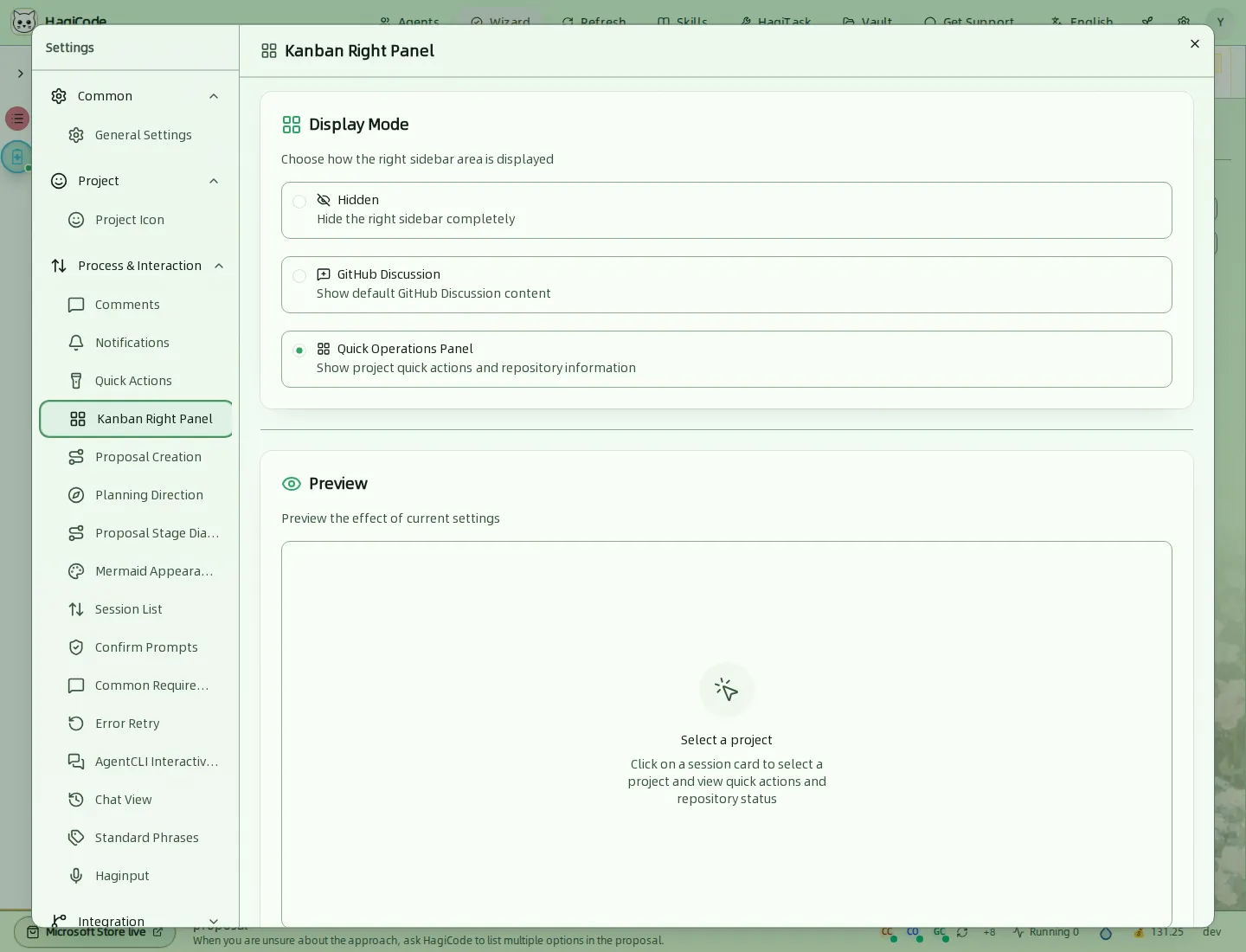
Choose what the right side of the session board shows: Hidden, GitHub Discussion, or the Quick Operations Panel with quick actions and repository status (the default). A live Preview shows the effect.
Proposal Creation
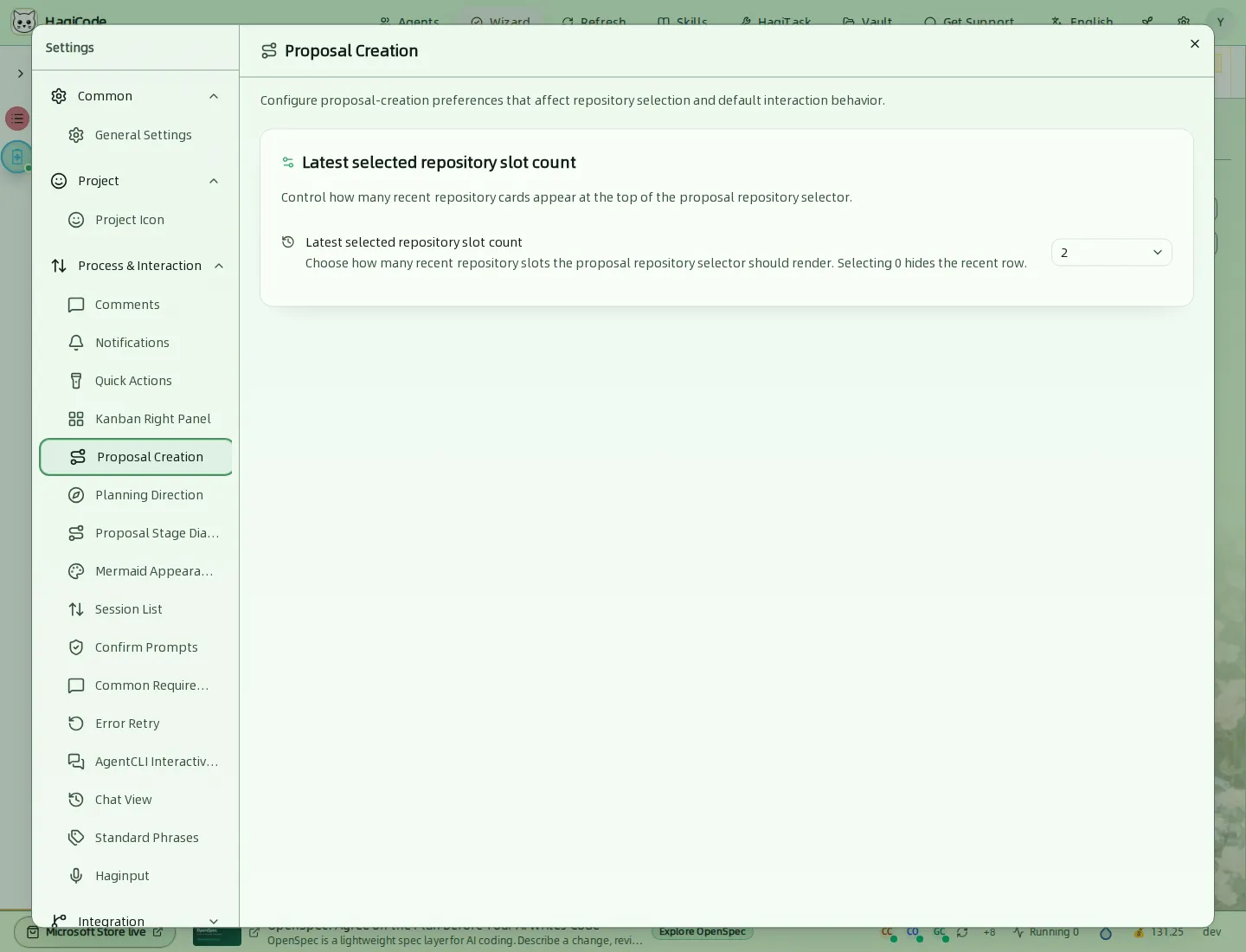
Sets how many recent repository cards the proposal repository selector shows at the top. Choose 0 to hide the row.
Planning Direction
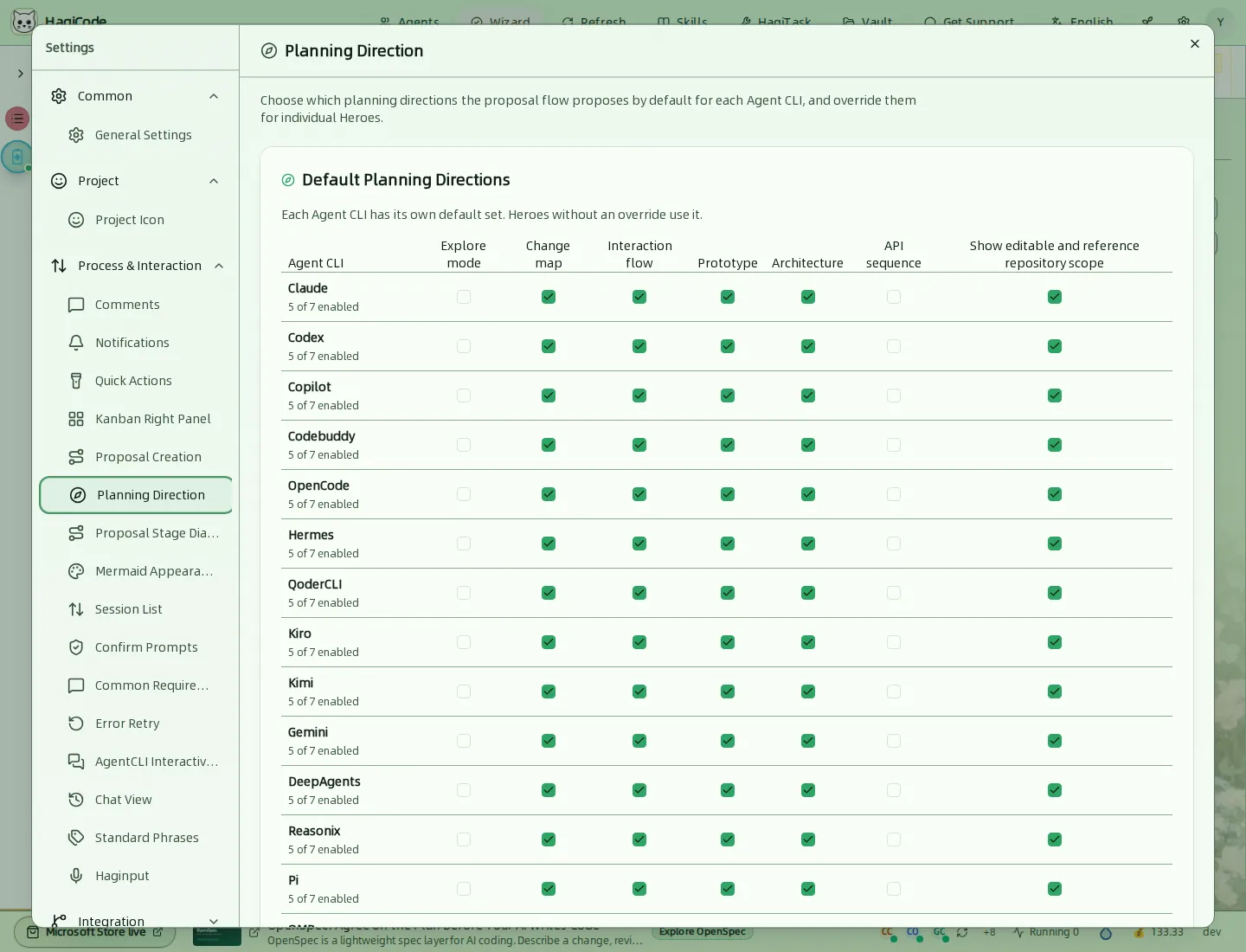
A matrix of the planning directions the proposal flow proposes by default for each Agent CLI: explore mode, change map, interaction flow, prototype, architecture, API sequence, and the editable and reference repository scope. Individual Agents can override the defaults.
Proposal Stage Diagram
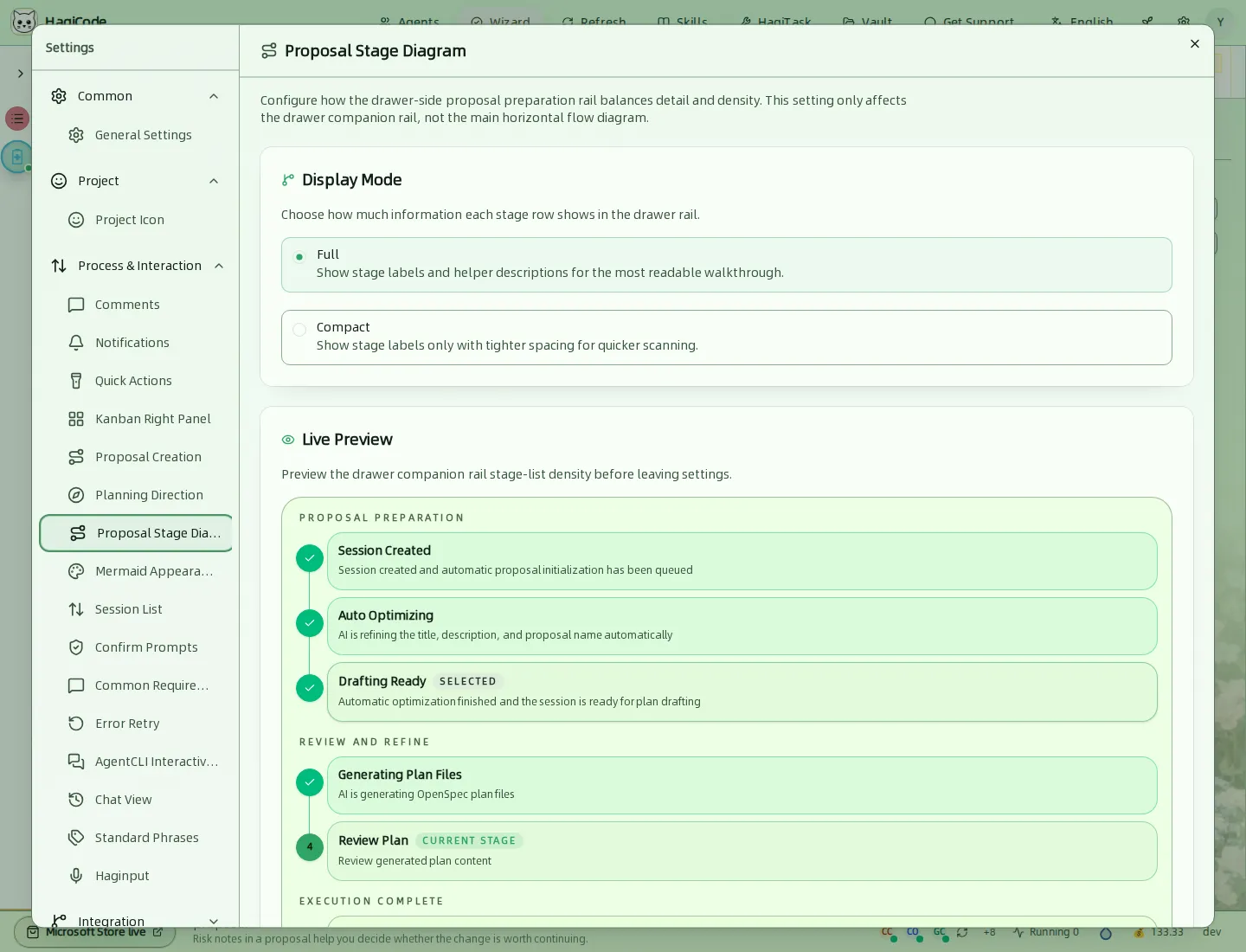
Sets how detailed the stage list in the proposal drawer is: Full shows stage labels and descriptions, Compact shows labels only. This affects only the drawer’s side rail, not the main flow diagram.
Mermaid Appearance
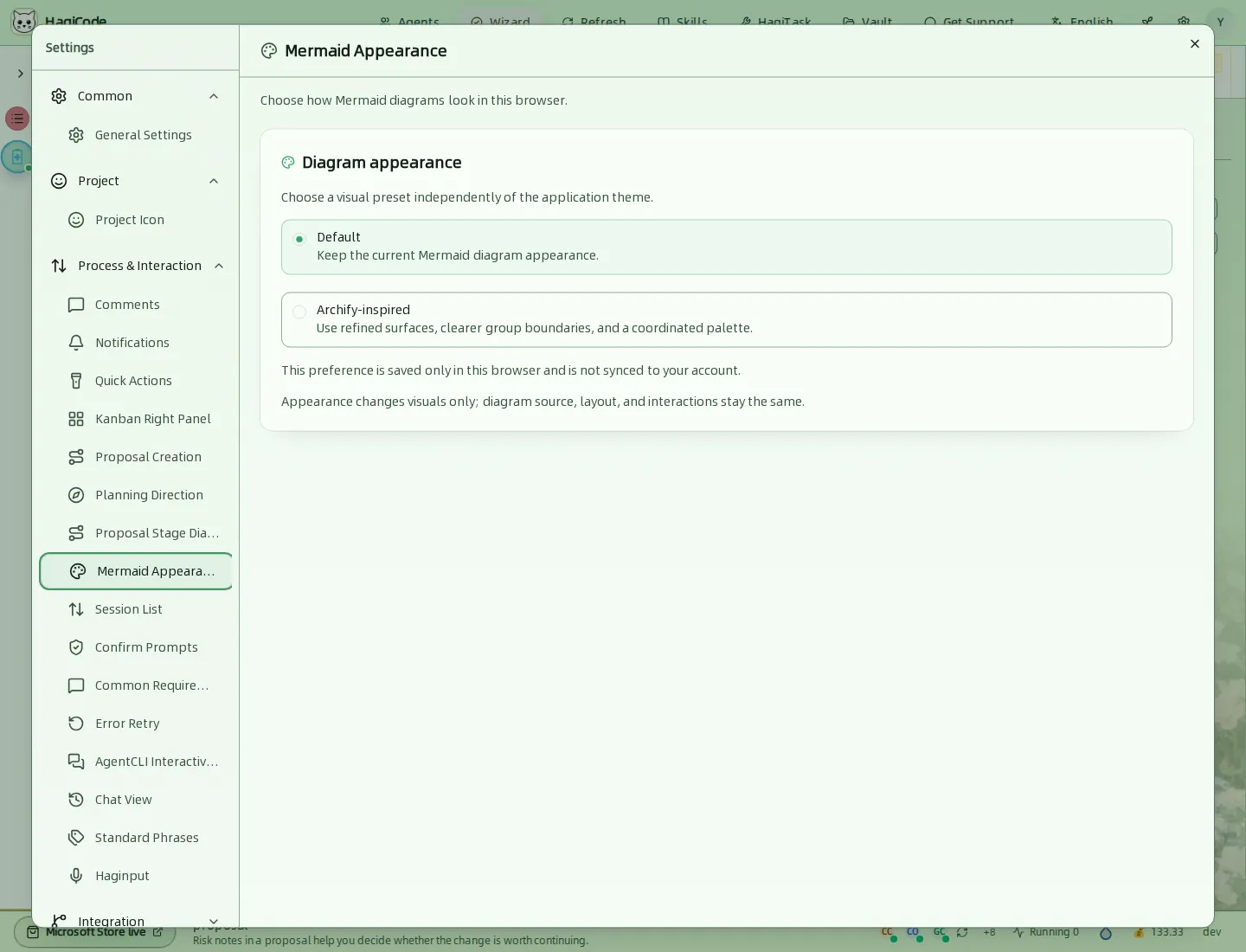
Chooses the look of Mermaid diagrams: Default or Archify-inspired. The choice is saved only in this browser and changes visuals only.
Session List
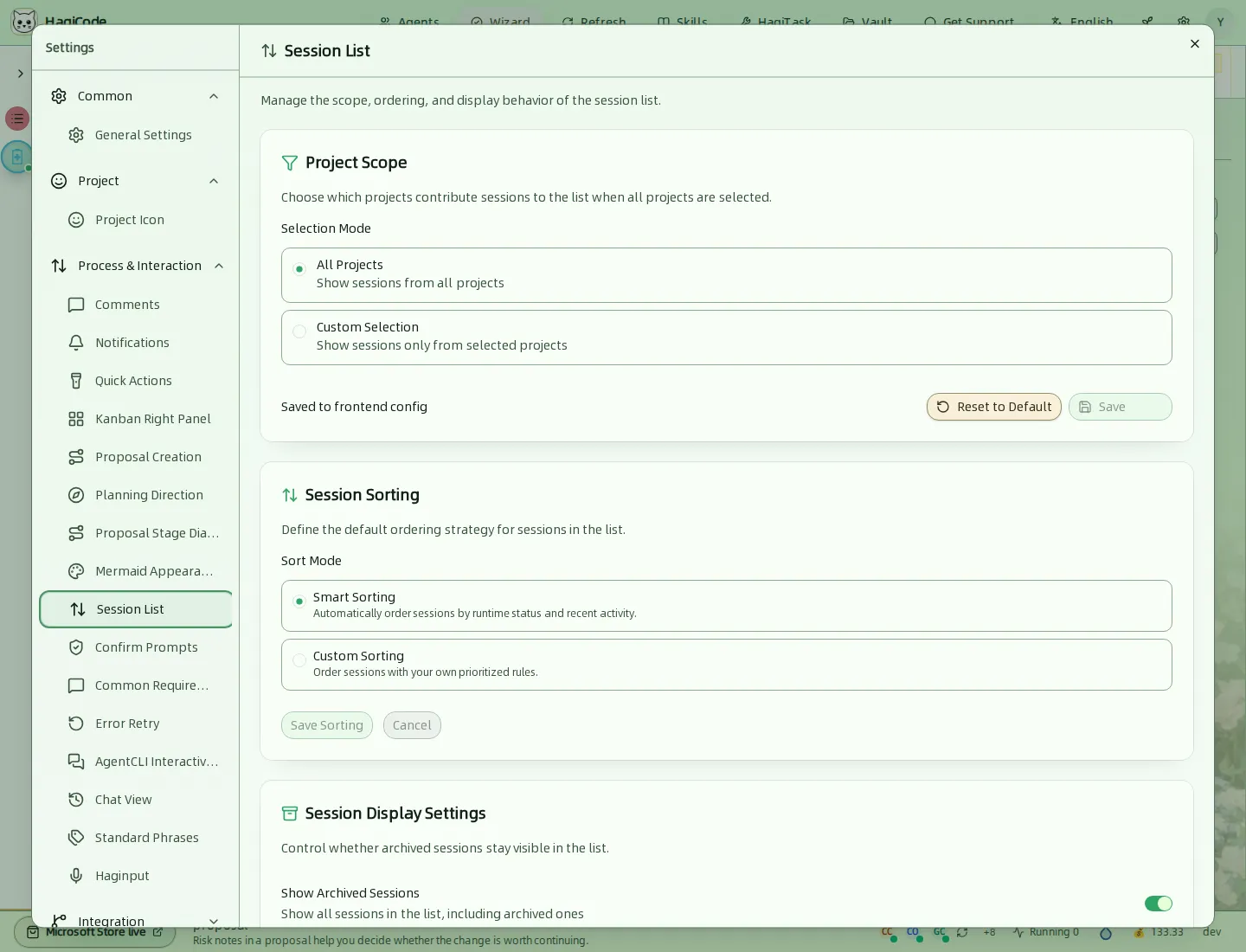
- Project Scope chooses which projects feed the All Sessions board: All Projects or a Custom Selection. Click Save to apply it.
- Session Sorting is either Smart Sorting (by runtime status and recent activity) or Custom Sorting with your own prioritized rules.
- Session Display Settings includes whether archived sessions stay visible in the list.
Confirm Prompts
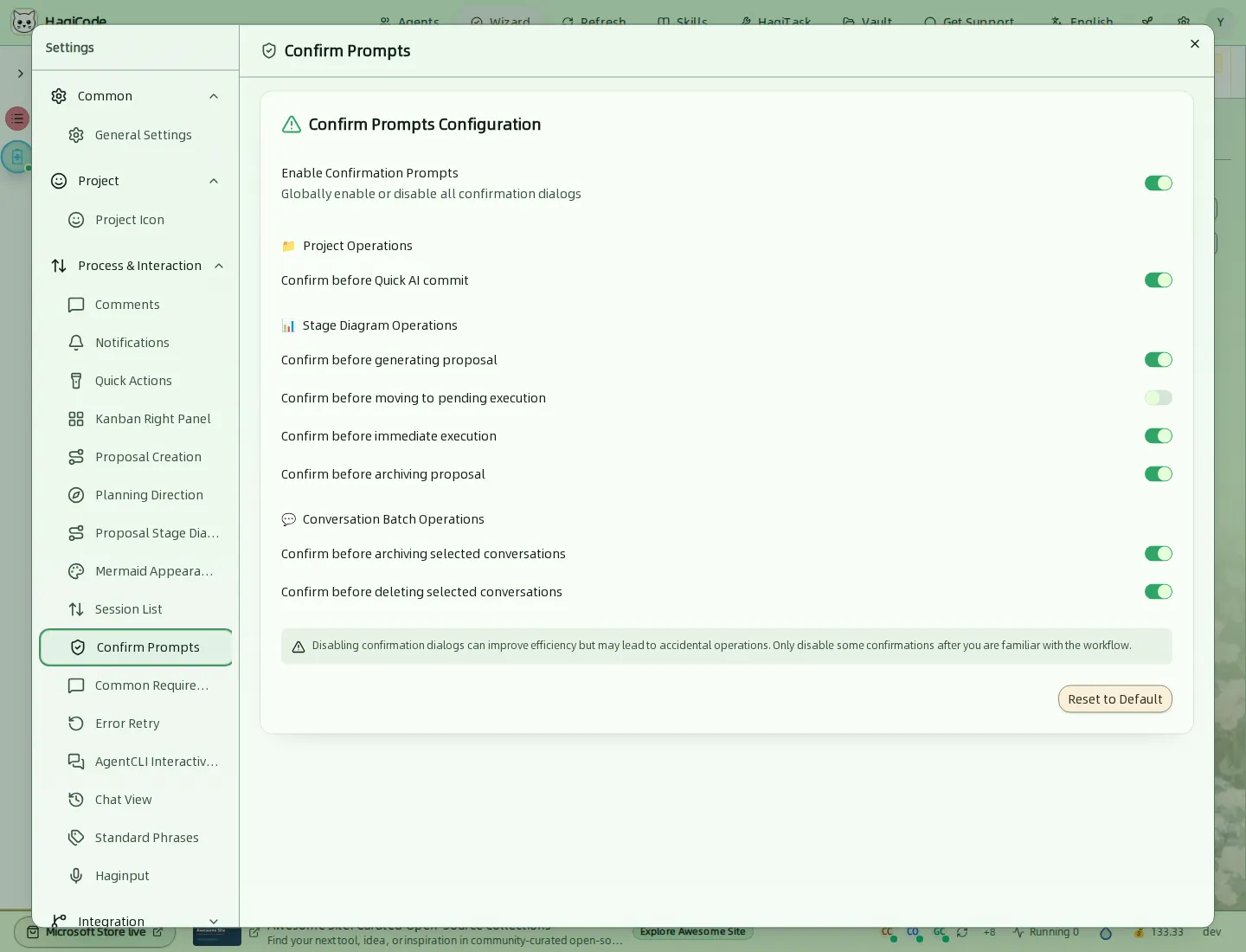
A master switch plus one switch per confirmation dialog: before a Super Commit All commit, before generating a proposal, moving it to pending execution, executing immediately, or archiving it, and before archiving or deleting selected conversations. Turning prompts off saves clicks but makes mistakes more costly. Reset to Default restores the defaults.
Common Requirements
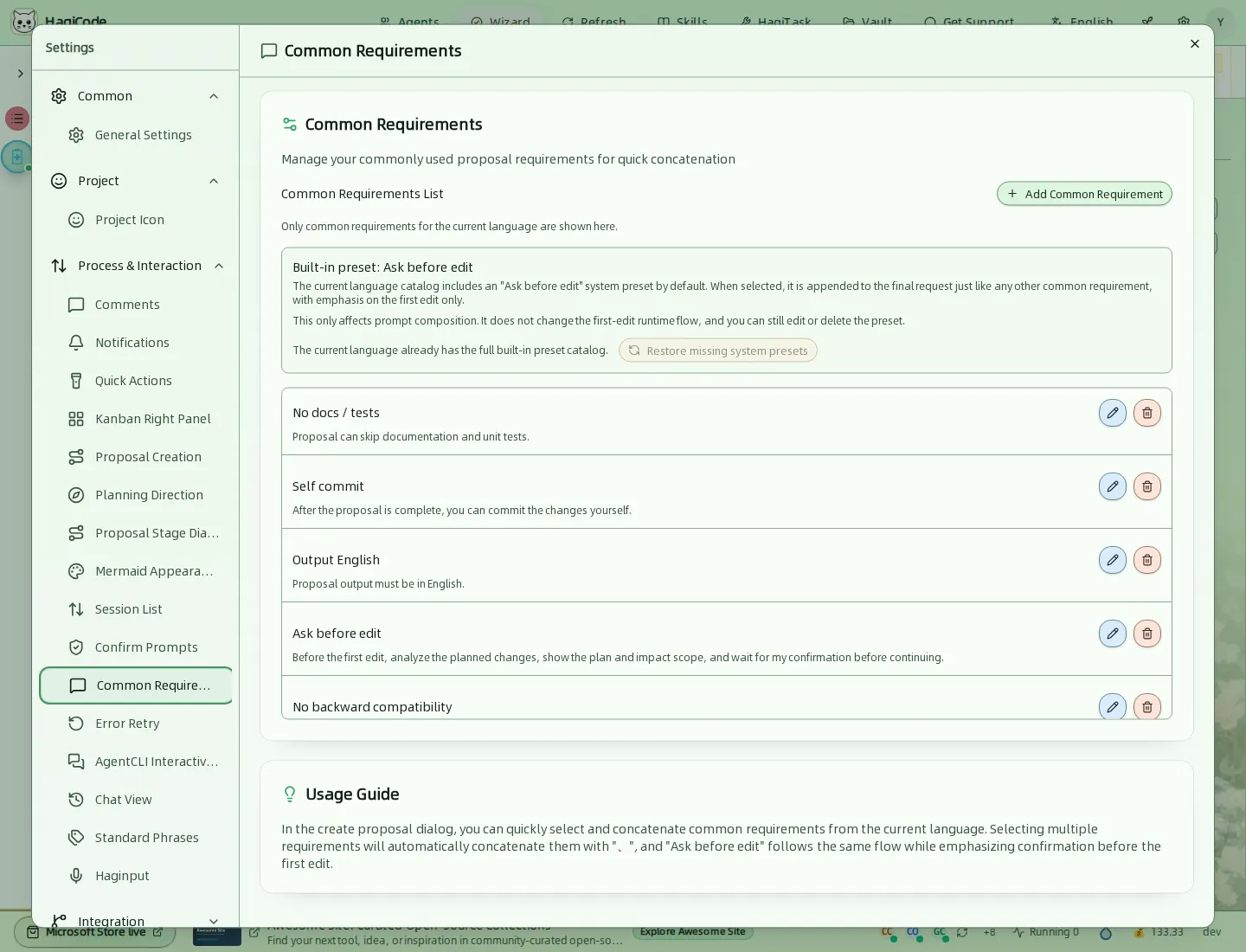
Reusable requirement snippets that you can add to a proposal request with one click, for example No docs / tests, Self commit, Output English, Ask before edit, and No backward compatibility. Only requirements for the current interface language are listed. Use Add Common Requirement to create your own, and the edit and delete buttons to manage them.
Error Retry
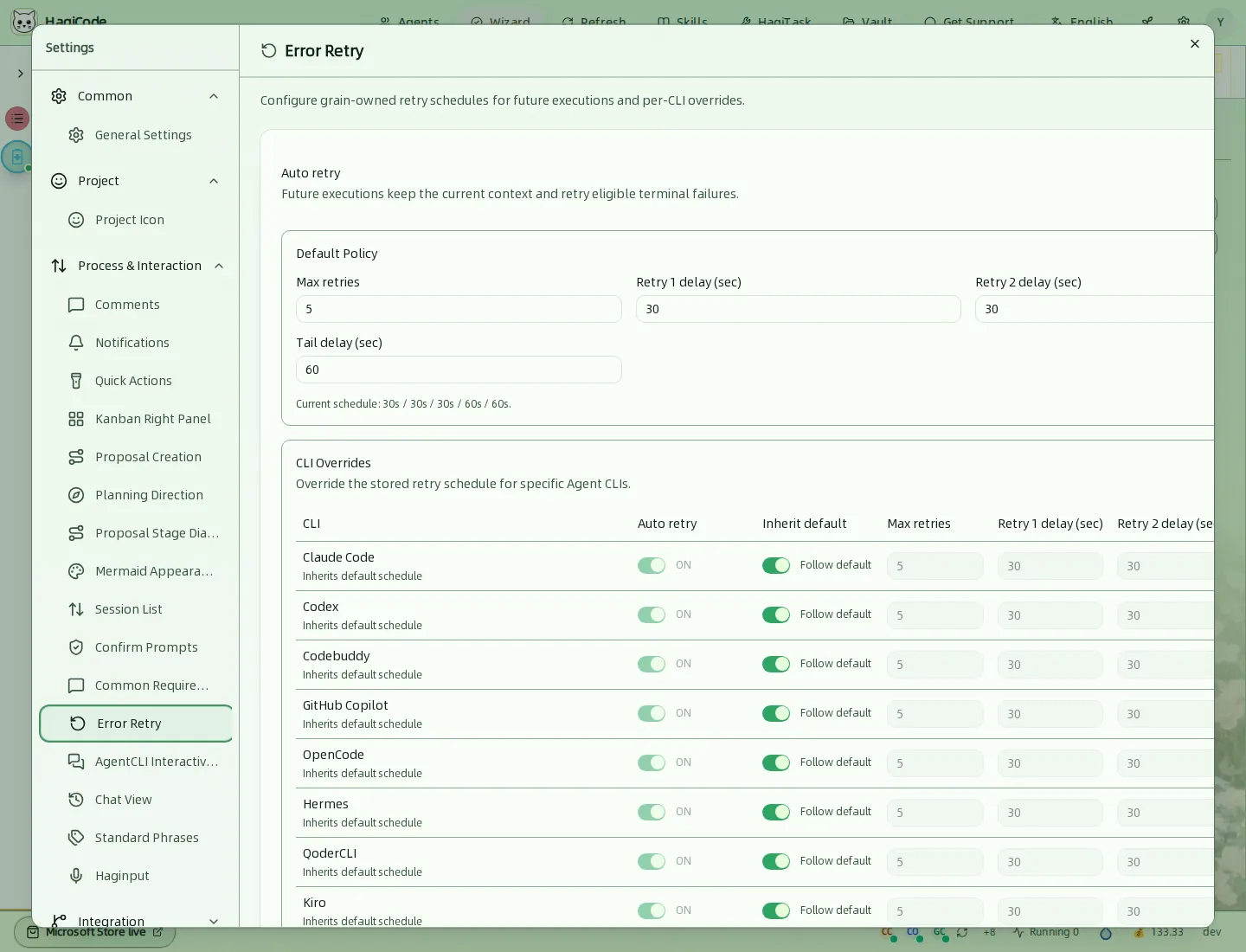
Automatic retry for failed runs. The Default Policy sets the maximum number of retries and the delay before each retry, with a tail delay for later attempts. The default schedule waits 30, 30, 30, then 60 seconds. CLI Overrides let each Agent CLI follow the default or use its own schedule.
AgentCLI Interactive Control
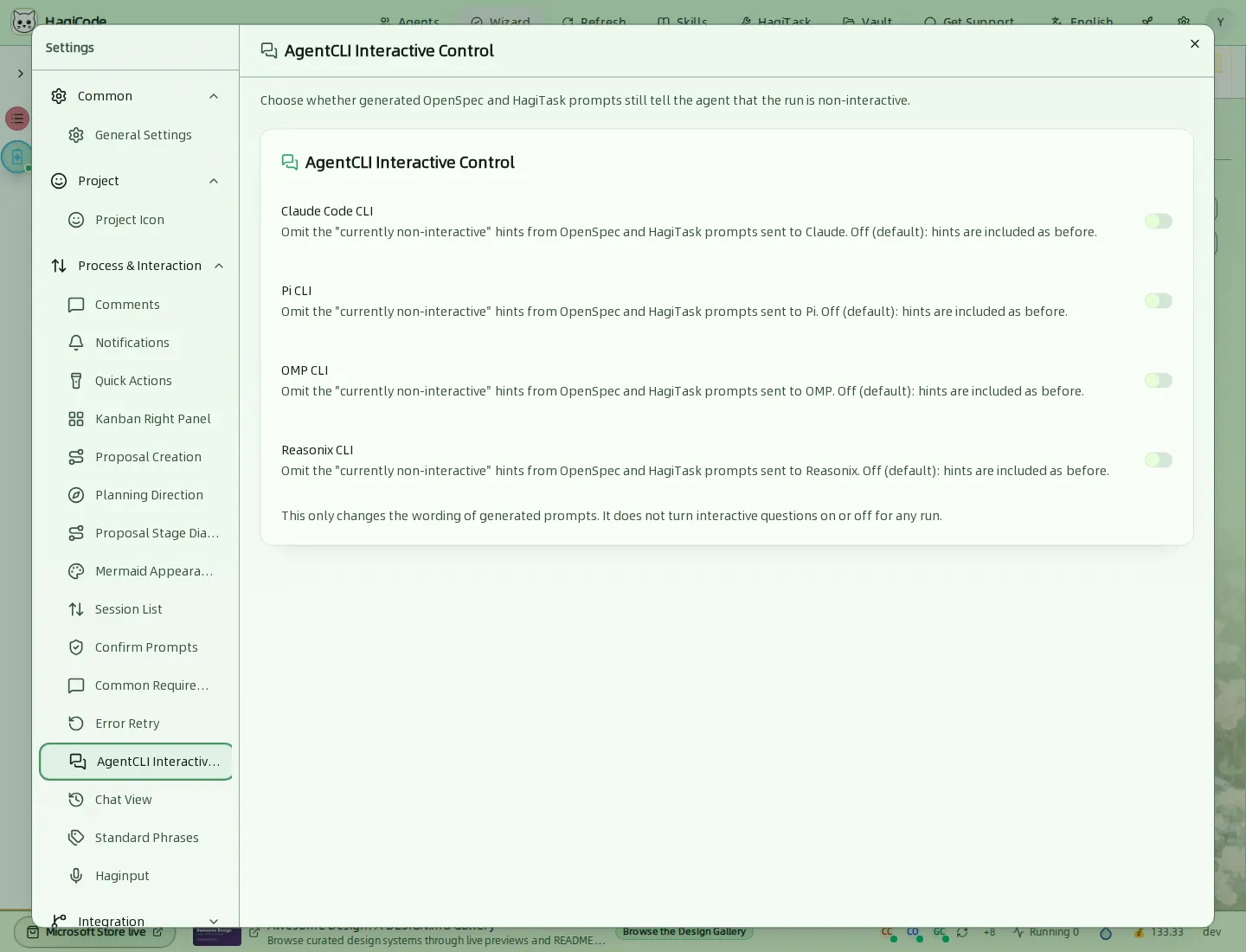
One switch per Agent CLI decides whether generated OpenSpec and HagiTask prompts still tell the Agent that the run is non-interactive. With a switch off (the default) the hint is included. This only changes the wording of generated prompts.
Chat View
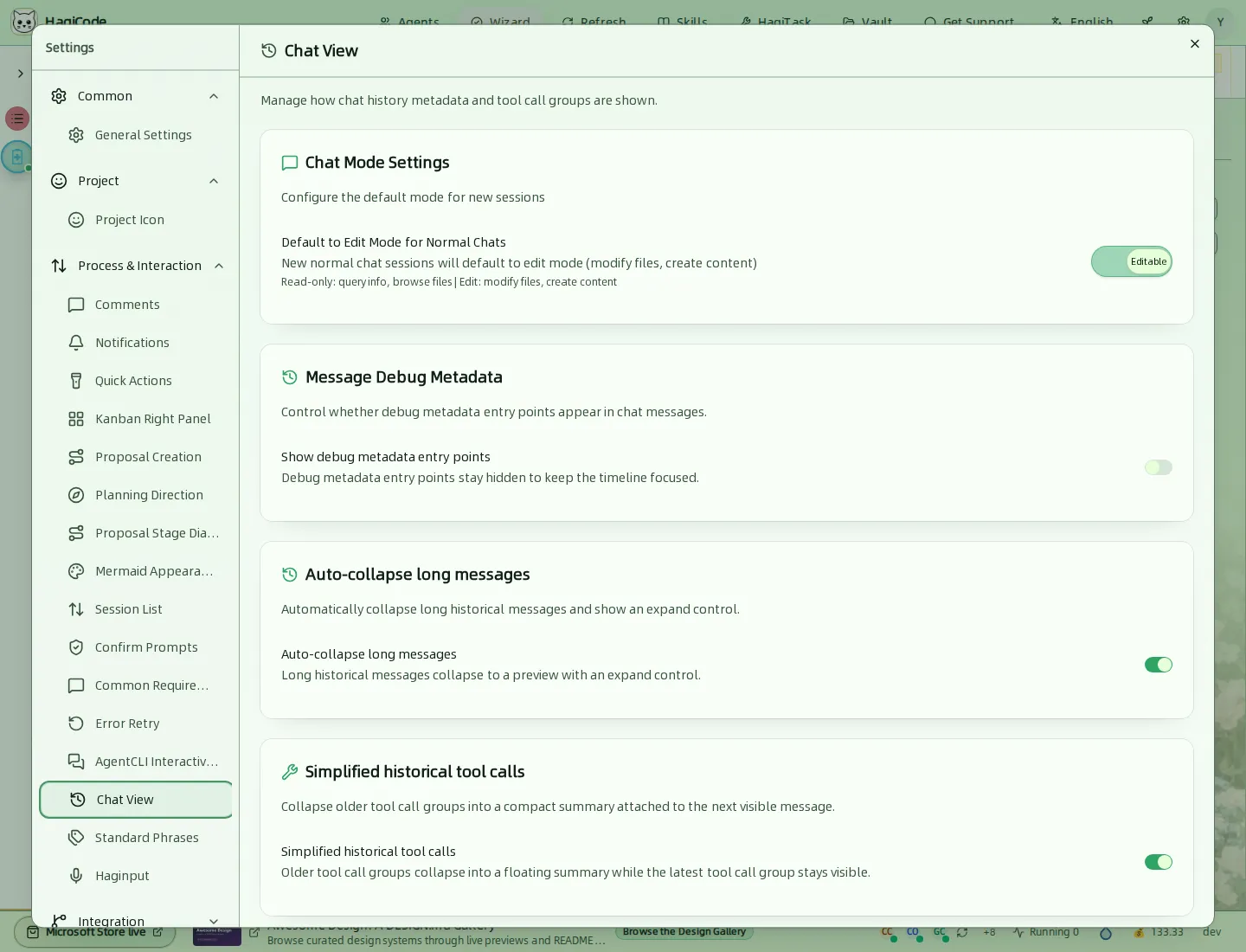
- Default to Edit Mode for Normal Chats decides whether new normal sessions start in edit mode, where the Agent may modify files, or read-only.
- Show debug metadata entry points adds debugging entries to chat messages.
- Auto-collapse long messages shows long history messages as a preview with an expand control.
- Simplified historical tool calls collapses older tool calls into a short summary attached to the next visible message.
Standard Phrases
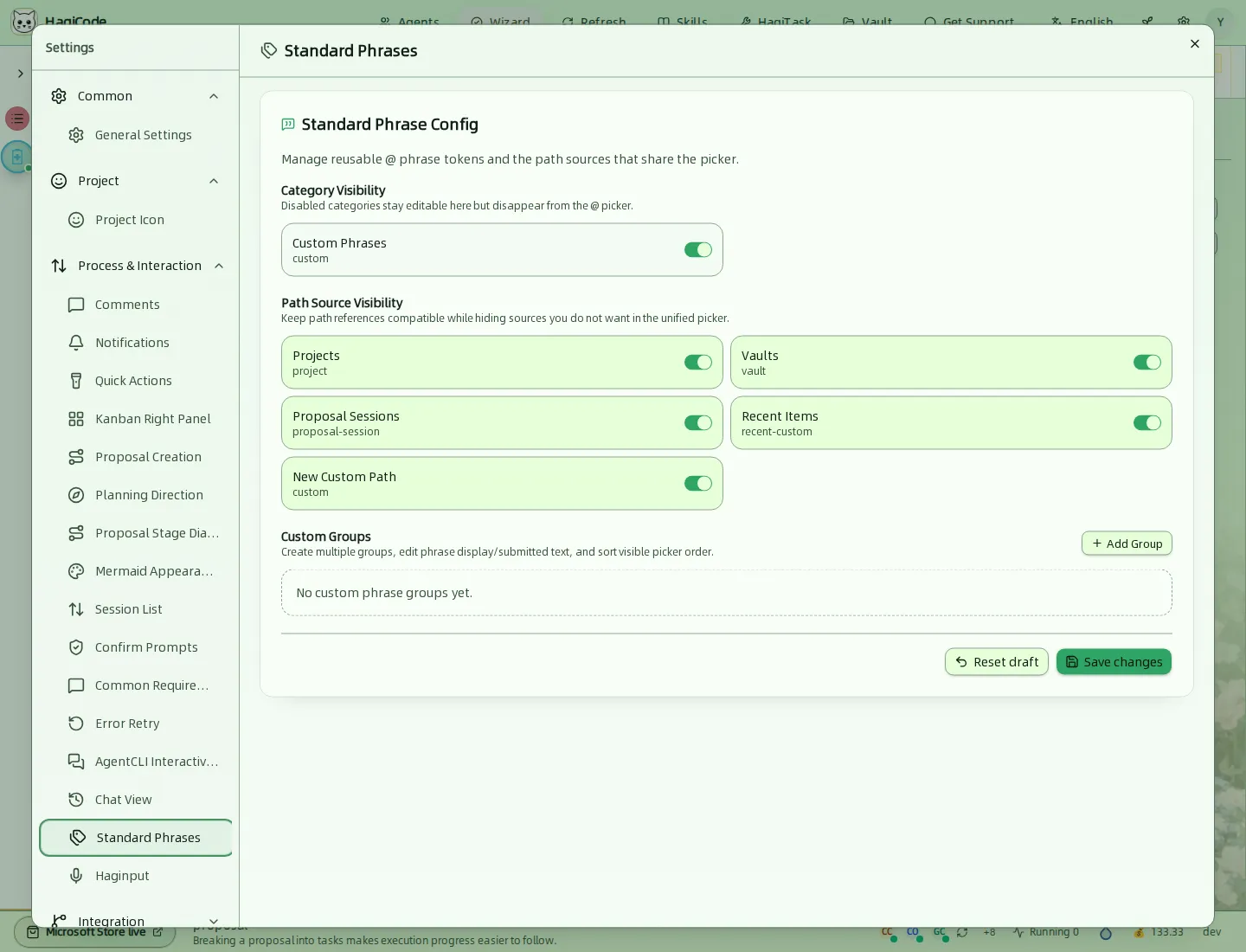
Manages the reusable @ phrase tokens in the message box. Choose which categories and path sources (projects, vaults, proposal sessions, recent items, custom paths) appear in the @ picker, and create custom phrase groups with Add Group.
Haginput
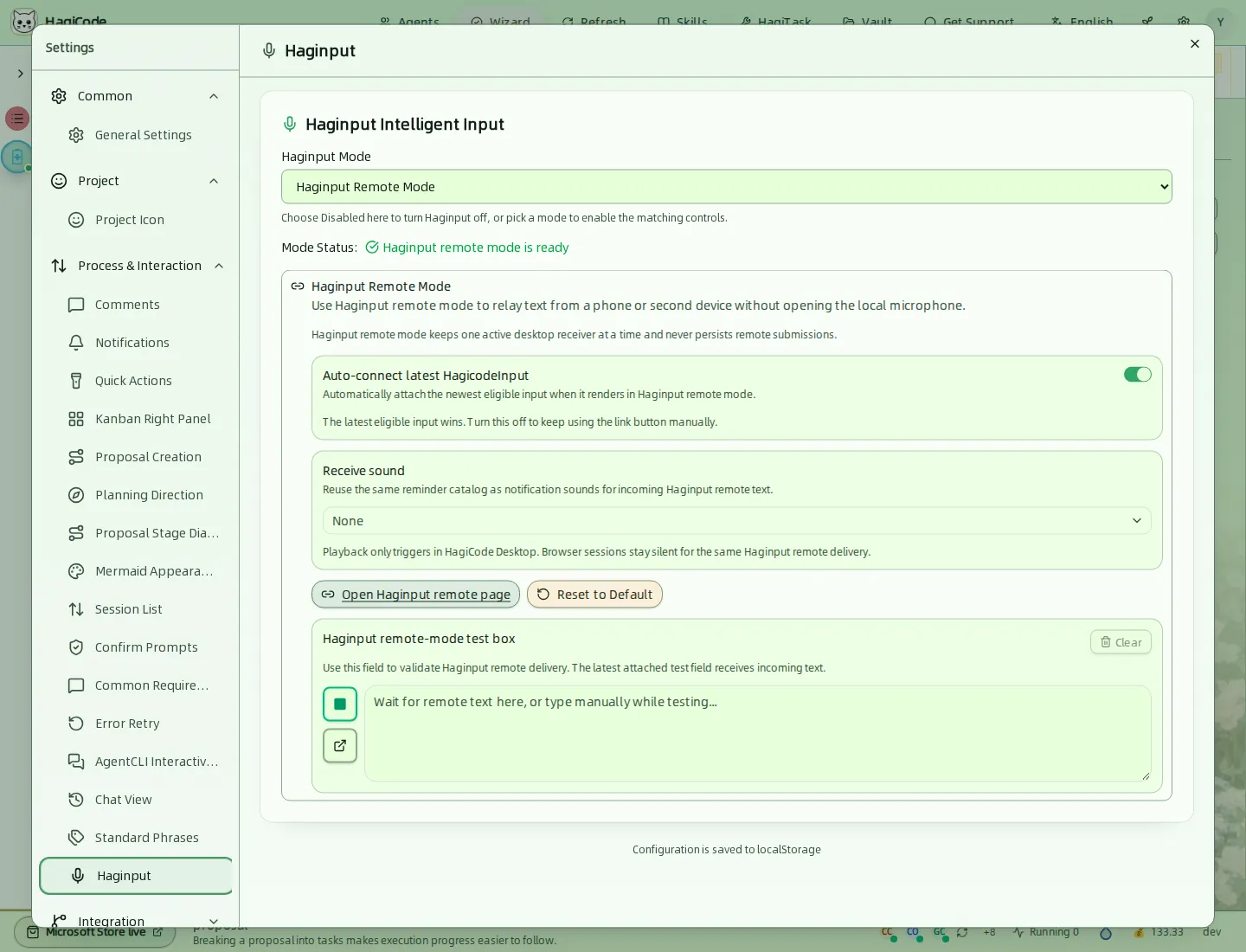
Intelligent input. Choose Disabled, Doubao Local Voice, or Haginput Remote Mode to relay text from a phone or second device without opening the local microphone. The tab shows the mode status, an auto-connect option, a sound for received text, and a test box.
Integration
Break Reminder
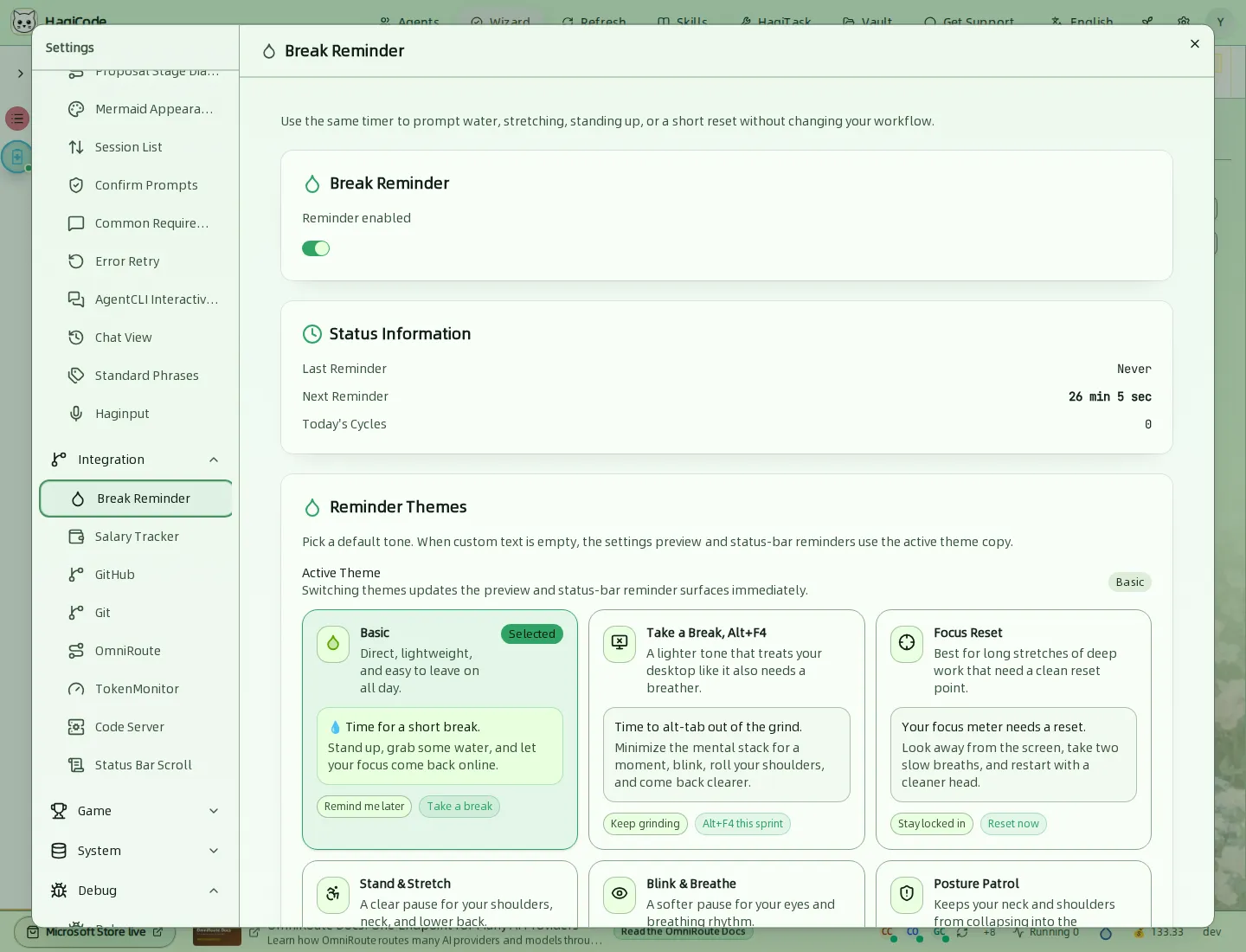
A timer that nudges you to drink water, stretch, or stand up. It shows the last and next reminder and today’s cycles, and lets you pick a reminder theme such as Basic. The reminder appears in the status bar.
Salary Tracker
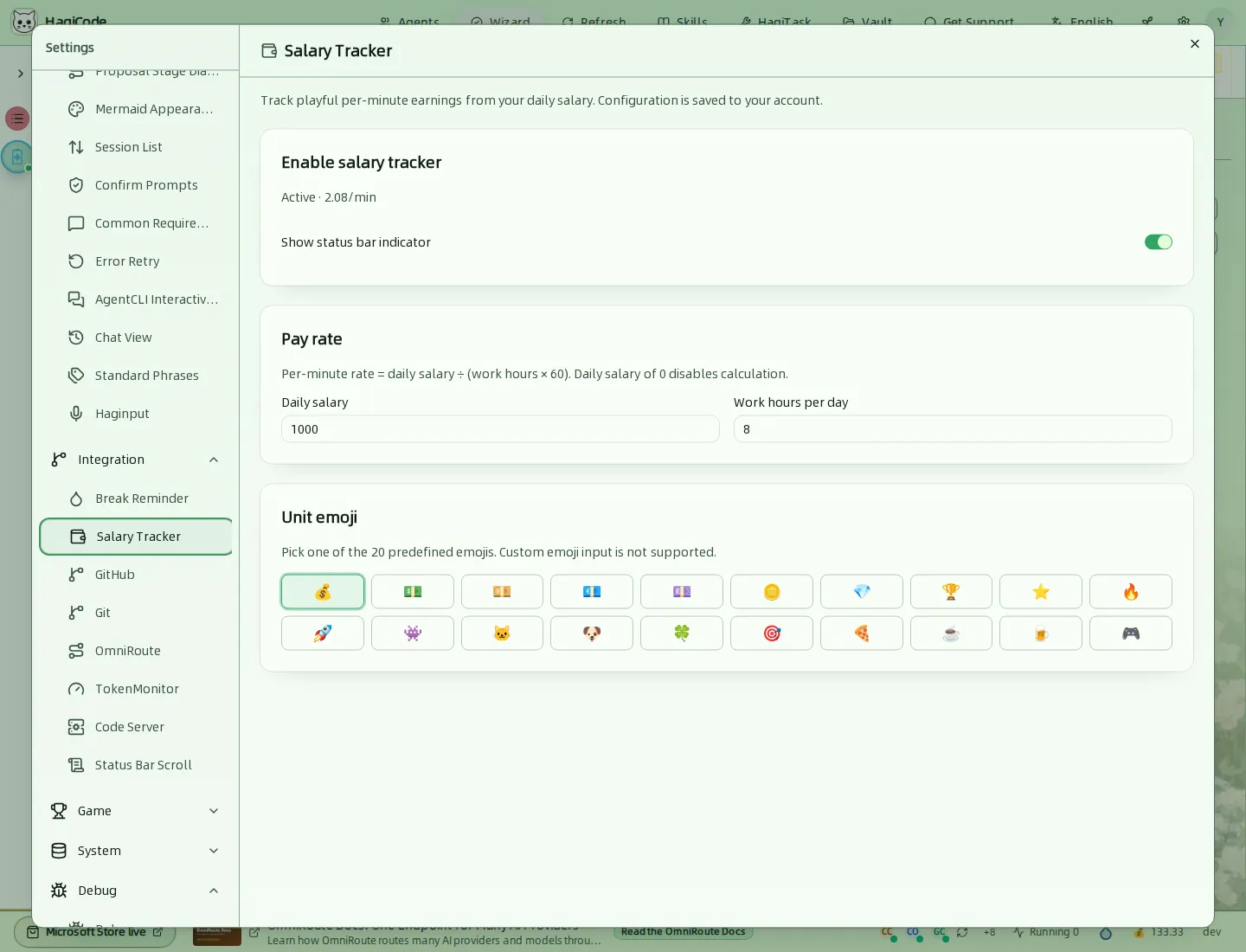
A playful per-minute earnings counter. Enter a Daily salary and Work hours per day; the per-minute rate is the salary divided by work hours times 60, and a salary of 0 turns it off. Pick one of 20 unit emojis and choose whether the status bar shows the indicator.
GitHub
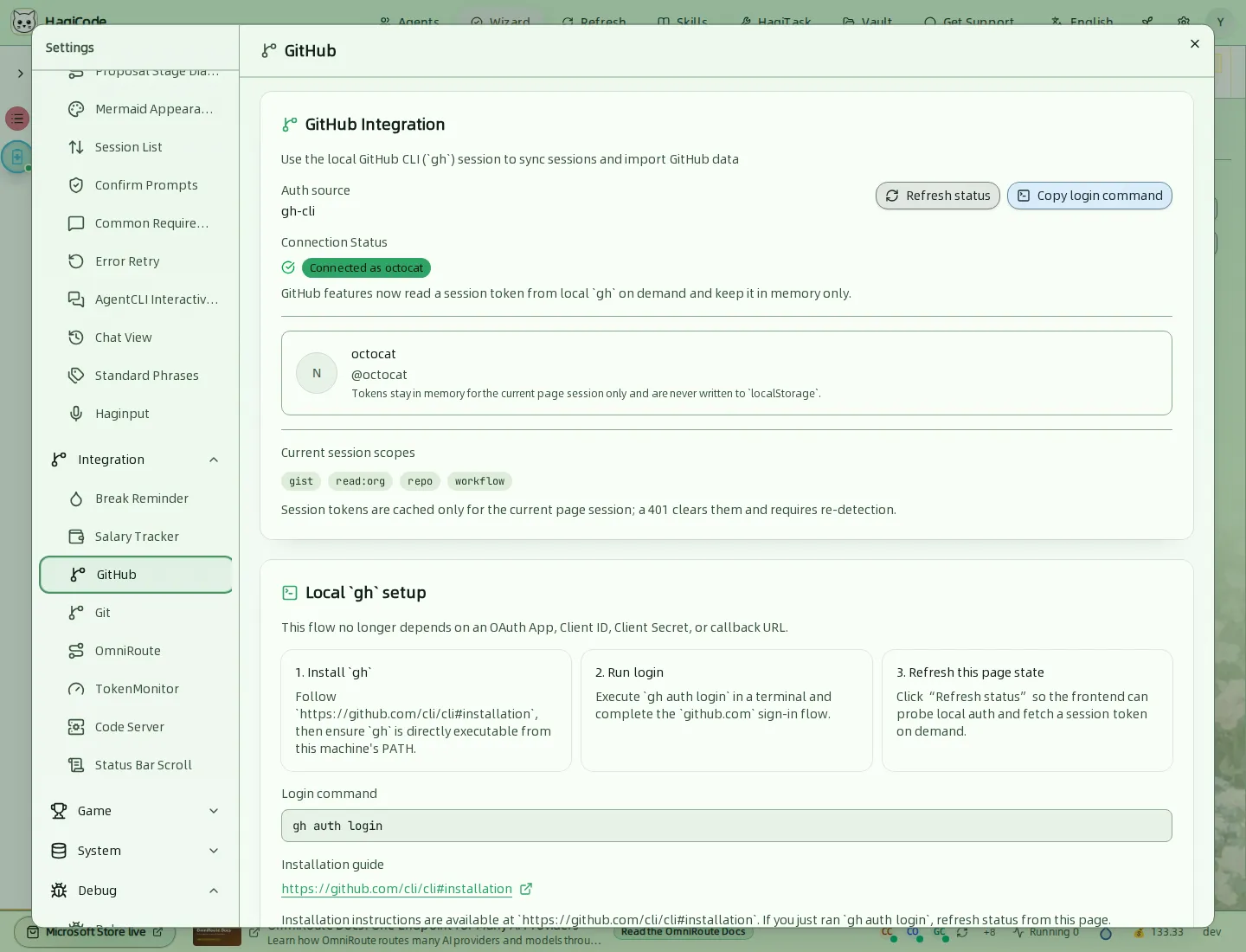
Uses your local GitHub CLI (gh) session to sync sessions and import GitHub data. The tab shows the connection status and granted scopes, Refresh status, and Copy login command. Tokens stay in memory for the current page session and are never written to local storage. If gh is not signed in, follow the Local gh setup steps shown on the tab.
Git
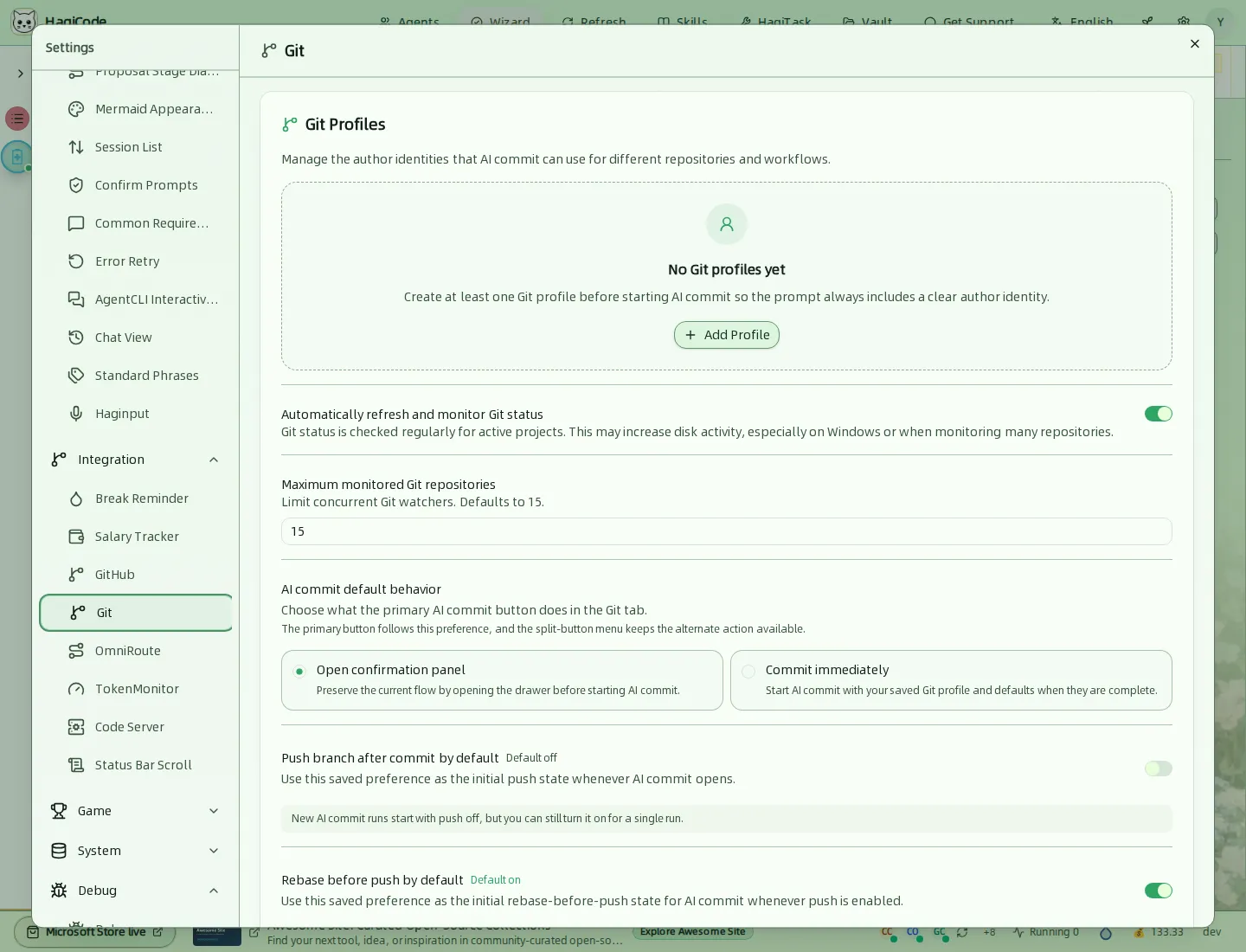
- Git Profiles hold the author identities that Super Commit can use. Create at least one before you start a Super Commit so the prompt always names a clear author.
- Automatically refresh and monitor Git status checks active projects regularly. This can raise disk activity, especially on Windows or with many repositories. Maximum monitored Git repositories limits concurrent watchers (default 15).
- Super Commit default behavior chooses what the primary Super Commit button does: Open confirmation panel first, or Commit immediately with your saved profile and defaults. Further options set whether to push or rebase after a commit by default.
OmniRoute
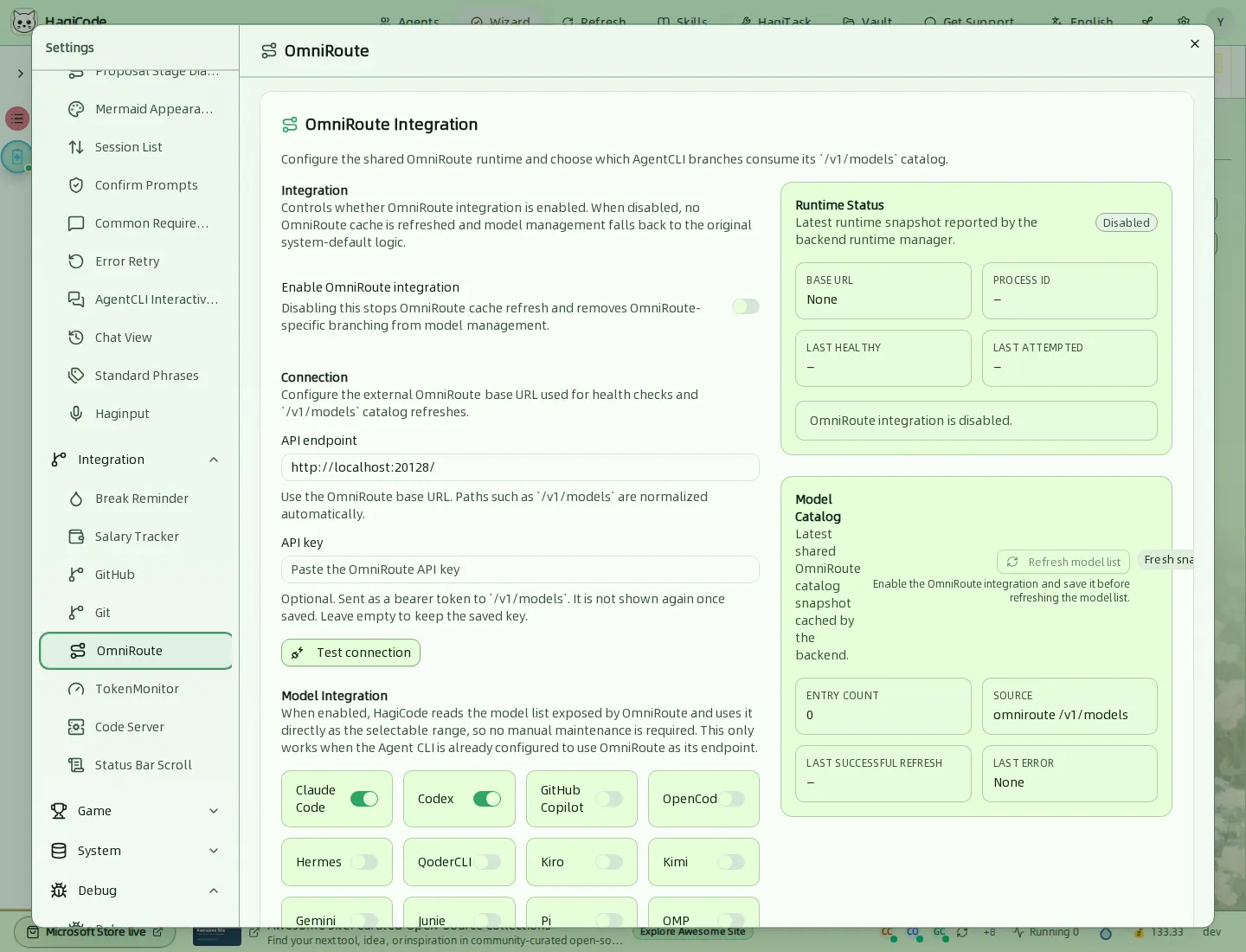
Enables the shared OmniRoute integration. Set the API endpoint and optional API key, use Test connection, and choose which Agent CLIs consume OmniRoute’s model catalog. The right side shows the runtime status and the cached model catalog. When the integration is off, model management falls back to the original system defaults. See OmniRoute for installation.
TokenMonitor
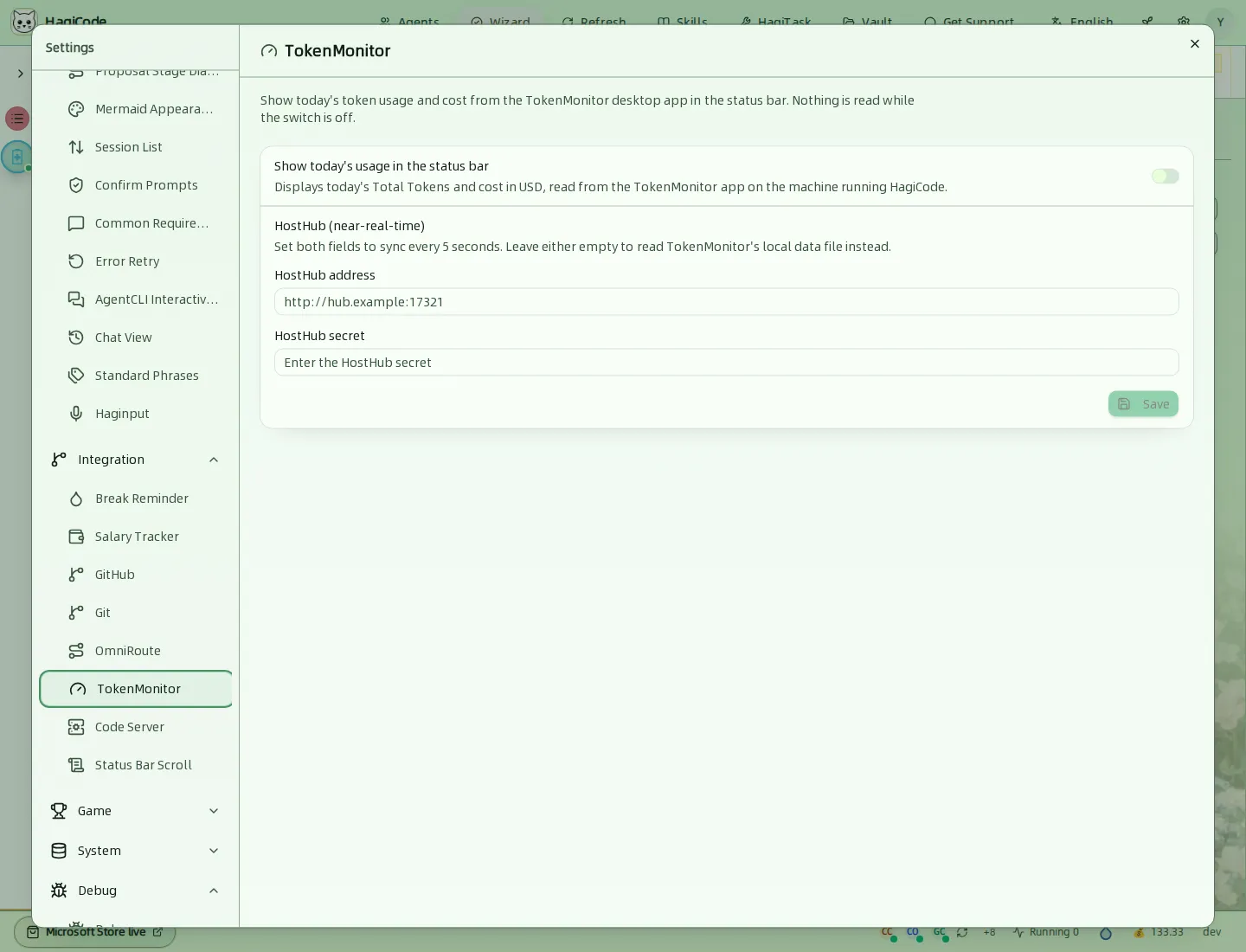
Shows today’s token usage and cost from the TokenMonitor desktop app in the status bar. Nothing is read while the switch is off. For near-real-time updates, enter both the HostHub address and HostHub secret; leave either empty to read TokenMonitor’s local data file instead.
Code Server
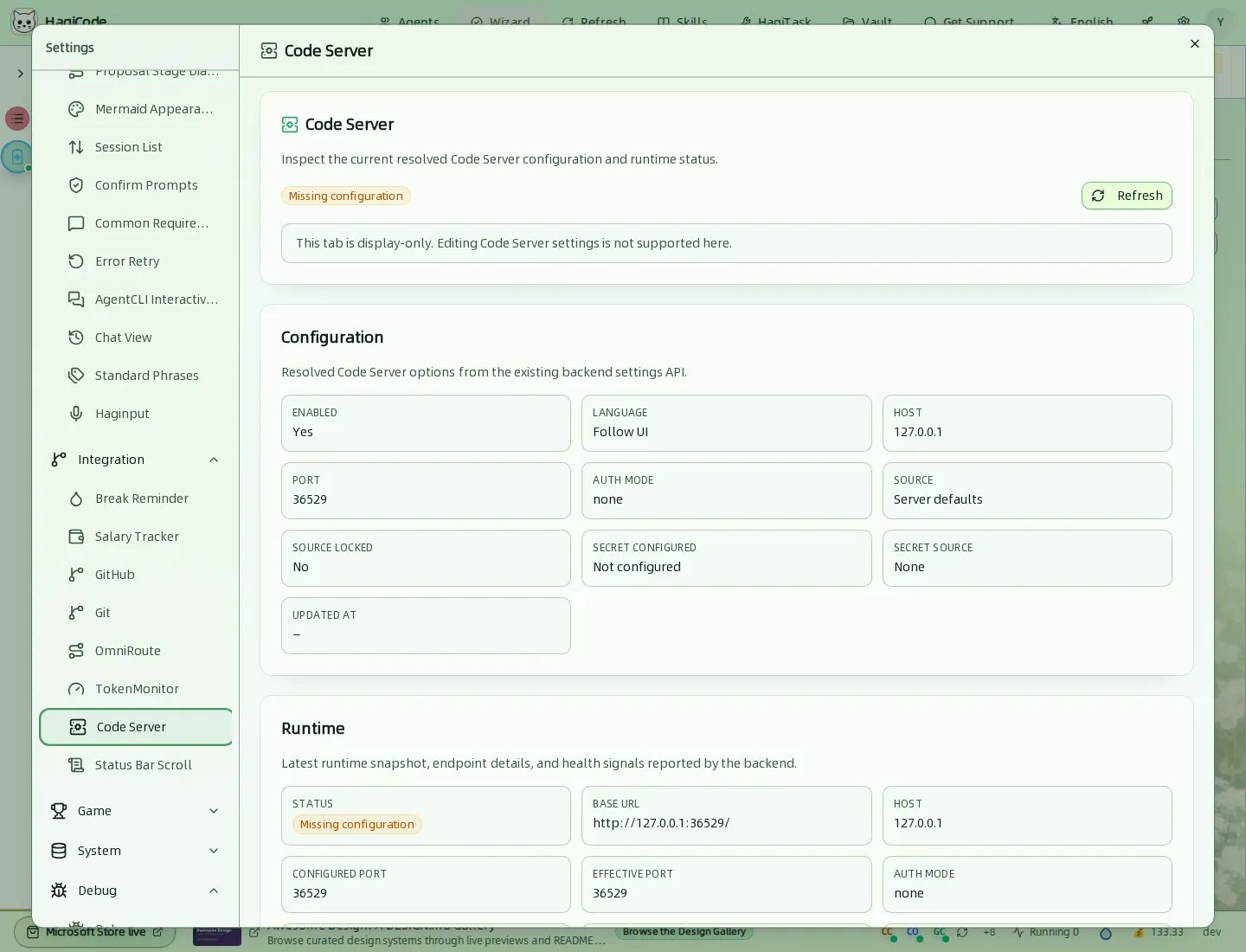
A display-only view of the resolved Code Server configuration (host, port, authentication mode, source) and the latest runtime snapshot. Editing Code Server settings is not supported here.
Status Bar Scroll
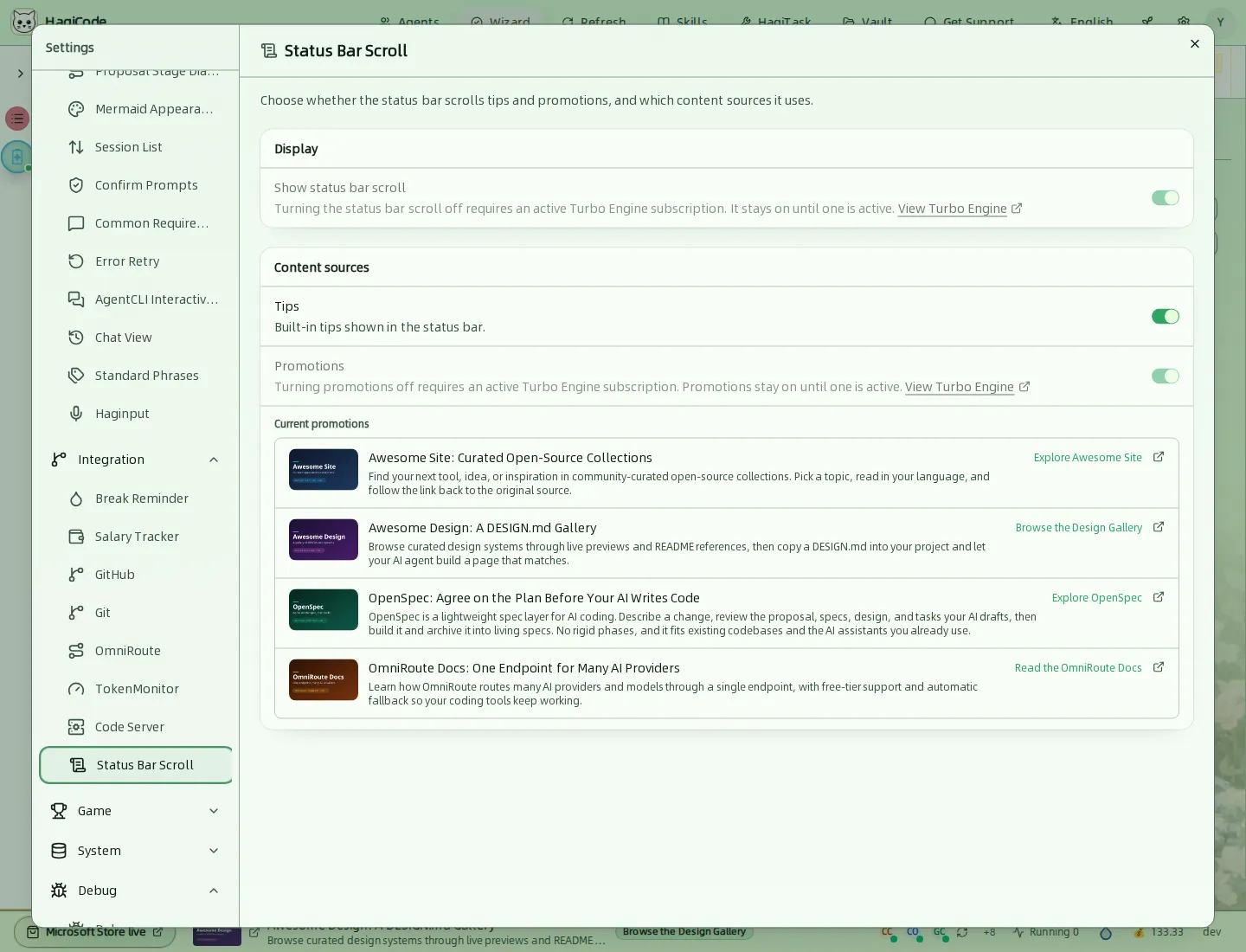
Chooses whether the status bar scrolls and which sources it uses: Tips and Promotions. Turning scrolling or promotions off needs an active TurboEngine subscription. The tab lists the current promotions.
Game
Achievements
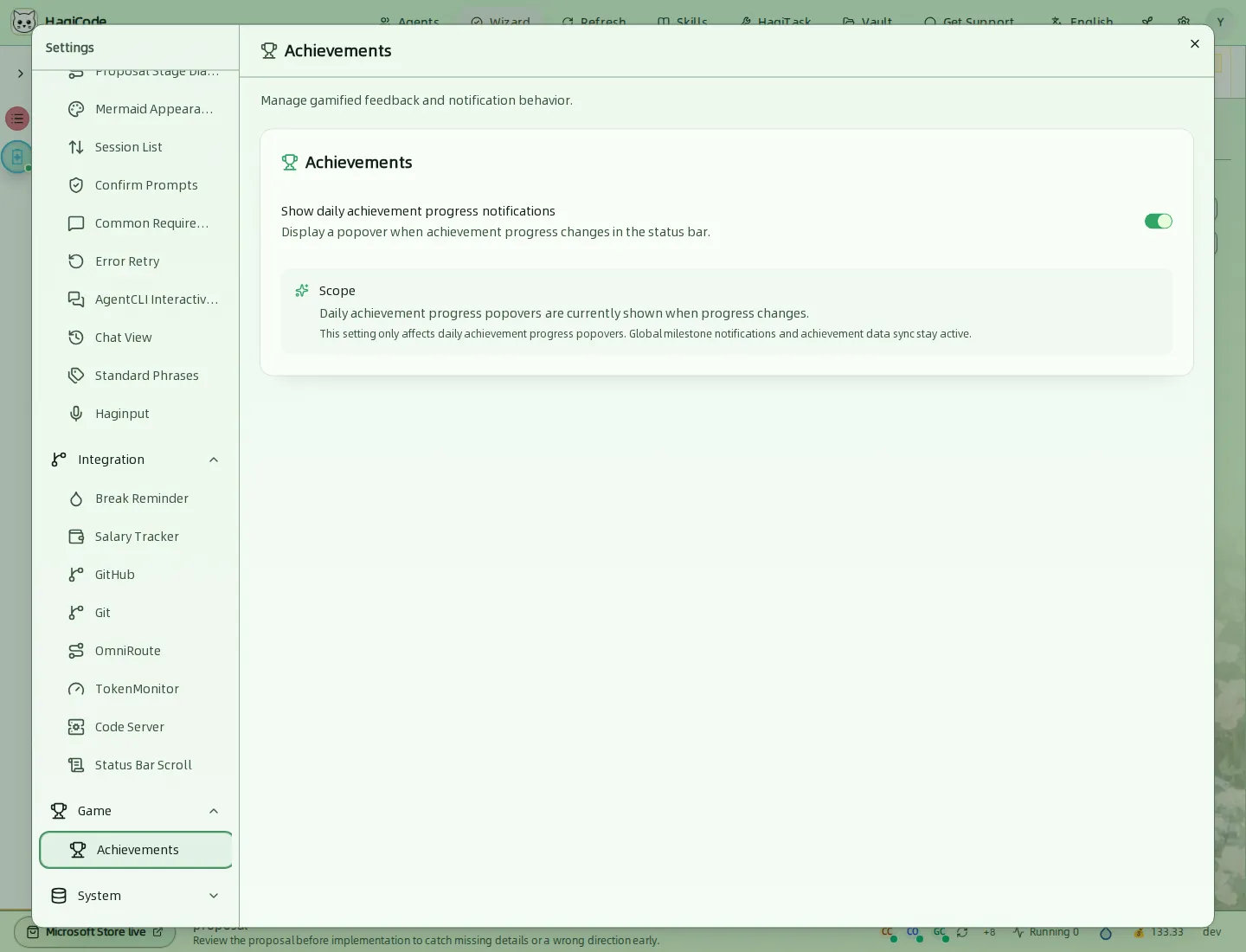
Toggles the daily achievement progress popovers in the status bar. Global milestone notifications and data sync stay active either way. See Status bar and progress.
System
Data Management
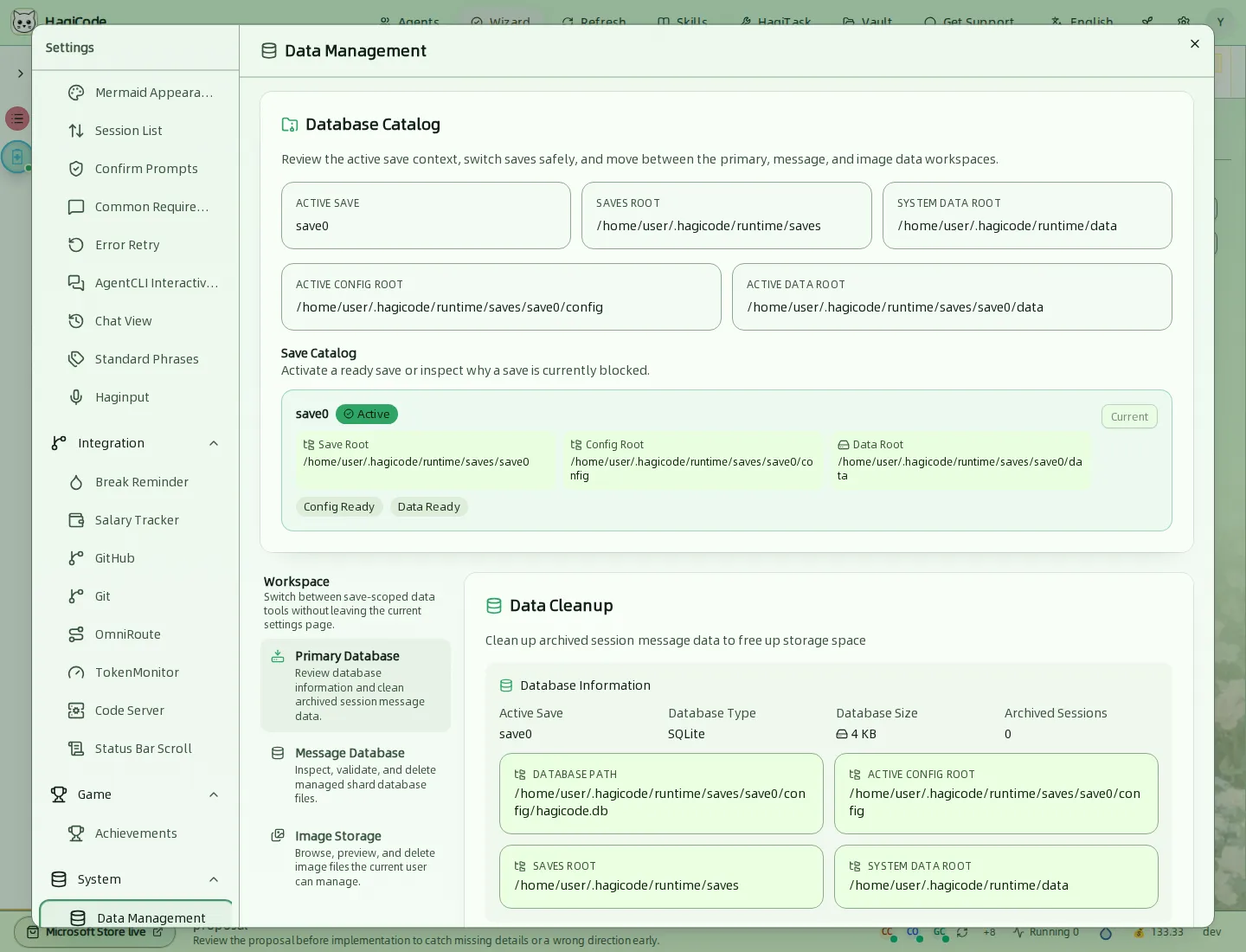
Shows the active save and its data folders (save root, config root, data root). The Save Catalog lists saves and lets you activate a ready save safely. The Workspace switcher moves between the Primary Database, Message Database, and Image Storage tools. Data Cleanup shows database information and cleans up archived session message data to free storage.
Danger Zone
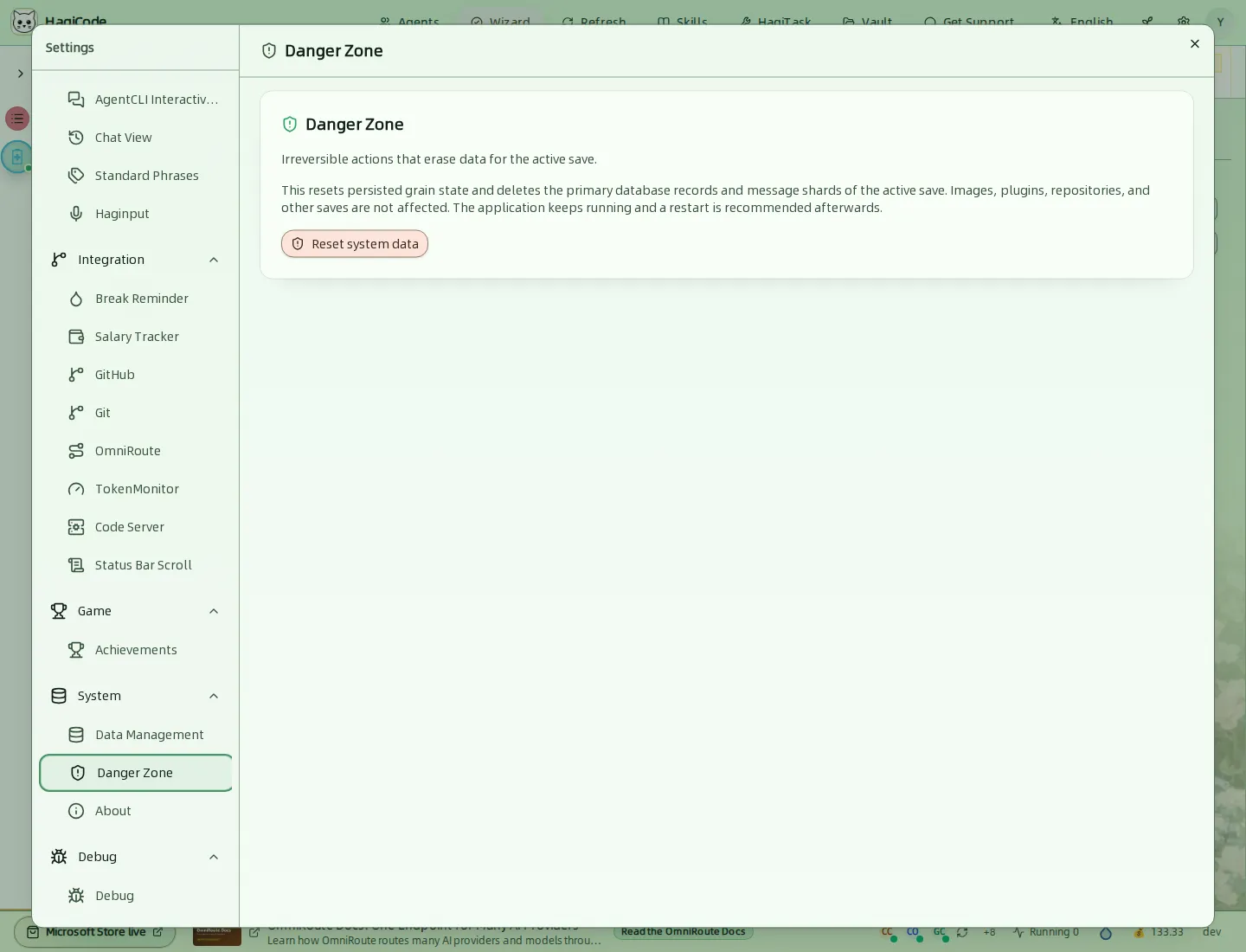
Reset system data resets persisted state and deletes the primary database records and message shards of the active save. Images, plugins, repositories, and other saves are not affected. The application keeps running, and a restart is recommended afterwards. This cannot be undone.
About
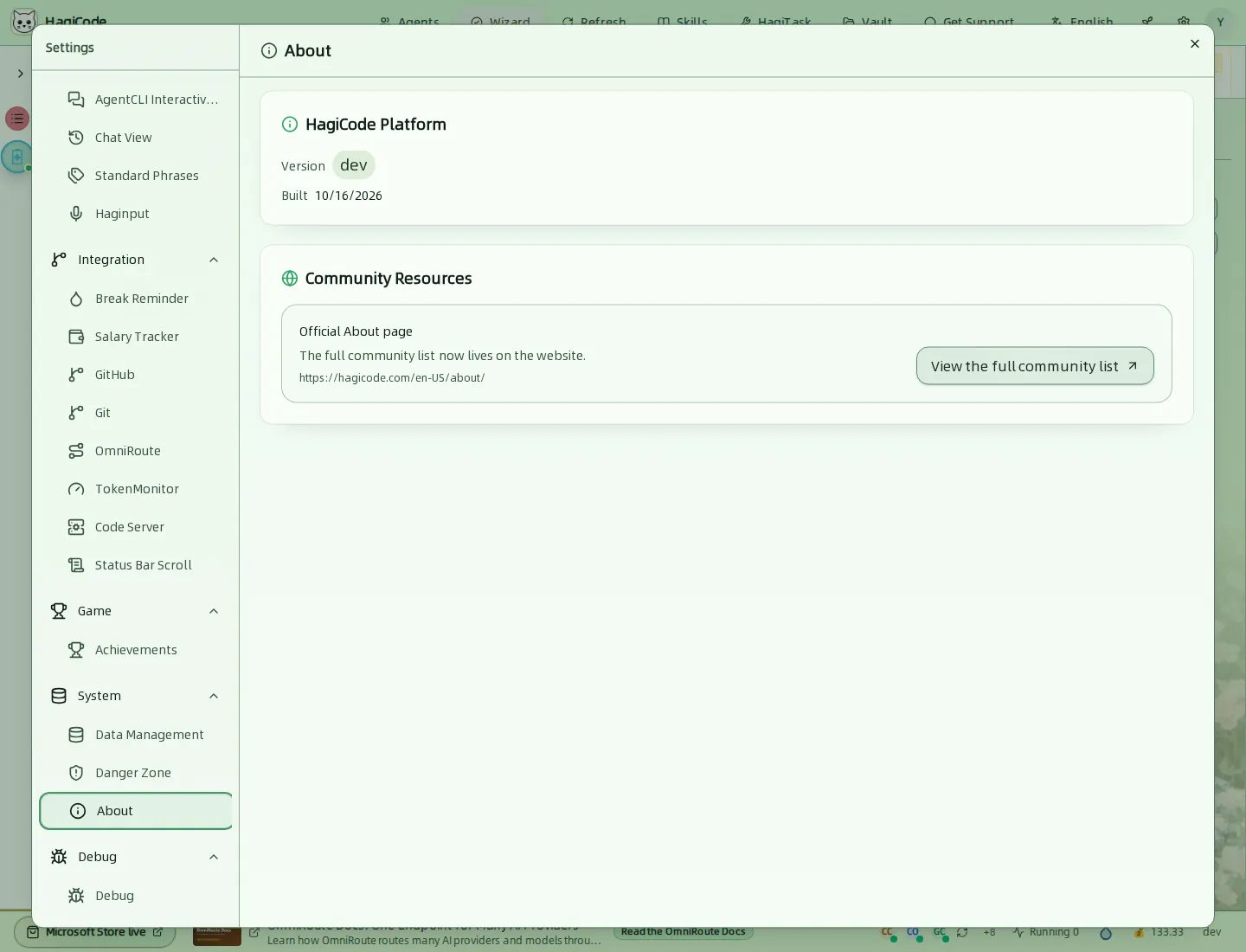
Shows the version and build date and links to the official About page with the full community list.
Debug
Debug
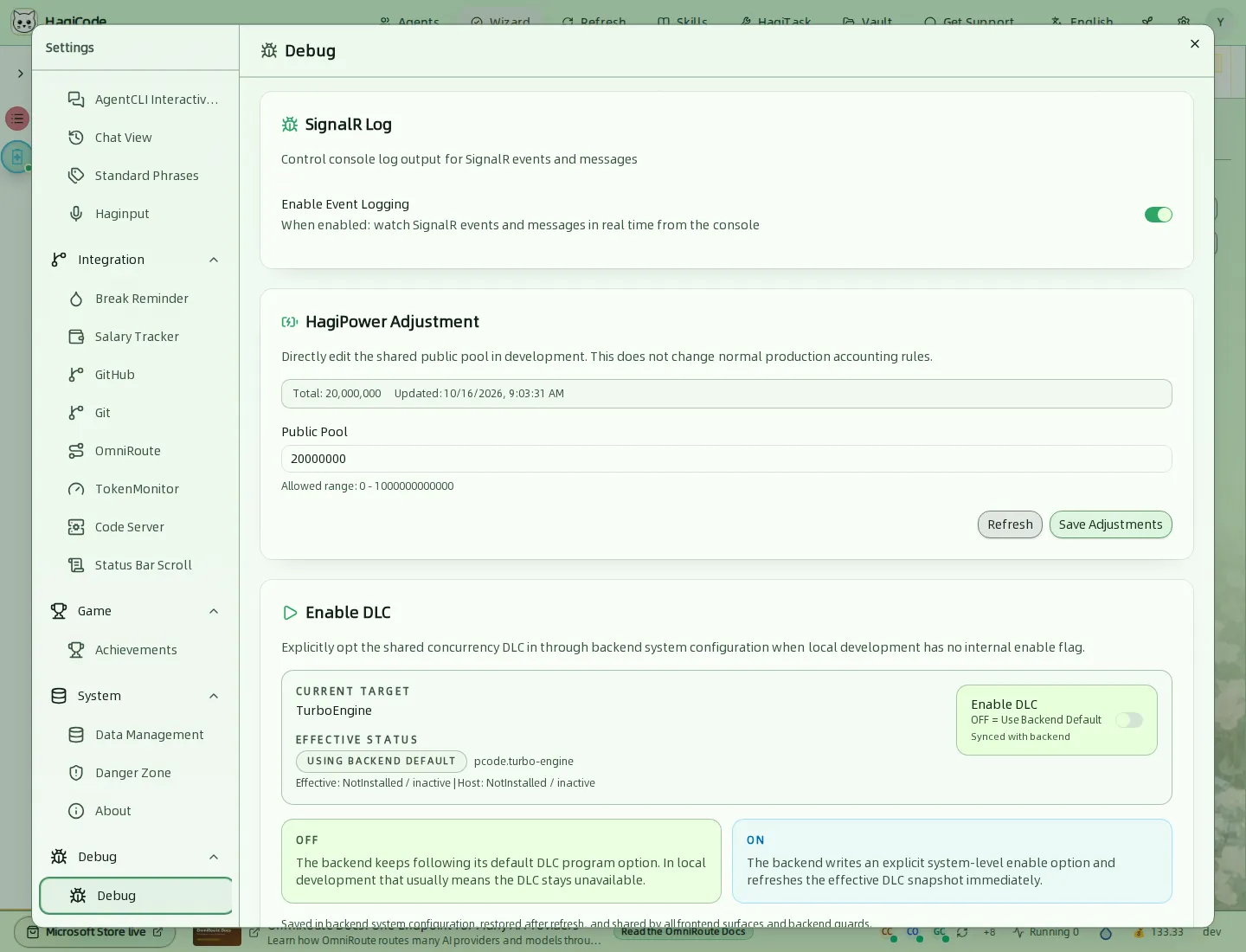
Tools for development builds:
- SignalR Log prints SignalR events and messages to the console in real time.
- HagiPower Adjustment edits the shared public pool directly in development. It does not change normal production accounting.
- Enable DLC explicitly opts the TurboEngine DLC in or out through backend configuration, because local development has no internal enable flag.
You do not need this tab for normal use.
Appearance, theme, and language
Two buttons in the header change how HagiCode looks without opening Settings.
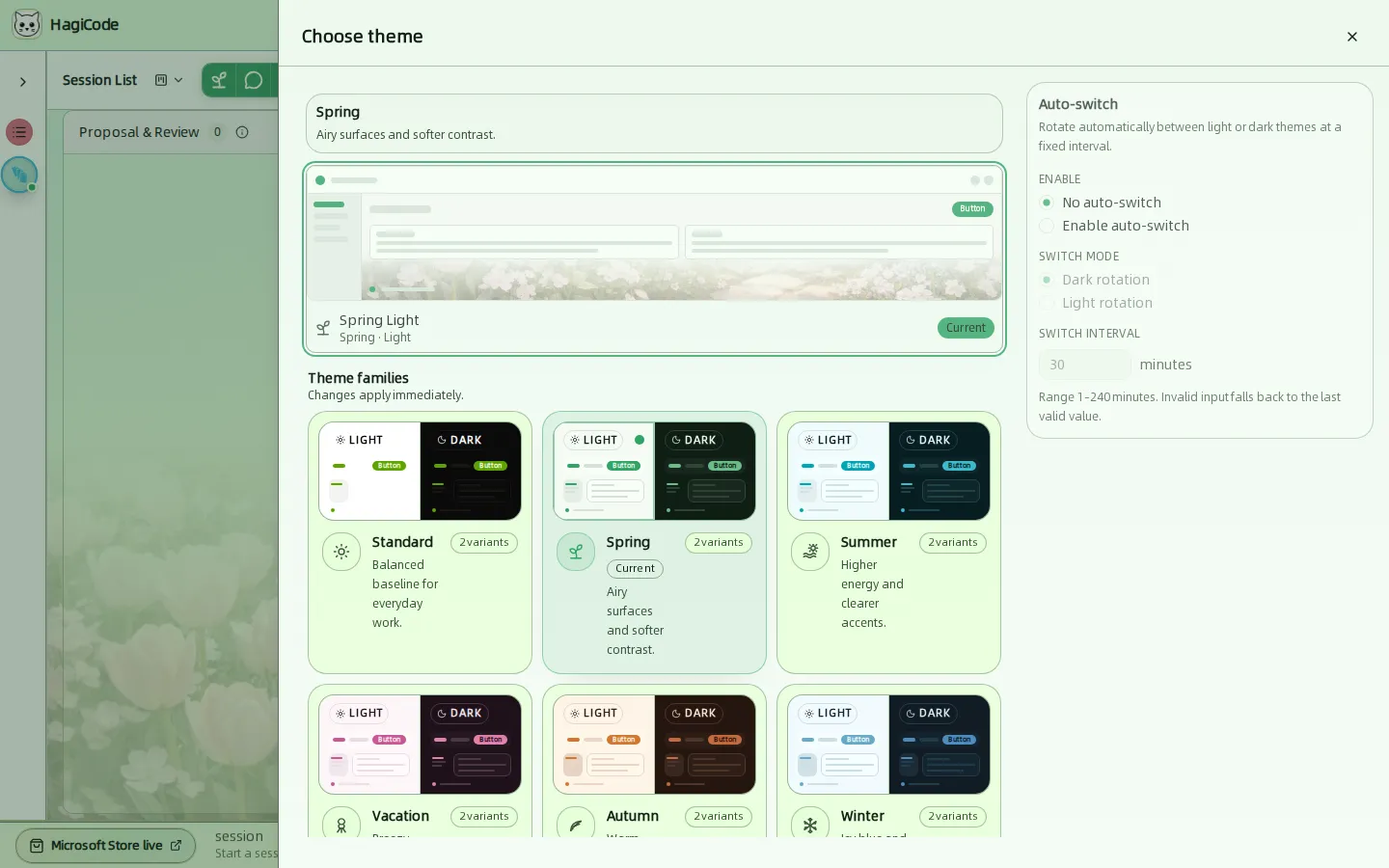
Theme opens the theme chooser. Each family comes in a Light and a Dark variant and applies immediately. Families include Standard, Spring, Summer, Vacation, Autumn, Winter, Lunar New Year, Soccer, Cyberpunk, School, and Space Travel. Auto-switch rotates between light or dark themes on a fixed interval from 1 to 240 minutes.
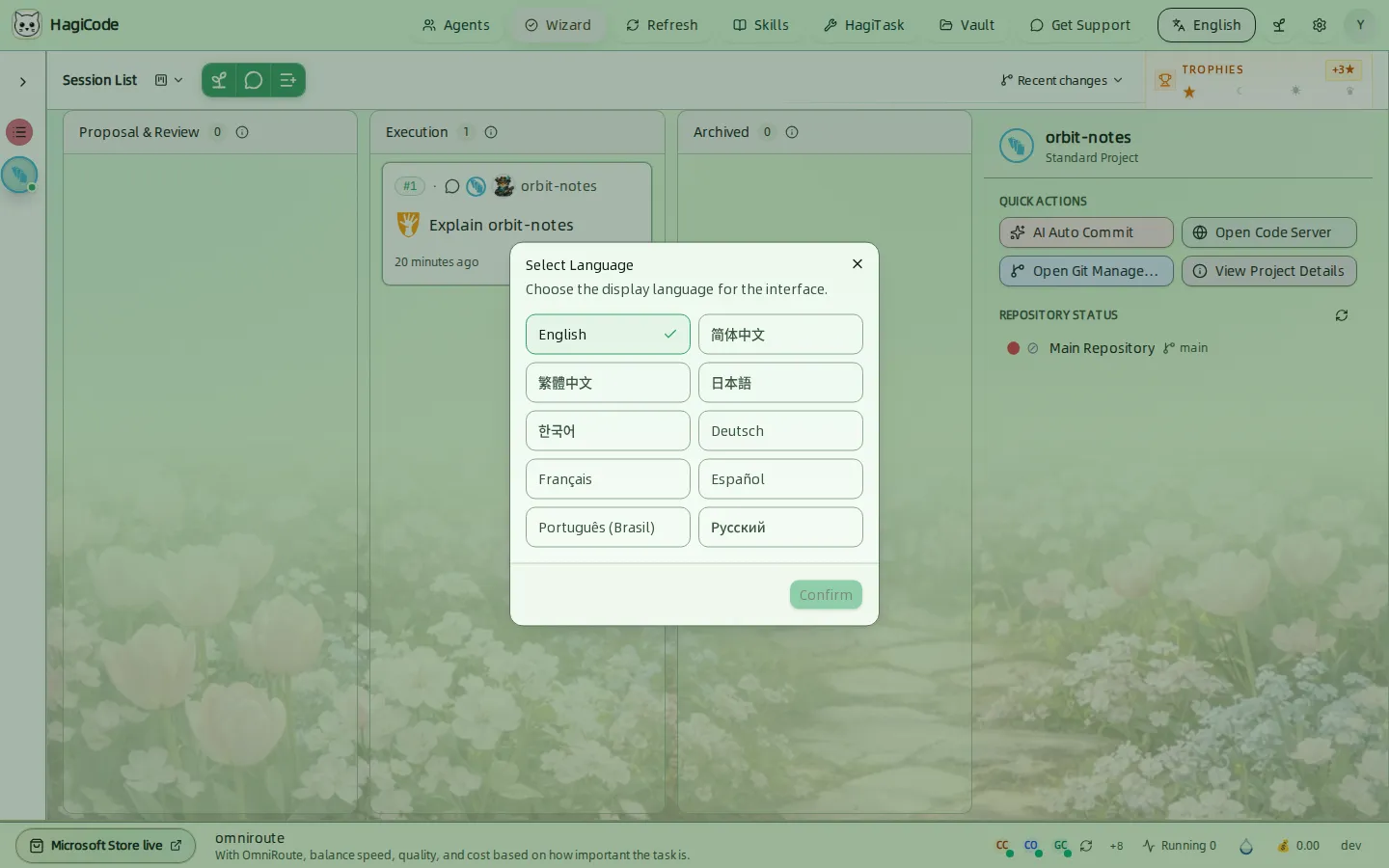
Language opens the language dialog. Choose a language and click Confirm. HagiCode supports English, 简体中文, 繁體中文, 日本語, 한국어, Deutsch, Français, Español, Português (Brasil), and Русский.
HagiCode
HagiCode is an agentic coding workspace. OpenSpec workflows plan the change, multi-agent execution carries it out, and Hero Dungeon makes the long run visible, so ideas become shipped software.
Turn ideas into polished, usable software with a smarter, faster, and more enjoyable agentic coding workflow.
- SmartOpenSpec workflows turn intent into an executable path, from proposal to design, tasks, and a shipped change.
- EfficientMulti-agent execution keeps research, implementation, and review moving in parallel, across several repositories and the Agent CLIs you already use.
- FunHero Dungeon turns long coding sessions into a visible, collaborative adventure with heroes, progress, and achievements.
HagiCode at a glance
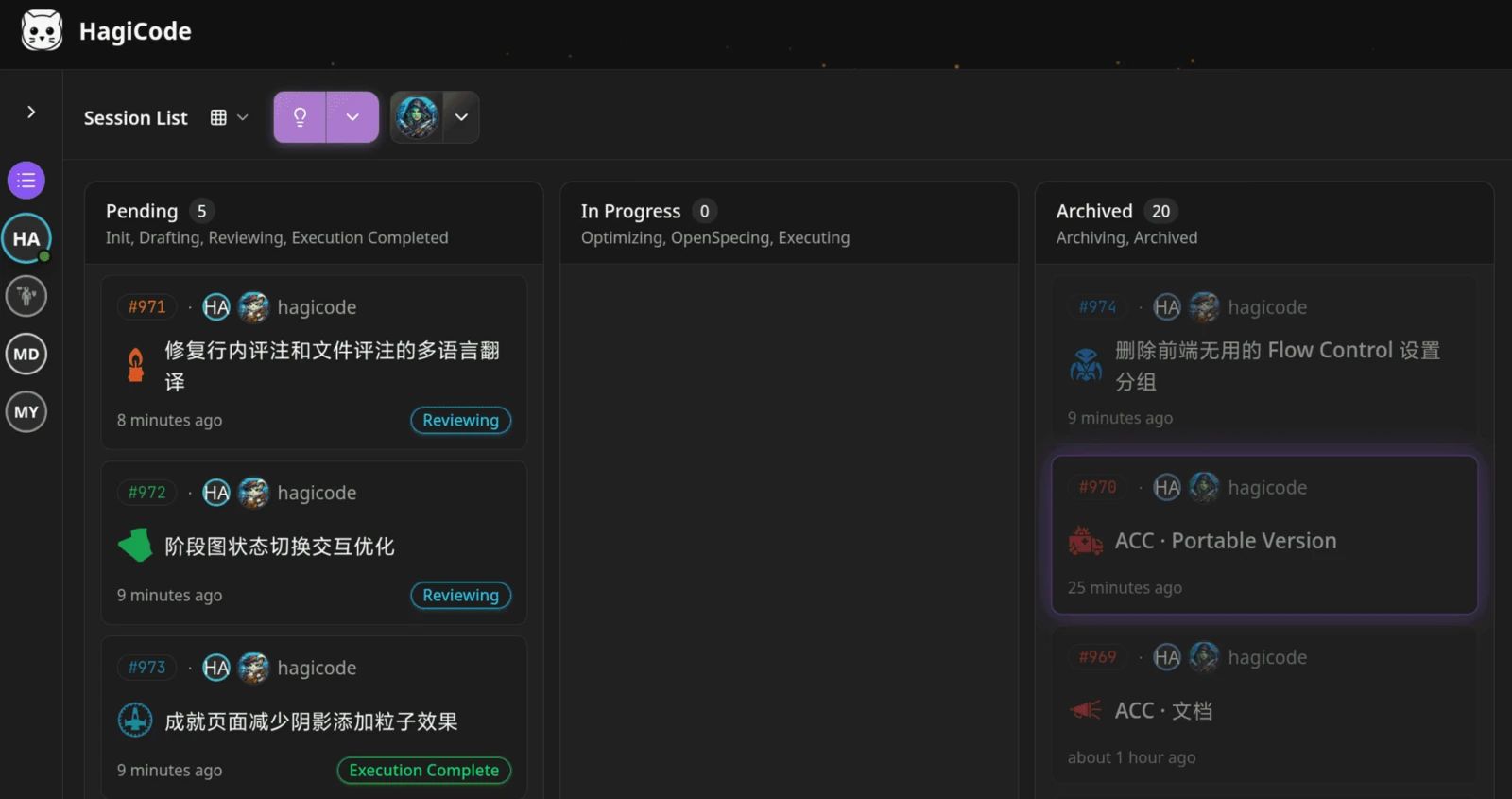
The workbench: every session on one kanban board. 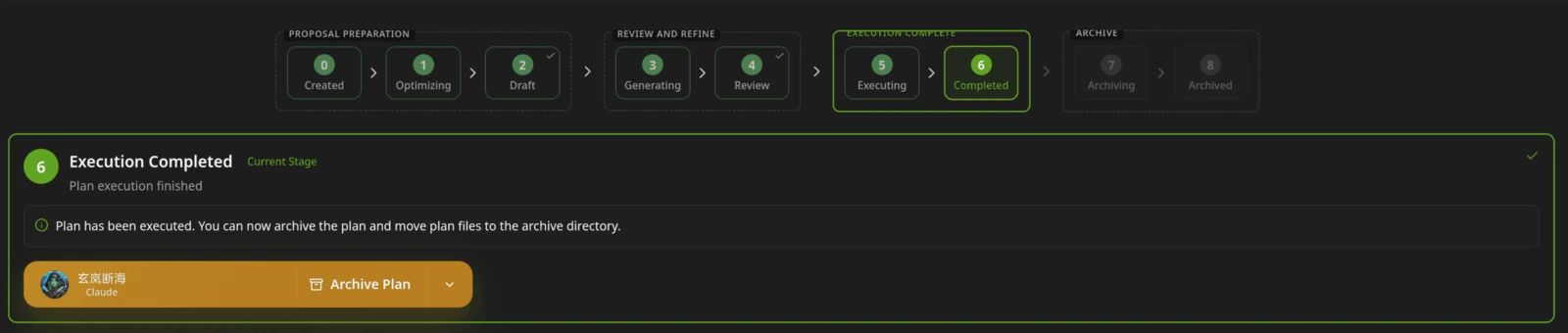
A proposal moves from created to drafted, reviewed, executed, and archived. 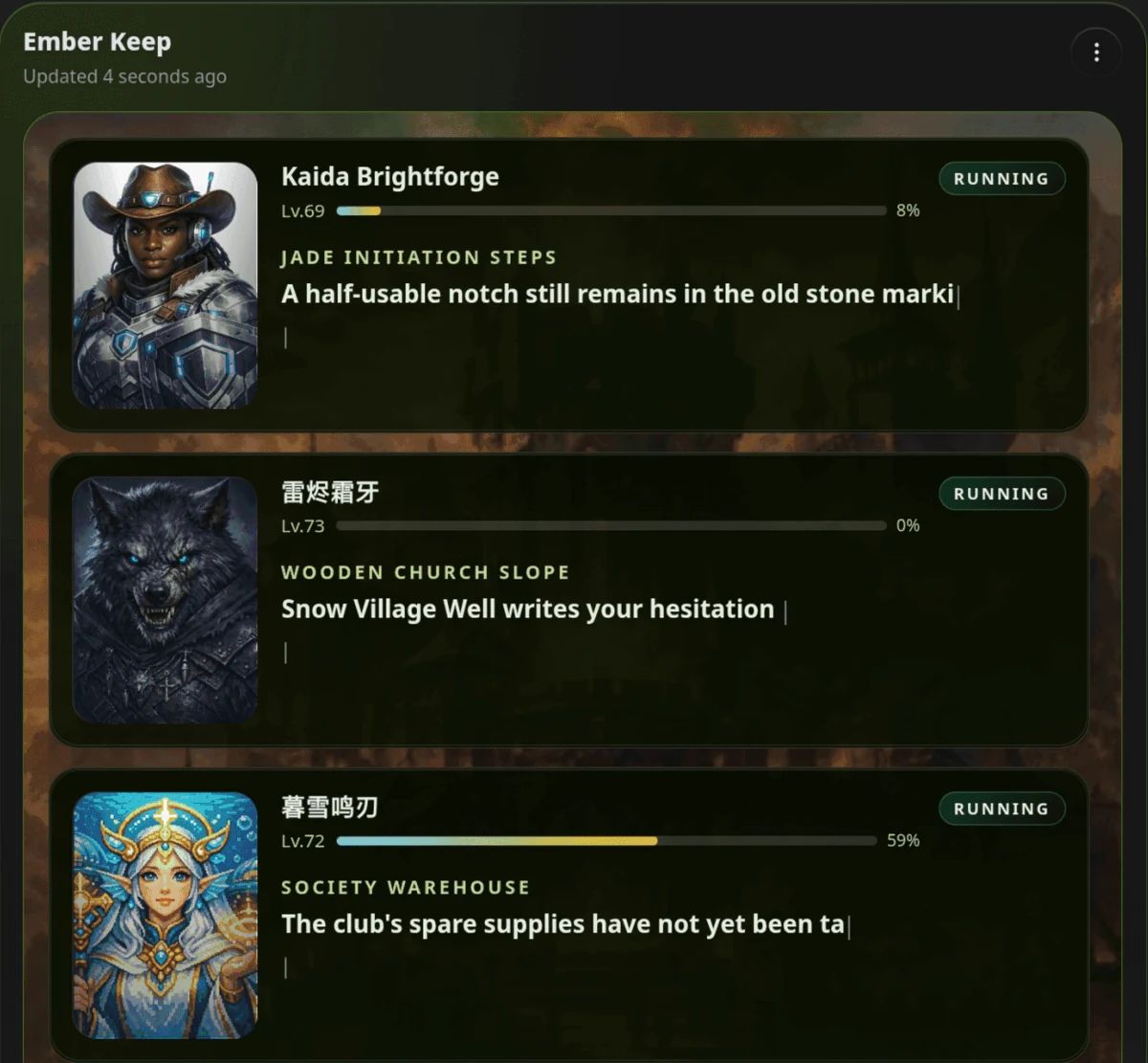
Hero Dungeon: heroes run the work while you follow progress, levels, and story.
Download for Windows
Share HagiCode
Turn ideas into shipped software.
HagiCode is an agentic coding workspace. OpenSpec workflows plan the change, multi-agent execution carries it out, and Hero Dungeon makes the long run visible, so ideas become shipped software.
- Smart
- OpenSpec workflows turn intent into a path from proposal to shipped change.
- Efficient
- Multi-agent execution runs research, build, and review in parallel.
- Fun
- Hero Dungeon makes long sessions visible, with heroes, progress, and achievements.
Ecosystem Sites
Quick Links
Community
© 2026 HagiCode | Powered By hagilight-starlight@0.11.0 | Branch: main | Commit: 934740d | Built: