
Views
HagiCode shows the same sessions through five views. Each view answers a different question: what is this session saying?, where does my work stand?, which project needs me?, or what are my running sessions doing right now? Switching views never changes your sessions; it only changes how the session area is laid out.
Switch views
The layout mode switcher is the small icon next to Session List at the left end of the session toolbar. The icon always shows the view you are in now.
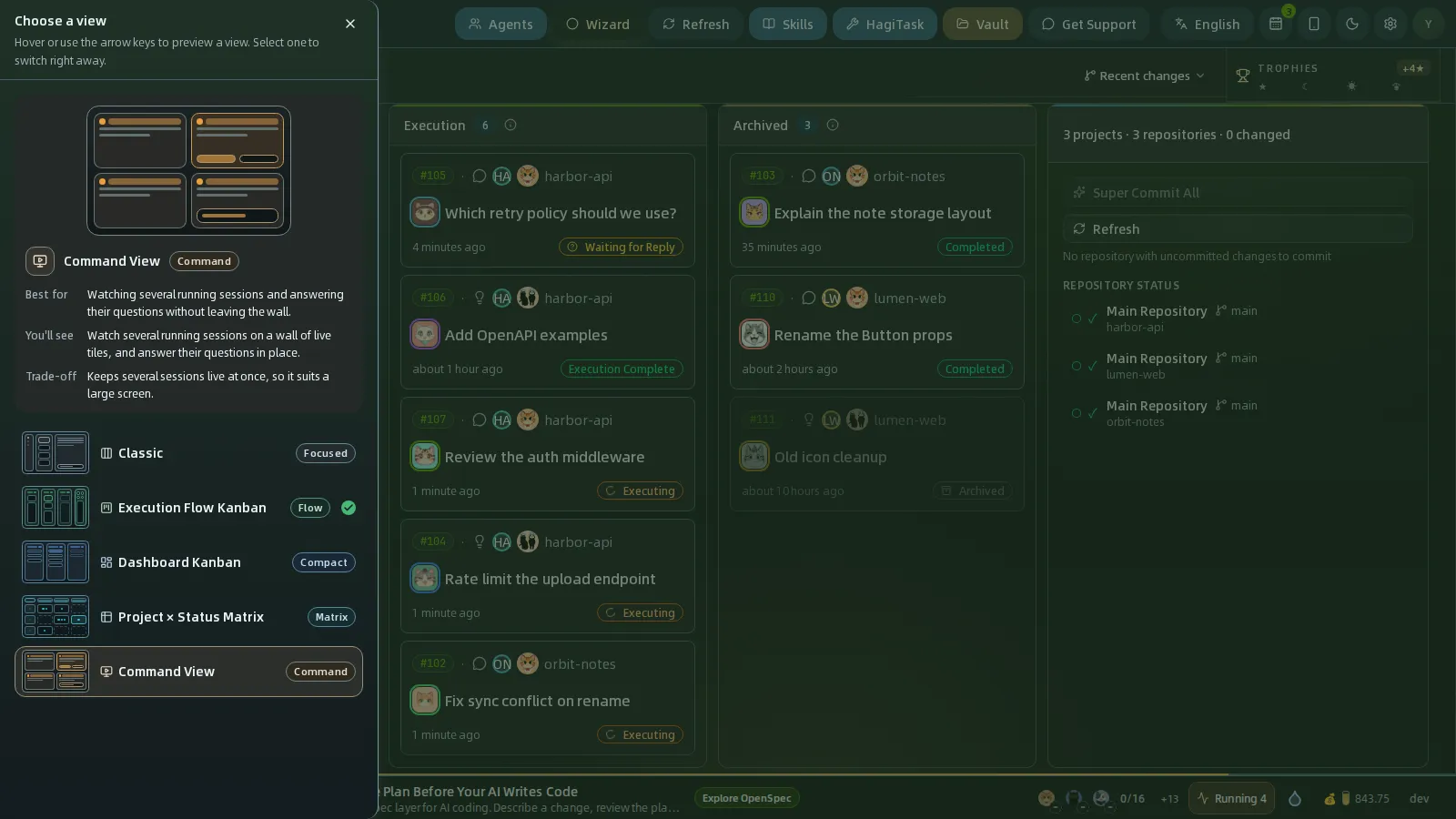
- Click the switcher. The Choose a view drawer opens on the left.
- Point at a view, or move through the list with the arrow keys (
↑↓←→,Home,End), to preview it. The stage at the top assembles a miniature of that view and explains Best for, You’ll see, and Trade-off. - Click a view to switch right away. The drawer closes, and the active view carries a check mark and the label Current.
HagiCode remembers your choice in this browser and restores it the next time you open the workbench.
Narrow windows use one list
Below 1024 px wide, which includes tablets and phones, HagiCode shows a single session list and hides the switcher, and sessions open in a drawer. Your chosen view comes back as soon as the window is wide enough again.
The five views at a glance
| View | Badge | Best for | Trade-off |
|---|---|---|---|
| Classic | Focused | Working through one session at a time, with its conversation open beside the list. | Only one session is in focus, so the overall flow is harder to see. |
| Execution Flow Kanban | Flow | Following work from queue to done and acting from the operations panel. | Uses the most room: swimlanes plus the right-side panel. |
| Dashboard Kanban | Compact | Scanning every session’s status when you don’t need to follow the proposal stages. | Lanes group sessions by status, so proposal stages are not separated. |
| Project × Status Matrix | Matrix | Spotting which project needs you across many projects at once. | Summarises sessions as counts, so a single session is one step further. |
| Command View | Command | Watching several running sessions and answering their questions without leaving the wall. | Keeps several sessions live at once, so it suits a large screen. |
Classic
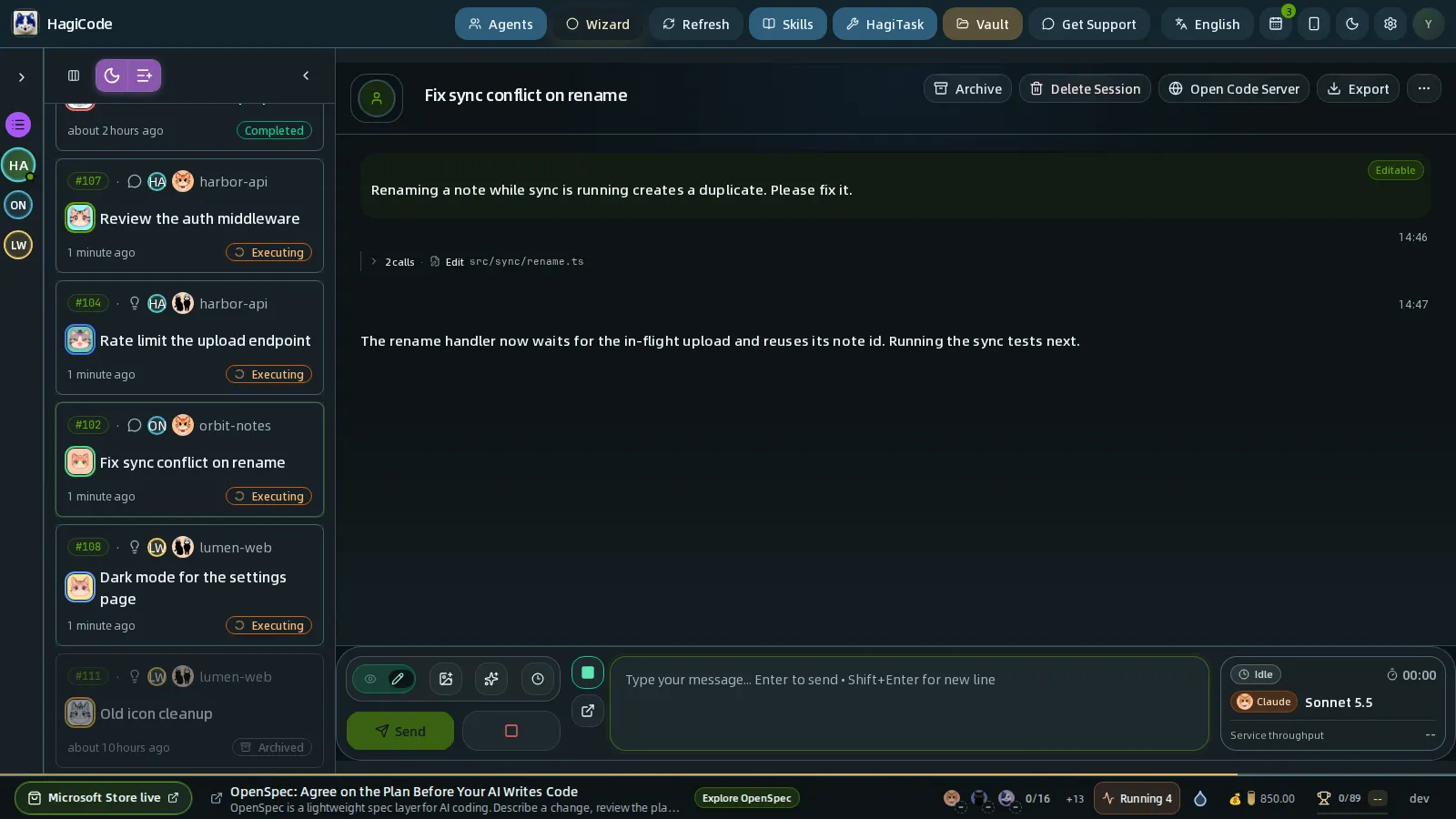
Classic is the three-column layout: the project rail, a compact session list, and a detail column. Click a session and its detail opens in the third column with the Info, Conversation, and Review tabs and the message box, so you can read and reply without leaving the page. Click a project in the rail to see the project’s details in the same column. The arrow at the top of the list collapses it to give the conversation more room.
Choose Classic when you work on one session at a time. It is the only view that needs a window at least 1024 px wide and keeps the conversation permanently on screen; in the four board views a session opens in a drawer over the board.
Execution Flow Kanban
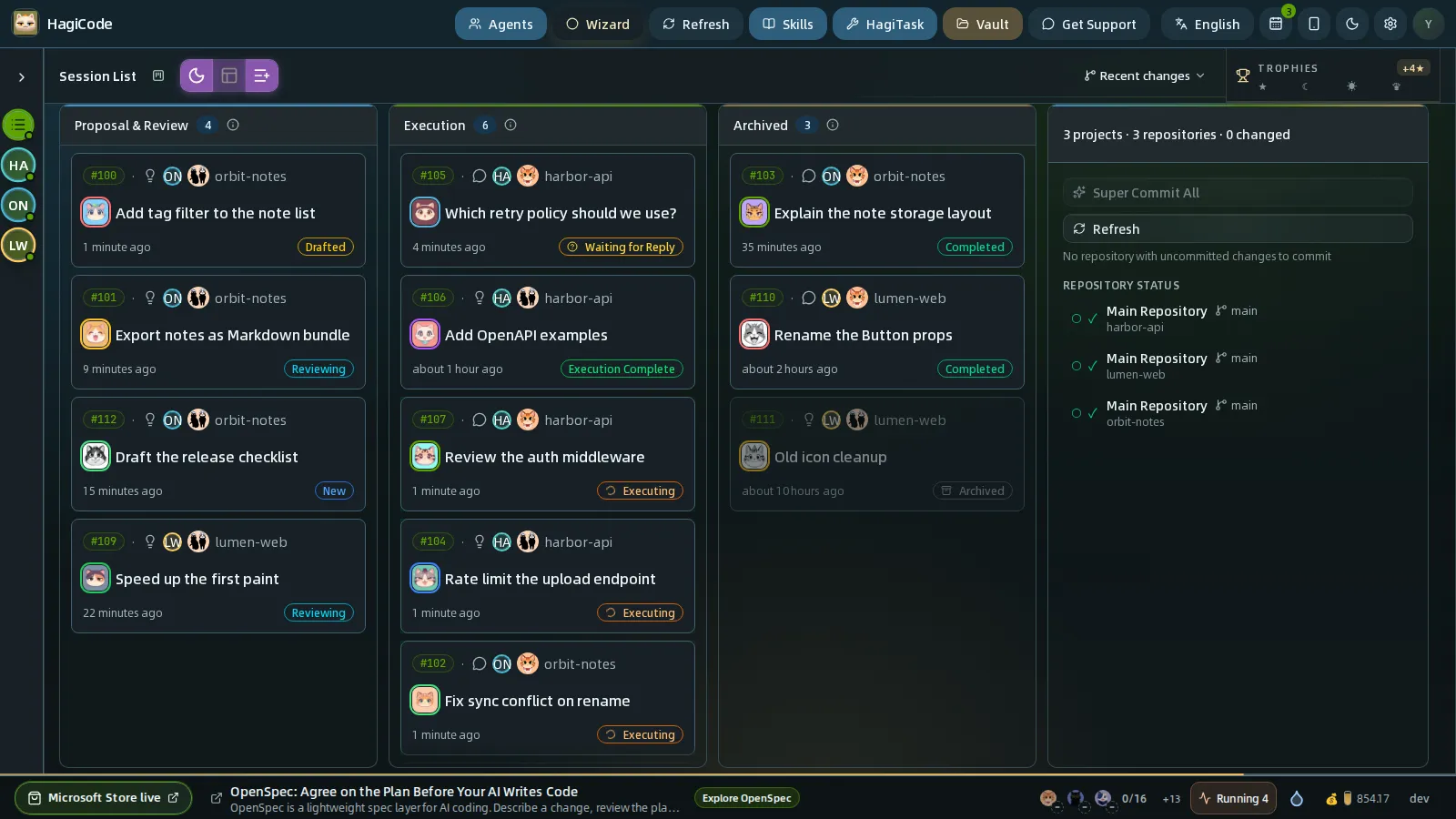
Execution Flow Kanban follows a session from idea to finish. It has three lanes:
| Lane | Sessions in it |
|---|---|
| Proposal & Review | Ideas being optimized, drafted, written up, or reviewed. |
| Execution | Sessions that are executing, waiting for your reply, or have finished executing. |
| Archived | Sessions that are archiving, completed, or archived. |
Each card shows the session number, project, type icon, title, last activity, and a status badge. Click a card to open the session in a drawer. The panel on the right is the project panel: it summarizes all your projects, and when you select a project in the rail it shows that project’s quick actions and repository status. You can change or hide this panel in Settings → Appearance and interface → Kanban Right Panel; see Settings.
This is the view used throughout the rest of this guide.
Dashboard Kanban
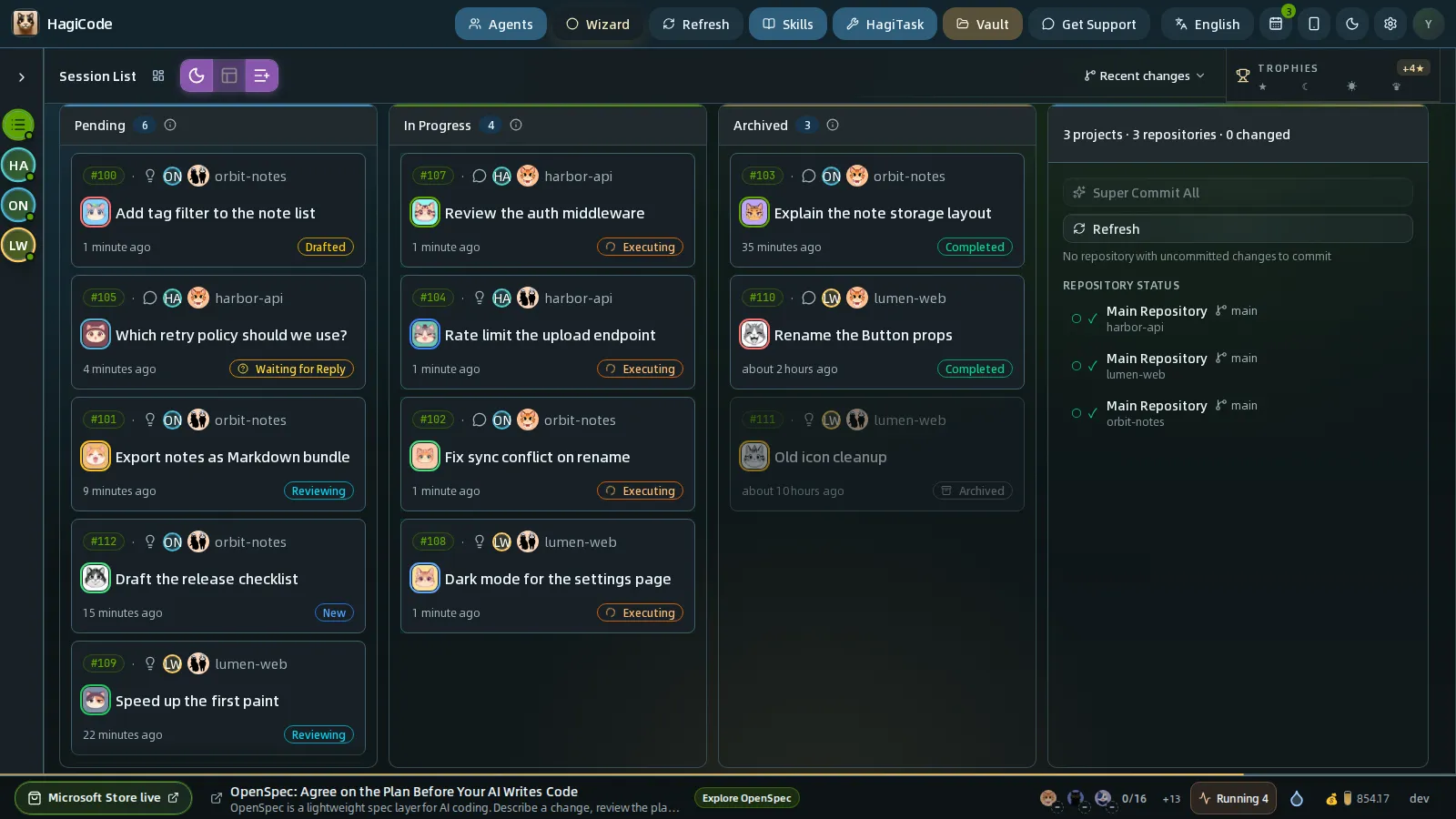
Dashboard Kanban uses the same cards but groups them by status instead of by workflow stage:
| Lane | Sessions in it |
|---|---|
| Pending | Sessions waiting for you: new, drafted, in review, waiting for a reply, or finished executing. |
| In Progress | Sessions the Agent is working on right now. |
| Archived | Sessions that are finished or archived. |
Use it when you only want to know what needs attention, what is running, and what is done, and you don’t need the proposal stages split out. A session that asks you a question lands in Pending, so that lane is your to-do list.
Project × Status Matrix
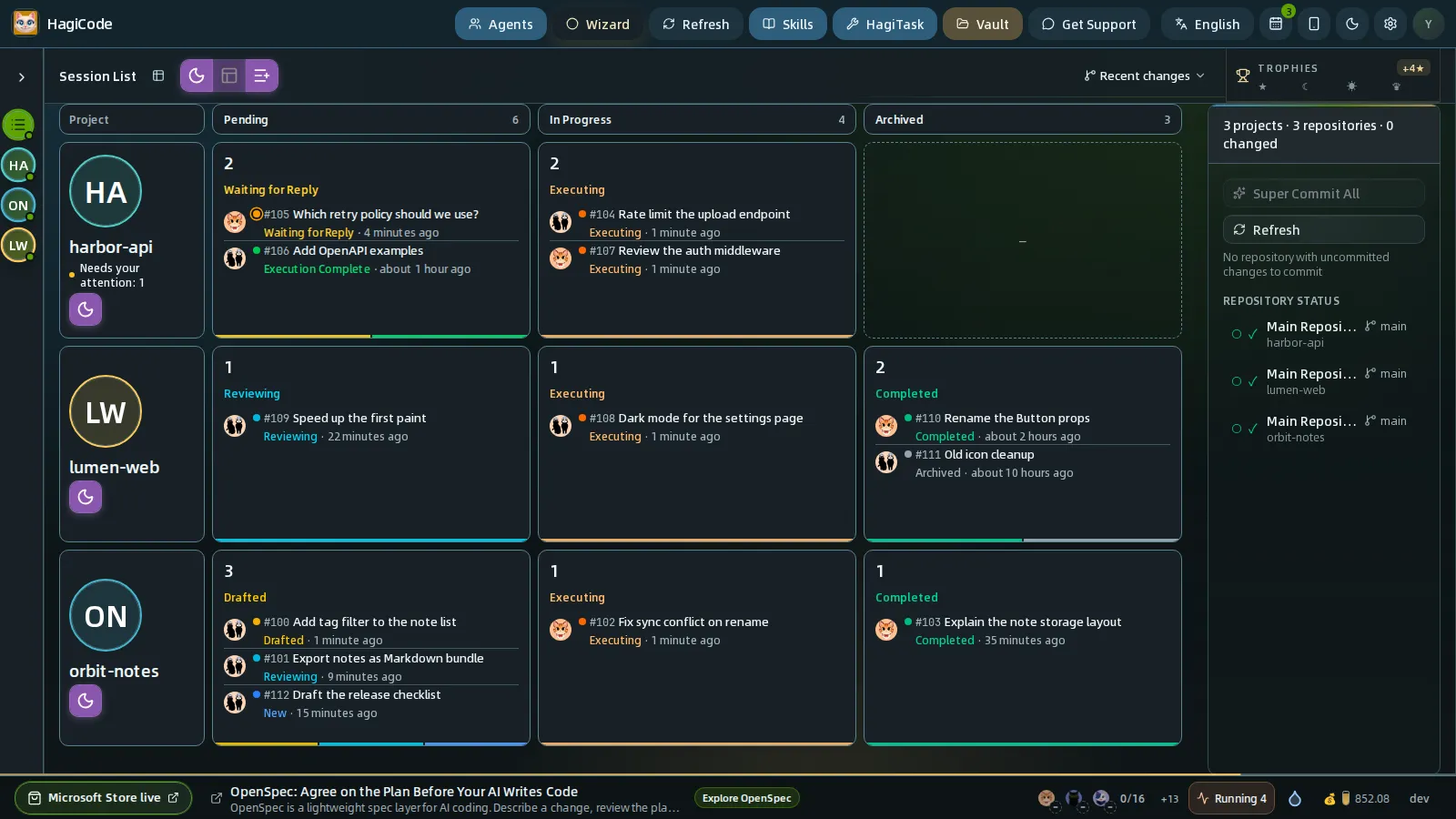
The matrix puts projects in rows and the Dashboard Kanban lanes — Pending, In Progress, Archived — in columns. Each cell shows how many sessions the project has in that lane and the status that is most urgent. The project column carries the project name, its avatar, a Needs your attention count (sessions waiting for your reply or that look stalled), and the buttons to start a new session.
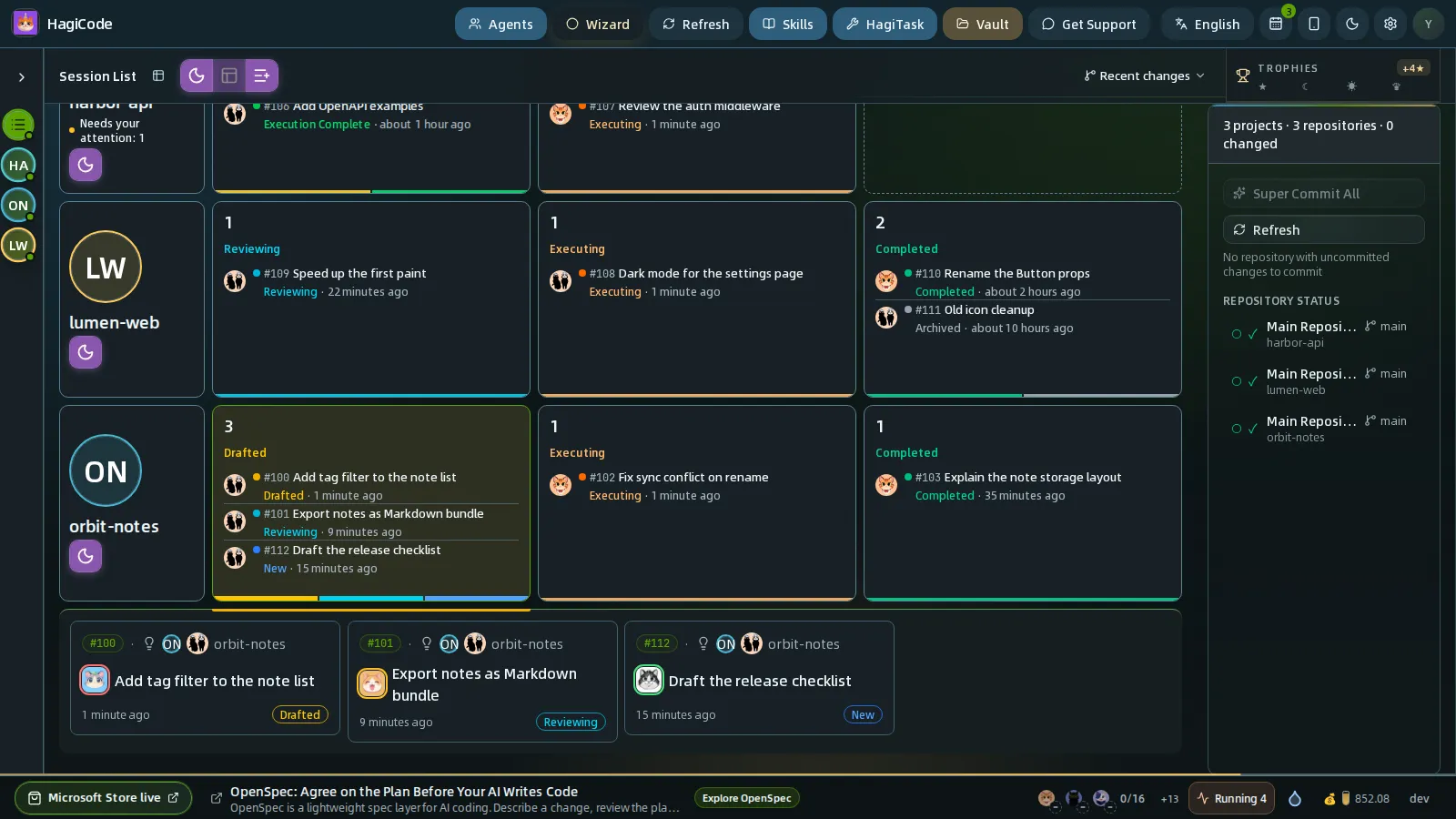
- Click a cell that holds one session to open it.
- Click a cell that holds several sessions to expand their cards below that row. Click the cell again to collapse them.
- Move between cells with the arrow keys.
- Select a single project in the rail to show only its row; View all projects returns to the full grid.
The matrix is the quickest way to answer “which project needs me?” when you work across many projects.
Command View
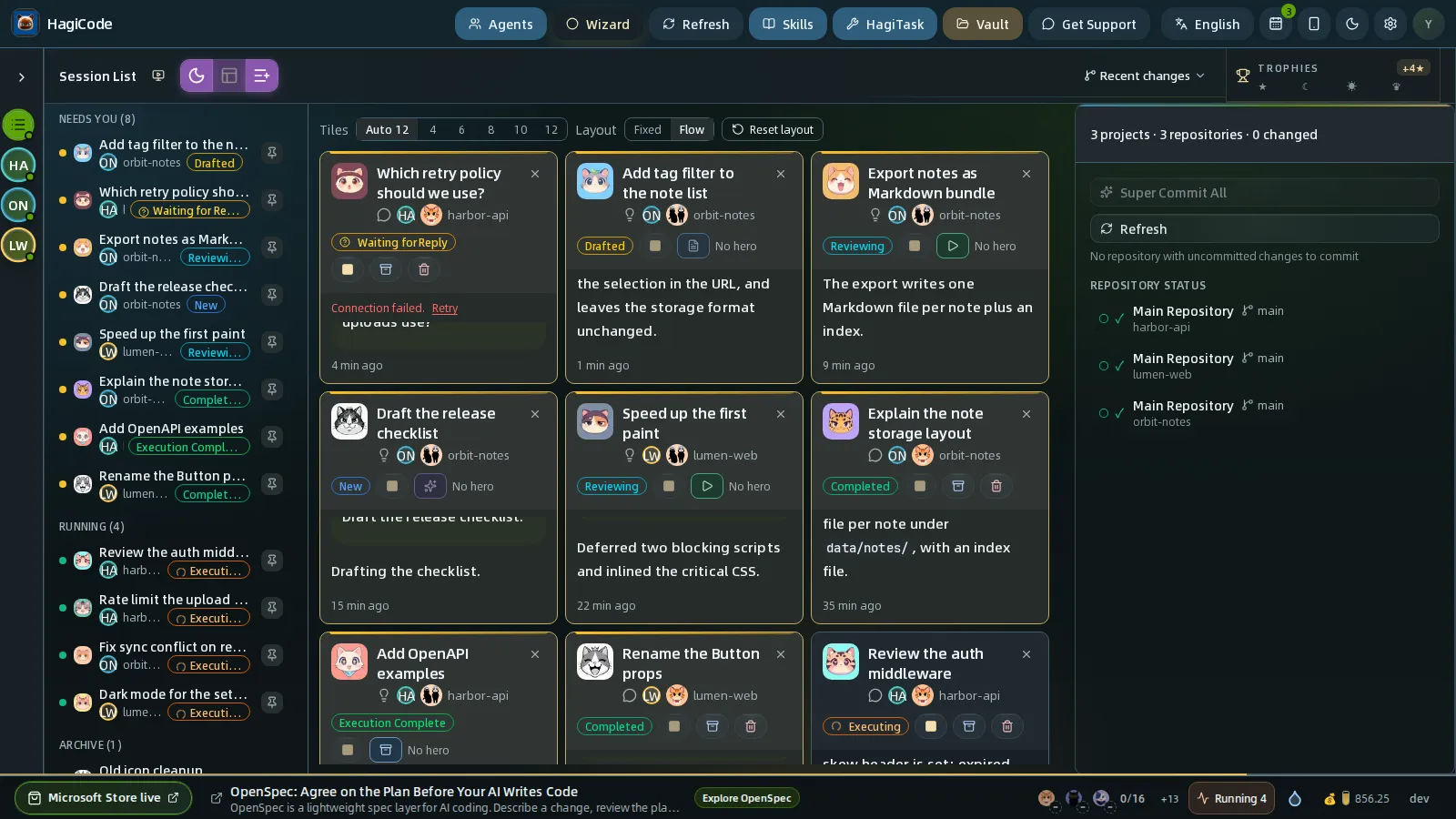
Command View is a control wall for sessions that are running. It has three parts:
Session sidebar (left) groups every session:
| Group | Sessions in it |
|---|---|
| Needs You | Every session that is neither running nor archived: waiting for your reply, new, drafted, in review, completed, and so on. |
| Running | Sessions the Agent is working on, however long they have been silent. |
| Archived | Archived sessions. |
Click a row to put that session on the wall and open it in the drawer, or click its pin button to put it on the wall without opening it.
Wall (middle) is a grid of live tiles. Each tile shows the session title, project, status, quick action buttons, the newest few entries of the conversation, and how many seconds ago the session last did something. When an Agent asks a question, the question card appears inside the tile so you can answer it there. Click a tile to open the full session in the drawer, or click the × on a tile to take it off the wall.
The Tiles selector above the wall sets its size: 4, 6, 8, 10, or 12 tiles, or Auto, which sizes the wall to your sessions. When you open Command View, HagiCode fills the wall with your unarchived sessions in priority order, up to 12: sessions waiting for you first, then running ones, then the rest. After that the wall stays as you arrange it: pin a session to add it, or remove one with the ×. Choosing Auto hands the wall back to HagiCode, which then keeps it filled from your sessions automatically.
The Layout selector sets how manually pinned tiles react when a session’s status changes: Fixed keeps tiles in their slots, and Flow moves pending sessions forward and running sessions back. Reset layout clears the wall and loads the selected project’s sessions; with no project selected, it follows all projects’ sessions automatically.
Project panel (right) is the same panel the other board views show.
Choose Command View when several Agents run at once and you mostly need to notice and answer them. Because it keeps several sessions live, it works best on a large screen.
Which view should I use?
- One conversation at a time → Classic.
- Following each task from proposal to done → Execution Flow Kanban.
- A quick status check → Dashboard Kanban.
- Many projects, and you want to know which one needs you → Project × Status Matrix.
- Several Agents running, and you want to answer them as they ask → Command View.
You can switch at any time; nothing is lost. Many people keep Execution Flow Kanban as a default and open Command View while several sessions run.
HagiCode
HagiCode is an agentic coding workspace. Rich, convenient UI interactions make planning, agent execution, and project work approachable and easy to navigate, creating an engaging development experience.
Explore an engaging development experience through rich, convenient UI interactions.

- SmartOpenSpec workflows turn intent into an executable path, from proposal to design, tasks, and a shipped change.
- EfficientMulti-agent execution keeps research, implementation, and review moving in parallel, across several repositories and the Agent CLIs you already use.
- InterestingRich, convenient UI interactions make planning, agent execution, and project work approachable and easy to navigate.
Download for Windows
Share HagiCode

Turn ideas into shipped software.
HagiCode is an agentic coding workspace. OpenSpec workflows plan the change, multi-agent execution carries it out, and Hero Scenario makes the long run visible, so ideas become shipped software.
- Smart
- OpenSpec workflows turn intent into a path from proposal to shipped change.
- Efficient
- Multi-agent execution runs research, build, and review in parallel.
- Fun
- Rich UI interactions make planning, agent work, and projects easier to follow.
© 2026 HagiCode | Powered By hagilight-starlight@0.20.0 | Branch: main | Commit: 0dde182 | Built: