
Guide de validation AI Compose
Modifier cette pageAI Compose Commit lit les modifications de code actuelles et génère des messages de validation au format Conventional Commits. Le point est simple : passez moins de temps à rédiger des commits tout en gardant un historique plus clair.
Qu’est-ce que AI Compose Commit ?
Section intitulée « Qu’est-ce que AI Compose Commit ? »AI Compose Commit analyse vos modifications et écrit des messages de validation standardisés pour celles-ci. Il échange l’écriture manuelle des commits contre un historique plus cohérent.
Utilisez-le quand :
- Modifications de code importantes nécessitant plusieurs validations
- Projets multi-dépôts avec changements coordonnés
- Équipes nécessitant des formats de commit standardisés
- Développeurs qui souhaitent améliorer la qualité des commits
Principaux avantages
Section intitulée « Principaux avantages »| Caractéristique | Validations manuelles traditionnelles | Engagement de composition AI |
|---|---|---|
| S’engager sur la qualité | Cela dépend de l’expérience individuelle | Basé sur les meilleures pratiques, qualité constante |
| Vitesse de validation | Nécessite réflexion et organisation | Génération instantanée en un clic |
| Cohérence | Peut varier selon les commits | Suit automatiquement les normes |
| Support multi-dépôt | Coordination manuelle requise | Reconnaissance et regroupement automatiques des pensions |
| Gain de temps | Peut prendre beaucoup de temps | Enregistre 10 à 60+ secondes par commit |
Démarrage rapide
Section intitulée « Démarrage rapide »Activer la fonctionnalité
Section intitulée « Activer la fonctionnalité »Dans l’application de bureau HagiCode, accédez au projet dans lequel vous souhaitez utiliser AI Compose Commit et activez cette fonctionnalité.
Important : Assurez-vous d’abord que votre projet a été ajouté à HagiCode.
Fonction de déclenchement
Section intitulée « Fonction de déclenchement »Localisez le bouton « AI Combined Commit » dans la section des opérations Git.
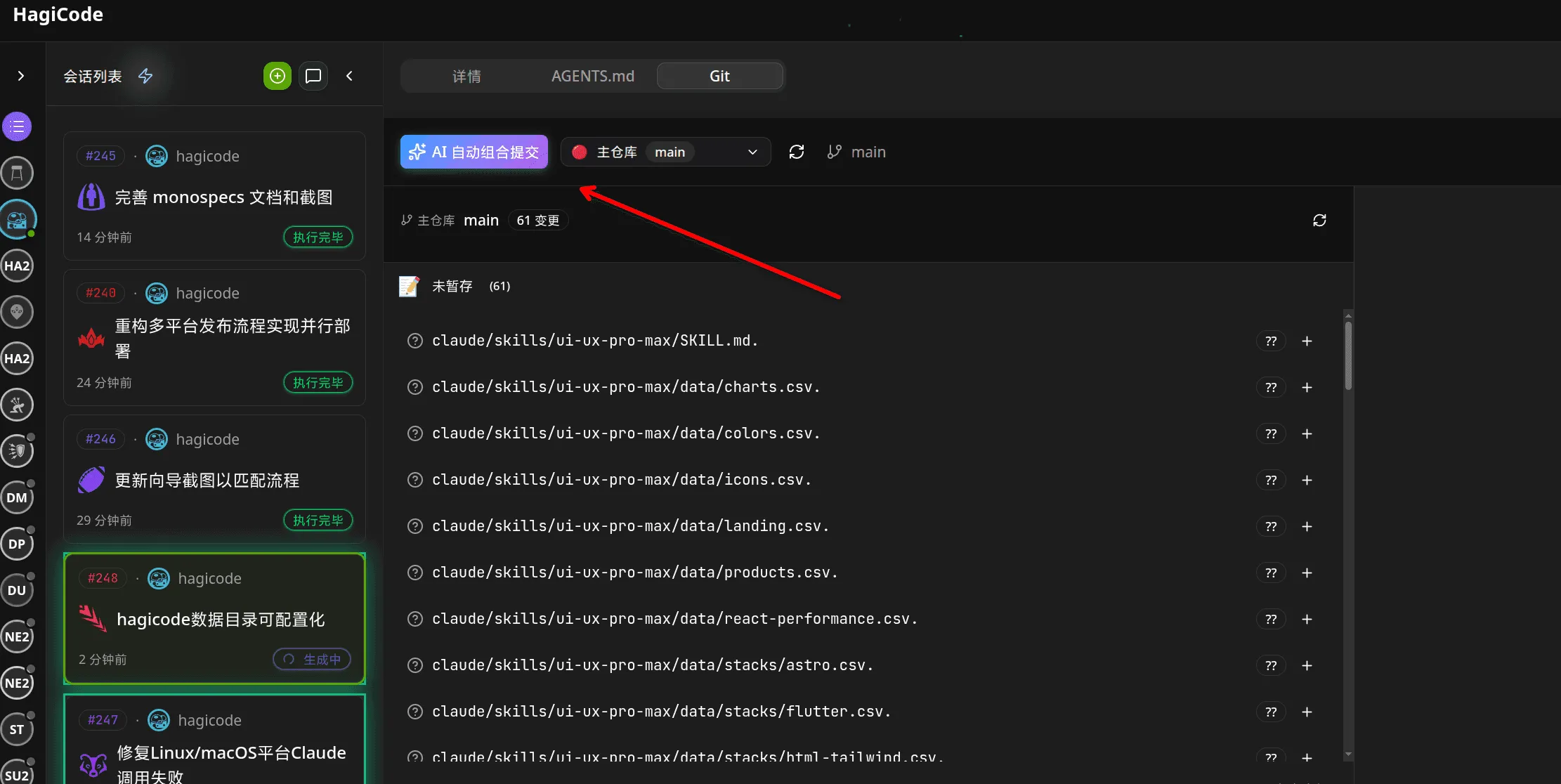
Ce bouton est généralement situé bien en vue dans la section des opérations Git, à proximité d’autres actions de contrôle de version.
Remarque importante : Cliquer sur ce bouton déclenchera la génération automatique de messages de validation. Si vous devez annuler ou modifier des validations, utilisez les commandes Git standard.
Invite de risque lors de la première utilisation
Section intitulée « Invite de risque lors de la première utilisation »Lorsque vous utilisez AI Compose Commit pour la première fois ou avec des modifications non approuvées, le système affichera une boîte de dialogue de confirmation.
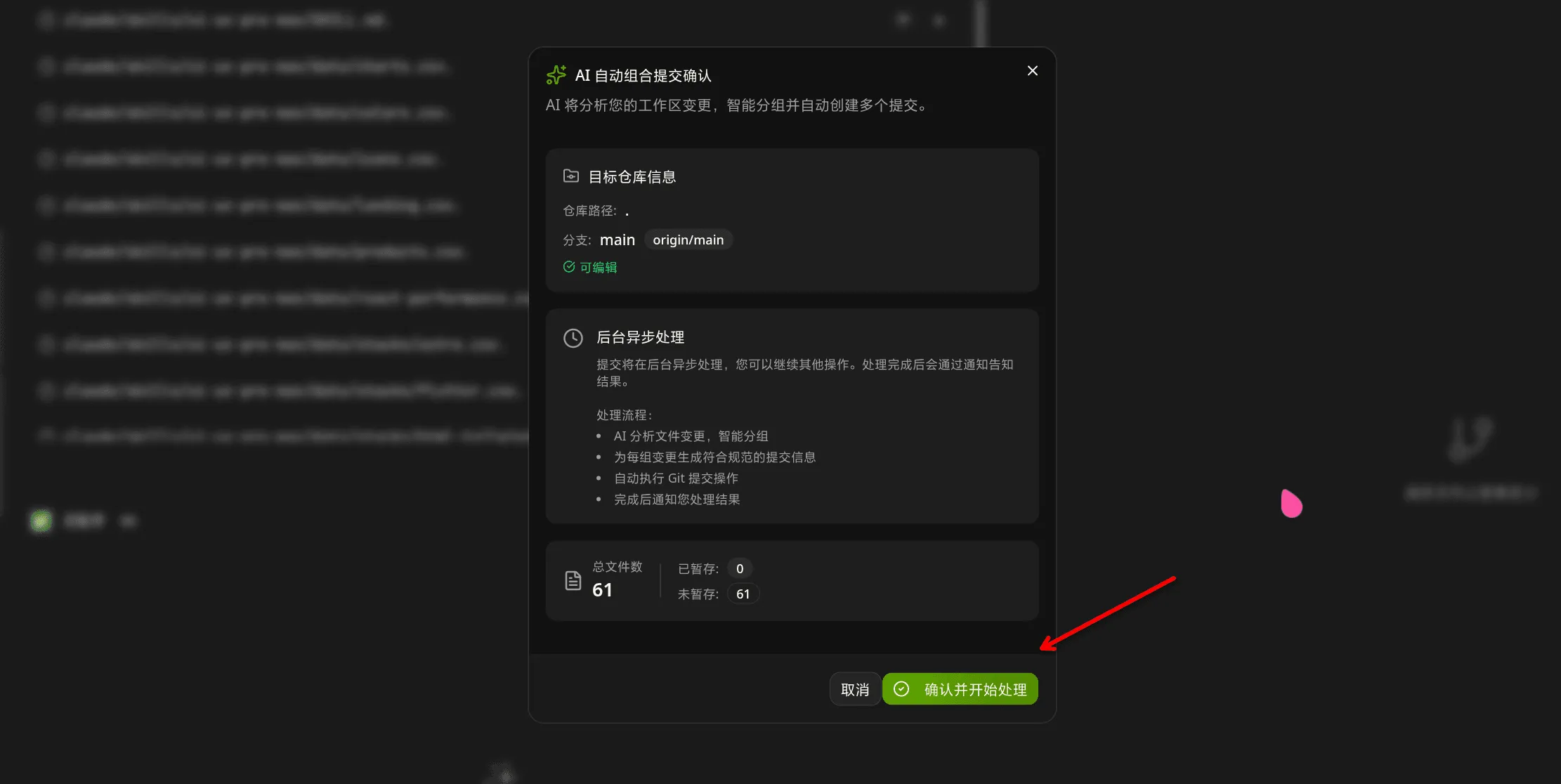
La boîte de dialogue contient des options, notamment :
- Confirmer et lancer le traitement
- Comprendre les risques, ne plus afficher cette invite
- Cocher cette option rend l’utilisation ultérieure plus pratique
Il est recommandé de lire attentivement l’invite de risque lors de la première utilisation pour comprendre les implications des validations automatiques.
Afficher les résultats
Section intitulée « Afficher les résultats »Une fois le traitement terminé par AI, vous verrez une notification de réussite.
Les messages de validation ont été générés et sont prêts. Vous pouvez les consulter avant de finaliser si nécessaire.
Détails des fonctionnalités
Section intitulée « Détails des fonctionnalités »Logique d’analyse de l’IA
Section intitulée « Logique d’analyse de l’IA »AI Compose Commit analyse les modifications de votre code via le processus suivant :
1. Lire les modifications de l’espace de travail
Section intitulée « 1. Lire les modifications de l’espace de travail »Le système collecte tous les fichiers modifiés, nouvellement ajoutés et supprimés dans l’espace de travail actuel.
2. Analyser le contenu du fichier
Section intitulée « 2. Analyser le contenu du fichier »L’IA analyse en profondeur le contenu des fichiers modifiés pour comprendre :
- Modifications fonctionnelles mises en œuvre
- Corrections de bugs appliquées
- Modèles de refactoring utilisés
- Dépendances ajoutées ou supprimées
3. Identifier les associations de changement
Section intitulée « 3. Identifier les associations de changement »L’IA identifie intelligemment les changements qui doivent être regroupés :
- Modifications du frontend et du backend pour la même fonctionnalité
- Modifications associées au fichier de configuration
- Tester les mises à jour parallèlement aux modifications de mise en œuvre
4. Générer une structure de validation
Section intitulée « 4. Générer une structure de validation »L’IA génère des informations de validation structurées selon la spécification Conventional Commits :
<type>(<scope>): <subject> <body> <footer>5. Write Commit Message
Section intitulée « 5. Write Commit Message »Each change is transformed into a clear, descriptive commit message.
Commit Format Specification
Section intitulée « Commit Format Specification »AI-generated commit messages follow the Conventional Commits format:
<type>(<portée>) : <sujet> <corps> <pied de page>type: Commit type (required)
feat: New featurefix: Bug fixdocs: Documentation changesstyle: Code style changes (formatting, no code change)refactor: Code refactoringtest: Adding or updating testschore: Build process or auxiliary tool changesperf: Performance improvements
scope: Scope of the change (optional)
- Indicates which part of the project is affected
- Format:
module/nameorcategory/name
subject: Short description of the change (required)
- Imperative mood
- Max 50 characters
- Use present tense: “Add” not “Added”
body: Detailed description (optional)
- What was changed and why
- Can use multiple paragraphs
- Max 100 characters for first line, 72 for subsequent lines
footer: References to related issues (optional)
Closes #123BREAKING CHANGE: ...Co-Authored-By: @anthropic.com>
Example Output
Section intitulée « Example Output »feat(auth) : ajouter une fonctionnalité de connexion utilisateurImplémentation de l'authentification OAuth2 avec les fournisseurs Google et GitHub.
Le composant de connexion prend désormais en charge :- Intégration Google OAuth- Intégration GitHub OAuth- Gestion de session avec les jetons JWT
Co-écrit par : Claude Opus 4.6 <noreply@anthropic.com>Comparison with Traditional Manual Commits
Section intitulée « Comparison with Traditional Manual Commits »Manual Commits
Section intitulée « Manual Commits »Traditional Git commits rely on:
- Developer’s experience and mood
- Individual writing habits
- Time constraints affecting quality
- Inconsistent formatting across team
AI Compose Commit
Section intitulée « AI Compose Commit »AI Compose Commit provides:
- Standardized format: Always follows Conventional Commits specification
- Intelligent analysis: Understands code context and relationships
- Quality consistency: Maintains professional tone and accuracy
- Time efficiency: Reduces commit writing time from 5-30 minutes to seconds
When to Use Each
Section intitulée « When to Use Each »Use AI Compose Commit When:
- Large batch changes (multiple files, complex features)
- Coordinated changes across multiple repositories
- Need for high-quality, consistent commit messages
- Team projects with multiple contributors
Use Manual Commits When:
- Small, focused changes (single file, simple bug fix)
- Personal projects with full control over commit quality
- When you have time to craft thoughtful, personalized messages
Multi-Repository Support
Section intitulée « Multi-Repository Support »monospecs Integration
Section intitulée « monospecs Integration »When managing monospecs-based multi-repository projects, AI Compose Commit provides enhanced capabilities:
Read monospecs.yaml
Section intitulée « Read monospecs.yaml »AI automatically reads the monospecs.yaml configuration to:
- Identify all configured sub-repositories
- Match file paths to corresponding repositories
- Access display names and icons for UI rendering
Match File Changes
Section intitulée « Match File Changes »AI intelligently matches each changed file to the correct sub-repository:
- Analyzes file path in project structure
- Matches against monospecs repository configurations
- Groups related changes together for logical commits
Separate Commits
Section intitulée « Separate Commits »Each sub-repository receives independent commits:
- Frontend changes committed to
repos/frontend - Backend changes committed to
repos/backend - Maintains independent git history and version control
Co-Authored-By Footer
Section intitulée « Co-Authored-By Footer »AI Compose Commit appends the currently effective Co-Authored-By trailer to every generated commit. Interactive Git commits and the OpenSpec v1 archive prompt reuse the same resolution rules, so teams only need to maintain one convention.
The precedence order is fixed:
- Project-level config: local Git config in the current repository (
git config --local) - Global config: user-level Git config (
git config --global) - Built-in default:
HagiCode <noreply@hagicode.com>
If a layer is missing name, missing email, or contains an invalid email address, HagiCode skips that layer and falls back to the next one instead of emitting a malformed trailer.
Default output:
Co-écrit par : HagiCode <noreply@hagicode.com>Repository override example:
git config --local coAuthoredBy.name "Platform Bot"git config --local coAuthoredBy.email "platform-bot@example.com"Global fallback example:
git config --global coAuthoredBy.name "HagiCode"git config --global coAuthoredBy.email "noreply@hagicode.com"With the local override above, the trailer becomes:
Co-écrit par : Platform Bot <platform-bot@example.com>Operational details:
- If the commit message already contains the same resolved trailer, HagiCode does not append a duplicate.
- If the message already contains a different
Co-Authored-Byline, HagiCode keeps that line and still appends the resolved AI trailer. - Teams should treat repository-level config as the canonical rule and keep global config as a personal fallback.
Advantages for Multi-Repo Projects
Section intitulée « Advantages for Multi-Repo Projects »Traceability: Clear history of which repository received which changes Coordination: Changes across multiple repos can be committed simultaneously or sequentially Consistency: Uniform commit format across all repositories Efficiency: Reduced coordination overhead for changes spanning multiple repositories
Usage Guidelines
Section intitulée « Usage Guidelines »Best Practices
Section intitulée « Best Practices »For optimal AI Compose Commit results:
1. Keep Changes Focused
- Each commit should address a single feature or fix
- Avoid bundling unrelated changes in one commit
- Make incremental progress with meaningful commit messages
2. Clear Code Comments
- Add comments in complex code to help AI understand intent
- Use descriptive comments for non-obvious implementation details
- Keep comments updated as code evolves
3. Reasonable File Naming
- Use clear, descriptive file names
- Follow project naming conventions
- Avoid overly generic names that don’t convey purpose
4. Timely Committing
- Commit frequently as meaningful changes are completed
- Don’t accumulate large batches of uncommitted work
- Each commit should represent a logical unit of progress
5. Leverage Multi-Repo Intelligence
- Let AI group related changes across repositories
- Use descriptive scopes to indicate affected modules
- Review AI’s suggested groupings before committing
Usage Restrictions
Section intitulée « Usage Restrictions »Limitations
Section intitulée « Limitations »AI Compose Commit has the following usage limitations:
1. Network Dependency
- Requires active connection to AI service
- Processing time depends on network conditions
- Large codebases may take longer to analyze
2. File Size Limits
- Very large files (>10MB) may exceed processing limits
- Binary files are not analyzed (only text-based content)
- Split large changes into smaller commits if needed
3. Codebase Complexity
- Extremely complex code may be difficult to analyze fully
- Deeply nested or obfuscated code may have reduced accuracy
- Results are best-effort based on visible code
4. First Use Considerations
When using AI Compose Commit for the first time:
- Start with smaller, safer changes to understand AI behavior
- Verify generated commits before finalizing
- Provide clear code comments to improve AI understanding
- Check that project is properly connected in HagiCode
Troubleshooting
Section intitulée « Troubleshooting »Feature Not Available
Section intitulée « Feature Not Available »If you don’t see the AI Combined Commit button:
- Ensure the project is added to HagiCode
- Refresh the interface
- Check if this feature is enabled in your version
- Verify your network connection to AI service
No Response After Clicking
Section intitulée « No Response After Clicking »If nothing happens after clicking the button:
- Check for notification dialogs (may be hidden behind other windows)
- Check browser console for error messages
- Verify network connectivity
- Try restarting the application
Incorrect Generated Messages
Section intitulée « Incorrect Generated Messages »If AI generates incorrect commit messages:
- Manually modify using
git commit --amend - Add more descriptive comments to help AI understand
- Check code changes are accurately represented
- Re-trigger the feature after making adjustments
Processing Takes Too Long
Section intitulée « Processing Takes Too Long »If processing seems to be taking an unusually long time:
- Check if there are very large files being analyzed
- Verify network stability
- Try splitting changes into smaller batches
- Check if AI service is experiencing high load
Co-Authored-By Footer Missing
Section intitulée « Co-Authored-By Footer Missing »If commits don’t include the expected footer:
- This may indicate AI service is unavailable
- Check your API token configuration in HagiCode settings
- Verify network connectivity
- Check whether the local
coAuthoredBy.name/coAuthoredBy.emailconfig is incomplete and therefore falling back to another layer - Consider generating commits manually if issue persists
For more information, refer to the HagiCode documentation or check the monospecs repository for configuration examples.