
AI Compose Commit-Leitfaden
Seite bearbeitenÜbersicht
Abschnitt betitelt „Übersicht“AI Compose Commit liest die aktuellen Codeänderungen und generiert Commit-Nachrichten im herkömmlichen Commits-Format. Der Punkt ist einfach: Verbringen Sie weniger Zeit mit dem Schreiben von Commits und halten Sie gleichzeitig den Verlauf klarer.
Was ist AI Compose Commit?
Abschnitt betitelt „Was ist AI Compose Commit?“AI Compose Commit analysiert Ihre Änderungen und schreibt dafür standardisierte Commit-Nachrichten. Es tauscht manuelles Commit-Schreiben gegen einen konsistenteren Verlauf ein.
Verwenden Sie es, wenn:
- Große Codeänderungen, die mehrere Commits erfordern
- Multi-Repository-Projekte mit koordinierten Änderungen
- Teams, die standardisierte Commit-Formate benötigen
- Entwickler, die die Commit-Qualität verbessern möchten
Hauptvorteile
Abschnitt betitelt „Hauptvorteile“| Funktion | Traditionelle manuelle Commits | AI Compose Commit |
|---|---|---|
| Qualität garantieren | Hängt von der individuellen Erfahrung ab | Basierend auf Best Practices, gleichbleibende Qualität |
| Commit-Geschwindigkeit | Erfordert Überlegung und Organisation | Ein Klick, sofortige Generierung |
| Konsistenz | Kann zwischen den Commits variieren | Folgt automatisch den Standards |
| Multi-Repo-Unterstützung | Manuelle Koordination erforderlich | Automatische Repo-Erkennung und -Gruppierung |
| Zeitersparnis | Kann viel Zeit in Anspruch nehmen | Spart 10–60+ Sekunden pro Commit |
Schnellstart
Abschnitt betitelt „Schnellstart“Funktion aktivieren
Abschnitt betitelt „Funktion aktivieren“Navigieren Sie in der HagiCode-Desktopanwendung zu dem Projekt, in dem Sie AI Compose Commit verwenden möchten, und aktivieren Sie diese Funktion.
Wichtig: Stellen Sie sicher, dass Ihr Projekt zuerst zu HagiCode hinzugefügt wurde.
Trigger-Funktion
Abschnitt betitelt „Trigger-Funktion“Suchen Sie die Schaltfläche „AI Combined Commit“ im Abschnitt „Git-Operationen“.
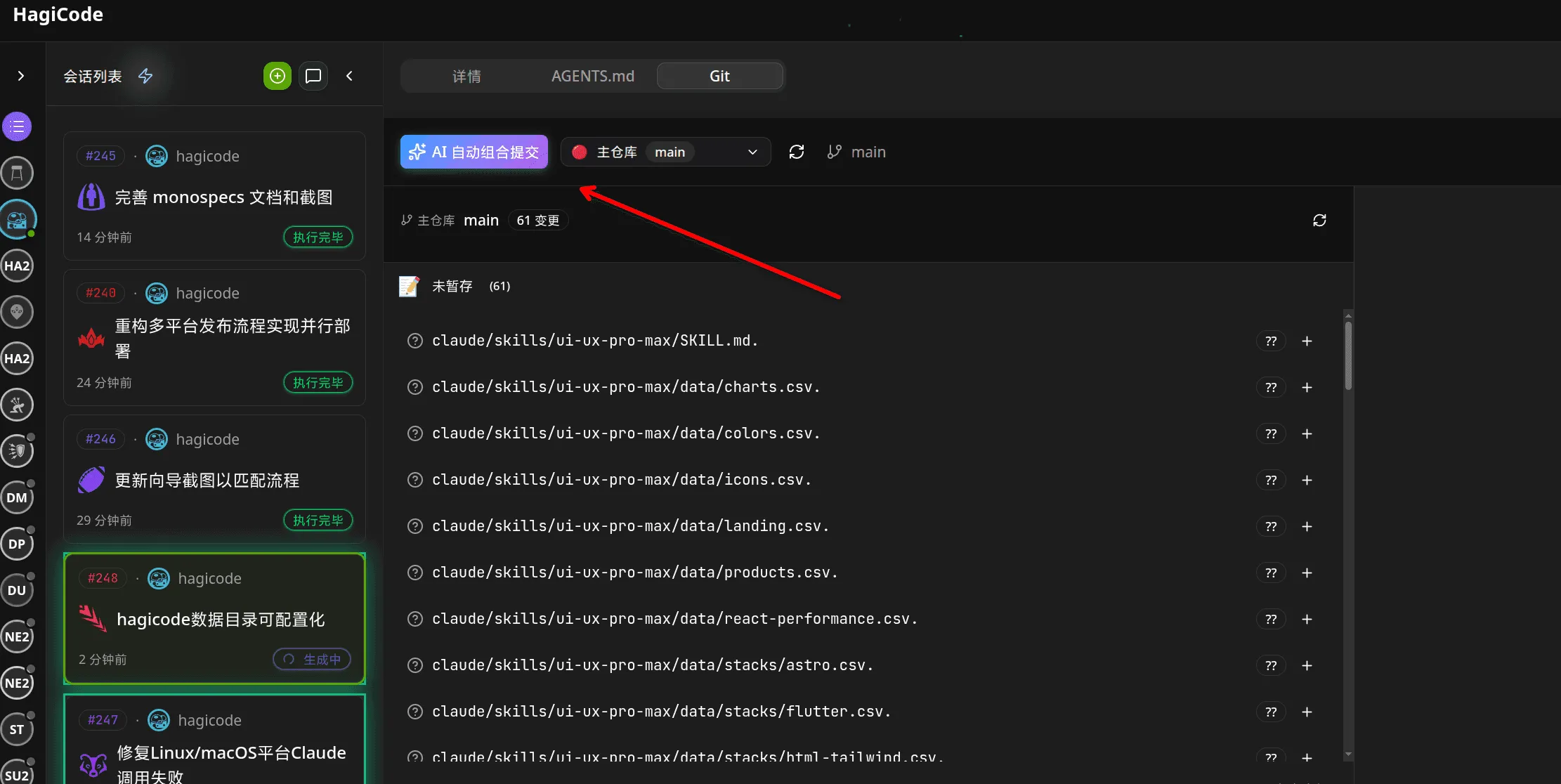
Diese Schaltfläche befindet sich normalerweise gut sichtbar im Abschnitt „Git-Operationen“ neben anderen Versionskontrollaktionen.
Wichtiger Hinweis: Durch Klicken auf diese Schaltfläche wird die automatische Generierung von Commit-Nachrichten ausgelöst. Wenn Sie Commits zurücksetzen oder ändern müssen, verwenden Sie Standard-Git-Befehle.
Risikoaufforderung bei der ersten Verwendung
Abschnitt betitelt „Risikoaufforderung bei der ersten Verwendung“Bei der ersten Verwendung von AI Compose Commit oder bei nicht genehmigten Änderungen zeigt das System einen Bestätigungsdialog an.
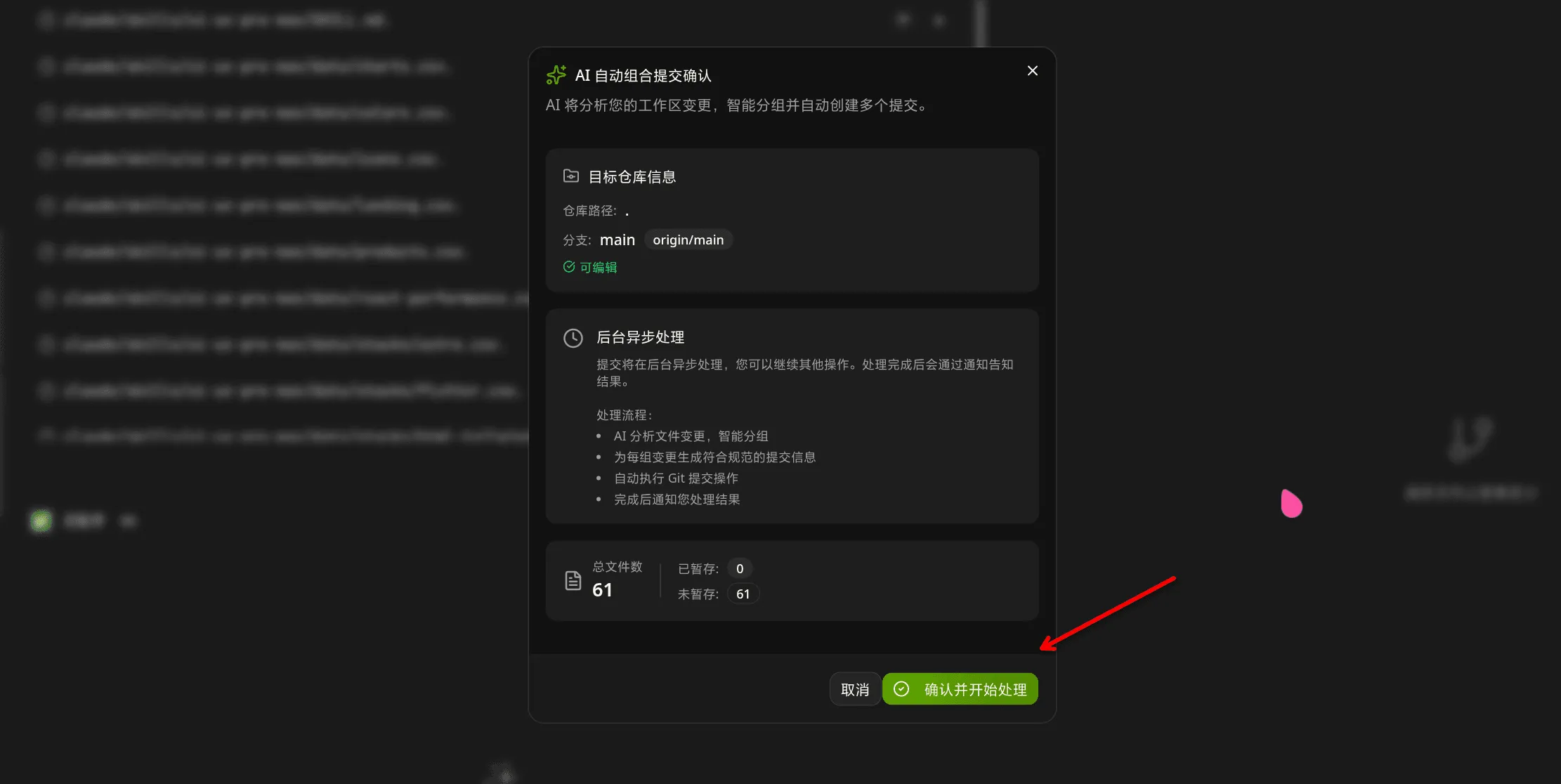
Das Dialogfeld enthält Optionen, darunter:
- Bestätigen und mit der Verarbeitung beginnen
- Risiken verstehen, diese Aufforderung nicht mehr anzeigen
- Durch Aktivieren dieser Option wird die spätere Verwendung komfortabler
Wir empfehlen, die Risikoaufforderung bei der ersten Verwendung sorgfältig zu lesen, um die Auswirkungen automatischer Commits zu verstehen.
Ergebnisse anzeigen
Abschnitt betitelt „Ergebnisse anzeigen“Nachdem AI die Verarbeitung abgeschlossen hat, wird eine Erfolgsmeldung angezeigt.
Commit-Nachrichten wurden generiert und sind bereit. Sie können sie bei Bedarf vor der Fertigstellung überprüfen.
Funktionsdetails
Abschnitt betitelt „Funktionsdetails“KI-Analyselogik
Abschnitt betitelt „KI-Analyselogik“AI Compose Commit analysiert Ihre Codeänderungen durch den folgenden Prozess:
1. Arbeitsbereichsänderungen lesen
Abschnitt betitelt „1. Arbeitsbereichsänderungen lesen“Das System sammelt alle geänderten, neu hinzugefügten und gelöschten Dateien im aktuellen Arbeitsbereich.
2. Analysieren Sie den Dateiinhalt
Abschnitt betitelt „2. Analysieren Sie den Dateiinhalt“KI analysiert den Inhalt geänderter Dateien gründlich, um Folgendes zu verstehen:
- Funktionale Änderungen umgesetzt
- Fehlerbehebungen angewendet
- Verwendete Refactoring-Muster
- Abhängigkeiten hinzugefügt oder entfernt
3. Identifizieren Sie Änderungsassoziationen
Abschnitt betitelt „3. Identifizieren Sie Änderungsassoziationen“KI erkennt auf intelligente Weise, welche Änderungen zusammengefasst werden sollten:
- Frontend- und Backend-Änderungen für dieselbe Funktion
- Zugehörige Änderungen an der Konfigurationsdatei
- Testen Sie Updates neben Implementierungsänderungen
4. Commit-Struktur generieren
Abschnitt betitelt „4. Commit-Struktur generieren“KI generiert strukturierte Commit-Informationen gemäß der Spezifikation für konventionelle Commits:
<type>(<scope>): <subject>  <body>    <footer>#### 5. Write Commit Message
Each change is transformed into a clear, descriptive commit message.
### Commit Format Specification
AI-generated commit messages follow the Conventional Commits format:
<Typ>(<Bereich>): <Betreff> <Körper> <Fußzeile>
**type**: Commit type (required)- `feat`: New feature- `fix`: Bug fix- `docs`: Documentation changes- `style`: Code style changes (formatting, no code change)- `refactor`: Code refactoring- `test`: Adding or updating tests- `chore`: Build process or auxiliary tool changes- `perf`: Performance improvements
**scope**: Scope of the change (optional)- Indicates which part of the project is affected- Format: `module/name` or `category/name`
**subject**: Short description of the change (required)- Imperative mood- Max 50 characters- Use present tense: "Add" not "Added"
**body**: Detailed description (optional)- What was changed and why- Can use multiple paragraphs- Max 100 characters for first line, 72 for subsequent lines
**footer**: References to related issues (optional)- `Closes #123`- `BREAKING CHANGE: ...`- `Co-Authored-By: @anthropic.com>`
### Example Output
feat(auth): Benutzeranmeldefunktion hinzufügen OAuth2-Authentifizierung mit Google- und GitHub-Anbietern implementiert.
Die Login-Komponente unterstützt jetzt:
- Google OAuth-Integration
- GitHub OAuth-Integration
- Sitzungsverwaltung mit JWT-Tokens
Mitautor: Claude Opus 4.6 <noreply@anthropic.com>
## Comparison with Traditional Manual Commits
### Manual Commits
Traditional Git commits rely on:- Developer's experience and mood- Individual writing habits- Time constraints affecting quality- Inconsistent formatting across team
### AI Compose Commit
AI Compose Commit provides:- **Standardized format**: Always follows Conventional Commits specification- **Intelligent analysis**: Understands code context and relationships- **Quality consistency**: Maintains professional tone and accuracy- **Time efficiency**: Reduces commit writing time from 5-30 minutes to seconds
### When to Use Each
**Use AI Compose Commit When:**- Large batch changes (multiple files, complex features)- Coordinated changes across multiple repositories- Need for high-quality, consistent commit messages- Team projects with multiple contributors
**Use Manual Commits When:**- Small, focused changes (single file, simple bug fix)- Personal projects with full control over commit quality- When you have time to craft thoughtful, personalized messages
## Multi-Repository Support
### monospecs Integration
When managing monospecs-based multi-repository projects, AI Compose Commit provides enhanced capabilities:
#### Read monospecs.yaml
AI automatically reads the `monospecs.yaml` configuration to:- Identify all configured sub-repositories- Match file paths to corresponding repositories- Access display names and icons for UI rendering
#### Match File Changes
AI intelligently matches each changed file to the correct sub-repository:- Analyzes file path in project structure- Matches against monospecs repository configurations- Groups related changes together for logical commits
#### Separate Commits
Each sub-repository receives independent commits:- Frontend changes committed to `repos/frontend`- Backend changes committed to `repos/backend`- Maintains independent git history and version control
### Co-Authored-By Footer
AI Compose Commit appends the currently effective `Co-Authored-By` trailer to every generated commit. Interactive Git commits and the OpenSpec v1 archive prompt reuse the same resolution rules, so teams only need to maintain one convention.
The precedence order is fixed:
1. **Project-level config**: local Git config in the current repository (`git config --local`)2. **Global config**: user-level Git config (`git config --global`)3. **Built-in default**: `HagiCode <noreply@hagicode.com>`
If a layer is missing `name`, missing `email`, or contains an invalid email address, HagiCode skips that layer and falls back to the next one instead of emitting a malformed trailer.
Default output:
```textMitautor: HagiCode <noreply@hagicode.com>
Repository override example:
git config --local coAuthoredBy.name „Platform Bot“git config --local coAuthoredBy.email „platform-bot@example.com“Global fallback example:
git config --global coAuthoredBy.name „HagiCode“git config --global coAuthoredBy.email „noreply@hagicode.com“With the local override above, the trailer becomes:
Mitautor: Platform Bot <platform-bot@example.com>Operational details:
- If the commit message already contains the same resolved trailer, HagiCode does not append a duplicate.
- If the message already contains a different
Co-Authored-Byline, HagiCode keeps that line and still appends the resolved AI trailer. - Teams should treat repository-level config as the canonical rule and keep global config as a personal fallback.
Advantages for Multi-Repo Projects
Abschnitt betitelt „Advantages for Multi-Repo Projects“Traceability: Clear history of which repository received which changes Coordination: Changes across multiple repos can be committed simultaneously or sequentially Consistency: Uniform commit format across all repositories Efficiency: Reduced coordination overhead for changes spanning multiple repositories
Usage Guidelines
Abschnitt betitelt „Usage Guidelines“Best Practices
Abschnitt betitelt „Best Practices“For optimal AI Compose Commit results:
1. Keep Changes Focused
- Each commit should address a single feature or fix
- Avoid bundling unrelated changes in one commit
- Make incremental progress with meaningful commit messages
2. Clear Code Comments
- Add comments in complex code to help AI understand intent
- Use descriptive comments for non-obvious implementation details
- Keep comments updated as code evolves
3. Reasonable File Naming
- Use clear, descriptive file names
- Follow project naming conventions
- Avoid overly generic names that don’t convey purpose
4. Timely Committing
- Commit frequently as meaningful changes are completed
- Don’t accumulate large batches of uncommitted work
- Each commit should represent a logical unit of progress
5. Leverage Multi-Repo Intelligence
- Let AI group related changes across repositories
- Use descriptive scopes to indicate affected modules
- Review AI’s suggested groupings before committing
Usage Restrictions
Abschnitt betitelt „Usage Restrictions“Limitations
Abschnitt betitelt „Limitations“AI Compose Commit has the following usage limitations:
1. Network Dependency
- Requires active connection to AI service
- Processing time depends on network conditions
- Large codebases may take longer to analyze
2. File Size Limits
- Very large files (>10MB) may exceed processing limits
- Binary files are not analyzed (only text-based content)
- Split large changes into smaller commits if needed
3. Codebase Complexity
- Extremely complex code may be difficult to analyze fully
- Deeply nested or obfuscated code may have reduced accuracy
- Results are best-effort based on visible code
4. First Use Considerations
When using AI Compose Commit for the first time:
- Start with smaller, safer changes to understand AI behavior
- Verify generated commits before finalizing
- Provide clear code comments to improve AI understanding
- Check that project is properly connected in HagiCode
Troubleshooting
Abschnitt betitelt „Troubleshooting“Feature Not Available
Abschnitt betitelt „Feature Not Available“If you don’t see the AI Combined Commit button:
- Ensure the project is added to HagiCode
- Refresh the interface
- Check if this feature is enabled in your version
- Verify your network connection to AI service
No Response After Clicking
Abschnitt betitelt „No Response After Clicking“If nothing happens after clicking the button:
- Check for notification dialogs (may be hidden behind other windows)
- Check browser console for error messages
- Verify network connectivity
- Try restarting the application
Incorrect Generated Messages
Abschnitt betitelt „Incorrect Generated Messages“If AI generates incorrect commit messages:
- Manually modify using
git commit --amend - Add more descriptive comments to help AI understand
- Check code changes are accurately represented
- Re-trigger the feature after making adjustments
Processing Takes Too Long
Abschnitt betitelt „Processing Takes Too Long“If processing seems to be taking an unusually long time:
- Check if there are very large files being analyzed
- Verify network stability
- Try splitting changes into smaller batches
- Check if AI service is experiencing high load
Co-Authored-By Footer Missing
Abschnitt betitelt „Co-Authored-By Footer Missing“If commits don’t include the expected footer:
- This may indicate AI service is unavailable
- Check your API token configuration in HagiCode settings
- Verify network connectivity
- Check whether the local
coAuthoredBy.name/coAuthoredBy.emailconfig is incomplete and therefore falling back to another layer - Consider generating commits manually if issue persists
For more information, refer to the HagiCode documentation or check the monospecs repository for configuration examples.