Skip to content

Astro

3 posts with the tag “Astro”

Design.md: A Solution for Consistent AI-Driven Frontend UI Design

Design.md: A Solution for Consistent AI-Driven Frontend UI Design

Section titled “Design.md: A Solution for Consistent AI-Driven Frontend UI Design”

In the era of AI-assisted frontend development, how can you keep AI-generated UIs consistent? This article shares our hands-on experience building a design gallery site based on awesome-design-md, along with how to create a structured design.md to guide AI toward standardized UI design.

Anyone who has used AI to write frontend code has probably had a similar experience: ask AI to generate the same page several times, and each result comes out in a different style. Sometimes corners are rounded, sometimes they are sharp. Sometimes spacing is 8px, and other times it becomes 16px. Even the same button can look different across different conversations.

This is not an isolated issue. As AI-assisted development becomes more common, the lack of consistency in AI-generated frontend UI has become a widespread problem. Different AI assistants, different prompts, and even the same assistant across different conversations can produce dramatically different interface designs. That creates a huge maintenance cost during product iteration.

The root cause is actually simple: there is no authoritative design reference document. Traditional CSS stylesheets can tell developers “how to implement” something, but they cannot fully communicate “why it is designed this way” or “which design pattern should be used in which scenario.” For AI, a clear and structured description is even more important for understanding design conventions.

At the same time, the open-source community already offers some excellent resources. The VoltAgent/awesome-design-md project collects design system documentation from many well-known companies. Each directory contains a README.md, a DESIGN.md, and preview HTML. However, all of that is scattered across the upstream repository, making it hard to browse and compare quickly.

So, can we consolidate those resources into an easy-to-browse design gallery, while also distilling a structured design.md for AI to use?

The answer is yes. Next, let me walk through our approach.

The solution shared in this article comes from our hands-on experience in the HagiCode project. HagiCode is an AI-assisted development platform, and during development we ran into the same problem of inconsistent AI-generated UIs. To solve it, we built a design gallery site and created a standardized design.md. This article is a summary of that solution.

GitHub - HagiCode-org/site

First, take a look at the final homepage. It brings together the design gallery entry point, the site repository, the upstream repository, and background information about HagiCode in a single interface, making it easy for the team to establish a shared context before diving into specific entries.
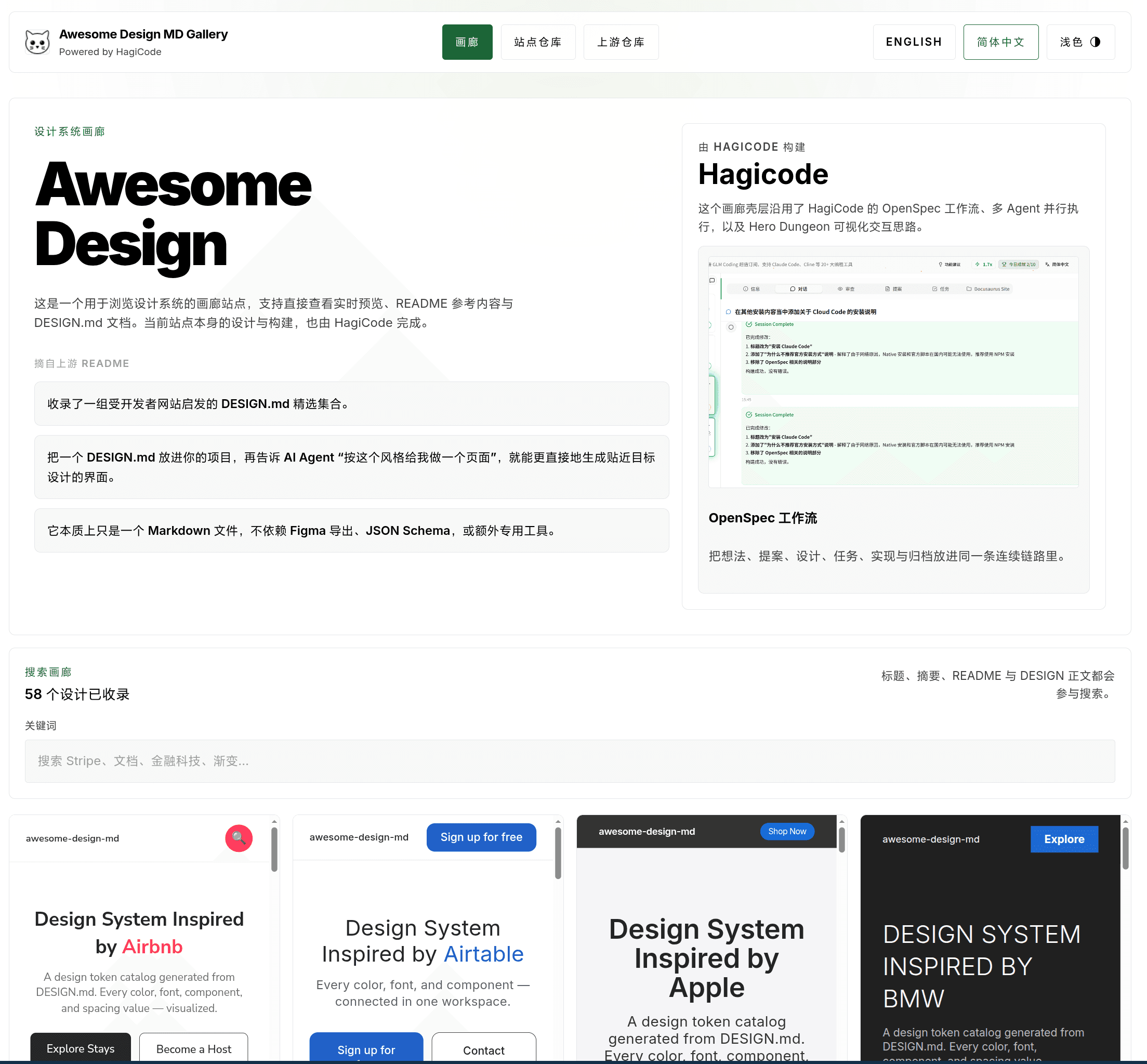
Awesome Design MD Gallery homepage overview

Before writing code, let us break down the technical challenges behind this problem.

Source Content Management: How Do You Unify Scattered Design Resources?

Section titled “Source Content Management: How Do You Unify Scattered Design Resources?”

The upstream awesome-design-md repository contains a large number of design documents, but we needed a way to bring them into our own project.

Solution: use git submodule

awesome-design-md-site
└── vendor/awesome-design-md # Upstream resources (git submodule)

This gives us several benefits:

  • Version control: we can pin a specific upstream version
  • Offline builds: no need to request external APIs during the build
  • Content review: specific changes are visible in PRs

Data Normalization: How Do You Standardize Different Document Structures?

Section titled “Data Normalization: How Do You Standardize Different Document Structures?”

Different companies structure their design documents differently. Some are missing preview files, and some use inconsistent naming. We need to normalize them during the build process.

Solution: scan and generate normalized entries at build time

The core module is awesomeDesignCatalog.ts, responsible for:

  1. Scanning the vendor/awesome-design-md/design-md/* directory
  2. Validating whether each entry contains the required files (README.md, DESIGN.md, and at least one preview file)
  3. Extracting and rendering Markdown content into HTML
  4. Generating normalized entry data
src/lib/content/awesomeDesignCatalog.ts
export interface DesignEntry {
slug: string;
title: string;
summary: string;
readmeHtml: string;
designHtml: string;
previewLight?: string;
previewDark?: string;
searchText: string;
}
export async function scanSourceEntries() {
// Scan vendor/awesome-design-md/design-md/*
// Validate file completeness
// Generate normalized entries
}
export async function normalizeDesignEntry(dir: string) {
// Extract README.md and DESIGN.md
// Parse preview files
// Render Markdown to HTML
}

Static Site Architecture: How Do You Provide Dynamic Search While Staying Fully Static?

Section titled “Static Site Architecture: How Do You Provide Dynamic Search While Staying Fully Static?”

Since this is a design gallery, search is a must-have. But Astro is a static site generator, so how do you implement real-time search?

Solution: React island + URL query parameter sync

src/components/gallery/SearchToolbar.tsx
export function SearchToolbar() {
const [query, setQuery] = useState('');
// Sync with the URL
useEffect(() => {
const params = new URLSearchParams(window.location.search);
setQuery(params.get('q') || '');
}, []);
// Filter in real time
const filtered = entries.filter(entry =>
entry.searchText.includes(query)
);
return <input value={query} onChange={e => {
setQuery(e.target.value);
updateURL(e.target.value);
}} />;
}

The advantage of this approach is that it keeps the deployability of a static site intact, meaning it can be deployed to any static hosting service, while still delivering an instant filtering experience.

Design Documentation: How Do You Help AI Understand and Follow Design Standards?

Section titled “Design Documentation: How Do You Help AI Understand and Follow Design Standards?”

This is the core of the entire solution. We need to create a structured design.md that AI can understand and apply.

Solution: borrow the structure of ClickHouse DESIGN.md

ClickHouse’s DESIGN.md is an excellent reference. It includes:

  • Visual Theme & Atmosphere
  • Color Palette & Roles
  • Typography Rules
  • Component Stylings
  • Layout Principles
  • Depth & Elevation
  • Do’s and Don’ts
  • Responsive Behavior
  • Agent Prompt Guide

Our approach is: reuse the structure, rewrite the content. We keep the section structure of ClickHouse DESIGN.md, but replace the content with the actual design tokens and component conventions used in our own project.

Based on the analysis above, our solution consists of four core modules.

This is the foundation of the whole system, responsible for extracting and normalizing content from upstream resources.

src/lib/content/awesomeDesignCatalog.ts
export async function scanSourceEntries(): Promise<DesignEntry[]> {
const designDir = 'vendor/awesome-design-md/design-md';
const entries: DesignEntry[] = [];
for (const dir of await fs.readdir(designDir)) {
const entryPath = path.join(designDir, dir);
if (await isValidDesignEntry(entryPath)) {
const entry = await normalizeDesignEntry(entryPath);
entries.push(entry);
}
}
return entries;
}
async function isValidDesignEntry(dir: string): Promise<boolean> {
const requiredFiles = ['README.md', 'DESIGN.md'];
for (const file of requiredFiles) {
if (!(await fileExists(path.join(dir, file)))) {
return false;
}
}
return true;
}

The gallery interface includes three main parts:

Homepage: displays a card grid of all design entries, and each card includes:

  • Design entry title and summary
  • Preview image, if available
  • Quick-search highlighting

Detail page: aggregates the full information for a single design entry:

  • README document
  • DESIGN document
  • Preview with light/dark theme switching
  • Navigation to adjacent entries

Navigation: supports returning to the gallery and browsing adjacent entries

The homepage gallery uses a high-density card layout, flattening design.md entries from different sources into a unified visual framework so that teams can quickly compare brand styles, button patterns, and typographic rhythm.
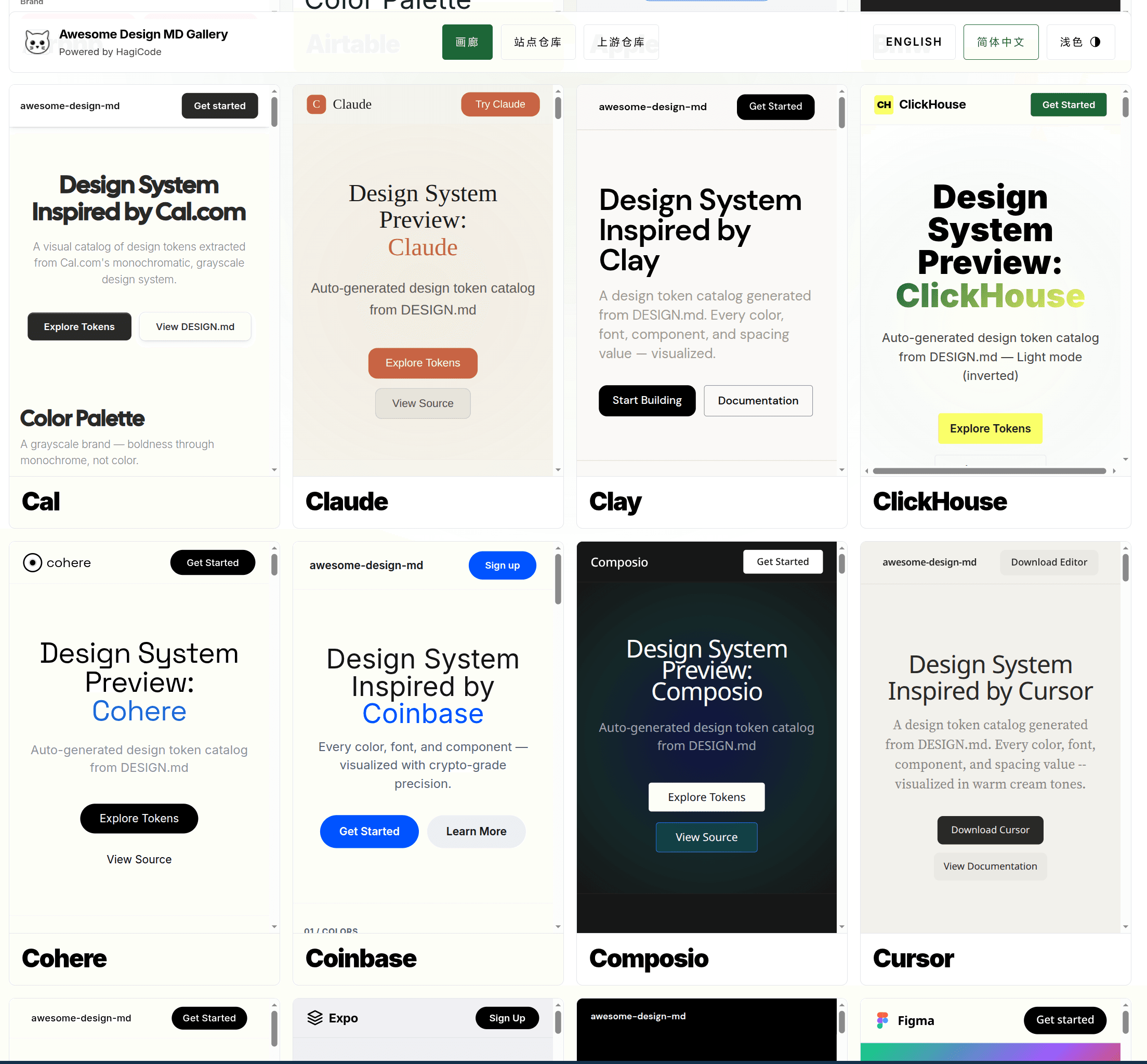
Awesome Design MD Gallery design card grid

After opening a specific entry, the detail page places the design summary and live preview on the same page, reducing the cost of switching back and forth among documentation, previews, and source code.
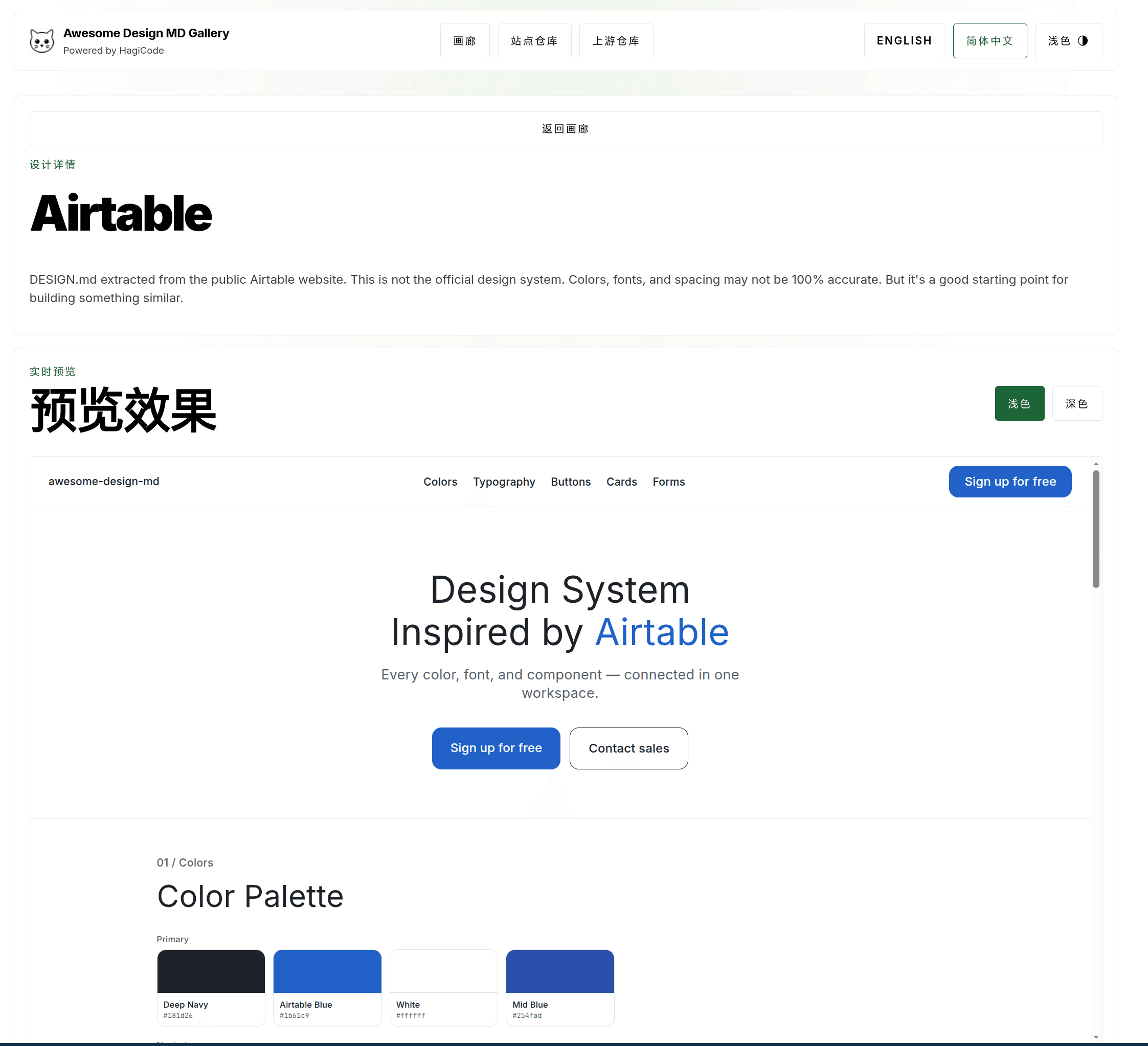
Awesome Design MD Gallery design detail preview page

The search feature is based on client-side filtering, with state preserved through URL query parameters:

src/components/gallery/SearchToolbar.tsx
function SearchToolbar({ entries }: { entries: DesignEntry[] }) {
const [query, setQuery] = useState('');
const [results, setResults] = useState(entries);
useEffect(() => {
const params = new URLSearchParams(window.location.search);
const initialQuery = params.get('q') || '';
setQuery(initialQuery);
filterEntries(initialQuery);
}, []);
const filterEntries = (searchQuery: string) => {
const filtered = entries.filter(entry =>
entry.searchText.toLowerCase().includes(searchQuery.toLowerCase())
);
setResults(filtered);
};
const handleChange = (e: React.ChangeEvent<HTMLInputElement>) => {
const value = e.target.value;
setQuery(value);
filterEntries(value);
// Update the URL without triggering a page refresh
const newUrl = value
? `${window.location.pathname}?q=${encodeURIComponent(value)}`
: window.location.pathname;
window.history.replaceState({}, '', newUrl);
};
return (
<div className="search-toolbar">
<input
type="text"
value={query}
onChange={handleChange}
placeholder="Search design entries..."
/>
<span className="result-count">{results.length} results</span>
</div>
);
}

This is the core deliverable of the whole solution. We create a design.md in the project root with the following structure:

In addition to the raw design.md content consumed by AI, we also place both the README and DESIGN documents into the same reading interface, making it easier for people to proofread, copy snippets, and compare them against the preview results.
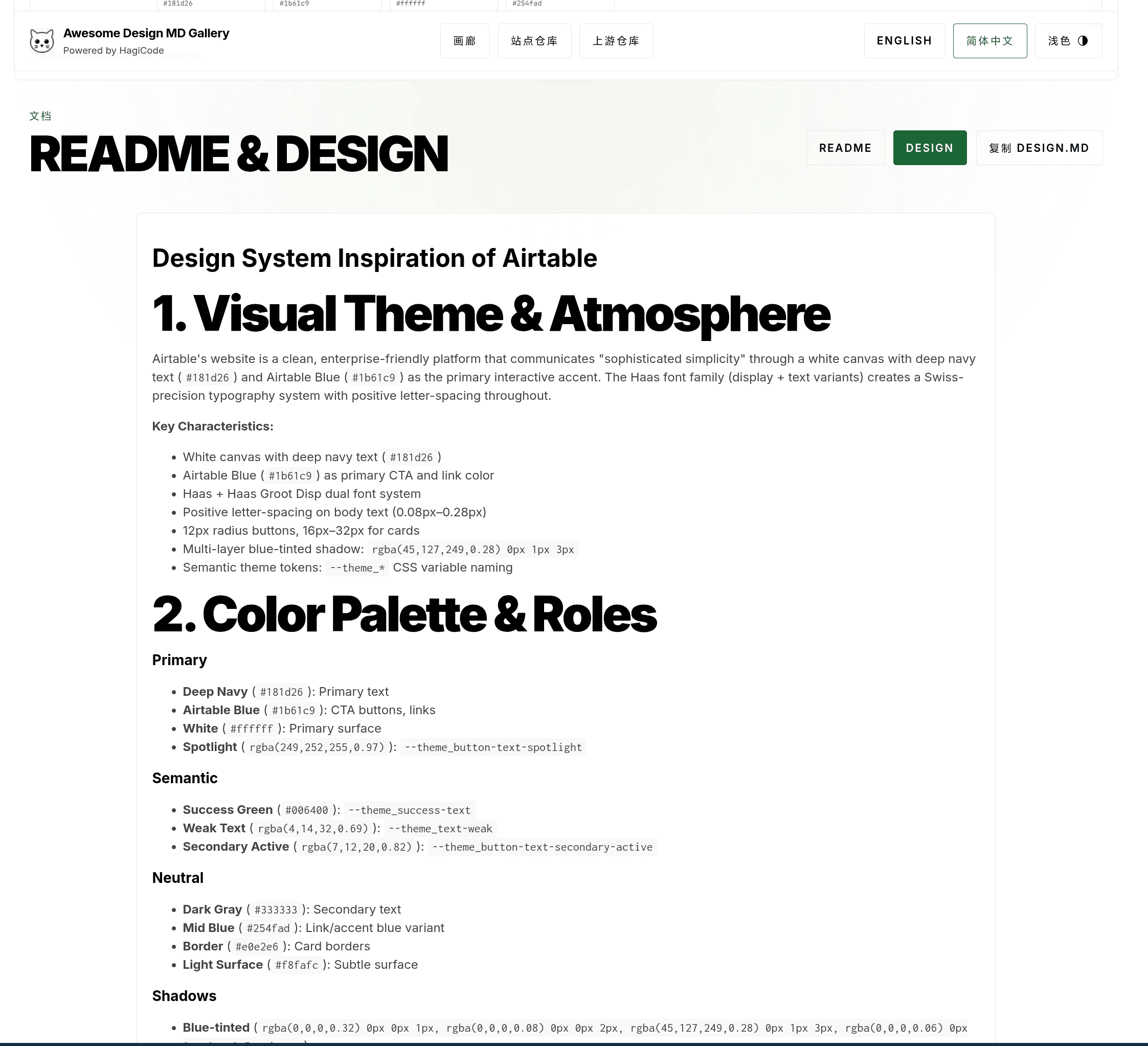
Awesome Design MD Gallery README and DESIGN document page

# Design Reference for [Project Name]
## 1. Visual Theme & Atmosphere
- Overall style description
- Design philosophy and principles
## 2. Color Palette & Roles
- Primary and supporting colors
- Semantic colors (`success`, `warning`, `error`)
- CSS variable definitions
## 3. Typography Rules
- Font families
- Type scale (`h1-h6`, `body`, `small`)
- Line height and font weight
## 4. Component Stylings
- Button style conventions
- Form component styles
- Card and container styles
## 5. Layout Principles
- Spacing system
- Grid and breakpoints
- Alignment principles
## 6. Depth & Elevation
- Shadow levels
- `z-index` conventions
## 7. Do's and Don'ts
- Common mistakes and correct approaches
## 8. Responsive Behavior
- Breakpoint definitions
- Responsive adaptation rules
## 9. Agent Prompt Guide
- How to use this document in AI prompts
- Example prompt templates

Now that we have covered the solution, how do you actually implement it?

Step 1: Initialize the submodule

Terminal window
# Add the upstream repository as a submodule
git submodule add https://github.com/VoltAgent/awesome-design-md.git vendor/awesome-design-md
# Initialize and update the submodule
git submodule update --init --recursive

Step 2: Create the content pipeline

Implement awesomeDesignCatalog.ts, including:

  • File scanning and validation logic
  • Markdown rendering using Astro’s built-in renderer
  • Entry data extraction

Step 3: Build the gallery UI

Use Astro + React Islands to create:

  • Homepage gallery layout (card grid)
  • Design card components
  • Search toolbar
  • Detail page layout

Step 4: Write the design document

Based on the structure of ClickHouse DESIGN.md, fill in the actual design tokens from your own project. Update README.md and add a link to design.md.

Security: Markdown rendering requires filtering unsafe HTML. Astro’s built-in renderer filters script tags by default, but you still need to watch for XSS risks.

Performance: A large number of iframe previews may affect first-paint performance. It is recommended to use loading="lazy" to lazy-load preview content.

Maintainability: design.md needs to stay in sync with the code implementation. It is recommended to add CI checks to ensure that CSS variables remain consistent between documentation and code.

Accessibility: Make sure color contrast meets the WCAG AA standard (at least 4.5:1).

After creating design.md, how do you get AI to actually use it? Here are a few practical tips:

Tip 1: Reference it explicitly in the prompt

Please refer to the design.md file in the project root and use the design conventions defined there to implement the following components:
- Buttons: use the primary color with an 8px border radius
- Cards: use the elevation-2 shadow level

Tip 2: Require AI to reference specific CSS variables

Implement a navigation bar with the following requirements:
- Use --color-bg-primary for the background color
- Use --color-border-subtle for borders
- Use --text-color-primary for text

Tip 3: Include design.md content in the system prompt

If your AI tool supports custom system prompts, you can add the core content of design.md directly to it.

Content pipeline testing:

  • Missing-file scenarios (missing README.md or DESIGN.md)
  • Format error scenarios (Markdown parsing failure)
  • Empty-directory scenarios

Search feature testing:

  • Empty result handling
  • Special characters such as Chinese and emoji
  • URL sync verification

UI component testing:

  • Light/dark theme switching
  • Responsive layout
  • Preview loading states
Terminal window
# 1. Update the submodule to the latest version
git submodule update --remote
# 2. Rebuild the site
npm run build
# 3. Deploy static assets
npm run deploy

It is recommended to automate submodule updates plus build and deployment, so that CI can be triggered automatically whenever the upstream repository is updated.

The inconsistency in AI-generated UIs that HagiCode encountered during development was, at its core, caused by the lack of a structured design reference document. By building a design gallery site and creating a standardized design.md, we successfully solved this problem.

The core value of this solution lies in:

  • Unified resources: consolidating scattered design system documentation
  • Structured standards: expressing design conventions in a format AI can understand
  • Continuous maintenance: keeping content up to date through git submodule

If you are also using AI for frontend development, this approach is worth trying. Creating a structured design.md not only improves the consistency of AI-generated code, but also helps your team maintain unified design standards internally.


If this article helped you:

Thank you for reading. If you found this article useful, feel free to like, save, and share it. This content was created with AI-assisted collaboration, and the final content was reviewed and approved by the author.

A Complete Practical Guide to Integrating Microsoft Clarity into a Starlight Documentation Site

From Data Insight to User Growth: A Complete Guide to Integrating Clarity Analytics into the HagiCode Blog

Section titled “From Data Insight to User Growth: A Complete Guide to Integrating Clarity Analytics into the HagiCode Blog”

This article shares how to elegantly integrate Microsoft Clarity into a Starlight documentation site so you can clearly understand user behavior while still staying privacy-compliant. This solution is distilled from our implementation experience in the HagiCode project, and we hope it gives some useful reference to anyone else wrestling with analytics.

The following code shows how to dynamically inject the Microsoft Clarity script in an Astro integration based on environment variables, loading it in production only when it is actually enabled.

105 | interface Props {
106 | // Future extension: allow manually overriding the Project ID
107 | projectId?: string;
108 | }
109 |
110 | const {
111 | projectId = import.meta.env.CLARITY_PROJECT_ID,
112 | } = Astro.props;
113 |
114 | const isProduction = import.meta.env.PROD;
115 | ---
116 |
117 | {isProduction && projectId && (
118 | <script is:inline define:vars={{projectId}}>
119 | (function(c,l,a,r,i,t,y){

File: openspec/changes/archive/2026-01-30-microsoft-clarity-integration/design.md

While operating HagiCode, we kept running into a “black box” problem: we were producing content, but we had no clear view of how users were actually reading it. GitHub Stars can show some signal, but that feedback comes far too late. What we really needed to know was:

  • Do users actually finish reading our tutorials?
  • At which step do those complicated configuration docs drive people away?
  • Is our SEO optimization really bringing in meaningful traffic?

There are many analytics tools on the market, such as Google Analytics (GA) and Microsoft Clarity. GA is powerful but more complex to configure, and it is also more tightly constrained by privacy regulations such as GDPR. Clarity, as Microsoft’s free heatmap tool, is not only intuitive to use but also relatively easier to work with from a privacy-compliance perspective, making it a great fit for technical documentation sites.

Our goal was very clear: seamlessly integrate Clarity into the HagiCode documentation site so that it works across all pages while still giving users the right to opt out for privacy compliance.

HagiCode theme initialization logic: first read from local storage, then fall back to system preference, with dark mode as the default.

67 | function getInitialTheme(): Theme {
68 | // 1. Check localStorage
69 | const stored = localStorage.getItem('hagicode-theme');
70 | if (stored) return stored as Theme;
71 |
72 | // 2. Detect system preference
73 | const systemDark = window.matchMedia('(prefers-color-scheme: dark)').matches;
74 | if (systemDark) return 'dark';
75 |
76 | // 3. Default to dark mode
77 | return 'dark';
78 | }
79 | ```
80 |
81 | ### Decision 3: Theme application method
82 |
83 | **Choice**: set the `data-theme` attribute on the `<html>` root element
84 |
85 | **Alternative options**:
86 |

File: openspec/changes/archive/2026-01-29-theme-toggle-implementation/design.md

The approach shared in this article comes from our hands-on experience in the HagiCode project. HagiCode is an AI-based coding assistant tool, and during development we need to maintain a large body of technical documentation and blog content. To better understand user needs, we explored and implemented this analytics integration solution.

At first, we discussed several integration approaches during the Proposal phase. Since we were using Starlight, a documentation framework built on Astro, the most obvious idea was to use Astro Hooks.

We first tried modifying astro.config.mjs and planned to inject the Clarity script during the build. Although that approach could guarantee global coverage, it lacked flexibility: we could not dynamically load or unload the script based on user preference.

Taking user experience and privacy control into account, we ultimately chose a component override approach. Starlight allows developers to override its internal components, which means we could take over the rendering logic for <footer> or <head> and precisely control when Clarity is loaded.

There was also a small detour here: originally, we wanted to create a layout wrapper named StarlightWrapper.astro. But during real debugging, we found that Starlight’s routing mechanism does not automatically invoke this custom wrapper, causing the script to fail on some pages. It was a classic “obvious assumption” pitfall and reminded us that we must deeply understand the framework’s rendering flow instead of blindly applying generic framework patterns.

Section titled “Core Solution: Overriding the Footer Component”

To ensure the Clarity script loads on all pages, including docs and blog posts, without breaking the original page structure, we chose to override Starlight’s Footer component.

  1. Global presence: the Footer appears on almost all standard pages.
  2. Non-intrusive: placing the script in the Footer area, which is actually rendered near the bottom of the body, does not block the page’s critical rendering path (LCP), so the performance impact is minimal.
  3. Centralized logic: cookie consent logic can be handled in one place inside the component.

First, register at Microsoft Clarity and create a new project. Then get your Project ID, which looks like a string such as k8z2ab3xxx.

The following demonstrates environment variable configuration and date-checking logic to implement conditional behavior during the Lunar New Year period. Please refer to the concrete implementation.

46 | function isLunarNewYearPeriod() {
47 | const now = new Date();
48 | const year = now.getFullYear();
49 | const month = now.getMonth() + 1; // 1-12
50 | const day = now.getDate();
51 |
52 | // Lunar New Year period in 2025, Year of the Snake (January 29 - February 12)
53 | if (year === 2025) {
54 | if (month === 1 && day >= 29) return true;
55 | if (month === 2 && day <= 12) return true;
56 | }
57 | // Lunar New Year period in 2026, Year of the Horse (February 17 - March 3)
58 | if (year === 2026) {
59 | if (month === 2 && day >= 17) return true;
60 | if (month === 3 && day <= 3) return true;
61 | }
62 | return false;
63 | }
64 |
65 | const stored = localStorage.getItem('starlight-theme');

File: src/pages/index.astro

For safety, do not hardcode the ID. It is recommended to store it in an environment variable.

Create a .env file in the project root:

Terminal window
# Microsoft Clarity ID
PUBLIC_CLARITY_ID="your_Clarity_ID"

The following is an implementation that listens for system theme changes, showing how to follow the system theme only when the user has not set one manually.

445 | const handleChange = (e: MediaQueryListEvent) => {
446 | // Only follow the system when the user has not manually set a theme
447 | if (!localStorage.getItem(THEME_KEY)) {
448 | setThemeState(e.matches ? 'dark' : 'light');
449 | }
450 | };
451 |
452 | mediaQuery.addEventListener('change', handleChange);
453 | return () => mediaQuery.removeEventListener('change', handleChange);
454 | }, []);
455 |
456 | return { theme, toggleTheme, setTheme: manuallySetTheme };
457 | }
458 | ```
459 |
460 | #### 3. `src/components/ThemeButton.tsx` - Button component
461 |
462 | **Responsibility**: render the theme toggle button and handle user interaction
463 |
464 | **Component interface**:

File: openspec/changes/archive/2026-01-29-theme-toggle-implementation/design.md

Create a file named StarlightFooter.astro under src/components/. Starlight will automatically recognize it and override the default Footer.

The core code logic is as follows:

src/components/StarlightFooter.astro
---
// 1. Import the original component to preserve its default behavior
import DefaultFooter from '@astrojs/starlight/components/StarlightFooter.astro';
// 2. Read the environment variable
const clarityId = import.meta.env.PUBLIC_CLARITY_ID;
// 3. Define a simple injection script (inline approach)
// Note: in production, it is recommended to move this logic into a separate .js file to take advantage of caching
const initScript = `
(function(c,l,a,r,i,t,y){
c[a]=c[a]||function(){(c[a].q=c[a].q||[]).push(arguments)};
t=l.createElement(r);t.async=1;t.src="https://www.clarity.ms/tag/"+i;
y=l.getElementsByTagName(r)[0];y.parentNode.insertBefore(t,y);
})(window, document, "clarity", "script", "${clarityId}");
`;
---
<DefaultFooter {...Astro.props} />
{/* Inject the script only in production and only when the ID exists */}
{import.meta.env.PROD && clarityId && (
<script is:inline define:vars={{ clarityId }}>
{initScript}
</script>
)}

Key points explained:

  • is:inline: tells Astro not to process the contents of this script tag and to output it directly into the HTML. This is critical for third-party analytics scripts; otherwise, Astro’s bundling optimization may cause the script to stop working.
  • define:vars: an Astro 3+ feature that allows variables to be injected safely within scope.
  • import.meta.env.PROD: ensures no meaningless analytics are generated during local development unless explicitly needed for debugging, keeping your data clean.
Section titled “Advanced Topic: Privacy Compliance and Cookie Control”

Simply adding the code is not enough, especially in GDPR-regulated regions. We need to respect user choice.

HagiCode’s approach is to provide a simple toggle. While this is not a full-featured cookie banner, for a technical documentation site that mainly serves content, such cookies are often categorized as “necessary” or “analytics” cookies and can be disclosed in the privacy statement and enabled by default, or linked from the Footer to a privacy settings page.

If you need stricter control, you can combine it with localStorage to record the user’s choice:

This article will introduce TypeScript utility functions used for theme switching and persistence, using type safety and environment detection for stricter control.

367 | export function getInitialTheme(): Theme;
368 | export function getSystemTheme(): Theme;
369 | export function setTheme(theme: Theme): void;
370 | export function applyTheme(theme: Theme): void;
371 | ```
372 |
373 | **Design principles**:
374 | - **Pure functions**: no side effects, except for `setTheme` and `applyTheme`
375 | - **Type safety**: complete TypeScript type inference
376 | - **Environment detection**: SSR-safe (`typeof window` check)
377 | - **Single responsibility**: each function does only one thing
378 |
379 | **Key implementation**:
380 | ```typescript
381 | export function getInitialTheme(): Theme {
382 | if (typeof window === 'undefined') return 'dark';
383 |
384 | const stored = localStorage.getItem(THEME_KEY);
385 | if (stored === 'light' || stored === 'dark') return stored;
386 |

File: openspec/changes/archive/2026-01-29-theme-toggle-implementation/design.md

// Simple example: check whether the user has declined analytics
const consent = localStorage.getItem('clarity_consent');
if (consent !== 'denied') {
// Run the Clarity initialization code above
window.clarity('start', clarityId);
}

As we rolled this solution out in HagiCode, we summarized several details that are easy to overlook:

  1. StarlightWrapper.astro is a trap: As mentioned earlier, do not try to create a global Wrapper to inject the script. That approach does not work in Starlight. The correct solution is to override a specific component such as StarlightFooter.astro or StarlightHead.astro.

  2. Performance considerations for script placement: Although Clarity recommends placing the script in <head> to ensure maximum data accuracy, for a documentation site, first-screen loading speed (LCP) directly affects SEO and user retention. We chose to place it in the Footer, near the bottom of the body. This may slightly miss a tiny amount of “bounce in seconds” user data, but it gives us a faster page-loading experience, which is a worthwhile trade-off.

  3. Interference from the development environment: Be sure to add the import.meta.env.PROD check. In development mode, you will refresh pages frequently, which would otherwise generate a large amount of meaningless test data and pollute your Clarity dashboard.

After deployment, you can view real-time data in the Clarity console. Usually within a few minutes, you will start seeing user heatmaps and recordings.

For HagiCode, this data helped us discover that:

  • many users repeatedly revisit the “Quick Start” section, suggesting that our installation guidance may still not be intuitive enough.
  • the “API Reference” page has the longest dwell time, confirming the needs of our core user group.

Integrating Microsoft Clarity does not require complex server-side changes, nor does it require bringing in a heavy SDK.

By taking advantage of Starlight’s component override mechanism, we achieved site-wide analytics with nothing more than a lightweight StarlightFooter.astro component. This kind of “micro-integration” keeps the codebase clean while giving us the ability to understand user behavior.

If you are also operating a technical project, especially one like HagiCode where the documentation needs to keep evolving, I strongly recommend trying Clarity. The data will tell you where users are really struggling.


Thank you for reading. If you found this article useful, click the like button below 👍 so more people can discover it.

This content was created with AI-assisted collaboration, reviewed by me, and reflects my own views and position.

Docusaurus 3.x to Astro 5.x Migration in Practice: Using Islands Architecture to Improve Both Performance and Build Speed

From Docusaurus 3.x to Astro 5.x: A Retrospective on the HagiCode Site Migration

Section titled “From Docusaurus 3.x to Astro 5.x: A Retrospective on the HagiCode Site Migration”

This article looks back on our full migration of the HagiCode official website from Docusaurus 3.x to Astro 5.x. We will take a deep dive into how Astro’s Islands Architecture helped us solve performance bottlenecks while preserving our existing React component assets, delivering improvements in both build speed and loading performance.

In January 2026, we performed a “heart transplant” on the HagiCode official site by fully migrating its core framework from Docusaurus 3.x to Astro 5.x. This was not an impulsive rewrite, but a carefully considered technical decision.

Before the migration, our site was functionally complete, but it had begun to show some classic “luxury problems”: bloated build artifacts, excessive JavaScript payloads, and less-than-ideal page load speed on complex documentation pages. As an AI coding assistant project, HagiCode needs frequent documentation and feature updates, so build efficiency directly affects release speed. At the same time, we wanted the site to be more search-engine-friendly (SEO) so more developers could discover the project.

To solve these pain points, we made a bold decision: rebuild the entire system on Astro. The impact of that decision may be even bigger than you expect. I will get into the details shortly.

The site migration approach shared in this article comes from our hands-on experience in the HagiCode project.

HagiCode is an AI coding assistant focused on improving development efficiency. We care not only about iterating on core features, but also about the developer experience. This site refactor was also meant to give users the fastest possible experience when browsing our docs and official website.

Why Leave the Mature Docusaurus Ecosystem?

Section titled “Why Leave the Mature Docusaurus Ecosystem?”

Within the React ecosystem, Docusaurus has long been the “standard answer” for documentation sites. It works out of the box, offers a rich plugin ecosystem, and has an active community. But as HagiCode gained more features, we also felt its limitations:

  1. Performance bottlenecks: Docusaurus is fundamentally a React SPA (single-page application). Even if you only write static pages, the client still needs to load the React runtime and hydrate the page, which is unnecessarily heavy for simple docs pages.
  2. Large asset size: Even when a page contains very little content, the bundled JS size stays relatively fixed. That is not ideal for mobile users or poor network conditions.
  3. Limited flexibility: Although it is extensible, we wanted more low-level control over the build pipeline.

Astro arrived at exactly the right time to solve these problems. It introduced a new “Islands Architecture”: by default, Astro generates static HTML with zero JavaScript, and only components that require interactivity are “activated” and load JS. That means most of our site becomes pure HTML and loads extremely fast.

Core Migration Strategy: A Smooth Architectural Transition

Section titled “Core Migration Strategy: A Smooth Architectural Transition”

Migration was not just copy and paste. It required a shift in mindset. We moved from Docusaurus’s “all React” model to Astro’s “Core + Islands” model.

First, we had to move from docusaurus.config.ts to astro.config.mjs. This was not just a file rename, but a rewrite of routing and build logic.

In Docusaurus, everything is a plugin. In Astro, everything is an integration. We needed to redefine the site’s base path, build output mode (static vs SSR), and asset optimization strategy.

Before migration:

docusaurus.config.ts
export default {
title: 'HagiCode',
url: 'https://hagicode.com',
baseUrl: '/',
// ... more configuration
};

After migration:

astro.config.mjs
import { defineConfig } from 'astro/config';
import react from '@astrojs/react';
export default defineConfig({
integrations: [react()],
site: 'https://hagicode.com',
base: '/',
// Optimization settings for static assets
build: {
inlineStylesheets: 'auto',
},
});

2. What to Keep and What to Refactor in React Components

Section titled “2. What to Keep and What to Refactor in React Components”

This was the most painful part of the migration. Our existing site had many React components, such as Tabs, code highlighting, feedback buttons, and more. Throwing them away would be wasteful, but keeping everything would make the JavaScript payload too heavy.

HagiCode adopted a progressive hydration strategy:

  • Pure static components: For presentational content such as headers, footers, and plain text documentation, we rewrote them as Astro components (.astro files) and rendered them directly to HTML at build time.
  • Interactive islands: For components that must remain interactive, such as theme switchers, tab switching, and code block copy buttons, we kept the React implementation and added client:load or client:visible directives.

For example, our commonly used Tabs component in the documentation:

src/components/Tabs.jsx
import { useState } from 'react';
import './Tabs.css'; // Import styles
export default function Tabs({ items }) {
const [activeIndex, setActiveIndex] = useState(0);
// ... state logic
return (
<div className="tabs-wrapper">
{/* Rendering logic */}
</div>
);
}

When used in Markdown, we explicitly tell Astro: “This component needs JS.”

src/content/docs/example.mdx
import Tabs from '../../components/Tabs.jsx';
<!-- Load JS only when the component enters the viewport -->
<Tabs client:visible items={...} />

This way, interactive components outside the viewport do not compete for bandwidth, which greatly improves first-screen loading speed.

3. Adapting the Styling System: From CSS Modules to Scoped CSS

Section titled “3. Adapting the Styling System: From CSS Modules to Scoped CSS”

Docusaurus supports CSS Modules by default, while Astro encourages Scoped CSS through the <style> tag. The core idea behind both is style isolation, but the syntax is different.

During the HagiCode migration, we converted most complex CSS Modules into Astro’s scoped styles. This actually turned out to be a good thing, because in .astro files the styles and templates live in the same file, which makes maintenance more intuitive.

Before refactoring:

Tabs.module.css
.wrapper { background: var(--ifm-background-color); }

After refactoring (Astro Scoped):

Tabs.astro
<div class="tabs-wrapper">
<slot />
</div>
<style>
.tabs-wrapper {
/* Use CSS variables directly to adapt to the theme */
background: var(--bg-color);
padding: 1rem;
}
</style>

At the same time, we unified the global CSS variable system and used Astro’s environment-aware capabilities to ensure dark mode switches smoothly across pages.

Pitfalls We Hit in Practice and How We Solved Them

Section titled “Pitfalls We Hit in Practice and How We Solved Them”

During the actual HagiCode migration, we ran into quite a few issues. Here are several of the most typical ones.

1. Path and Environment Variable Pain Points

Section titled “1. Path and Environment Variable Pain Points”

HagiCode supports subpath deployment, such as deployment under a GitHub Pages subdirectory. In Docusaurus, baseUrl is handled automatically. In Astro, however, we need to be more careful when handling image links and API requests.

We introduced an environment variable mechanism to manage this consistently:

// Handle paths in the build script
const getBasePath = () => import.meta.env.VITE_SITE_BASE || '/';

Be sure not to hardcode paths beginning with / in your code. In development versus production, or after configuring a base path, doing so can cause 404s for assets.

Our old site had some Node.js scripts used for tasks such as automatically fetching Metrics data and updating the sitemap, and they were written in CommonJS (require). Astro and modern build tools have fully embraced ES Modules (import/export).

If you also have similar scripts, remember to refactor them all to ES Modules. That is the direction the ecosystem is moving, and the sooner you make the change, the less trouble you will have later.

// Old way
const fs = require('fs');
// New way
import fs from 'fs';

Search engines have already indexed HagiCode’s old Docusaurus pages. If you switch directly to Astro and the URL structure changes, you may end up with a large number of 404s and a major drop in search ranking.

We configured redirect rules in Astro:

astro.config.mjs
export default defineConfig({
redirects: {
'/docs/old-path': '/docs/new-path',
// Map old links to new links in bulk
}
});

Or you can handle this at the server configuration layer. Make sure old links can be 301 redirected to the new addresses, because this is critical for SEO.

For HagiCode, migrating from Docusaurus to Astro was not just a framework upgrade. It was also a practical implementation of a “performance first” philosophy.

What we gained:

  • Outstanding Lighthouse scores: After the migration, the HagiCode site’s performance score easily approached a perfect score.
  • Faster build speed: Astro’s incremental build capabilities cut the release time for documentation updates in half.
  • Preserved flexibility: With Islands Architecture, we did not sacrifice any interactive features and could still use React where needed.

If you are also maintaining a documentation-oriented site and are struggling with bundle size or load speed, Astro is well worth trying. Although the migration process does require some surgery, such as renaming PCode to HagiCode and moving components over one by one, the silky-smooth user experience you get in return makes it absolutely worthwhile.

The build system shared in this article is the exact approach we developed through real trial and error while building HagiCode. If you find this approach valuable, that says something about our engineering strength, and HagiCode itself is probably worth a closer look too.

If this article helped you, feel free to give us a Star on GitHub. Public beta has already begun!


Thank you for reading. If you found this article useful, click the like button below 👍 so more people can discover it.

This content was created with AI-assisted collaboration, reviewed by me, and reflects my own views and position.