
AI Compose コミット ガイド
ページを編集AI Compose Commit は、現在のコード変更を読み取り、従来のコミット形式でコミット メッセージを生成します。ポイントは簡単です。履歴をより明確に保ちながら、コミットの書き込みに費やす時間を短縮します。
AI Compose コミットとは何ですか?
Section titled “AI Compose コミットとは何ですか?”AI Compose Commit は変更を分析し、標準化されたコミット メッセージを書き込みます。手動によるコミットの書き込みと引き換えに、より一貫性のある履歴が得られます。
次の場合に使用します。
- 複数のコミットを必要とする大規模なコード変更
- 調整された変更を伴うマルチリポジトリ プロジェクト
- 標準化されたコミット形式を必要とするチーム
- コミットの品質を向上させたい開発者
| 特徴 | 従来の手動コミット | AI Compose コミット |
|---|---|---|
| 品質へのこだわり | 個人の経験による | ベストプラクティスに基づく、一貫した品質 |
| コミット速度 | 思考と組織化が必要 | ワンクリックで瞬時に生成 |
| 一貫性 | コミットごとに異なる場合があります | 自動的に標準に従う |
| マルチリポジトリのサポート | 手動調整が必要 | リポジトリの自動認識とグループ化 |
| 時間の節約 | かなりの時間がかかる場合があります | コミットごとに 10 ~ 60 秒以上を節約 |
クイックスタート
Section titled “クイックスタート”機能を有効にする
Section titled “機能を有効にする”HagiCode デスクトップ アプリケーションで、AI Compose Commit を使用するプロジェクトに移動し、この機能を有効にします。
重要: 最初にプロジェクトがHagiCodeに追加されていることを確認してください。
トリガー機能
Section titled “トリガー機能”Git 操作セクションで [AI Combined Commit] ボタンを見つけます。
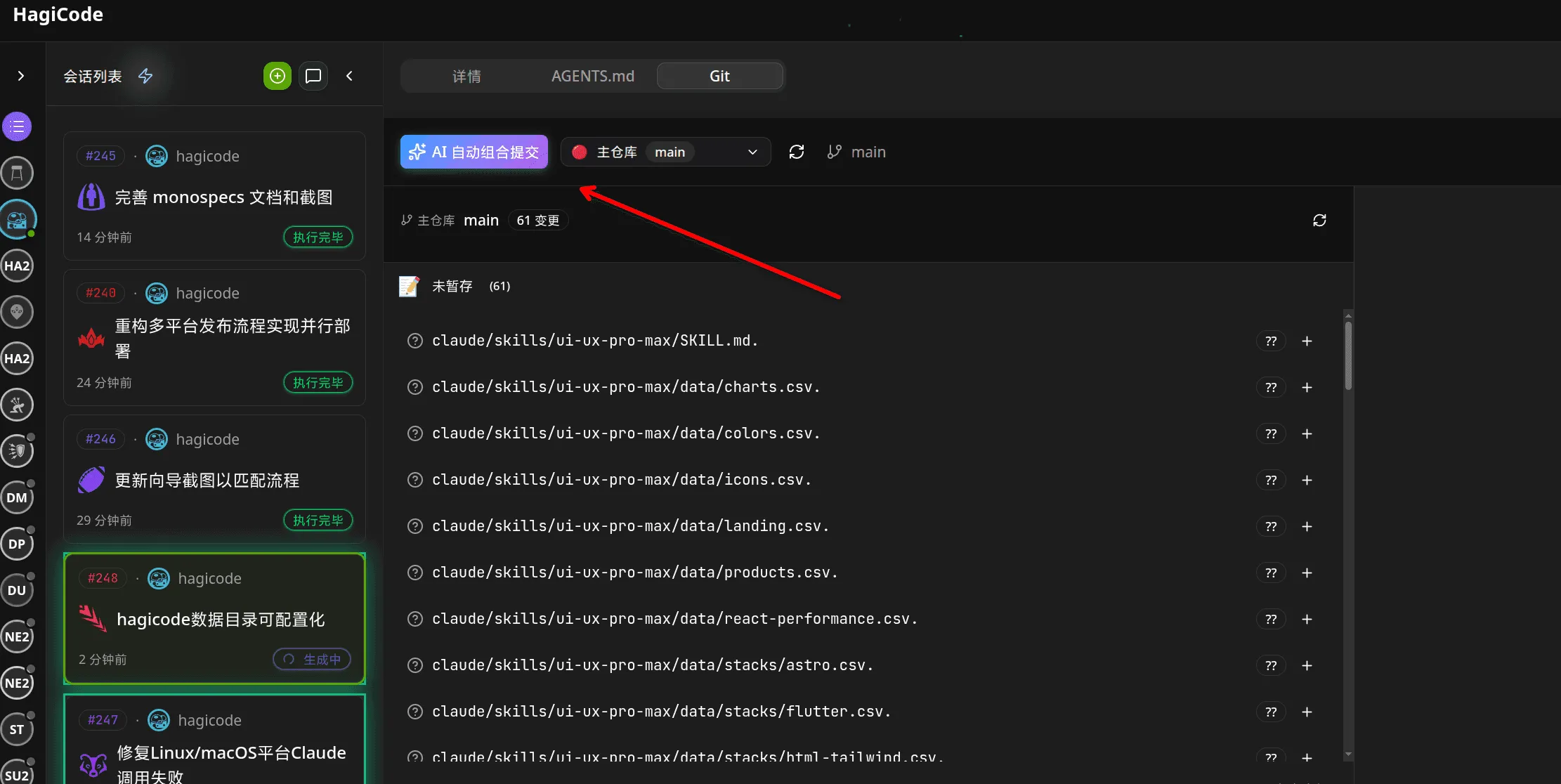
このボタンは通常、Git 操作セクションの他のバージョン管理アクションの近くの目立つ場所にあります。
重要な注意: このボタンをクリックすると、コミット メッセージの自動生成がトリガーされます。コミットをロールバックまたは変更する必要がある場合は、標準の Git コマンドを使用します。
初回使用時のリスクプロンプト
Section titled “初回使用時のリスクプロンプト”AI Compose Commit を初めて使用する場合、または未承認の変更を使用する場合、システムは確認ダイアログを表示します。
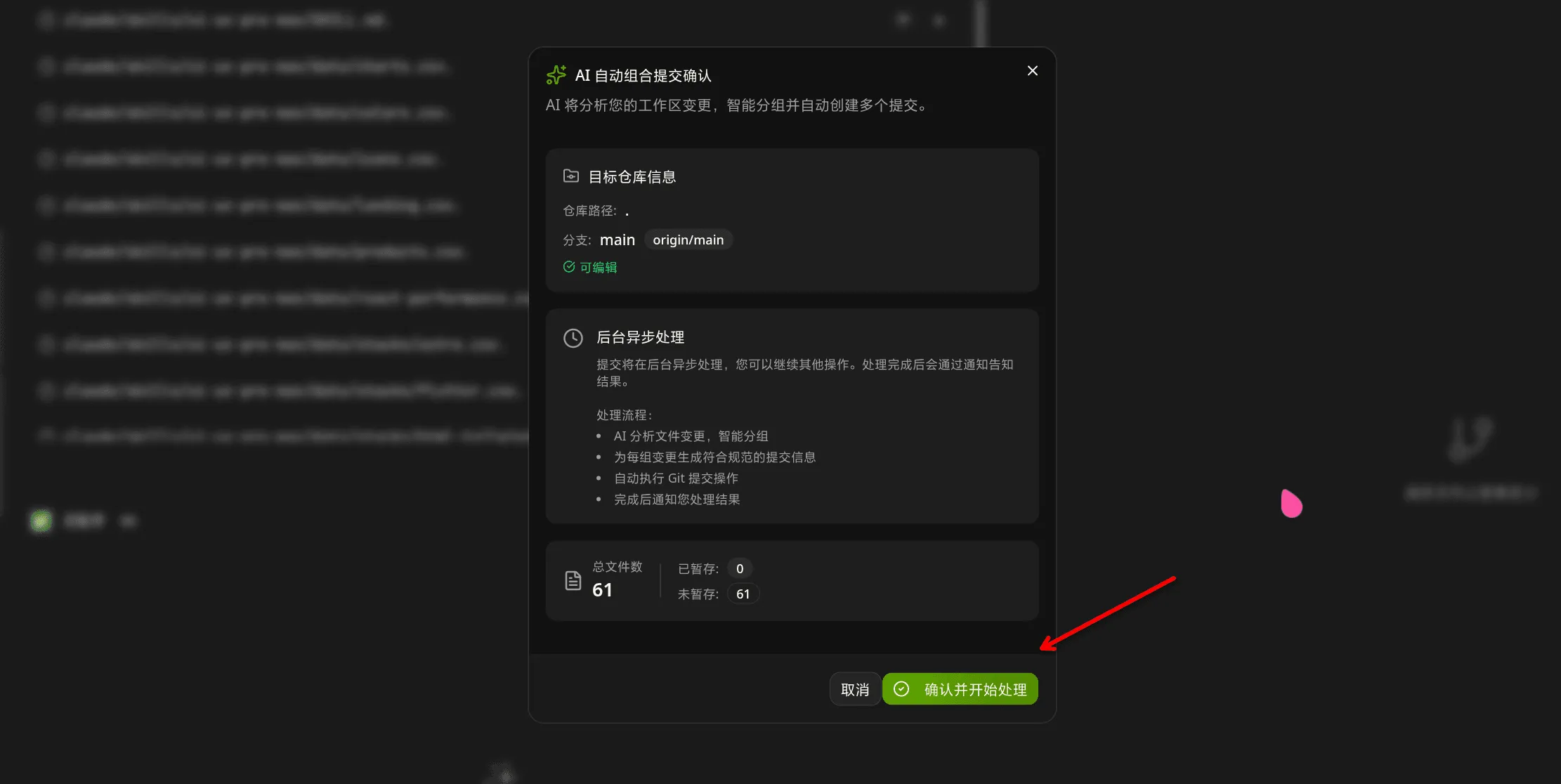
ダイアログには次のようなオプションが含まれています。
- 確認して処理を開始する
- リスクを理解したので、このプロンプトは表示されなくなりました
- このオプションをチェックすると、以降の使用がより便利になります
自動コミットの影響を理解するために、最初の使用時にリスク プロンプトを注意深く読むことをお勧めします。
AI が処理を完了すると、成功の通知が表示されます。
コミットメッセージが生成され、準備が整いました。必要に応じて、最終決定する前にそれらを確認できます。
AI分析ロジック
Section titled “AI分析ロジック”AI Compose Commit は、次のプロセスを通じてコードの変更を分析します。
1. ワークスペースの変更を読み取る
Section titled “1. ワークスペースの変更を読み取る”システムは、現在のワークスペースで変更されたファイル、新しく追加されたファイル、および削除されたファイルをすべて収集します。
2. ファイルの内容を分析する
Section titled “2. ファイルの内容を分析する”AI は変更されたファイルの内容を深く分析して、以下を理解します。
- 実装された機能変更
- バグ修正が適用されました
- 使用されるリファクタリングパターン
- 依存関係の追加または削除
3. 変更の関連付けを特定する
Section titled “3. 変更の関連付けを特定する”AI は、どの変更をグループ化する必要があるかをインテリジェントに識別します。
- 同じ機能のフロントエンドとバックエンドの変更
- 関連する構成ファイルの変更
- 実装の変更に伴うテストの更新
4. コミット構造の生成
Section titled “4. コミット構造の生成”AI は、従来のコミット仕様に従って構造化されたコミット情報を生成します。
<type>(<scope>): <subject> <body> <footer>5. Write Commit Message
Section titled “5. Write Commit Message”Each change is transformed into a clear, descriptive commit message.
Commit Format Specification
Section titled “Commit Format Specification”AI-generated commit messages follow the Conventional Commits format:
<タイプ>(<スコープ>): <件名> <本文> <フッター>type: Commit type (required)
feat: New featurefix: Bug fixdocs: Documentation changesstyle: Code style changes (formatting, no code change)refactor: Code refactoringtest: Adding or updating testschore: Build process or auxiliary tool changesperf: Performance improvements
scope: Scope of the change (optional)
- Indicates which part of the project is affected
- Format:
module/nameorcategory/name
subject: Short description of the change (required)
- Imperative mood
- Max 50 characters
- Use present tense: “Add” not “Added”
body: Detailed description (optional)
- What was changed and why
- Can use multiple paragraphs
- Max 100 characters for first line, 72 for subsequent lines
footer: References to related issues (optional)
Closes #123BREAKING CHANGE: ...Co-Authored-By: @anthropic.com>
Example Output
Section titled “Example Output”feat(auth): ユーザーログイン機能を追加Google および GitHub プロバイダーによる OAuth2 認証を実装しました。
ログイン コンポーネントは以下をサポートするようになりました。- Google OAuth の統合- GitHub OAuth の統合- JWTトークンによるセッション管理
共著: Claude Opus 4.6 <noreply@anthropic.com>Comparison with Traditional Manual Commits
Section titled “Comparison with Traditional Manual Commits”Manual Commits
Section titled “Manual Commits”Traditional Git commits rely on:
- Developer’s experience and mood
- Individual writing habits
- Time constraints affecting quality
- Inconsistent formatting across team
AI Compose Commit
Section titled “AI Compose Commit”AI Compose Commit provides:
- Standardized format: Always follows Conventional Commits specification
- Intelligent analysis: Understands code context and relationships
- Quality consistency: Maintains professional tone and accuracy
- Time efficiency: Reduces commit writing time from 5-30 minutes to seconds
When to Use Each
Section titled “When to Use Each”Use AI Compose Commit When:
- Large batch changes (multiple files, complex features)
- Coordinated changes across multiple repositories
- Need for high-quality, consistent commit messages
- Team projects with multiple contributors
Use Manual Commits When:
- Small, focused changes (single file, simple bug fix)
- Personal projects with full control over commit quality
- When you have time to craft thoughtful, personalized messages
Multi-Repository Support
Section titled “Multi-Repository Support”monospecs Integration
Section titled “monospecs Integration”When managing monospecs-based multi-repository projects, AI Compose Commit provides enhanced capabilities:
Read monospecs.yaml
Section titled “Read monospecs.yaml”AI automatically reads the monospecs.yaml configuration to:
- Identify all configured sub-repositories
- Match file paths to corresponding repositories
- Access display names and icons for UI rendering
Match File Changes
Section titled “Match File Changes”AI intelligently matches each changed file to the correct sub-repository:
- Analyzes file path in project structure
- Matches against monospecs repository configurations
- Groups related changes together for logical commits
Separate Commits
Section titled “Separate Commits”Each sub-repository receives independent commits:
- Frontend changes committed to
repos/frontend - Backend changes committed to
repos/backend - Maintains independent git history and version control
Co-Authored-By Footer
Section titled “Co-Authored-By Footer”AI Compose Commit appends the currently effective Co-Authored-By trailer to every generated commit. Interactive Git commits and the OpenSpec v1 archive prompt reuse the same resolution rules, so teams only need to maintain one convention.
The precedence order is fixed:
- Project-level config: local Git config in the current repository (
git config --local) - Global config: user-level Git config (
git config --global) - Built-in default:
HagiCode <noreply@hagicode.com>
If a layer is missing name, missing email, or contains an invalid email address, HagiCode skips that layer and falls back to the next one instead of emitting a malformed trailer.
Default output:
共著者: はぎコード <noreply@hagicode.com>Repository override example:
git config --local coAuthoredBy.name "プラットフォーム ボット"git config --local coAuthoredBy.email "platform-bot@example.com"Global fallback example:
git config --global coAuthoredBy.name "HagiCode"git config --global coAuthoredBy.email "noreply@hagicode.com"With the local override above, the trailer becomes:
共著者: プラットフォーム ボット <platform-bot@example.com>Operational details:
- If the commit message already contains the same resolved trailer, HagiCode does not append a duplicate.
- If the message already contains a different
Co-Authored-Byline, HagiCode keeps that line and still appends the resolved AI trailer. - Teams should treat repository-level config as the canonical rule and keep global config as a personal fallback.
Advantages for Multi-Repo Projects
Section titled “Advantages for Multi-Repo Projects”Traceability: Clear history of which repository received which changes Coordination: Changes across multiple repos can be committed simultaneously or sequentially Consistency: Uniform commit format across all repositories Efficiency: Reduced coordination overhead for changes spanning multiple repositories
Usage Guidelines
Section titled “Usage Guidelines”Best Practices
Section titled “Best Practices”For optimal AI Compose Commit results:
1. Keep Changes Focused
- Each commit should address a single feature or fix
- Avoid bundling unrelated changes in one commit
- Make incremental progress with meaningful commit messages
2. Clear Code Comments
- Add comments in complex code to help AI understand intent
- Use descriptive comments for non-obvious implementation details
- Keep comments updated as code evolves
3. Reasonable File Naming
- Use clear, descriptive file names
- Follow project naming conventions
- Avoid overly generic names that don’t convey purpose
4. Timely Committing
- Commit frequently as meaningful changes are completed
- Don’t accumulate large batches of uncommitted work
- Each commit should represent a logical unit of progress
5. Leverage Multi-Repo Intelligence
- Let AI group related changes across repositories
- Use descriptive scopes to indicate affected modules
- Review AI’s suggested groupings before committing
Usage Restrictions
Section titled “Usage Restrictions”Limitations
Section titled “Limitations”AI Compose Commit has the following usage limitations:
1. Network Dependency
- Requires active connection to AI service
- Processing time depends on network conditions
- Large codebases may take longer to analyze
2. File Size Limits
- Very large files (>10MB) may exceed processing limits
- Binary files are not analyzed (only text-based content)
- Split large changes into smaller commits if needed
3. Codebase Complexity
- Extremely complex code may be difficult to analyze fully
- Deeply nested or obfuscated code may have reduced accuracy
- Results are best-effort based on visible code
4. First Use Considerations
When using AI Compose Commit for the first time:
- Start with smaller, safer changes to understand AI behavior
- Verify generated commits before finalizing
- Provide clear code comments to improve AI understanding
- Check that project is properly connected in HagiCode
Troubleshooting
Section titled “Troubleshooting”Feature Not Available
Section titled “Feature Not Available”If you don’t see the AI Combined Commit button:
- Ensure the project is added to HagiCode
- Refresh the interface
- Check if this feature is enabled in your version
- Verify your network connection to AI service
No Response After Clicking
Section titled “No Response After Clicking”If nothing happens after clicking the button:
- Check for notification dialogs (may be hidden behind other windows)
- Check browser console for error messages
- Verify network connectivity
- Try restarting the application
Incorrect Generated Messages
Section titled “Incorrect Generated Messages”If AI generates incorrect commit messages:
- Manually modify using
git commit --amend - Add more descriptive comments to help AI understand
- Check code changes are accurately represented
- Re-trigger the feature after making adjustments
Processing Takes Too Long
Section titled “Processing Takes Too Long”If processing seems to be taking an unusually long time:
- Check if there are very large files being analyzed
- Verify network stability
- Try splitting changes into smaller batches
- Check if AI service is experiencing high load
Co-Authored-By Footer Missing
Section titled “Co-Authored-By Footer Missing”If commits don’t include the expected footer:
- This may indicate AI service is unavailable
- Check your API token configuration in HagiCode settings
- Verify network connectivity
- Check whether the local
coAuthoredBy.name/coAuthoredBy.emailconfig is incomplete and therefore falling back to another layer - Consider generating commits manually if issue persists
For more information, refer to the HagiCode documentation or check the monospecs repository for configuration examples.