
AI Compose Commit Guide
Overview
Section titled “Overview”AI Compose Commit (AI-assisted combined commit) is an AI-assisted feature provided by HagiCode. It can intelligently analyze your code changes and automatically generate Git commit messages that conform to the Conventional Commits standard. With this feature, you can save time spent writing commit messages while ensuring commit history clarity and consistency.
What is AI Compose Commit?
Section titled “What is AI Compose Commit?”AI Compose Commit automatically analyzes your code changes and generates standardized Git commit messages. It helps you save time while maintaining a professional and consistent commit history.
This is particularly suitable for:
- Large code changes requiring multiple commits
- Multi-repository projects with coordinated changes
- Teams requiring standardized commit formats
- Developers who want to improve commit quality
Main Advantages
Section titled “Main Advantages”| Feature | Traditional Manual Commits | AI Compose Commit |
|---|---|---|
| Commit Quality | Depends on individual experience | Based on best practices, consistent quality |
| Commit Speed | Requires thought and organization | One-click, instant generation |
| Consistency | May vary between commits | Automatically follows standards |
| Multi-repo Support | Manual coordination required | Automatic repo recognition and grouping |
| Time Savings | Can take significant time | Saves 10-60+ seconds per commit |
Quick Start
Section titled “Quick Start”Enable Feature
Section titled “Enable Feature”In the HagiCode desktop application, navigate to the project where you want to use AI Compose Commit and enable this feature.
Important: Ensure your project has been added to HagiCode first.
Trigger Feature
Section titled “Trigger Feature”Locate the “AI Combined Commit” button in the Git operations section.
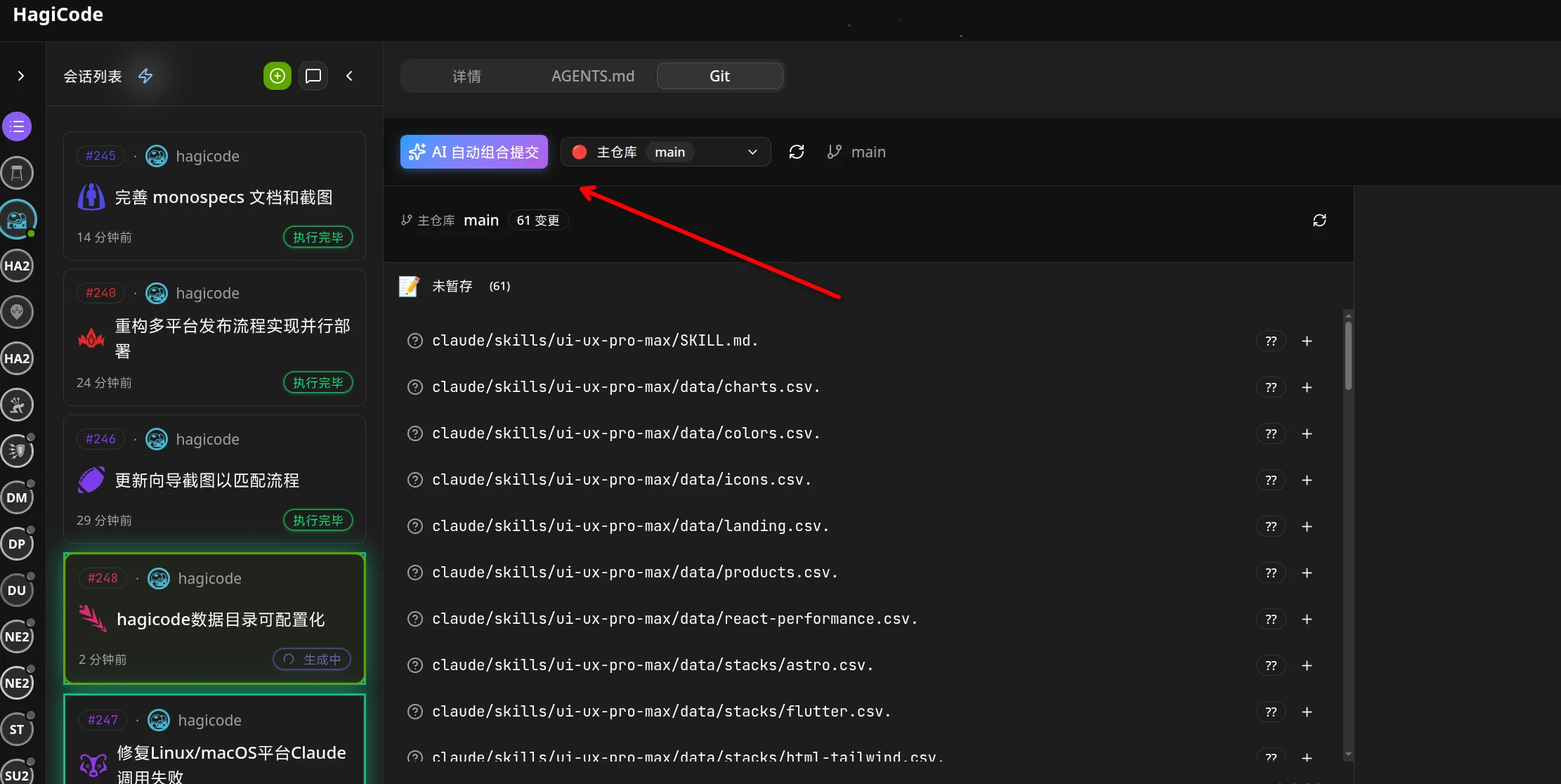
This button is typically located prominently in the Git operations section, near other version control actions.
Important Note: Clicking this button will trigger automatic commit message generation. If you need to roll back or modify commits, use standard Git commands.
First Use Risk Prompt
Section titled “First Use Risk Prompt”When using AI Compose Commit for the first time or with unapproved changes, the system will display a confirmation dialog.
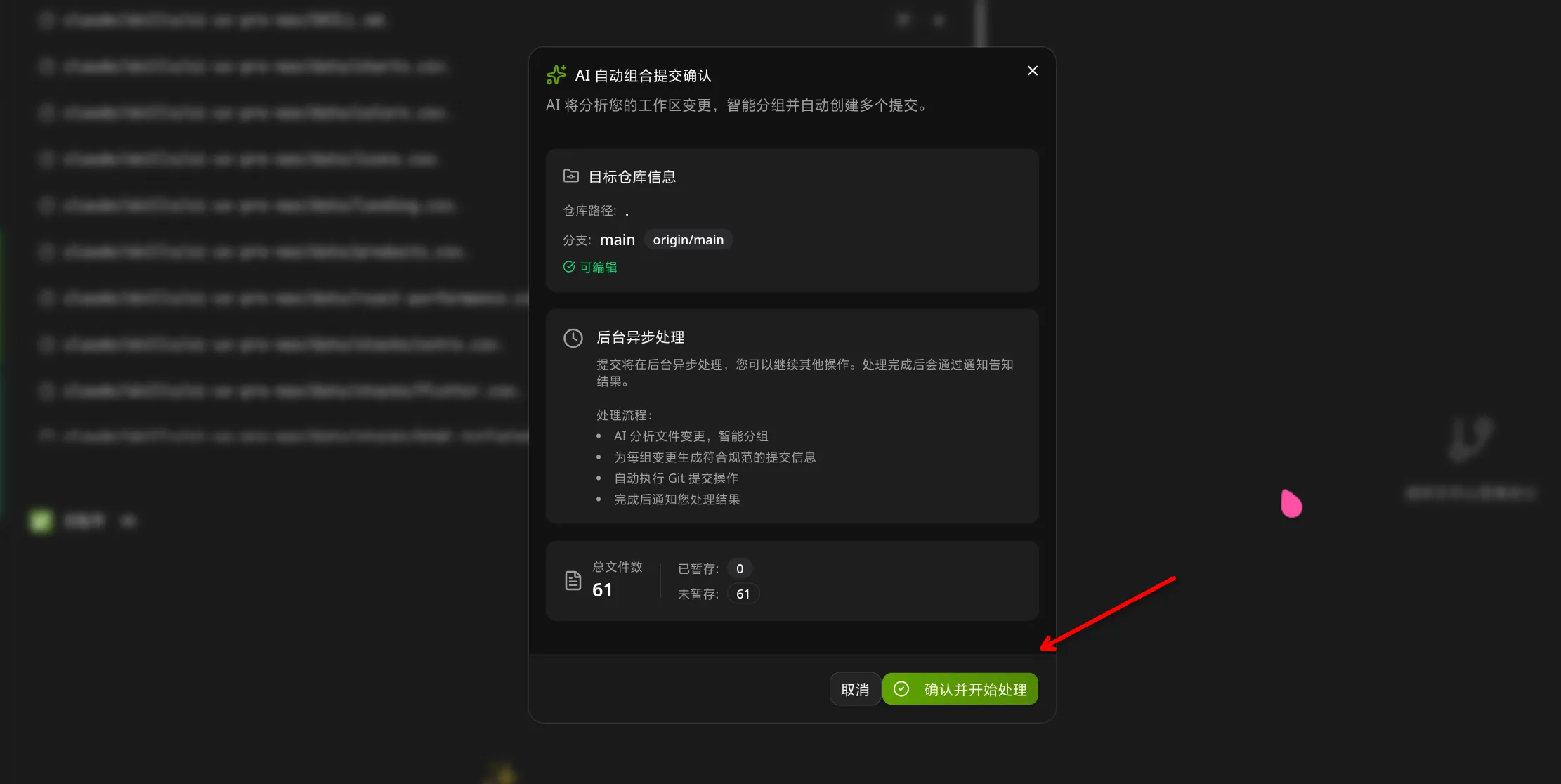
The dialog contains options including:
- Confirm and start processing
- Understand risks, no longer show this prompt
- Checking this option makes subsequent use more convenient
Recommend carefully reading the risk prompt during first use to understand the implications of automatic commits.
View Results
Section titled “View Results”After AI completes processing, you will see a success notification.

Commit messages have been generated and are ready. You can review them before finalizing if needed.
Feature Details
Section titled “Feature Details”AI Analysis Logic
Section titled “AI Analysis Logic”AI Compose Commit analyzes your code changes through the following process:
1. Read Workspace Changes
Section titled “1. Read Workspace Changes”The system collects all modified, newly added, and deleted files in the current workspace.
2. Analyze File Content
Section titled “2. Analyze File Content”AI deeply analyzes the content of changed files to understand:
- Functional changes implemented
- Bug fixes applied
- Refactoring patterns used
- Dependencies added or removed
3. Identify Change Associations
Section titled “3. Identify Change Associations”AI intelligently identifies which changes should be grouped together:
- Frontend and backend changes for the same feature
- Related configuration file modifications
- Test updates alongside implementation changes
4. Generate Commit Structure
Section titled “4. Generate Commit Structure”AI generates structured commit information following Conventional Commits specification:
<type>(<scope>): <subject> <body> <footer>#### 5. Write Commit Message
Each change is transformed into a clear, descriptive commit message.
### Commit Format Specification
AI-generated commit messages follow the Conventional Commits format:<type>(<scope>): <subject> <body> <footer>
**type**: Commit type (required)- `feat`: New feature- `fix`: Bug fix- `docs`: Documentation changes- `style`: Code style changes (formatting, no code change)- `refactor`: Code refactoring- `test`: Adding or updating tests- `chore`: Build process or auxiliary tool changes- `perf`: Performance improvements
**scope**: Scope of the change (optional)- Indicates which part of the project is affected- Format: `module/name` or `category/name`
**subject**: Short description of the change (required)- Imperative mood- Max 50 characters- Use present tense: "Add" not "Added"
**body**: Detailed description (optional)- What was changed and why- Can use multiple paragraphs- Max 100 characters for first line, 72 for subsequent lines
**footer**: References to related issues (optional)- `Closes #123`- `BREAKING CHANGE: ...`- `Co-Authored-By: @anthropic.com>`
### Example Output
feat(auth): add user login functionality Implemented OAuth2 authentication with Google and GitHub providers.
The login component now supports:
- Google OAuth integration
- GitHub OAuth integration
- Session management with JWT tokens
Co-Authored-By: Claude Opus 4.6 <noreply@anthropic.com>
## Comparison with Traditional Manual Commits
### Manual Commits
Traditional Git commits rely on:- Developer's experience and mood- Individual writing habits- Time constraints affecting quality- Inconsistent formatting across team
### AI Compose Commit
AI Compose Commit provides:- **Standardized format**: Always follows Conventional Commits specification- **Intelligent analysis**: Understands code context and relationships- **Quality consistency**: Maintains professional tone and accuracy- **Time efficiency**: Reduces commit writing time from 5-30 minutes to seconds
### When to Use Each
**Use AI Compose Commit When:**- Large batch changes (multiple files, complex features)- Coordinated changes across multiple repositories- Need for high-quality, consistent commit messages- Team projects with multiple contributors
**Use Manual Commits When:**- Small, focused changes (single file, simple bug fix)- Personal projects with full control over commit quality- When you have time to craft thoughtful, personalized messages
## Multi-Repository Support
### monospecs Integration
When managing monospecs-based multi-repository projects, AI Compose Commit provides enhanced capabilities:
#### Read monospecs.yaml
AI automatically reads the `monospecs.yaml` configuration to:- Identify all configured sub-repositories- Match file paths to corresponding repositories- Access display names and icons for UI rendering
#### Match File Changes
AI intelligently matches each changed file to the correct sub-repository:- Analyzes file path in project structure- Matches against monospecs repository configurations- Groups related changes together for logical commits
#### Separate Commits
Each sub-repository receives independent commits:- Frontend changes committed to `repos/frontend`- Backend changes committed to `repos/backend`- Maintains independent git history and version control
### Co-Authored-By Footer
Every AI-generated commit includes:
Co-Authored-By: Claude Opus 4.6 <noreply@anthropic.com>
This footer:- Clearly indicates AI authorship- Provides attribution for the commit- Follows open source contribution guidelines
### Advantages for Multi-Repo Projects
**Traceability**: Clear history of which repository received which changes**Coordination**: Changes across multiple repos can be committed simultaneously or sequentially**Consistency**: Uniform commit format across all repositories**Efficiency**: Reduced coordination overhead for changes spanning multiple repositories
## Usage Guidelines
### Best Practices
For optimal AI Compose Commit results:
**1. Keep Changes Focused**- Each commit should address a single feature or fix- Avoid bundling unrelated changes in one commit- Make incremental progress with meaningful commit messages
**2. Clear Code Comments**- Add comments in complex code to help AI understand intent- Use descriptive comments for non-obvious implementation details- Keep comments updated as code evolves
**3. Reasonable File Naming**- Use clear, descriptive file names- Follow project naming conventions- Avoid overly generic names that don't convey purpose
**4. Timely Committing**- Commit frequently as meaningful changes are completed- Don't accumulate large batches of uncommitted work- Each commit should represent a logical unit of progress
**5. Leverage Multi-Repo Intelligence**- Let AI group related changes across repositories- Use descriptive scopes to indicate affected modules- Review AI's suggested groupings before committing
## Usage Restrictions
### Limitations
AI Compose Commit has the following usage limitations:
**1. Network Dependency**- Requires active connection to AI service- Processing time depends on network conditions- Large codebases may take longer to analyze
**2. File Size Limits**- Very large files (>10MB) may exceed processing limits- Binary files are not analyzed (only text-based content)- Split large changes into smaller commits if needed
**3. Codebase Complexity**- Extremely complex code may be difficult to analyze fully- Deeply nested or obfuscated code may have reduced accuracy- Results are best-effort based on visible code
**4. First Use Considerations**
When using AI Compose Commit for the first time:- Start with smaller, safer changes to understand AI behavior- Verify generated commits before finalizing- Provide clear code comments to improve AI understanding- Check that project is properly connected in HagiCode
## Troubleshooting
### Feature Not Available
If you don't see the AI Combined Commit button:- Ensure the project is added to HagiCode- Refresh the interface- Check if this feature is enabled in your version- Verify your network connection to AI service
### No Response After Clicking
If nothing happens after clicking the button:- Check for notification dialogs (may be hidden behind other windows)- Check browser console for error messages- Verify network connectivity- Try restarting the application
### Incorrect Generated Messages
If AI generates incorrect commit messages:- Manually modify using `git commit --amend`- Add more descriptive comments to help AI understand- Check code changes are accurately represented- Re-trigger the feature after making adjustments
### Processing Takes Too Long
If processing seems to be taking an unusually long time:- Check if there are very large files being analyzed- Verify network stability- Try splitting changes into smaller batches- Check if AI service is experiencing high load
### Co-Authored-By Footer Missing
If commits don't include the expected footer:- This may indicate AI service is unavailable- Check your API token configuration in HagiCode settings- Verify network connectivity- Consider generating commits manually if issue persists
---
**For more information**, refer to the HagiCode documentation or check the monospecs repository for configuration examples.